How to Reduce WordPress Plugin Conflicts After an Update
Published: 25 Sep 2026
Quick answer: How to Reduce WordPress Plugin Conflicts After an Update
To reduce WordPress plugin conflicts after an update, update one plugin at a time instead of clicking “Update All,” test on a staging site first, check the plugin’s compatibility before updating, and rely on Health Check & Troubleshooting to pinpoint conflicts. Its Troubleshooting Mode switches plugins off just for your logged-in session, keeping the change invisible to everyone else browsing your site. This lets you test each change separately instead of bundling several updates together, making it easier to identify the plugin causing a problem before it affects visitors.
Did your WordPress site start acting up right after an update? One of the most common causes behind a broken checkout, a missing widget, or a blank white screen is a plugin conflict: two plugins, or a plugin and your theme, fighting over the same function at the same time.
WordPress is incredibly versatile thanks to its huge plugin library, but that same flexibility means updates can quietly break something that used to work fine. If you’re newer to WordPress and still getting familiar with what WordPress plugins are and how they work, it’s worth reading alongside this one.
It’s happened right here on this site: a routine security plugin update once started serving visitors a blank white screen, because it was fighting our caching plugin over the same object cache, and neither one threw an error that made the cause obvious.
In this guide, we’ll walk through exactly how to reduce plugin conflicts before they happen, and how to fix one safely if it already has, without taking your live site down for visitors while you troubleshoot.
Signs You’re Dealing With a Plugin Conflict After an Update
When your site starts acting up right after an update, certain signs point specifically to a plugin conflict rather than something else:
- Sudden performance drop: your site was running fine, and immediately after updating, it feels noticeably slower with no other change to explain it.
- A specific feature stops working: a form stops submitting, a widget disappears, or a setting silently stops saving, while the rest of the site looks normal.
- The White Screen of Death (WSoD): a completely blank screen with no useful error message can indicate a fatal PHP error caused by a plugin, theme, PHP compatibility issue, or another server-side problem.
- Admin area lockout: you can’t log in, or the dashboard itself won’t load, which usually means something is crashing before WordPress fully initializes.
- Visible error messages: a specific PHP or database error appears on the front end or admin screen, pointing toward a code-level clash.
- JavaScript console errors: front-end features break silently, with the real clue only visible in your browser’s developer console.
The timing is one of your best clues: if a problem appears immediately after an update, start by testing the plugin or plugins that just changed, not a plugin that’s been running quietly for months.
How to Reduce WordPress Plugin Conflicts After Update: Step by Step
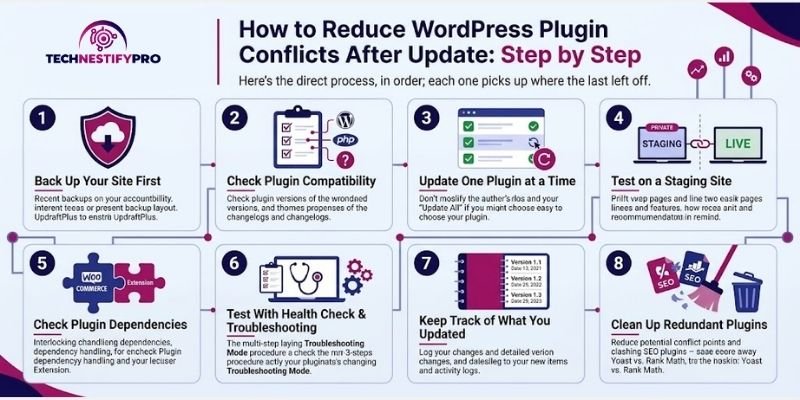
Here’s the direct process, in order; each one picks up where the last left off.
Step 1: Back Up Your Site First
Before touching anything else, confirm you have a recent backup. Most managed hosts create these automatically; check your hosting dashboard. If yours doesn’t, a plugin like UpdraftPlus creates one in a few clicks and stores it off-site. This is your safety net for every step that follows.
Step 2: Check Plugin Compatibility Before Updating
Check your WordPress version, PHP version, the plugin’s requirements, recent changelog, and any compatibility notes before updating. If the plugin has dependencies or works closely with another plugin, check those relationships too.
Step 3: Update One Plugin at a Time, Not “Update All”
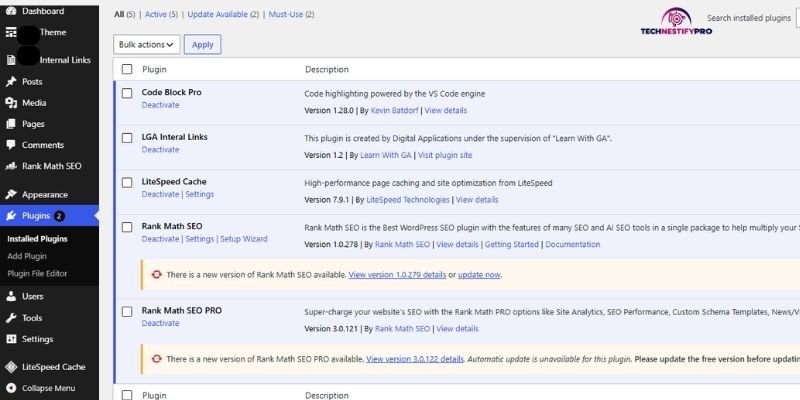
Go to Plugins → Installed Plugins and update them one by one, checking your site in between each update. Bundling every update into a single “Update All” click means that if something breaks, you’re left guessing among every plugin on your site instead of knowing exactly where to look.
Step 4: Test on a Staging Site When You Can
Run updates on a staging site, a private copy of your live site, usually available with one click through your host, before applying them live. Once there, visit the specific pages tied to the plugin you updated, not just the homepage, since conflicts often only surface on the pages that actually use the plugin’s features.
If your host doesn’t offer one-click staging, setting up a local WordPress environment works just as well for testing updates safely.
Step 5: Check Plugin Dependencies Before Updating
If one plugin depends on another, check the dependency before updating. WordPress has built-in plugin dependency handling, but it’s still worth reviewing the relationship when you’re troubleshooting an update. For example, a WooCommerce extension may depend on WooCommerce itself.
Step 6: Test With Health Check & Troubleshooting
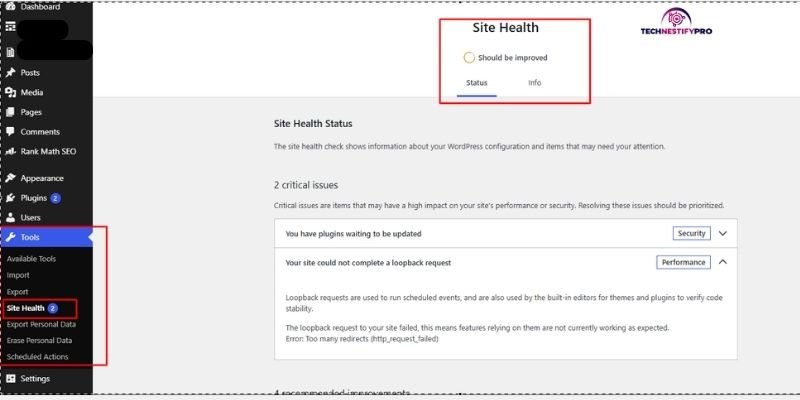
Use Health Check & Troubleshooting when an update causes a problem or when you want to test a plugin combination without affecting visitors. Use Health Check & Troubleshooting, a free, official WordPress.org plugin, when an update causes a problem or when you want to test a plugin combination without affecting visitors.
Its Troubleshooting Mode disables plugins and switches to a default theme only inside your own session; every other visitor keeps seeing the site working normally while you test. This is the step that lets you catch a conflict without ever taking your live site down.
- Install and activate Health Check & Troubleshooting.
- Navigate to Tools → Site Health → Troubleshooting, then click the Enable Troubleshooting Mode button.
- Browse the pages and features tied to whatever you just updated.
- If something’s wrong, toggle plugins back on one at a time until you find the culprit.
- Click Disable Troubleshooting Mode when finished.
Test again a few hours later or the next day, too; some conflicts only appear under real traffic or on specific devices, not on a quick admin click-through.
You can also check you website health status in WordPress Dashboard also. here is how to:
What to Test After an Update
Don’t check only the homepage. Test the features that depend on the plugin you just updated, such as:
- Contact forms
- Login and registration
- Menus and navigation
- Page builder elements
- Search
- Mobile layouts
- WooCommerce cart and checkout
- Payment gateways
- Email notifications
- Any custom feature connected to the updated plugin
This is important because a conflict can affect one feature or page while the rest of the site appears normal.
Step 7: Keep Track of What You Updated
If a problem appears immediately after an update, start by checking the plugin or plugins you just changed. Before updating several plugins, note their current versions, then record the new version after each update.
This gives you a short list of recent changes to investigate instead of guessing among every plugin installed on your site. If your hosting provider or site-management tool has an activity log, you can also use it to check recent plugin updates and other changes.
Step 8: Clean Up Redundant and Unused Plugins
Every active plugin is another potential point of conflict. Go to Plugins → Installed Plugins and remove anything you no longer use, and consolidate plugins doing the same job; two SEO plugins editing the same meta tags is a common, avoidable clash.
If you’re currently running two SEO plugins side by side, this comparison of Rank Math and Yoast can help you decide which one to keep.
Worth knowing: For non-security updates, especially major releases, consider testing the new version on staging before applying it to a production site. Don’t delay security updates simply because a release is new; test them promptly when your setup allows, and keep a current backup so you can recover if something goes wrong.
Manual Method vs. Health Check: Which Should You Use?
Both approaches find the same answer- which plugin is causing the conflict- but they get there very differently. Here’s how they compare:
| Pros | Cons | |
| Manual deactivation | Works with zero extra plugins installed | Takes your live site down for every visitor during the entire test |
| Full control over exactly what you’re testing | Slow with a large plugin count, like searching for a needle in a haystack | |
| No setup required | Easy to miss a conflict that only shows up on specific pages | |
| Health Check & Troubleshooting | Visitors see the site working normally the whole time | Requires installing and remembering to disable the plugin afterwards |
| Built by WordPress.org, official and free | Won’t help if a fatal error is already blocking your admin area | |
| Faster to isolate the exact plugin | One more plugin running on your site, even if lightweight |
For a live site with real visitors, Health Check is the safer default. The manual method remains useful as a fallback, specifically when a fatal error is already blocking your admin area and Health Check can’t be installed or enabled.
Other Diagnostic Tools Worth Knowing
Health Check covers most situations, but a few other tools are worth knowing:
- Health Check & Troubleshooting: as close as WordPress gets to a native plugin conflict checker, it’s free, made by WordPress.org itself, and keeps its testing contained to your own session. Best for session-based testing on a live site.
- Plugin Organizer: lets you selectively disable plugins by post type or specific URL, useful for larger sites with page-specific plugin needs.
- WP-CLI
Useful for administrators managing multiple sites. - WP Rollback: adds a one-click rollback option directly to your Installed Plugins screen, covered in detail below. Useful when a specific plugin update introduced the problem.
- Browser DevTools
Useful for JavaScript/CSS problems. - WordPress debug.log
Useful for PHP errors. - Conflict-detection plugins: several dedicated plugins can automate parts of the deactivation-and-test cycle, trading some manual control for speed.
Already Have a Broken Site? Fix It Step by Step
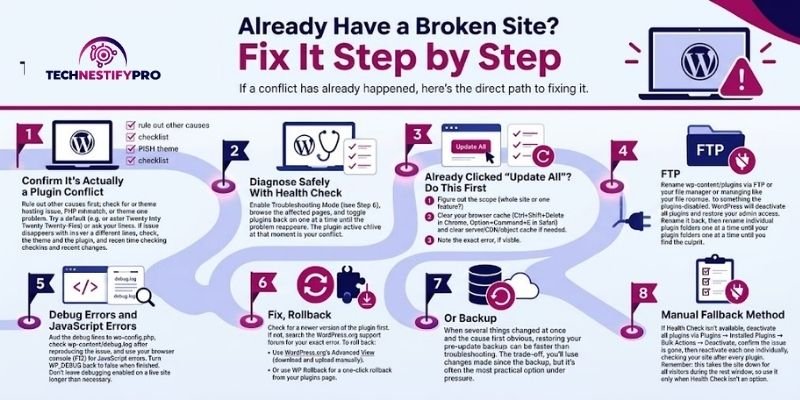
If a conflict has already happened, here’s the direct path to fixing it.
Step 1: Confirm It’s Actually a Plugin Conflict
Rule out other causes first; a hosting issue, a PHP version mismatch, or a theme problem can look identical to a plugin conflict. Switch to a default WordPress theme like Twenty Twenty-Five for a moment, or check with your host if the timing lines up with a server-side change.
If the problem disappears after switching themes, investigate the theme and its interaction with your plugins. If it continues, keep checking the plugins and other recent changes.
If a child theme is involved, this guide’s troubleshooting section covers what to check when something breaks after a parent theme update specifically.
Step 2: Diagnose Safely With Health Check
Enable Troubleshooting Mode (see Step 6 above), browse the affected pages, and toggle plugins back on one at a time until the problem reappears. The plugin active at that moment is your conflict.
Step 3: Already Clicked “Update All”? Do This First
- Figure out the scope; is the whole site down, or one specific feature?
- Clear your browser cache or use a private/incognito window to rule out a browser-side caching issue. If your site uses WordPress, server, CDN, or object cache, clear the relevant cache there as well. Ctrl+Shift+Delete in Chrome, Option+Command+E in Safari.
- Note the exact error, if visible; it feeds directly into Step 5 below.
Step 4: Can’t Log In or wp-admin Won’t Load?
Rename wp-content/plugins through FTP or your host’s file manager to something like plugins-disabled. WordPress treats every plugin as deactivated, restoring your admin access. Rename it back, then rename individual plugin folders one at a time until you find the culprit.
Step 5: Debug PHP and JavaScript Errors Directly
Add these two lines to wp-config.php, above /* That’s all, stop editing! */:
define('WP_DEBUG', true);

define('WP_DEBUG_LOG', true);Check wp-content/debug.log after reproducing the issue; it typically names the exact plugin file responsible. For visual glitches without a fatal error, open your browser console (F12) and check for JavaScript errors, often caused by two plugins loading different versions of the same script. Turn WP_DEBUG back to false once finished. Important: Do not leave debugging enabled on a production site longer than necessary. Debugging can expose technical information that should not be visible to visitors. Turn WP_DEBUG back to false after you finish troubleshooting.
Understanding hook priority conflicts: sometimes two plugins try to run code at the exact same point in WordPress’s process, and one silently overrides the other, like two people reaching for the same light switch at once. No error appears; a feature just quietly stops working. This is different from a fatal-error conflict, which is loud and obvious. If a setting keeps resetting or a feature stops updating with no visible error, suspect this.
Step 6: Fix, Replace, or Roll Back
Check for a newer version of the conflicting plugin first; this alone often resolves it. If not, search the plugin’s WordPress.org support forum for your exact error before doing anything else.
To roll back to an older version:
- WordPress.org’s Advanced View (built-in, no extra plugin): on the plugin’s WordPress.org page, scroll to Advanced View for a full list of previous versions. Download the one you know worked, then upload it via Plugins → Add New → Upload Plugin.
- WP Rollback: adds a one-click “Rollback” link directly on your Installed Plugins page.
Step 7: Or Just Restore Your Backup
When several things changed at once, and the cause isn’t obvious, restoring your pre-update backup can be faster than a long diagnostic chase. The trade-off: you lose any changes made since that backup, but under time pressure, it’s often the more practical call.
Step 8: The Manual Fallback Method
If Health Check isn’t available, for instance, a fatal error is blocking your admin area, deactivate all plugins via Plugins → Installed Plugins → Bulk Actions → Deactivate, confirm the issue is gone, then reactivate each one individually, checking your site after every single one. Remember: this takes the live site down for every visitor during the test window, so use it only when Health Check isn’t an option.
WP-CLI for Agencies Managing Multiple Sites
If you manage several WordPress sites, WP-CLI can automate plugin updates and activation/deactivation tasks. Test the commands on staging first, and avoid running wp plugin deactivate –all on a production site unless you have a recovery plan.
How to Tell a Plugin Conflict From Another WordPress Problem
A problem that appears after an update is not automatically a plugin conflict. The update is a useful starting point, but other parts of your WordPress setup can cause similar symptoms.
| What changed? | What to investigate |
| A plugin was updated | Plugin compatibility or plugin conflict |
| WordPress was updated | Plugin/theme compatibility |
| PHP was changed | PHP compatibility |
| Theme was updated | Theme/plugin interaction |
| CSS or JavaScript looks broken | Cache, optimization, or script conflict |
| A fatal error appears | PHP, plugin, or theme error. PHP, plugin, or theme error if it specifically says “allowed memory size exhausted”; see our guide to fixing the WordPress memory exhausted error directly |
| WooCommerce checkout stopped working | WooCommerce, payment, or extension conflict |
| The whole site is unavailable | Plugin, theme, PHP, hosting, or server issue |
| Pages return a 404 after a plugin install or update | Rewrite rules not flushed for new content types. See our guide to fixing 404 errors after changing WordPress permalinks. |
A problem that appears after an update isn’t automatically a plugin conflict. The timing gives you a useful starting point, but checking other possible causes can prevent you from disabling the wrong plugin.
WordPress Plugin Update Checklist
Use this checklist before and after updating a WordPress plugin:
Before the Update
- ☐ Make sure a recent backup is available
- ☐ Check your WordPress version
- ☐ Check your PHP version
- ☐ Review the plugin’s compatibility information
- ☐ Check the plugin’s recent changelog
- ☐ Check whether the plugin has dependencies
- ☐ Test the update on staging when possible
After the Update
- ☐ Confirm the plugin is active
- ☐ Test the plugin’s main features
- ☐ Check important pages
- ☐ Test contact forms and other forms
- ☐ Check menus and navigation
- ☐ Check the mobile layout
- ☐ Test WooCommerce cart and checkout if applicable
- ☐ Check payment and email notifications if applicable
- ☐ Clear relevant caches if needed
- ☐ Check for PHP or JavaScript errors
- ☐ Record the new plugin version and any problems you notice
FAQs: Reduce WordPress Plugin Conflicts After Update
You can, and WordPress supports bulk plugin updates, but updating plugins individually makes it easier to identify which update caused a problem. On a staging site, you can test a group of updates together and then verify the important functions before applying them to production.
Go to your caching plugin’s settings page and look for a “Clear Cache” or “Purge Cache” button. If your host provides server-level caching, check your hosting dashboard for a separate cache-clearing option too.
Start by clearing your browser cache to rule out a false alarm, then turn to Health Check & Troubleshooting to identify the responsible plugin while keeping the site normal for everyone else visiting it. If wp-admin won’t load, rename your plugins folder via FTP to regain access first.
Open the plugin’s page on WordPress.org, go to Advanced View, and download the version you need, then upload it via Plugins → Add New → Upload Plugin. WP Rollback offers a one-click alternative.
Run it through Health Check & Troubleshooting to verify it’s really the culprit, without ever having to take your site offline to check. If it checks out, look for a hook priority conflict with another plugin, a common cause of a feature silently failing with no error message.
Still troubleshooting? These related guides cover other common WordPress issues: Site URL vs Home URL and Dashboard Widgets Missing.




- Be Respectful
- Stay Relevant
- Stay Positive
- True Feedback
- Encourage Discussion
- Avoid Spamming
- No Fake News
- Don't Copy-Paste
- No Personal Attacks
- Be Respectful
- Stay Relevant
- Stay Positive
- True Feedback
- Encourage Discussion
- Avoid Spamming
- No Fake News
- Don't Copy-Paste
- No Personal Attacks
