WordPress Child Theme Setup Best Practices: The Complete Beginner’s Guide (2026)
Published: 13 Sep 2026
You just spent an hour customizing your WordPress theme. New colours, a tweaked layout, maybe a bit of custom code. Then your theme gets an update, and it’s all gone. Every single change, wiped out in seconds.
This happens to more WordPress users than you’d think, and it’s completely avoidable. The fix is something called a child theme, and following the right WordPress child theme setup best practices from the start means you’ll never make direct changes to a parent theme again.
In this guide, I’ll walk you through exactly how to set up a WordPress child theme the right way, without needing a plugin, the mistakes that trip up even experienced site owners, and the best practices that keep your customizations safe through every future update. And if you’re just getting started with WordPress, this guide picks up right where the basics leave off.
What Is a WordPress Child Theme?
A WordPress child theme is a separate theme that inherits the design, features, and functionality of a “parent” theme, letting you customize your site safely without your changes disappearing during a theme update.
Here’s how it actually works: your child theme lives in its own theme directory, completely separate from the parent theme’s files. When someone visits your site, WordPress loads the child theme first. Anything you’ve customized there takes priority. For everything you haven’t touched, WordPress quietly falls back to the parent theme’s original files.
This setup means you get all the design and functionality of your original theme, plus a safe space to make your own changes, with zero risk of losing them the next time the parent theme updates.
Do You Actually Need a Child Theme?
This is a question most guides skip, but it matters more than you’d expect. Not every customization needs a child theme, and knowing the difference saves you time.
Here’s a simple way to decide:
- Changing a few colours, fonts, or spacing? Use your theme’s built-in Customizer, or Global Styles if you’re using a block theme. No child theme required.
- Changing a template, adjusting layout structure, or adding real custom code? This is exactly what a child theme is built for.
- Adding something like a custom post type or a feature that should still work even if you switch themes entirely? That belongs in a plugin, not a child theme. Theme-based customizations disappear if you ever change themes; plugin-based ones don’t.
A helpful test: ask yourself what should happen if you activated a completely different theme tomorrow. If the change should disappear along with the design, it belongs in a child theme. If it should stick around no matter what theme you’re using, it belongs in a plugin.
Skipping this step is how sites end up with an overcomplicated child theme handling things it was never meant to handle.
Before You Create Your Child Theme: What You’ll Need
A few things to have ready before you start:
- FTP or File Manager access to your website files. You’ll usually find this through your hosting provider’s dashboard.
- Your parent theme already installed and active. A child theme can’t function without it.
- A full site backup, and ideally a staging environment to test in first. This matters more than people realize, even a small mistake in a theme file can affect your entire site.
- The exact folder name of your parent theme, not just the name shown in your WordPress dashboard. These aren’t always the same, and this single detail causes more child theme setup problems than almost anything else.
- A quick check for an official child theme. Before building one yourself, check whether your parent theme’s developer already provides one. It can save you setup time, though it’s still worth a quick look at its files before using it, since not every official child theme is minimal or current.
- A record of your current settings. If you’re switching to a child theme on a site that’s already live, take a screenshot or note of your Customizer settings, active widgets, and menu assignments first. For block themes, note your Global Styles and any Site Editor templates you’ve customized. Activating a new theme doesn’t always carry every setting over automatically.
To find your parent theme’s real folder name, go to wp-content/themes/ through FTP or your File Manager, and note the exact directory name, spelling, hyphens, and all.
Step-by-Step: How to Create a WordPress Child Theme
None of this requires any coding experience to follow, just a few files in the right place, in the right order. Here’s exactly how to do it, step by step.
Step 1: Create your child theme folder
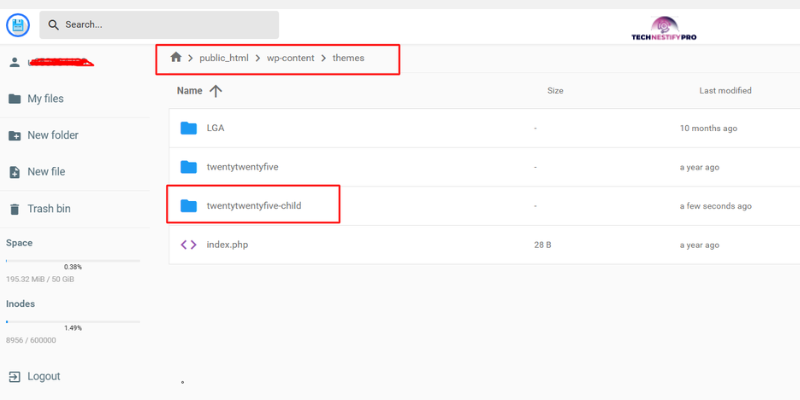
You’ll need to access your website’s files to do this, either through your hosting provider’s File Manager (usually found in your hosting control panel, like cPanel) or an FTP program like FileZilla, connected using the login details your host gave you.
Once you’re in your site’s files, navigate to wp-content/themes/ this is the folder where every theme on your site lives. Inside it, create a new folder for your child theme.
The standard naming convention is to take your parent theme’s folder name and add “-child” to the end. If your parent theme’s folder is twentytwentyfive, name your child theme folder twentytwentyfive-child.
Step 2: Create the style.css file
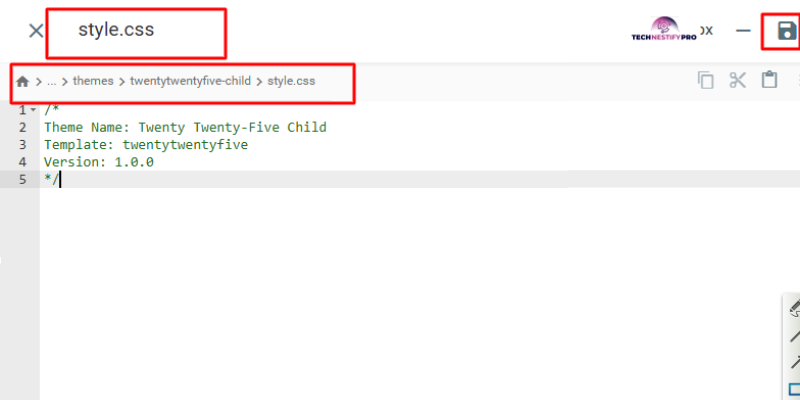
Create a file named style.css inside your new folder. This is the only file that’s technically required for a valid WordPress child theme, according to official WordPress documentation, even though plenty of tutorials treat functions.php as mandatory too.
Add this header to the top of the file:
/*
Theme Name: Twenty Twenty-Five Child
Template: twentytwentyfive
Version: 1.0.0
*/The Template value must exactly match your parent theme’s real folder name from the step above, not the name displayed in your dashboard.
Step 3: Create functions.php (if you need custom code or styles)
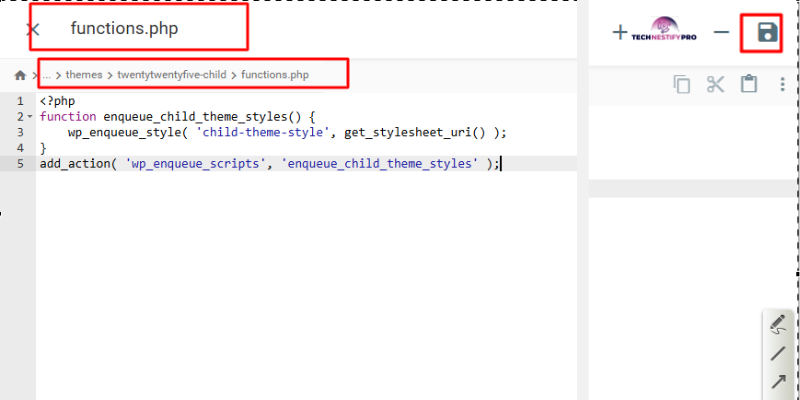
Here’s something worth understanding clearly: creating style.css doesn’t automatically make WordPress use it. You still need to tell WordPress to load it, and that’s what this step does.
Create a functions.php file in the same folder and add:
<?php
function enqueue_child_theme_styles() {
    wp_enqueue_style( 'child-theme-style', get_stylesheet_uri() );
}
add_action( 'wp_enqueue_scripts', 'enqueue_child_theme_styles' );In simple terms, this code tells WordPress: “load this stylesheet whenever the site loads.” The technical word for this is to enqueue a file; it just means “properly load it, in the right order.” The add_action line is what’s called a hook, a way of telling WordPress to run this action (loading your stylesheet) at a specific point, in this case, whenever WordPress is preparing scripts and styles for the page.
You only need functions.php if you’re loading a stylesheet or adding your own custom code. If you truly aren’t customizing anything yet beyond the required style.css header, you can skip this step for now and add it later when you need it.
One small best practice worth remembering: don’t create a functions.php file “just in case.” An empty file you’re not actually using doesn’t help you; it just adds clutter to your theme folder that you (or someone else) will have to figure out later.
Step 4: Add a screenshot (optional but helpful)
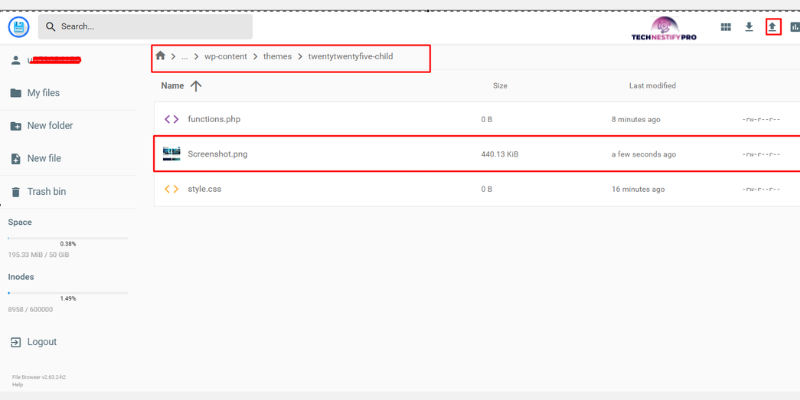
Using the same FTP or File Manager access from Step 1, upload an image named screenshot.png into your child theme folder. This can be a simple screenshot of your site, or even your parent theme’s own screenshot if it already has one; just make sure it’s roughly 1200×900 pixels so it displays properly. This gives your child theme a proper preview thumbnail in the WordPress dashboard instead of a blank box.
Step 5: Activate your child theme
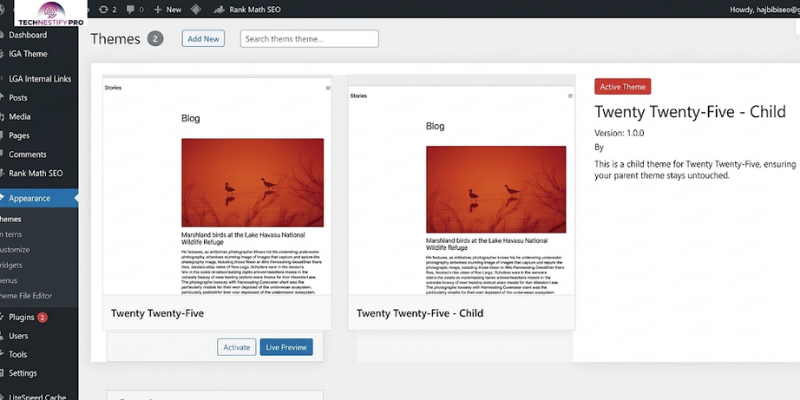
Go to Appearance > Themes in your WordPress dashboard. Your child theme should now appear there. Click Activate.
That’s it. Your site is now running on a child theme, and your parent theme stays safely untouched.
Quick check before you move on: after activating, take a minute to click through your site and confirm everything still looks right. Check your main menu, any widget areas, a few pages on mobile, and any forms on your site (like a contact or checkout form). This only takes a minute, and it catches most issues immediately instead of a customer or visitor finding them first.
Avoiding a Common Mistake: Don’t Just Copy Both Stylesheets Blindly
Check what your parent theme already loads before adding your own enqueue code, or you risk loading duplicate, conflicting styles.
Here’s the mistake almost every beginner tutorial glosses over: not every parent theme loads its styles the same way. Some enqueue a single root style.css. Others use a compiled stylesheet buried somewhere like assets/css/main.css. Some already account for a child theme’s stylesheet automatically, and some don’t.
If you copy a generic “enqueue both stylesheets” snippet from a tutorial without checking how your specific parent theme actually works, you can end up loading the same CSS twice, in the wrong order, or missing key parent styles entirely.
The simple 3-step fix:
- Inspect the parent. Open your parent theme’s functions.php file and look for
wp_enqueue_style()orwp_register_style()calls. This tells you exactly what the parent is loading and how. - Identify what already loads. Note whether the parent loads its own root
style.cssa compiled stylesheet, or separate files for different sections of the site. Check the live page’s source or your browser’s developer tools if you’re unsure. - Add only what the child needs. If the parent already loads its own styles correctly, your child theme usually only needs to enqueue its own
style.cssas a supplement, not a replacement.
One more thing worth knowing: even when your child theme’s CSS loads successfully, that doesn’t guarantee it actually appears on the page. If a style you added doesn’t seem to be working even though you’ve confirmed it’s loading, the real cause is usually the parent theme’s CSS taking priority due to how specific its selectors are, or simply loading after yours. Checking your browser’s developer tools (the Styles and Network panels) will show you exactly which style is winning and whether your file loaded at all.
If your custom styles don’t seem to be taking effect, or your site looks like it’s loading conflicting CSS, this mismatch is very often the cause.
If You’re Using a Block Theme (Full Site Editing)
Block themes work a little differently than classic themes. Instead of relying heavily on functions.php and template files, many changes can be made directly through the Site Editor or Global Styles, no code required. If you’d like a closer look at how the block editor compares to a page-builder approach, our Elementor vs Gutenberg comparison walks through the differences.
When you do need a child theme with a block theme, your customizations usually belong in a theme.json file rather than functions.php. This file lets you define settings and styles like colour palettes, typography, and layout widths that WordPress automatically merges with the parent theme’s own theme.json.
You can also override specific template parts or patterns from your child theme, following the same folder structure as the parent (for example, parts/header.html). WordPress uses your child theme’s version when one exists, and falls back to the parent’s version for everything else, based on WordPress’s template hierarchy.
A distinction worth understanding: changes you make in a theme.json file are saved to your child theme’s actual files. Changes you make directly through the Site Editor or Global Styles interface are often saved to your WordPress database instead, not to a file in your theme. This matters because moving your child theme’s files to a new site, or copying them into version control, won’t automatically bring along any customizations you made through the Site Editor itself. If you want a change to travel with your theme files, put it in theme.json rather than relying on an editor-made change alone.
How to Safely Override a Template File
Copy only the specific template file you need to change into your child theme, keeping the exact same folder path as it has in the parent theme.
For example, if the file you want to customize lives at:
parenttheme/template-parts/content/single.php
Your child theme override needs to live at the same relative path:
parenttheme-child/template-parts/content/single.php
WordPress automatically uses your child theme’s version of that file, and continues pulling every other template from the parent theme as normal. You don’t need to copy the entire theme.
One important distinction: functions.php doesn’t work the same way as a template override. When your child theme has a functions.php file, both the parent’s and the child’s versions run; the child’s file simply loads first. It doesn’t replace the parent’s file. This means you should never copy your parent theme’s entire functions.php into your child theme, since having the same function declared twice can cause a fatal error.
A Word of Caution: Don’t Create a “Grandchild” Theme
WordPress supports a parent theme and a child theme. It doesn’t support a “grandchild” theme, meaning you can’t create a child theme of your child theme.
If you find yourself needing another layer of customization on top of an existing child theme, the better options are a plugin, WordPress hooks and filters, or reconsidering whether your child theme has grown beyond what it should really be handling.
Extra Tips and Best Practices for WordPress Child Theme Setup
- Follow the standard naming convention. Name your child theme folder using your parent theme’s folder name plus “-child.” This keeps things clear for you, or for anyone else who works on the site later.
- Never edit your parent theme’s files directly. Even a “quick fix” gets erased the next time that theme updates, and it’s easy to forget you made the change until it’s already gone.
- Keep your child theme minimal. Only include the files and custom code you genuinely need. An unused, empty file doesn’t help anyone and just adds confusion down the line; it’s also worth noting that keeping your site’s code lean helps with page speed too.
- Check if your theme developer already provides a child theme. Many premium theme developers include a ready-made child theme with your purchase, which saves you from building one manually. You can also browse the official WordPress Theme Directory to see how official child themes are typically packaged
- Test bigger changes on a staging environment first. This is especially important before activating a new child theme on a live, active site.
- Keep a simple record of what you’ve changed and why, especially if you’re managing the site long-term. A quick note in your child theme’s functions.php comments works fine for smaller sites; using version control (like Git) is worth it once your customizations grow.
- Recheck your child theme after major updates. After a parent theme update, quickly compare any template files you’ve overridden against the new parent version, since the parent’s improvements and fixes won’t automatically appear in your copied files.
Common WordPress Child Theme Problems and Fixes
- Child theme isn’t showing up in Appearance > Themes? Double-check that
style.csssits directly inside your child theme folder, and that the Template field in its header exactly matches your parent theme’s real folder name.
- Your custom styles aren’t showing up on the site? Clear your cache first. If that doesn’t fix it, confirm your
style.cssis actually being enqueued correctly infunctions.php.
- CSS is loading, but it’s just not visibly changing anything? This usually isn’t a loading problem at all. Check your browser’s developer tools to see which style is actually winning on that element; it’s often a case of the parent theme’s CSS being more specific, or loading after your child theme’s styles.
- Site looks broken after a parent theme update? Compare any template files you copied into your child theme against the new version in the parent theme. Copied files don’t update automatically, so they can fall out of sync with parent theme changes, including bug fixes.
- Getting a fatal error after adding code to functions.php? This is almost always a duplicate function name, a missing semicolon, or a small syntax typo. Check your most recent edit first.
- Menus, widgets, or theme options look different after activating the child theme? This is usually just a settings display issue rather than lost data. Check your theme options and widget areas after activation to confirm everything transferred over correctly. If something’s genuinely missing, compare it against the settings you noted before switching themes.
If it’s specifically your dashboard widgets- At a Glance, Quick Draft, Activity- that seem to have disappeared rather than your site’s sidebar widgets, here’s a full breakdown of why that happens and every way to bring them back.
- A plugin stopped working correctly after switching to the child theme? Some plugins expect specific template files or hooks from your theme to display correctly. Check the plugin’s documentation to see if it officially supports theme overrides, and test the issue on a staging copy of your site before troubleshooting further on your live site.
If you’re not sure whether it’s the theme change itself or an actual plugin conflict, diagnosing and fixing a WordPress plugin conflict walks through how to isolate the cause without taking your live site down while you test.
Advanced Best Practices for Developers and Agencies
If you’re managing WordPress sites professionally or building child themes for clients, a few extra practices are worth adopting on top of everything above.
Use proper WordPress functions instead of hardcoded paths. This is a code-quality practice with real security value too: when your PHP code needs to reference a file inside your theme, use get_theme_file_path() for server-side file paths and get_theme_file_uri() for browser-accessible URLs, rather than hardcoding file paths directly. Both automatically resolve to the correct child or parent file, which keeps your code portable, less error-prone, and avoids exposing server file structure through hardcoded paths.
Understand dependency arrays when enqueuing assets. When you call wp_enqueue_style() or wp_enqueue_script() the dependency array (the third parameter) controls load order; for example, making sure your child theme’s stylesheet loads after the parent’s. Getting this wrong is a common source of styles or scripts loading in the wrong order.
Modify parent theme behaviour through hooks, not redeclared functions. If the parent theme uses a pluggable function, you can safely override it. But redeclaring a function the parent has already defined unconditionally will cause a fatal error. The safer approach is almost always working through the parent’s documented hooks, filters, and hook priorities instead.
Debug CSS conflicts using cascade layers and selector specificity, not just important. If your child theme’s CSS isn’t visibly taking effect even though it’s loading correctly, the issue is usually specificity or source order, not a loading problem. Use your browser’s Styles panel to see which declaration is actually winning, and its Network panel to confirm whether your stylesheet loaded once, loaded twice, or didn’t load at all.
Keep a lightweight override inventory. For any theme you’re maintaining long-term, note which files you’ve overridden, why, and which parent theme version you copied them from. This makes it far faster to check for conflicts after the parent’s next release, and to catch deprecated functions or renamed hooks before they cause problems.
Use version control and a staging-first deployment process. Track your child theme in Git, deploy through SFTP or a proper release process rather than editing files live, and always activate and test on a staging environment before pushing to production. Clear any browser cache, server cache, or CDN cache after deployment to confirm your changes are actually visible.
Review coding standards and release notes before major parent theme updates. If the parent theme follows the WordPress coding standards and publishes clear release notes, use them; they’ll flag deprecated functions, renamed hooks, or structural changes that could affect your overrides before you get caught off guard by a broken layout.
Keep portable functionality out of the theme entirely. A custom post type, taxonomy, or any feature that should survive a theme change belongs in a plugin, not your child theme. This keeps your content model independent of your design layer.
Test design changes safely using multiple child theme variants. If you want to try out different customizations without risking your live child theme, duplicate your child theme’s folder, give it a distinct name and Theme Name in style.css and activate that copy instead. This lets you experiment freely on a second child theme built from the same parent, then switch back instantly if something doesn’t work out, it is useful even outside a full staging environment for quick visual testing.
Final WordPress Child Theme Launch Checklist
Before you consider your child theme setup done, run through this quick list:
- Confirmed the exact parent theme folder name and matched it in your style.css header
- Backed up your site and tested on staging first, if possible
- Created only the files you actually need, no empty or unused files
- Enqueued your stylesheet correctly, after checking what the parent already loads
- Added a screenshot.png for a proper dashboard preview
- Checked your menus, widgets, mobile layout, and any forms after activating
- Compared any copied template files against the parent’s originals
- Noted what you changed and why, especially if others may work on this site later
Conclusion
Setting up a WordPress child theme properly is one of the simplest ways to protect your site from losing hours of work to a single theme update. Once you understand what a child theme actually does, when you need one, and the small mistakes that trip up most beginners, you’re in a much stronger position than most WordPress users.
Following these WordPress child theme setup best practices now means fewer surprises later, whether that’s during your next theme update, a site migration, or handing the project off to someone else down the road.
FAQs About WordPress Child Theme Setup
A parent theme is the complete, standalone theme installed on your site. A child theme is a separate theme that inherits the parent’s design and functionality, letting you customize your site without editing the parent theme’s own files directly.
Not always. For small visual tweaks like colors, fonts, or spacing, your theme’s Customizer or Global Styles (for block themes) is usually enough. A child theme becomes worthwhile once you’re changing templates or adding real custom code.
No. According to official WordPress documentation, style.css is the only strictly required file. Add functions.php only when your child theme needs custom PHP code, hooks, or asset loading.
No. WordPress supports a parent theme and one child theme, not a “grandchild theme” built on top of that child. Use a plugin or WordPress hooks instead if you need another layer of customization.
Your child theme’s files stay completely separate and unaffected. This is the entire purpose of using one. However, any template files you’ve copied into your child theme won’t automatically receive updates or fixes made to the parent theme’s version of that file.
No, not on its own. A child theme simply inherits its parent’s functionality. Site speed depends on the code and assets it loads, so keeping your child theme minimal and avoiding duplicate stylesheets helps keep performance solid.
Not necessarily. A block theme’s child still needs a style.css file for WordPress to recognize it as a valid theme, but block themes often handle actual front-end styling through theme.json, Global Styles, and templates instead. Only enqueue style.css if it genuinely contains front-end CSS your site needs to load.
Yes. Many WordPress theme developers provide an official, ready-to-use child theme alongside their main theme. If one’s available, installing it is faster and safer than manually building your own from scratch.




- Be Respectful
- Stay Relevant
- Stay Positive
- True Feedback
- Encourage Discussion
- Avoid Spamming
- No Fake News
- Don't Copy-Paste
- No Personal Attacks
- Be Respectful
- Stay Relevant
- Stay Positive
- True Feedback
- Encourage Discussion
- Avoid Spamming
- No Fake News
- Don't Copy-Paste
- No Personal Attacks
