WordPress Site URL vs Home URL: What’s the Difference (and How to Change Them Safely)
Published: 21 Sep 2026
Quick Answer: WordPress Site URL vs Home URL
The WordPress Address (Site URL) is where WordPress‘s core files are installed. The Site Address (Home URL) is the public address visitors use to reach your site. They’re identical on most installations and only differ when WordPress core files sit in a separate location from the public homepage, most commonly a subdirectory install.
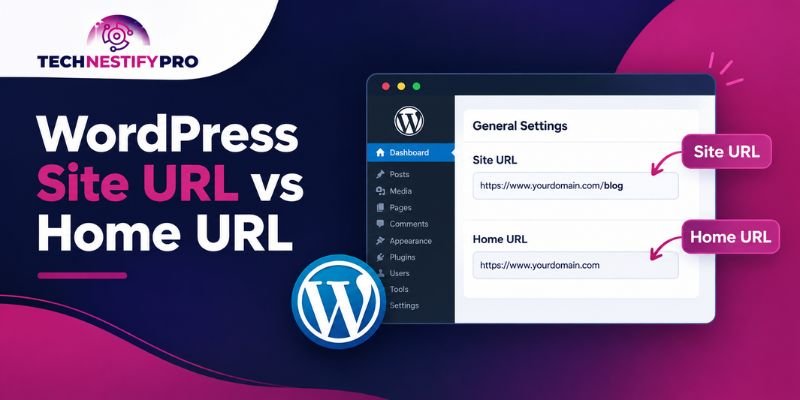
If you’ve opened Settings → General in your WordPress dashboard and seen two nearly identical fields, “WordPress Address (URL)” and “Site Address (URL),” you’re not alone in wondering why WordPress needs two URLs for one website. If you’re still getting familiar with how WordPress actually works under the hood, this confusion is completely normal, these two settings sit a level deeper than most beginner tutorials go.
I ran into this firsthand while moving a client’s site off a staging subfolder (clientsite.com/staging) onto their live domain. The migration plugin copied the files correctly, but nobody updated the Site Address field, so every internal link on the live site kept pointing back to /staging/, and Google was indexing that path instead of the real domain.
Fixing it took five minutes once we knew where to look. Finding that it needed fixing took an afternoon. This guide is the version of that afternoon I wish I’d had.
What Is the WordPress Address (Site URL)?
The WordPress Address is the location of your WordPress core files, the actual application that runs your site.
Think of it as the engine room. It holds:
/wp-admin/– your dashboard/wp-includes/– core WordPress code/wp-content/– your themes, plugins, and uploads
If you’ve never looked closely at how these pieces fit together, walking through the dashboard structure itself makes this section click a lot faster.
On a standard install, this is just your domain: https://example.com. If WordPress lives inside a folder, say, https://example.com/wordpress, that folder path becomes part of the WordPress Address.
In code, the site_url() function returns this value. WordPress stores it in the database as siteurl, and you can define it in wp-config.php as WP_SITEURL. The official WordPress developer reference describes site_url() as returning the URL where WordPress application files are accessible.
What Is the Site Address (Home URL)?
The Site Address is the public homepage URL, the address people type into a browser, or click from a search result, to land on your site.
If your WordPress files sit in a subfolder but you still want visitors to reach a clean root domain, this setting makes that possible.
In code, home_url() returns this value. WordPress stores it in the database as home, and you can define it in wp-config.php as WP_HOME. The WordPress developer reference for home_url() confirms it returns the address where the site’s front end is accessible.
Site URL vs Home URL at a Glance
| WordPress Address (Site URL) | Site Address (Home URL) | |
| What it is | Location of WordPress core files | Public homepage address |
| Who uses it | WordPress itself, plugins, admin login | Visitors, search engines |
| PHP function | site_url() | home_url() |
| Database option | siteurl | home |
| wp-config.php constant | WP_SITEURL | WP_HOME |
| Typical value | https://example.com | https://example.com |
Why Are They Usually the Same?
They’re usually the same because most WordPress installations sit directly in the domain’s root folder, with no subfolder involved, so there’s nothing to separate. The engine room and the front door occupy the same place.
That’s why most WordPress users go years without noticing these are two separate settings. On a normal site, site_url() and home_url() always return an identical address.
How Do I Find My WordPress Site URL?
The fastest way is Settings → General in your dashboard, where both the WordPress Address and Site Address are listed. If you need to confirm the value from code, the database, or a config file instead, here’s where each one lives.
In the dashboard: Log in and go to Settings → General. Look at the two fields, WordPress Address (URL) and Site Address (URL).
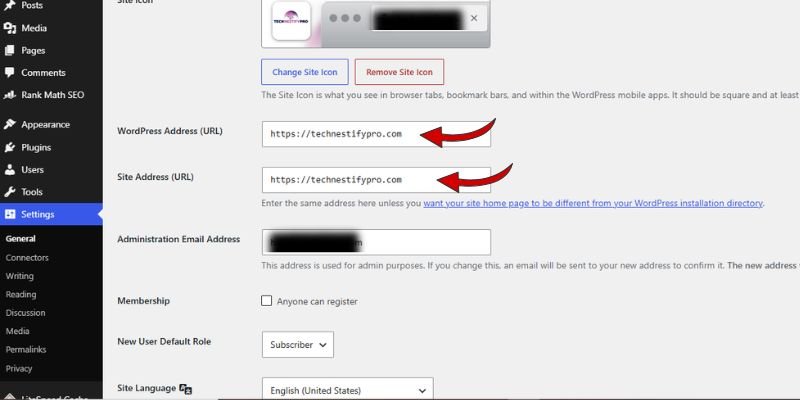
With code, on a staging site where you can safely add a temporary snippet:
echo 'Site URL: ' . site_url();
echo 'Home URL: ' . home_url();In the database: open phpMyAdmin, select your WordPress database, open the wp_options table, and find the rows named siteurl and home.
In wp-config.php: check for WP_SITEURL and WP_HOME. If either constant exists here, it overrides whatever the dashboard displays.
Checking all four tells you not just what your URL is, but where that value is actually coming from, which matters the moment the dashboard fields look locked.
site_url() vs home_url(): The Developer Answer
site_url() returns the WordPress installation URL; home_url() returns the public homepage URL. On a standard install, both return the identical address. They only diverge when WordPress core files live in a different location than the public site, such as a subdirectory install.
echo site_url(); // https://example.com/wp
echo home_url(); // https://example.comYou can retrieve the same two values through an older, equivalent function pair:
get_bloginfo( 'wpurl' ); // equivalent to site_url()
get_bloginfo( 'url' ); // equivalent to home_url()Both functions accept the same two optional parameters: $path to append a path, and $scheme to force http, https, or relative:
site_url( 'wp-admin', 'https' );
home_url( '/contact', 'https' );Use site_url() when linking to admin pages, AJAX handlers, or any resource that lives inside the WordPress installation directory itself.
Use home_url() For anything visitor-facing: navigation menus, homepage links, redirects to public pages.
Using the wrong one is a common source of broken links on subdirectory installs. site_url() In a public nav menu can leak the subfolder path into a visitor-facing URL, while home_url() used for an admin resource may fail to resolve inside the actual installation directory.
When Should Site URL and Home URL Be Different?
Three situations justify setting these apart deliberately: a subfolder install with a clean public domain, a domain migration in progress, or a headless WordPress setup.
- Subfolder install, clean public domain. Some setups install WordPress core files at
example.com/wordpressto keep the root directory uncluttered, while the Site Address staysexample.comso visitors never see the subfolder. This is the most common legitimate case, and it’s fully supported. WordPress just needs both values set correctly and the.htaccessrules adjusted to match. - Migrating to a new domain. During a domain change, the WordPress Address and Site Address can briefly point to different places while DNS propagates and you confirm the new domain resolves correctly. The safest sequence: get the new domain fully live and resolving first, then update these fields, not the reverse.
If you’re planning a full domain move rather than just a settings tweak, a complete walkthrough of moving a WordPress site covers the DNS and file-transfer side of this in more depth than we will here. Changing the URL before DNS has propagated is how sites end up serving a half-migrated mix of old and new assets. - Headless WordPress. On a headless build I worked on, WordPress served content to a separate Next.js frontend, and the two lived on completely different domains:
cms.example.comfor WordPress itself,example.comfor what visitors actually saw. We filteredhome_url()in a small must-use plugin to return the frontend domain instead of the WordPress installation, because every content link WordPress generated (in RSS feeds, in REST API responses) needed to point visitors at the public site, not the CMS. Leavinghome_url()unfiltered in that setup would have sent visitors and search engines straight into the WordPress admin domain, which isn’t meant to be public-facing at all.
Outside these three cases, don’t separate the values just because you can. A working site that gets these fields pulled apart without a reason is a site heading toward broken links.
Before You Change Your Site URL or Home URL
A wrong value in either field can lock you out of your dashboard. Take five minutes here first:
- Back up your database and files. Most hosts, or a plugin like UpdraftPlus, handle this in one click. Treat it as your undo button.
- Confirm where WordPress is actually installed. Open your file manager or connect via FTP, then look at where your WordPress files actually sit: directly in the main folder, or placed inside a subfolder.
- Check whether
WP_HOMEorWP_SITEURLalready exists in wp-config.php. If either constant is defined there, dashboard changes won’t take effect until you edit the file instead. This single detail causes most of the confusion I see. If you’re still early in setting up your site, working through the core settings worth configuring right after installation will help you catch this kind of thing before it becomes a problem. - Have FTP or File Manager access ready. If a dashboard change goes wrong, this is how you get back in.
How Do I Change My WordPress Site URL and Home URL?
The fastest way is through Settings → General in your dashboard. If those fields are locked, three backup methods (wp-config.php, phpMyAdmin, or WP-CLI) get the job done instead.
Method 1: From the WordPress Dashboard
- Log in to your WordPress admin area.
- Go to Settings → General.
- Enter your correct URL into both the WordPress Address (URL) field and the Site Address (URL) field.
- Click Save Changes.
If these fields appear greyed out, wp-config.php they have hardcoded values, so skip to Method 2.
Method 2: Editing wp-config.php
- Log in to your site using FTP, or open the File Manager tool your host provides.
- Open
wp-config.phpin your site’s root folder. - Right above the line that reads
/* That's all, stop editing! */, paste in these two lines:
define( 'WP_HOME', 'https://example.com' );
define( 'WP_SITEURL', 'https://example.com' );- Replace the example URLs with your actual ones, save, and re-upload the file.
This method overrides the dashboard settings, which is exactly why it fixes a lockout.
Method 3: Through phpMyAdmin (Database)
- Back up your database first, since this method edits it directly.
- Open phpMyAdmin from your hosting control panel.
- Click on your WordPress database to open it, then find and open the table named
wp_options. - Find the rows named
siteurlandhome. - Click Edit on each, update the
option_valuefield, and save.
Method 4: Using WP-CLI
For anyone comfortable with the command line, this is the fastest route:
wp option update siteurl ‘https://example.com’
wp option update home ‘https://example.com’
Run these from your site’s root directory over SSH.
A 3-Question Diagnostic: Which URL Actually Needs Fixing?
Before touching any setting, ask these three questions in order. They narrow the problem faster than guessing.
- Can you log in to
/wp-adminat all? If no, your WordPress Address is likely pointing somewhere that no longer matches your files. Go straight to Method 2 or 3. - Can you log in, but the homepage or links break? Your Site Address is the mismatch. Check it against the domain visitors actually use.
- Does everything work, but images, CSS, or a subfolder path show up where it shouldn’t? Both values are probably correct individually, but one still references an old subfolder or domain from a past migration. Check both against your current setup, not just one.
I used exactly this order on a site that had been through two host migrations. Login worked fine, the homepage loaded, but every product image on the site was broken. That ruled out questions 1 and 2 immediately, which pointed straight at question 3: the Site Address was correct, but a handful of images still had the previous host’s staging subfolder baked into their file paths from an old database export.
The fix wasn’t in Settings → General at all; it was a one-time search-and-replace on the database to update those leftover paths. The diagnostic saved a wasted hour of re-checking settings that were already right.
This sequence exists because the dashboard error messages rarely tell you which of the two fields is actually wrong. The symptoms overlap, but the diagnostic order above doesn’t.
Common Problems After Changing These URLs (and How to Fix Them)
Redirect loop or “too many redirects” error. This normally means your Site Address doesn’t match the way people are actually landing on your site. Check both fields for an http vs https mismatch.
White screen after saving. Go straight to Method 2 and set both values correctly in wp-config.php. This bypasses the broken dashboard setting entirely. If the white screen appeared after a plugin or theme update rather than right after this change, it may be a memory exhausted error instead, a different fix entirely.
Locked out of /wp-admin. Correct the values through wp-config.php or phpMyAdmin, and admin access returns once the URLs match your real setup. If correcting these values doesn’t bring access back, the lockout may be a plugin conflict rather than a URL problem. This guide’s method for regaining admin access via FTP works the same way, by temporarily renaming your plugins folder.
Broken CSS or missing images. Your Site Address value doesn’t match where you actually keep your theme and plugin files. Clear your cache, both browser and any caching plugin, after fixing the URL.
Common WordPress URL Mistakes
A handful of habits cause most URL problems:
- Using
site_url()for public links. On a subfolder install, this can insert the subfolder path into visitor-facing links. Usehome_url()for anything public-facing instead. - Hardcoding the domain in code. Writing
'https://example.com/contact'directly breaks the moment the domain changes. Writehome_url( '/contact' )instead, so WordPress fills in the correct address automatically. - Assuming the two values must always match. They don’t have to. A subfolder or headless setup can validly use different values.
- Assuming they must differ just because they can. On a standard install, keep them identical. Don’t separate them without one of the three reasons covered earlier.
- Changing either value with no backup. A wrong URL can affect the entire site. Back up first, every time.
Why Is /wordpress/ Showing in My URLs?
It’s showing because WordPress is installed inside a folder literally named wordpress, and that folder path has become part of your configured public URL.
If both your WordPress Address and Site Address point to https://example.com/wordpress, visitors will see /wordpress/ throughout your site’s links.
To show visitors the clean root domain while WordPress core files stay in that subfolder, set the WordPress Address and Site Address separately. The WordPress Address keeps the subfolder path, and the Site Address drops it. This setup needs care since your redirects and file references all have to line up. Confirm exactly where your files live before removing /wordpress/ from either setting.
Does Changing the Site URL Affect SEO?
Yes, but only if it’s done wrong. A mismatched URL can hurt your SEO through broken internal links, bad redirects, and duplicate URL versions, while correcting it doesn’t boost rankings by itself. It stops the damage; it doesn’t create an advantage.
After changing your domain or URL structure, work through this checklist:
- Point every old URL to its new address with a 301 redirect.
- Resubmit your XML sitemap in Google Search Console.
- Re-verify your property in Search Console if the domain changed.
- Confirm canonical tags reflect the new URL.
- Crawl your site for internal links still pointing to the old address.
- While you’re reviewing on-page SEO details, it’s also worth checking how your pages handle meta keywords and other head-section tags, since a URL change is a natural time to audit that too.
Google’s own Site Move documentation covers this process in more depth if you’re handling a full domain migration.
A Quick Note for Developers: site_url() vs home_url() vs admin_url()
Beyond the direct comparison above, one more function matters for dashboard links specifically:
| You need | Use this |
| A public-facing link (homepage, any page) | home_url() |
| The WordPress installation’s own URL | site_url() |
| A link to the dashboard | admin_url() |
admin_url() returns the full dashboard path, typically ending in /wp-admin/, and automatically accounts for wherever WordPress is actually installed, including subdirectory installs where site_url() alone would need a manually appended path. Use admin_url() for dashboard links rather than manually appending /wp-admin to a domain. It keeps working even if the installation moves.
<a href="<?php echo esc_url( home_url( '/' ) ); ?>">Home</a>Site URL and Home URL: Extra Tips and Best Practices
- Test changes on a staging site first when one’s available.
- Verify the real, working URL before you type it into either field.
- Keep WP_HOME and WP_SITEURL identical unless one of the three legitimate reasons above applies.
- Change these settings after your new domain is fully live, never before.
- Add a comment above any wp-config.php change explaining why it exists, so future-you or your developer isn’t left guessing.
Wrapping Up
By now, you know exactly what separates the WordPress Site URL from the Home URL, and more importantly, when it’s safe to leave them alone and when it’s worth changing them. One field points to where WordPress itself lives, the other points to what your visitors actually see, and for most sites, that’s the same address by design. It only needs your attention during a migration, a subfolder setup, or a headless build, not as routine maintenance.
You now have every method covered, from the dashboard, to wp-config.php, to the database, to WP-CLI, along with a diagnostic to figure out which value is actually the problem if something ever breaks. That’s the difference between guessing your way through a WordPress Site URL vs Home URL mix-up and fixing it with confidence in a few minutes.
Back up first, pick the method that fits your comfort level, and update whichever URL your setup actually needs. If you run into anything unexpected along the way, the troubleshooting section above covers the most common fixes, so you’re never stuck for long.
FAQs: Site URL and Home URL
On most sites, yes. They differ only when WordPress core files sit somewhere separate from the address visitors use, like a subfolder setup.
Go to Settings → General in your dashboard and update both fields, then save. If they’re greyed out, edit WP_HOME and WP_SITEURL directly in wp-config.php instead.
Your site may become inaccessible, show a white screen, or redirect incorrectly. You can fix it through wp-config.php or your database even while locked out of the dashboard.
WP_HOME or WP_SITEURL already exists in wp-config.php, which overrides the dashboard. Edit the file directly instead.
Use home_url() for anything visitor-facing, like navigation links. Reserve site_url() for referencing the WordPress installation itself.
For most sites, it’s your domain followed by /wp-admin, like example.com/wp-admin. On a subfolder install, the admin URL includes that subfolder too. admin_url() always returns the correct path for your setup.
Yes, as long as you back up your database first. Editing the siteurl and home rows directly is a normal recovery method when the dashboard isn’t accessible.
No. Leaving it wrong can hurt your SEO through broken links and redirects, but fixing it correctly only prevents that damage. It isn’t a ranking boost.




- Be Respectful
- Stay Relevant
- Stay Positive
- True Feedback
- Encourage Discussion
- Avoid Spamming
- No Fake News
- Don't Copy-Paste
- No Personal Attacks
- Be Respectful
- Stay Relevant
- Stay Positive
- True Feedback
- Encourage Discussion
- Avoid Spamming
- No Fake News
- Don't Copy-Paste
- No Personal Attacks
