How to Host Your Own WordPress Website (Beginner’s Step-by-Step Guide)
Published: 15 Oct 2026
Quick Answer: How to Host Your Own WordPress Website
To host your own WordPress website, register a domain name, purchase a hosting plan, connect your domain, and install WordPress. Enable SSL to secure your website with HTTPS, then configure your settings before publishing. For most beginners, shared hosting with a one-click WordPress installer is the easiest option.
I’ve installed WordPress on a live Hostinger hosting account, so I know that getting a website online involves more than just installing WordPress. You also need to connect your domain, configure HTTPS, and check your website settings before making it available to visitors.
In this guide, I’ll walk you through the process, explain the decisions beginners often find confusing, and share what to check at each stage.
What You’ll Need (and How Much It Costs)
Before hosting your own WordPress website, make sure you have these four essentials:
- Domain name: Around $10–$20 per year for a typical .com domain. Eligible Hostinger plans offer a free domain for the first 12 months.
- Web hosting: Hostinger Premium costs $2.99/month($143.52 upfront for 48 months), Unlimited costs $3.99/month($191.52 upfront, and Cloud Startup costs $7.99/month($383.52 upfront, based on the promotional prices displayed when checked.
- WordPress software: Available for free download and use through WordPress.org.
- SSL certificate: Frequently provided free with hosting plans to secure your website with HTTPS.
Budget tip: If you choose Hostinger Premium and qualify for its free domain and SSL, your initial hosting payment can be $143.52 for four years. Remember that renewal prices are higher, and promotional offers may change.
If your renewal price jumps, you don’t have to stay. Here’s how to migrate a WordPress website to a new host.
How to Host Your Own WordPress Website: Step-by-Step Instructions
You can host a WordPress website through a hosting provider such as Hostinger without writing code. I’ve installed WordPress on a live Hostinger hosting account. The following steps explain how to get your website online, from choosing a domain to checking that everything works correctly.
Step 1: Register a domain name
A domain name is the address people use to visit your website, such as example.com.
You can register a domain through your hosting provider or a separate domain registrar. Pick a domain name that’s memorable, easy to spell, and fits your website’s purpose.
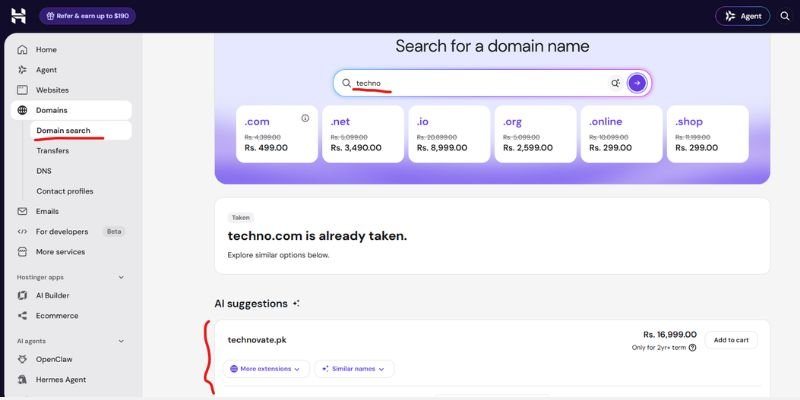
Before registering, check:
- The initial registration price.
- The renewal price.
- Whether domain privacy is available and included.
- Whether your hosting plan includes a domain name free of charge for the first 12 months.
If your hosting provider includes a free domain, check which extensions qualify and whether the offer applies to your selected plan.
Step 2: Purchase a WordPress hosting plan
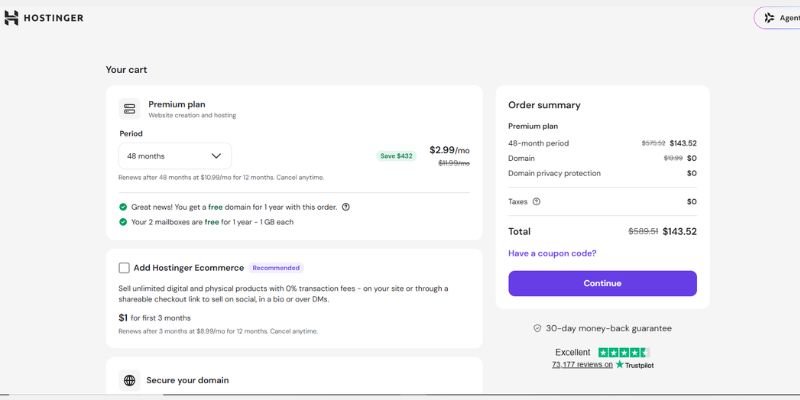
Web hosting stores your website’s files, images, and database on a server so visitors can access your site online.
For most beginners, shared hosting is a practical starting point. The provider manages the server environment, and many plans include a WordPress installer, SSL, backups, and support.
When choosing a plan, compare the total upfront cost, renewal rate, storage, backup options, number of websites allowed, and technical support.
If you are considering Hostinger, the Premium plan may suit a single blog or small business website, while higher-tier plans offer more resources or support additional websites. The right choice depends on your actual needs, not simply the largest feature list.
Step 3: Connect your domain name to your hosting account
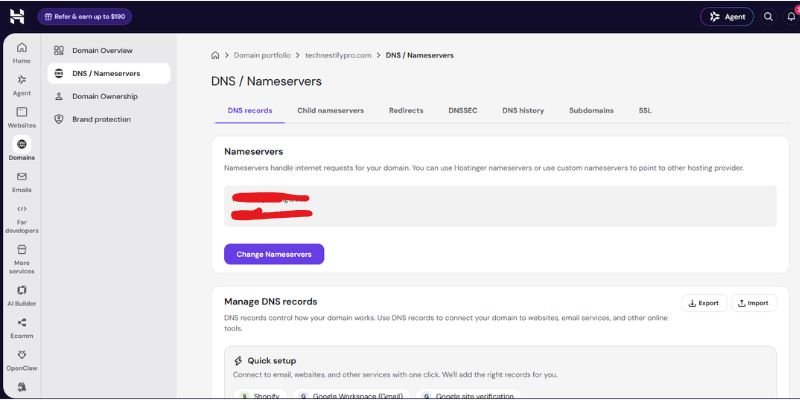
Connect your domain to your hosting account by updating its nameservers or A record using the details provided by your hosting company. If your domain and hosting are with the same provider, the connection may already be configured automatically.
My experience: I used Hostinger for both my domain and web hosting when setting up my WordPress website. Using the same provider for both services can make management more convenient because you can handle your domain and hosting from one account.
After connecting your domain, remember that DNS changes can take some time to become visible everywhere. They may appear within minutes, but some changes can take up to 24–48 hours to propagate.
Tip: If your website does not open immediately after connecting the domain, check your DNS settings in Hostinger and allow time for the changes to take effect before troubleshooting further.
Step 4: Install WordPress through Hostinger
If your hosting plan includes a WordPress installer, you can usually install WordPress without uploading files or creating a database manually.
Follow these general steps:
- Sign in to your Hostinger account.
- Open the website management area for your hosting plan.
- Look for the WordPress installer or Auto Installer.
- Select your domain.
- Enter the requested website details and administrator credentials.
- Start the installation process and wait for it to finish.
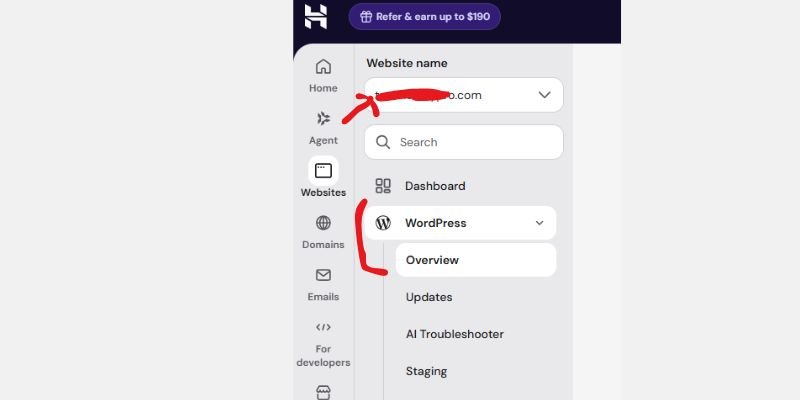
The exact menu names may vary depending on your dashboard version and hosting plan. Follow the instructions displayed in your account.
Choose a strong administrator password and save your login details securely. Avoid using an easy-to-guess password or reusing the same password from another account.
Once the installation finishes, open your domain in a browser to check whether the website loads.
Step 5: Enable SSL and HTTPS
An SSL certificate helps protect the connection between your website and its visitors. Once it is active, your website can load using HTTPS instead of HTTP.
To secure your website:
- Open your hosting dashboard.
- Find the SSL or security section.
- Activate the certificate if it is not already enabled.
- Open your website using https://.
- Check that the homepage and important pages load without certificate warnings.
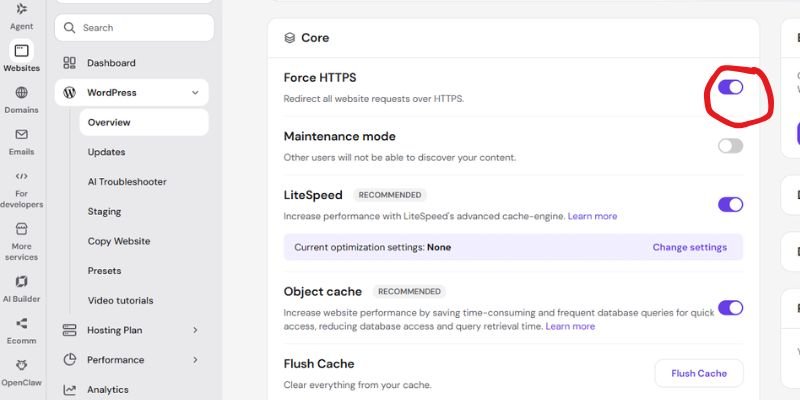
If HTTPS is not working yet, check the certificate status and domain connection. You may need to wait for DNS changes or certificate activation to finish.
Once HTTPS works, make sure your WordPress website uses the HTTPS version of your domain. Configure redirects carefully so visitors using HTTP are sent to the secure version.
Step 6: Log in to your WordPress dashboard
Open https://yourdomain.com/wp-admin and enter your administrator credentials. From the dashboard, you can publish posts, create pages, install themes, and manage plugins.
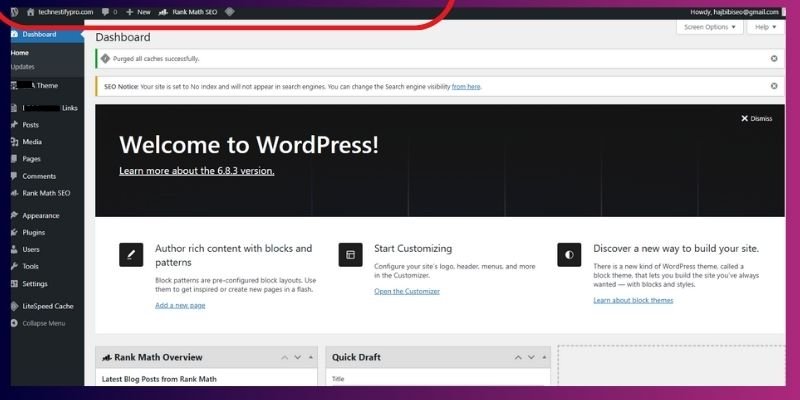
If the login page doesn’t load, check your domain connection, website URL, SSL status, and hosting configuration before reinstalling WordPress.
Step 7: Configure your website before launch
After installing WordPress, configure the basic settings before publishing your website.
Start with these tasks:
- Set your site title: Open Settings and add your website name and tagline.
- Configure your permalinks: Choose a URL structure that is readable and appropriate for your content. For many blogs, the Post name structure is a suitable choice.
- Check your site address: Confirm that the WordPress Address and Site Address use the correct domain and HTTPS version.
- Set your time zone: Choose the time zone that matches your publishing schedule.
- Choose a theme: Use a responsive theme that fits your website’s purpose.
- Install essential plugins: Add only the tools you need for tasks such as SEO, backups, security, and performance.
- Remove sample content: Delete unwanted sample posts, pages, and comments.
Under Settings → Reading, check the option that discourages search engines from indexing your site. Make sure it is unchecked when you are ready for search engines to crawl your public website.
This setting does not guarantee indexing, but leaving it enabled can prevent search engines from indexing your content as intended.
Step 8: Test the website before publishing
Before announcing your website, open it on both desktop and mobile devices.
Check the following:
- Your homepage and important pages load correctly.
- Navigation menus and internal links work.
- Images display properly.
- Contact forms submit successfully.
- HTTPS works without certificate warnings.
- Your website looks usable on mobile screens.
- Your backup system is configured.
Next, create or verify a backup of your website files and database. If you are launching a site intended to appear in Google Search, verify it in Google Search Console and submit your XML sitemap.
If you use an SEO plugin, check its sitemap settings to find the correct sitemap URL.
What Should You Do Before You Launch Your WordPress Site?
Before launching your WordPress site, confirm that your domain and WordPress settings are correct, HTTPS works, important pages and features function properly, and search engine visibility is enabled when you’re ready to be indexed. Use this checklist to catch common setup mistakes before making your website available to visitors.
- Confirm your domain connection: Make sure your domain points to the correct hosting account and your website loads at the intended address.
- Check HTTPS: Confirm your website loads securely over HTTPS.
- Verify your WordPress URLs: Make sure the WordPress Address and Site Address are correct under Settings → General.
- Test your website on mobile and desktop: Check that text, images, menus, and page layouts display correctly.
- Remove unwanted sample content: Delete default posts, pages, comments, and other content you don’t plan to use.
- Check search engine visibility: Go to Settings → Reading and ensure the “Discourage search engines from indexing this site” option is unchecked when your website is ready to be indexed.
- Test navigation and important features: Check internal links, buttons, contact forms, and other interactive elements.
- Set up backups and security: Configure regular backups, use a strong administrator password, and keep WordPress, themes, and plugins updated.
- Set up Google Search Console: Verify your website and submit your XML sitemap to help Google discover your pages.
Completing these checks helps ensure your website is accessible, configured correctly, and ready for visitors. However, submitting a sitemap or enabling search engine visibility does not guarantee that Google will index your website immediately.
How Much Does It Cost to Host a WordPress Website?
Hosting a WordPress website with Hostinger costs $143.52 to $383.52 upfront for a 48-month subscription, based on the introductory prices checked on October 14, 2026. That works out to 2.99–7.99 per month during the initial term. Your total cost may be higher if you purchase paid themes, plugins, or additional services.
Here are the three Hostinger plans and their prices for a 48-month subscription:
| Hosting plan | Introductory price | Upfront payment for 48 months | Monthly renewal rate |
| Premium | $2.99/month | $143.52 | $10.99/month |
| Unlimited | $3.99/month | $191.52 | $16.99/month |
| Cloud Startup | $7.99/month | $383.52 | $25.99/month |
These are promotional prices, and the full 48-month amount is paid upfront. The displayed monthly rate is the total price divided by 48.
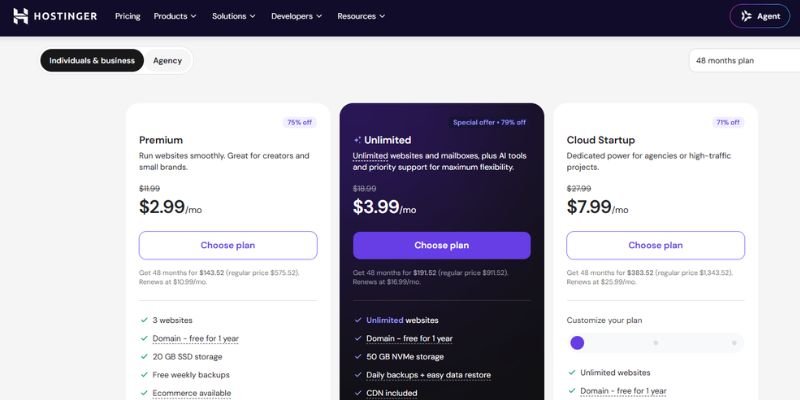
Which Hostinger plan should you choose?
Premium: A practical starting point for a personal blog or small business website. The offer I checked included three websites, 20 GB SSD storage, and weekly backups.
Unlimited: Consider this plan if you need more websites, 50 GB NVMe storage, and daily backups. The offer also included unlimited websites and mailboxes, subject to the provider’s terms.
Cloud Startup: This plan is aimed at projects that need more resources. The offer included 100 GB NVMe storage and daily and on-demand backups.
The plans I checked also listed a free domain for the first year. Confirm eligibility, storage limits, backup terms, and current prices on the Hostinger hosting page before purchasing.
Keep in mind that introductory offers and renewal prices may vary over time. Compare the total upfront payment and renewal price rather than choosing a plan based only on its advertised monthly rate.
You may also need to budget for paid themes, premium plugins, email services, or other tools. You can start with free WordPress software and free themes and plugins, then add paid tools when your website actually needs them.
The software is free, but running your own site isn’t. See the difference in our guide to WordPress.com vs WordPress.org.
Which Hosting Type Is Best for Your WordPress Website?
Shared hosting is usually the best choice for beginners, new blogs, and small business websites because it is affordable and easy to manage. If you need WordPress-specific support, managed WordPress hosting may be a better fit. Websites that outgrow their current resources or require greater server control may be better suited to VPS or cloud hosting.
Here’s how the main hosting types compare:
| Hosting type | Best for | Main consideration |
| Shared hosting | New blogs and small business websites | Budget-friendly and simple to manage, although server resources are shared among multiple websites. |
| Managed WordPress hosting | Website owners who want WordPress-focused support | May include additional maintenance and performance features at a higher cost |
| VPS hosting | Websites that are expanding and users who require greater control. | Can require server administration and security knowledge |
| Cloud hosting | Projects that need flexible resources | Features and management requirements vary by provider |
| Dedicated server | Websites that need substantial resources and control | Usually more expensive and requires more technical management |
Shared hosting is often sufficient for beginners starting their first website. You can consider another hosting type later if your traffic, performance requirements, or technical needs change.
Can you host WordPress for free?
Yes, but there are limitations to consider.
You can run WordPress locally on your computer for free using a development tool such as XAMPP. However, a website hosted locally cannot be accessed by public visitors by default.
Some hosting companies provide free plans, but these may come with restrictions on storage, speed, customer support, security, and domain choices. Before using a free service for a business website, review its terms and limitations carefully.
What Should You Check Before Buying WordPress Hosting?
Before buying WordPress hosting, choose a provider that supports WordPress’s recommended PHP and database versions, offers HTTPS, provides reliable backups, and gives you enough resources and support for your website. Also, compare renewal prices and check the plan’s limitations before paying.
1. Compatible PHP and database versions
WordPress.org currently recommends:
- PHP 8.3 or newer.
- MariaDB 10.11 or newer, or MySQL 8.0 or newer.
- HTTPS support.
Review the official WordPress requirements before buying. Make sure your hosting provider offers a compatible server environment and keeps its software up to date.
2. SSL and HTTPS support
Choose a plan that includes SSL or makes it easy to activate a certificate. Check the certificate’s renewal process and confirm that your host supports HTTPS setup.
3. Backups and restoration
Find out how often backups are created, how long they are retained, and whether you can restore your website yourself.A backup is only valuable if you can restore your website when an issue occurs.
Keep an independent copy of important backups when possible.
4. Storage and resource limits
Review the available storage, memory and CPU limits, website allowances, and any fair-use policies. A plan that looks generous on paper may still have limits that matter to your website.
5. Renewal pricing and support
Look beyond the promotional rate. Compare the regular renewal price and check whether support is available when you need help with a domain, SSL certificate, database, or WordPress installation.
Why Self-Host WordPress?
You should self-host WordPress if you want greater control over your website’s design, content, plugins, hosting provider, and monetization. It gives you flexibility to customize your website and upgrade your hosting as your needs change.
Here are the main benefits of self-hosting WordPress:
- Flexibility: Customize your website using themes, plugins, and code.
- Content ownership and portability: Keep control of your website files and database, subject to your hosting and domain agreements.
- Room to grow: Upgrade your hosting plan as your website’s needs change.
- Choice of tools: Select the themes, plugins, and services that suit your project.
- Control over monetization: Choose how you monetize your content, subject to applicable laws and service terms.
Self-hosting also comes with responsibilities. You need to keep your software updated, secure your administrator account, maintain backups, and monitor website performance.
If you prefer a service that handles more of the technical work, managed WordPress hosting may be worth considering.
How to Secure and Maintain a WordPress Website
To secure and maintain your WordPress website, keep WordPress, themes, and plugins updated, use strong login security, create regular backups, and monitor your website’s performance. These steps help reduce security risks, prevent data loss, and keep your website running smoothly.
- Keep WordPress updated
Install updates for WordPress core, themes, and plugins. Before major updates, make sure you have a recent backup and check compatibility where possible.
Delete any themes or plugins you no longer need, particularly those that are outdated or no longer supported.
- Use strong login security
Create a strong, unique administrator password and enable two-factor authentication when available. Avoid using the administrator account for routine tasks that do not require full permissions.
- Maintain backups
Create regular copies of your website files and database to protect your data. Store a copy separately from your hosting account when possible, and periodically check that your backups can be restored.
- Monitor website performance
Use caching where appropriate, optimize images, and remove unnecessary plugins. Keep an eye on your website to identify downtime and performance problems.
You do not need to install every security or optimization plugin you find. Choose tools that address real needs and avoid overlapping plugins that perform the same tasks.
How WordPress Hosting Works on a VPS
WordPress hosting on a virtual private server (VPS) works by running your WordPress website on a virtual server with dedicated resources and greater control over its software and configuration than typical shared hosting. You can customize the server environment, but you may also need to manage its security, updates, and maintenance yourself.
A self-managed WordPress VPS commonly uses:
- Linux: The server’s operating system.
- Apache or Nginx: The web server that handles requests from visitors.
- PHP: The programming language WordPress uses to run.
- MySQL or MariaDB: The database system that stores your website’s content and settings.
- HTTPS: Provides an encrypted connection that helps safeguard data transmitted between visitors and your website.
You may also need to configure a firewall, secure server access, install software updates, manage database access, set up backups, and monitor server performance.
A VPS is useful for websites that need more control, specific server configurations, or additional resources. However, this option may not suit every website.
If you’re new to WordPress and don’t need server-level control, shared hosting is usually simpler to manage. As your website expands or your technical needs evolve, you may want to switch to VPS hosting.
Common WordPress Hosting Problems and Fixes
If your WordPress website does not work as expected, identify the cause before reinstalling WordPress or deleting files. Many common issues can be resolved without starting over.
| Problem | What to check first |
| Domain doesn’t open | Verify DNS records, nameservers, and the domain connection |
| Hosting default page appears | Check the domain’s document root and WordPress installation location |
| Database connection error | Verify database credentials and confirm that the database is available |
| SSL certificate error | Check certificate status, domain configuration, and HTTPS settings |
| WordPress login doesn’t load | Check website URLs, redirects, and hosting configuration |
| Installation page won’t load | Confirm the WordPress files are in the correct directory, and the domain points to the right hosting account |
| Website shows an old version | Check caching and allow time for DNS changes if the domain was recently connected |
Key Takeaways
- Register a domain name and choose a hosting plan that supports WordPress.
- Link your domain to your hosting account, then set up WordPress.
- Activate an SSL certificate to protect your website and enable HTTPS.
- Configure your WordPress settings, theme, and essential plugins before launch.
- Check your website on desktop and mobile, test important links, and submit your sitemap through Google Search Console.
- Compare upfront hosting costs, renewal prices, and included features before purchasing a plan.
- Keep WordPress core, themes, and plugins up to date, and back up your website regularly.
- Secure your administrator account and monitor your website’s performance after launch.
Conclusion
Hosting your own WordPress website is easier when you break the process into simple steps. Choose a suitable hosting plan, connect your domain, install WordPress, and configure your website before launching it.
If you’re a beginner, shared hosting with a one-click WordPress installer is usually a good place to start. Compare upfront costs and renewal prices carefully, and make sure your plan includes the essential features your website needs.
Once your website is live, keep WordPress updated, maintain regular backups, and monitor its security and performance. With the right setup and ongoing maintenance, you can build and manage your WordPress website with confidence.
Frequently Asked Questions
Yes. You can host WordPress on shared hosting, managed WordPress hosting, a VPS, a cloud server, or your own server. Shared hosting is usually the easiest option for beginners.
You can host a WordPress website for free using a free hosting provider that supports WordPress or WordPress.com’s free plan. However, free hosting often comes with limitations on storage, performance, custom domains, and website control.
You can install WordPress locally without a registered domain. For a public website, a domain gives visitors a stable, memorable address.
The cost depends on your provider, subscription length, and hosting type. Compare the full upfront payment, renewal rate, and included features before purchasing.
Yes. Shared hosting is suitable for many new blogs, portfolios, and small business websites. Choose a plan with compatible software, adequate resources, backups, and support.
WordPress.com is a hosted service with features that depend on your plan. Self-hosted WordPress generally means running the WordPress.org software on a hosting account you choose and manage.
Yes. You can build a website using XAMPP, then migrate its files and database to a live hosting account. Check the URLs, HTTPS, media files, and website functions after migration.




- Be Respectful
- Stay Relevant
- Stay Positive
- True Feedback
- Encourage Discussion
- Avoid Spamming
- No Fake News
- Don't Copy-Paste
- No Personal Attacks
- Be Respectful
- Stay Relevant
- Stay Positive
- True Feedback
- Encourage Discussion
- Avoid Spamming
- No Fake News
- Don't Copy-Paste
- No Personal Attacks
