WordPress Dashboard Widgets Missing? How to Restore Them
Published: 23 Sep 2026
Quick Answer: WordPress Dashboard Widgets Missing?
If your WordPress Dashboard widgets (At a Glance, Activity, Quick Draft) are missing, click Screen Options at the top of your Dashboard → Home screen and re-check the boxes. This setting saves per user, so a colleague may see different widgets than you. If it’s your website’s sidebar or footer that’s empty instead, that’s a different setting, found under Appearance → Widgets, not this one.
You log into your WordPress dashboard, and something’s off. Widgets you used to see- At a Glance, Activity, Quick Draft- are gone. Or maybe you asked a teammate to check something, and they see widgets that never showed up on your screen at all.
Both of these are normal, fixable situations, not bugs, and definitely not a sign your site broke. This guide walks through exactly what’s happening, why it happens per user rather than site-wide, and every method to get your dashboard back the way you want it.
I ran into this on a client’s site last month; their WooCommerce Status widget vanished the day after a routine plugin update, and their first thought was that the update had broken something. It hadn’t. The update had reset their Screen Options preferences back to default, which happened to hide that one widget for their account specifically, while showing it fine for every other admin on the site. Re-checking one box in Screen Options fixed it in under a minute, once we knew where to look.
Dashboard Widgets vs. Sidebar Widgets: Which One Are You Missing?
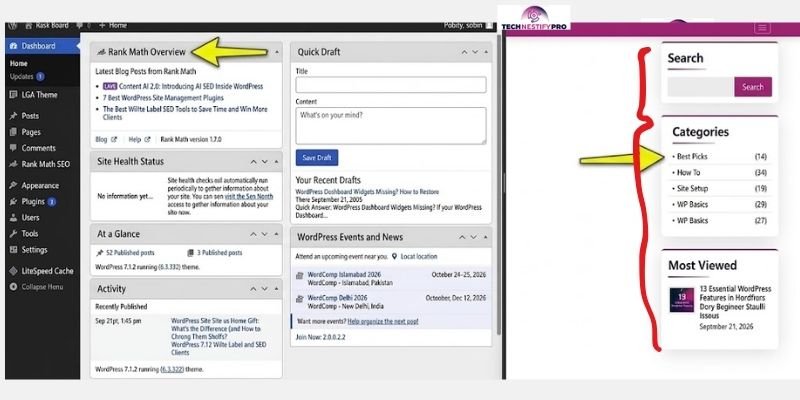
Before doing anything else, confirm which “widgets” you actually mean, because WordPress uses this word for two completely different things, and mixing them up sends you down the wrong fix entirely.
Dashboard widgets are the informational panels on your admin home screen: At a Glance, Activity, Quick Draft, WordPress Events and News, and Welcome. You only see these when you’re logged into /wp-admin. This guide is about these.
If you’re still getting familiar with the different sections of your admin area beyond just the widgets, a full walkthrough of your dashboard’s layout is worth a look first.
Sidebar or website widgets are content blocks that appear on your actual website, things like a search box, recent posts list, or a category menu in your site’s sidebar or footer. These live under Appearance → Widgets, and they’re a completely separate setting from anything on this page.
Quick self-check: If the empty space is on your admin Dashboard → Home screen, keep reading. If it’s your live website’s sidebar or footer that looks empty, you need the Appearance → Widgets settings instead- a different fix entirely.
Widgets Page Blank or Missing from the Appearance Menu Entirely?
If your Widgets page shows a completely blank screen, or there’s no “Widgets” link under Appearance at all, you’re dealing with a different, more specific problem than a hidden widget. This usually happens right after switching to a new theme.
Go directly to yoursite.com/wp-admin/widgets.php, and if you see this message mentioning your theme “isn’t widget-aware,” it means your active theme was never set up to support customizable sidebars, so WordPress has nothing to show you on that screen.
Your new theme never registered a sidebar for WordPress to manage. This is common with newer, block-based themes (Hello Elementor is one real example), which sometimes skip traditional sidebar registration entirely since they handle layout differently.
If you’re still deciding between a page builder and the block editor for your site, this Elementor vs Gutenberg comparison for beginners breaks down how each one handles layout and widgets differently.
How to fix it:
- Install a code snippets plugin (search “Code Snippets” or “WPCode” under Plugins → Add New). Using a snippets plugin instead of editing functions.php directly means your fix survives future theme updates.
- Create a new snippet, set its type to PHP Snippet, and add:
function register_my_sidebar() {

    register_sidebar( array(

        'name'          => 'Main Sidebar',

        'id'            => 'sidebar-1',

        'before_widget' => '<div class="widget">',

        'after_widget'  => '</div>',

        'before_title'  => '<h3>',

        'after_title'   => '</h3>',

    ) );

}

add_action( 'widgets_init', 'register_my_sidebar' );- Save and activate the snippet.
- Refresh your dashboard. Appearance → Widgets now appears again.
This works because register_sidebar() is the core WordPress function themes use to tell WordPress a sidebar exists and can hold widgets. If a theme never calls it, WordPress has nothing to manage on that screen, which is exactly the error you saw. In WordPress terms, the code above is what it means to register a widget area; once it’s done, the Widgets page has somewhere to display your widgets again.
This is the same reasoning behind using a child theme for customizations, a code snippets plugin keeps your fix intact through future theme updates, the same way a child theme protects changes from being wiped out.
One honest thing to expect: any widgets you had configured before this fix will show up under Inactive Widgets rather than reappearing automatically in your sidebar. You’ll need to manually drag them back into place. There isn’t a reliable shortcut for this; once a theme stops recognizing a sidebar, WordPress can’t remember where those widgets used to sit.
Prefer a simpler fix? If you’d rather skip managing sidebars through code entirely, install the Classic Widgets plugin instead. It restores the older, pre-block widgets interface and sidesteps the theme-compatibility issue altogether, a good option if you just want your widgets working again without touching any code.
A Few Quick Facts Before You Start
- WordPress ships with 5 default dashboard widgets: At a Glance, Activity, Quick Draft, WordPress Events and News, and Welcome.
- Dashboard widget visibility is stored per user, not site-wide, so what you see and what another admin sees can genuinely differ.
- Screen Options changes apply instantly. There’s no save button to click.
- Some third-party plugins (WooCommerce, Yoast, Jetpack) add their own dashboard widgets, and these follow the same rules as native ones. If you’re setting up a new site, the core settings to review right after installation cover the rest.
Why Are My WordPress Dashboard Widgets Missing?
Your WordPress dashboard widgets are most likely missing because they were unchecked in Screen Options, and since this setting saves per individual user rather than site-wide, a colleague can see a completely different set of widgets than you without anything being broken.
Beyond that most common cause, several other things can be responsible, and they’re not all fixed the same way. Here’s what’s actually going on, from most common to least.
- Screen Options hid them. By far the most common cause. Someone (possibly you, possibly a past version of you) unchecked a widget in Screen Options, and it’s been hidden ever since.
- They’re hidden per user, not site-wide. This is the one almost nobody explains clearly, and it causes more confusion than any other cause on this list. WordPress stores your dashboard widget preferences in your own user profile data (specifically, a database field tied to your individual account), not as a global site setting. That means if your colleague logs in and sees five widgets while you only see three, nothing is broken. You’re simply looking at two different, independently saved preference sets.
- Your user role restricts what you see. Some dashboard widgets, particularly ones added by plugins, only display for Administrators or Editors. If you’re logged in as a Subscriber or Author, certain widgets won’t appear no matter what you do in Screen Options, because your role was never given permission to see them in the first place.
- A plugin conflict is interfering. A recently installed or updated plugin can hook into the dashboard and unintentionally remove or override widgets that used to display fine.
- You switched themes. Some themes register their own dashboard widgets or modify how the admin screen renders. Switching away from that theme can make those widgets disappear.
- Saved preference data got corrupted. Less common, but it happens after a rough WordPress or plugin update: your saved widget layout in the database becomes corrupted or fails to load correctly.
How Do I Restore My WordPress Dashboard Widgets?
The fastest way to restore missing WordPress dashboard widgets is to go to Dashboard → Home, click Screen Options in the top-right corner, and re-check the box next to any widget that’s missing; changes apply instantly with no save button needed.
If that doesn’t bring everything back, work through the remaining methods below in order. Most people fix this at Method 1 and never need to go further.
Method 1: Check Screen Options
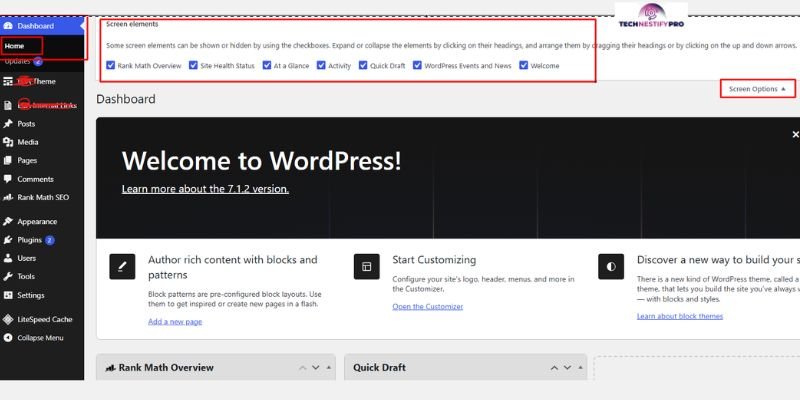
- Log in to your WordPress dashboard.
- Go to Dashboard → Home.
- In the upper-right area of the screen, click on Screen Options.
- A dropdown appears showing every available dashboard widget with a checkbox next to each one.
- Check the box next to any widget that’s currently missing.
- To close the pane, click Screen Options again. Your widgets appear immediately; no save button needed.
Method 2: Check your user role
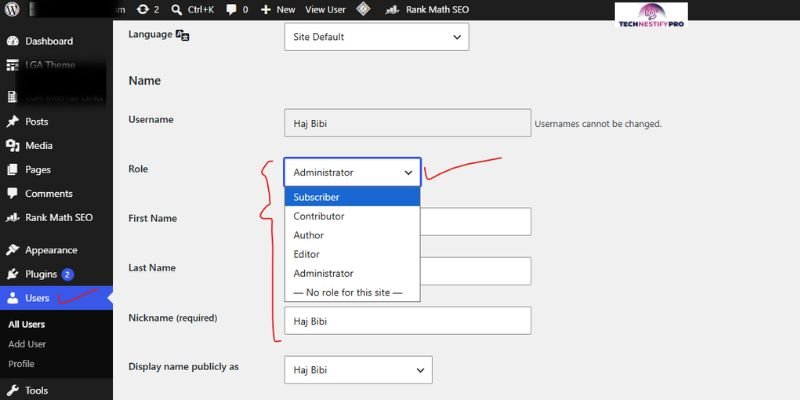
If Method 1 didn’t bring back a specific plugin’s widget, confirm your account has the right role. Go to Users → All Users, find your account, and check the Role column. If you need Administrator access and don’t have it, ask whoever manages the site to update your role.
Method 3: Run a plugin conflict test
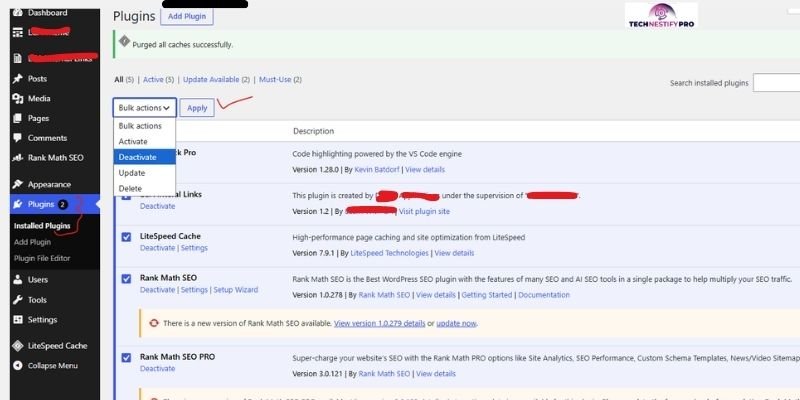
- Go to Plugins → Installed Plugins.
- Use the checkbox at the top to select every plugin, pick Deactivate from the Bulk Actions dropdown, and hit Apply.
- Return to your Dashboard and check if the missing widgets reappear.
- If they do, reactivate your plugins one at a time, checking the Dashboard after each one, until the widgets disappear again. Whichever plugin you just reactivated is the cause.
Worth knowing: this method takes your site down for every visitor while you test, not just for you. If this is a live site, testing for a plugin conflict without affecting visitors is a safer approach using WordPress’s own Health Check & Troubleshooting tool.
If you’re new to what plugins actually do on your site, this beginner’s guide to WordPress plugins is worth a quick read before deactivating anything below.
Method 4: Switch to a default theme temporarily
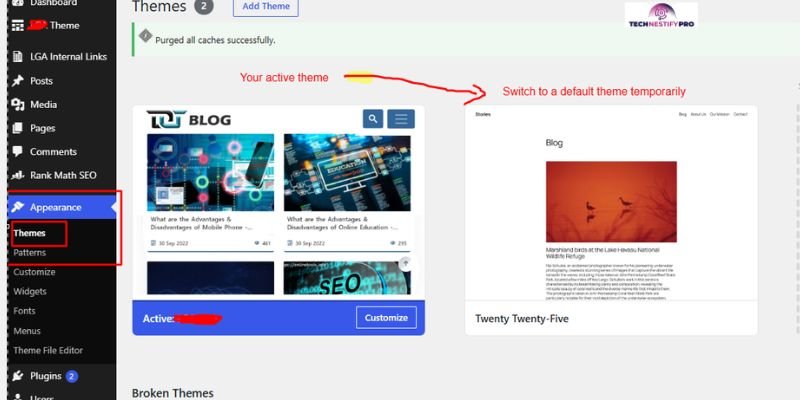
Go to Appearance → Themes and activate a default WordPress theme (Twenty Twenty-Four or similar). If your missing widgets reappear, your previous theme was the cause, and you’ll need to contact its developer or avoid whatever custom dashboard code it includes.
Method 5: Reset your widget preferences through the database
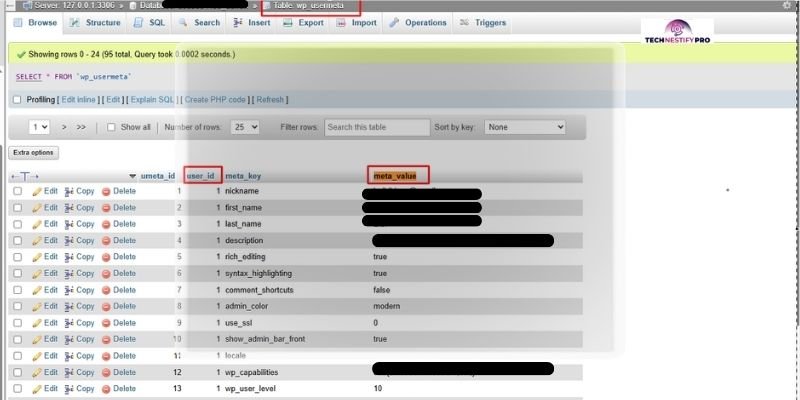
Use this only if Methods 1 through 4 didn’t work, and back up your database first.
- Open phpMyAdmin from your hosting control panel.
- Select your WordPress database, then open the wp_usermeta table.
- Search for a row where the meta_key column contains _wp_dashboard_widgets (the exact prefix may differ slightly if your site uses a custom database table prefix) and where the user_id matches your account.
- Delete that row, or clear its meta_value field.
- Sign out of your WordPress account, then sign back in. Your dashboard widget preferences reset to default, and all standard widgets reappear.
For developers: If none of the above explains a missing widget, check whether a plugin or a custom functions.php snippet is calling remove_meta_box() on the dashboard, or hooking into wp_dashboard_setup, the action WordPress fires specifically for adding or removing dashboard widgets, to deliberately unregister a widget. This is intentional code, not a bug or conflict, and searching your active plugins and theme files for remove_meta_box will usually point you straight to the cause.
A Specific Widget Missing? Common Plugin Dashboard Widgets and Their Fixes
If it’s one specific plugin’s widget that’s gone rather than the default WordPress ones, check these first.
- WooCommerce Status widget not showing on dashboard. Go to Dashboard → Home → Screen Options and confirm “WooCommerce Status” (sometimes labelled “WooCommerce Overview”) is checked. If it’s already checked but still not showing, deactivate and reactivate WooCommerce to force it to re-register its widget.
- Yoast or Rank Math SEO widget missing. By default, each of these plugins comes with its own dashboard widget built in. Check Screen Options first. If that doesn’t work, open the plugin’s own settings and confirm the dashboard widget option hasn’t been disabled inside the plugin itself; some SEO plugins have a separate toggle for this beyond Screen Options.
- Jetpack widget missing. Jetpack’s dashboard widget depends on an active connection to your WordPress.com account. If the widget disappeared, check Jetpack → Settings to confirm your site is still connected.
“Blocks in This Widget Area Will Not Be Displayed on Your Site”: What This Means
If you’ve seen this exact message, sometimes searched as “blocks in this widget area will not be displayed in your site,” it’s not related to dashboard widgets at all, and it’s not describing something broken. This message appears in the Appearance → Widgets screen (the sidebar/website widgets from earlier in this guide) when your active theme doesn’t fully support the block-based widget editor for a specific widget area.
WordPress is telling you that any blocks you add to that particular area won’t actually render on your live site, usually because the theme was built before block-based widgets existed, or it defines that widget area differently. The fix is theme-specific: check your theme’s documentation for whether it supports block widgets, or install the Classic Widgets plugin if you’d rather avoid the block editor for widgets entirely.
Restoring Dashboard Widgets for Every User on Your Site
If you manage a site with multiple admins or client accounts, resetting one user’s Screen Options at a time isn’t practical. Since dashboard widget preferences are stored per user, you need a method that touches every account at once.
- Using WP-CLI, run this from your site’s root directory over SSH to clear the saved preference for all users:
wp user list –field=ID | xargs -I {} wp user meta delete {} metabox-order_dashboard
wp user list –field=ID | xargs -I {} wp user meta delete {} closedpostboxes_dashboard
This clears each user’s saved dashboard layout and hidden-widget preferences, restoring every account to the default widget set on next login.
- On a multisite network, dashboard widget preferences still save per user rather than per site, so a user with access to multiple sites in the network keeps the same widget preferences across all of them. If you need different defaults per site, that requires filtering the available widgets with code rather than relying on Screen Options.
Extra Tips for Managing Your WordPress Dashboard Widgets
- Avoid dragging widgets around right before a major WordPress or plugin update; layout changes made close to an update are more likely to get lost if something goes wrong during the update process.
- If you manage client sites, document which widgets each client’s team expects to see, since a “missing” report is often just a different user account with different saved preferences.
- Reactivate plugins one at a time after any bulk deactivation test; this is the only reliable way to identify which specific plugin caused a conflict.
- Check Screen Options first, always. It resolves the overwhelming majority of “missing widget” cases in under a minute.
Still Not Working? Common Problems and Fixes
- Widgets not saving after you configure them. If a widget lets you enter settings, but they don’t stick after refreshing, this is usually a caching issue rather than a missing-widget issue. Clear your caching plugin’s cache and your browser cache, then try again.
- Dashboard looks completely blank, not just missing a few widgets. This points to a PHP error or a serious plugin/theme conflict rather than a simple widget setting. Run the plugin deactivation test from Method 3 above. If your error log or a brief flash of text mentions ‘allowed memory size exhausted,’ you’re dealing with a memory limit issue instead- a different fix entirely.
- Widgets reappear after you hide them again. A caching plugin may be serving an old, cached version of your dashboard. Clear all caches and try Screen Options again.
- Dashboard changed after updating to WordPress 7.0. WordPress 7.0 refreshed the entire admin interface, including how the Dashboard screen is laid out. Your actual widget data and Screen Options settings carried over unchanged, but the surrounding interface looks different. This is expected and not something to troubleshoot.
Wrapping Up
Missing WordPress dashboard widgets almost always come down to one of a few simple causes: a Screen Options setting, a per-user preference difference, a role restriction, or a plugin conflict, and every one of them is fixable without touching a single line of code for most sites. Start with Screen Options, work through the methods in order if that doesn’t fix it, and you’ll have your WordPress dashboard widgets restored well within a few minutes.
If you manage a site with several team members, remember that what you see and what they see can legitimately differ; that’s how WordPress is designed to work, not a sign something’s wrong.
FAQs about WordPress Dashboard Widgets Missing
Most often, they’ve been unchecked in Screen Options on your Dashboard → Home screen. Since this setting saves per user, it’s also possible another account simply has different widgets enabled than yours.
If your entire Dashboard screen looks blank or broken rather than just missing individual widgets, this usually points to a plugin conflict or a PHP error, possibly a WordPress memory exhausted error, rather than a simple widget setting. Try deactivating all plugins temporarily to confirm.
A Screen Options change, a plugin update, a theme switch, or a user role restriction are the most common causes. Check Screen Options first, since it resolves the majority of cases.
This means your active theme never registered a sidebar for WordPress to manage, common after switching to a newer or block-based theme. Adding a small code snippet to register a sidebar resolves it, and your Appearance → Widgets page will work normally again.
This happens when your current theme doesn’t declare a sidebar, so WordPress has nothing to display on that screen. Registering a sidebar through a code snippet, or switching to a theme that supports one, brings the page back.
Confirm first whether you mean dashboard widgets (your admin home screen) or sidebar widgets (your live website). Each has a separate setting and a separate fix.
Yes. WordPress saves dashboard widget visibility per individual user account, not site-wide, so two different logins can legitimately show two different sets of widgets.
Yes, a plugin update can change how it registers its dashboard widget, or introduce a conflict with another active plugin. Deactivating and reactivating the plugin usually resolves this.
Yes, using WP-CLI to clear each user’s saved dashboard preferences at the database level. This is the fastest option for agencies or sites with several admin accounts.
WordPress 7.0 refreshed the admin interface design, but your actual dashboard widget settings and data weren’t changed or removed. The layout around them simply looks different.




- Be Respectful
- Stay Relevant
- Stay Positive
- True Feedback
- Encourage Discussion
- Avoid Spamming
- No Fake News
- Don't Copy-Paste
- No Personal Attacks
- Be Respectful
- Stay Relevant
- Stay Positive
- True Feedback
- Encourage Discussion
- Avoid Spamming
- No Fake News
- Don't Copy-Paste
- No Personal Attacks
