How to Duplicate a Page in WordPress (With and Without a Plugin)
Published: 13 Oct 2026
Quick answer: How to Duplicate a Page in WordPress
To duplicate a page in WordPress without a plugin, open the page in the block editor, click Options (the three dots), choose Copy all blocks, and paste them into a new page. That copies the content only. For a copy that also keeps the featured image and settings, use a duplicate plugin such as Yoast Duplicate Post. Keep the copy as a draft, and change its title, URL, and SEO fields before you publish.
Tested on: WordPress 7.1.3 on a local XAMPP site with the WoodMart theme and a child theme, plus the block editor on my live site with Rank Math, October 2026.
You finally have a page you love. Now you need a second page that matches it. Starting from a blank page wastes time, and copying text by hand loses your layout. Many beginners get stuck here because WordPress has no obvious “duplicate” button in every setup.
You can fix this in a few minutes. In this guide, I show you how to duplicate a page in WordPress step by step, with and without a plugin. I also show you what each method copies, and how to avoid hurting your SEO.
Key Takeaways
- No plugin needed for a quick copy. For a quick content copy, choose Copy all blocks in the block editor.
- A plugin gives a fuller copy. Check the plugin’s settings, because they control which extras it copies, such as the featured image, custom fields and SEO data.
- Page builders have their own routes. Elementor, Divi, and WPBakery each reuse pages through templates or layouts.
- Unchanged duplicates can hurt SEO. Change the title, URL, and SEO fields before you publish.
- Always review the copy. Check the new page, because no method carries over everything.
On WordPress.com? You don’t need a plugin. WordPress.com has a built-in Copy page option, and the first method below shows how it works.
What Is a Duplicate Page?
A duplicate page is a new page in WordPress that begins with the same content and layout as another page. You edit the copy, so you never start from a blank screen. It starts with the same content and layout as the original, and you change what you need.
This guide covers pages in WordPress. If you mean Apple Pages or Microsoft Word, the steps are different.
The methods below also work for posts. If you use custom post types, a duplicate plugin can copy them too, when its settings include them.
For example, say your site has a service page built from a heading, an introduction, a benefits section, and a contact form. Instead of rebuilding that layout for your next service, you duplicate the page and replace the content.
A duplicate is not the same as a revision. A revision records an earlier version of one page. A duplicate creates a separate page with its own ID and URL.
Reasons to Duplicate a Page
You duplicate a page to save design time and keep your layouts consistent. These are the most common reasons:
- Service or product pages: reuse a proven layout for a new offer.
- Landing pages: start from an existing design and change the offer and call to action.
- Location pages: reuse a layout, then write genuinely local content for each area.
- A/B tests: keep the original live while you test a new headline or button copy.
- Backups before a redesign: save a copy of the page before you change it.
- Teamwork: let a teammate edit a copy while the live page stays untouched.
Duplicating works best when you reuse the structure but give the new page its own purpose. Don’t publish many near-identical pages just to chase slightly different keywords.
What to Prepare Before You Duplicate a Page
A short setup keeps your site safe. Check these six things first:
- A recent backup. It lets you restore your site if something goes wrong.
- A staging or local site, if you can. I tested on a local XAMPP site, so my live site stayed untouched.
- The correct source page. Confirm its content and layout suit the new page.
- Your editor or builder. Know whether you use the block editor, the Classic Editor, Elementor, Divi, or WPBakery.
- Your SEO plugin. I use Rank Math, so my steps mention it. Yoast SEO has similar fields.
- Your permissions. You need a role that can create and edit pages, such as Administrator or Editor.
Plan the new page’s topic, title, and URL before you publish.
How to Duplicate a WordPress Page (Step-by-Step)
WordPress gives you more than one way to duplicate a page. I start with the methods that need no plugin, then move to plugins and page builders. Pick the one that matches your setup.
First, check which WordPress you use. WordPress.com sites include a built-in copy option. Self-hosted WordPress.org sites have no built-in Duplicate button, so you copy blocks or use a plugin.
How to Duplicate a Page on WordPress.com (No Plugin)
Find the page in your WordPress.com Pages list, open its menu, and click Copy page. The copy opens automatically, and you decide whether to save it as a draft or publish it.
- Go to Pages in your WordPress.com dashboard.
- Open the three-dot menu next to the page you want to copy.
- Choose Copy page (for a post, choose Copy post).
- Make your edits on the new page, and keep it as a draft for now. Don’t publish until you finish editing.
If you publish the copy right away, you end up with two live pages that have the same content. Search engines may struggle to choose between the two pages; I explain later.
How to Duplicate a Page Without a Plugin
You can duplicate a WordPress page without a plugin by copying its blocks, using the Site Editor, or using export and import. Each option copies a different amount.
How to Duplicate a Page in Gutenberg (Block Editor)
Open the page, choose Options → Copy all blocks, and paste into a new page. This copies your content blocks and nothing else.
- Go to Pages → All Pages.
- Click Edit under the page you want to copy.
- At the top right of the editor, click the three-dot Options icon.
- Choose Copy all blocks.
- Go to Pages → Add New Page.
- Click in the content area and press Ctrl+V (or Cmd+V on Mac).
- Add a title, then save the page as a Draft.
The new page does not get the original’s featured image, URL, page template, or SEO fields. You add those by hand. If the page uses a custom or plugin block, keep that plugin active.
In older versions of WordPress, this option reads Copy all content instead of Copy all blocks. Use whichever label your editor shows.
My test: On my live site, I opened a page in the block editor and clicked the Options icon (three dots, top right). Under Tools, just below Keyboard shortcuts, I found Copy all blocks. The same menu also lists my Rank Math & Content AI panels.
Another way to copy the content: click inside the editor, press Ctrl+A (or Cmd+A) several times until you select every block, then press Ctrl+C (or Cmd+C) and paste into the new page. The result matches Copy all blocks.
Some theme settings live in the editor’s sidebar, such as the page template. These don’t copy with the blocks, so check them on the new page.
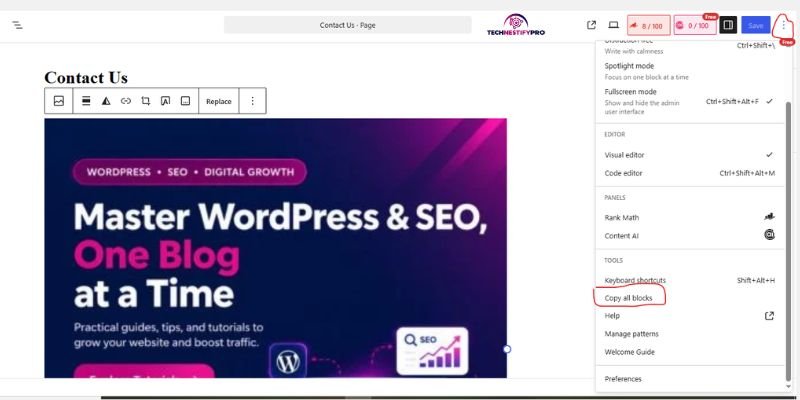
Screenshot: the Options menu with Copy all blocks
If you built the original page with Elementor, skip this method. It only copies the standard blocks, not your Elementor layout.
How to Duplicate a Page From the Site Editor
Some block themes add a Duplicate action to each page’s menu in the Site Editor’s page list. It copies the page inside WordPress, so you don’t need a plugin. Whether it appears for you depends on your theme and your WordPress version.
- Go to Appearance → Editor.
- Click Pages.
- Click the three-dot menu next to the page.
- Choose Duplicate if you see it.
The Site Editor mainly edits block theme templates, template parts, and global styles. If you don’t see a Duplicate action, use the Copy all blocks method above instead.
How to Duplicate a Page in the Classic Editor
Copy the page’s content from the Text tab and paste it into a new page. The Classic Editor doesn’t include a Copy all blocks option, and it has no built-in duplicate button either.
- Open the page in the Classic Editor.
- Click the Text tab so you can see the HTML option.
- Select all the content and copy it.
- Open Pages → Add New Page, switch to the Text tab, and paste.
- Add the title, featured image, page template, and slug yourself.
- Save the page as a draft.
If the original page uses shortcodes, check that they still display correctly on the new page.
How to Duplicate a Page With Export and Import
Export and import work best for moving a page to another WordPress site. It isn’t a reliable way to copy a page on the same site, since the importer can skip the content that already exists.
- On the original site, go to Tools → Export.
- Choose Pages and download the export file.
- On the destination site, go to Tools → Import and install the WordPress importer.
- Upload the file and choose an author.
- Check the Download and import file attachments box if you want the images to come over too.
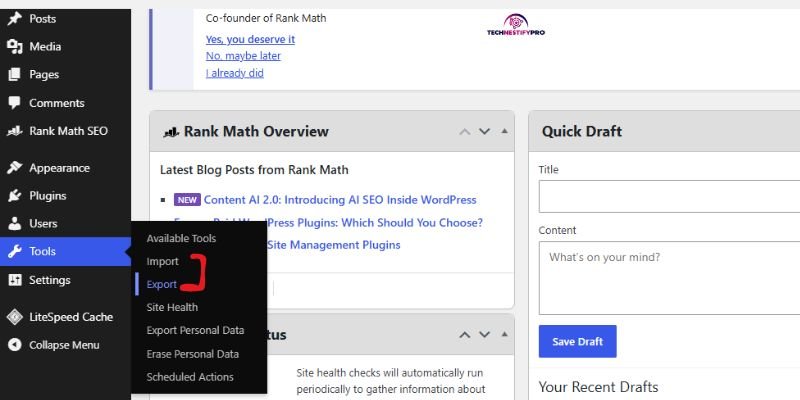
The export can include every page that matches your filters, so you may need to delete extras afterwards. This method also does not guarantee that plugin settings, builder data, or SEO fields transfer.
How to Add a Duplicate Link With Code (Advanced)
You can add a Duplicate link to your Pages list with a short PHP snippet. Try this only if you’re comfortable working with code, and run it on a local or staging site before your live one. A mistake in functions.php can break your site, so back up before you start.
Place this code in a code snippets plugin or in your child theme’s functions.php file. Leave out the opening PHP tag when you paste it.
/**

 * Add a Duplicate action to WordPress Pages.

 * The duplicated page is saved as a draft.

 */

add_filter( 'page_row_actions', 'tn_add_duplicate_page_action', 10, 2 );

function tn_add_duplicate_page_action( $actions, $post ) {

    if (

        'page' !== $post->post_type ||

        ! current_user_can( 'edit_page', $post->ID )

    ) {

        return $actions;

    }

    $url = wp_nonce_url(

        admin_url( 'admin.php?action=tn_duplicate_page&post=' . $post->ID ),

        'tn_duplicate_page_' . $post->ID

    );

    $actions['duplicate'] = '<a href="' . esc_url( $url ) . '">Duplicate</a>';

    return $actions;

}

add_action( 'admin_action_tn_duplicate_page', 'tn_duplicate_page_handler' );

function tn_duplicate_page_handler() {

    $post_id = isset( $_GET['post'] )

        ? absint( $_GET['post'] )

        : 0;

    check_admin_referer( 'tn_duplicate_page_' . $post_id );

    $post = get_post( $post_id );

    if (

        ! $post ||

        'page' !== $post->post_type ||

        ! current_user_can( 'edit_page', $post_id )

    ) {

        wp_die( 'You are not allowed to duplicate this page.' );

    }

    $new_id = wp_insert_post(

        wp_slash(

            array(

                'post_title'   => $post->post_title . ' (Copy)',

                'post_content' => $post->post_content,

                'post_excerpt' => $post->post_excerpt,

                'post_status'  => 'draft',

                'post_type'    => 'page',

                'post_parent'  => $post->post_parent,

                'menu_order'   => $post->menu_order,

                'post_author'  => get_current_user_id(),

            )

        ),

        true

    );

    if ( is_wp_error( $new_id ) ) {

        wp_die( 'Could not duplicate the page. Please try again.' );

    }

    // Copy page metadata, including the featured image reference.

    $excluded_meta = array(

        '_edit_lock',

        '_edit_last',

        '_wp_old_slug',

    );

    $meta = get_post_meta( $post_id );

    foreach ( $meta as $key => $values ) {

        if ( in_array( $key, $excluded_meta, true ) ) {

            continue;

        }

        foreach ( $values as $value ) {

            add_post_meta(

                $new_id,

                $key,

                wp_slash( maybe_unserialize( $value ) )

            );

        }

    }

    wp_safe_redirect(

        admin_url( 'post.php?post=' . absint( $new_id ) . '&action=edit' )

    );

    exit;

}How to add the code with the built-in editor:
- Go to Appearance → Theme File Editor. On a block theme, look under Tools → Theme File Editor.
- Select your child theme from the dropdown, so a theme update doesn’t erase your code.
- Select Theme Functions (functions.php) from the list of theme files.
- Scroll to the bottom, paste the code, and click Update File.
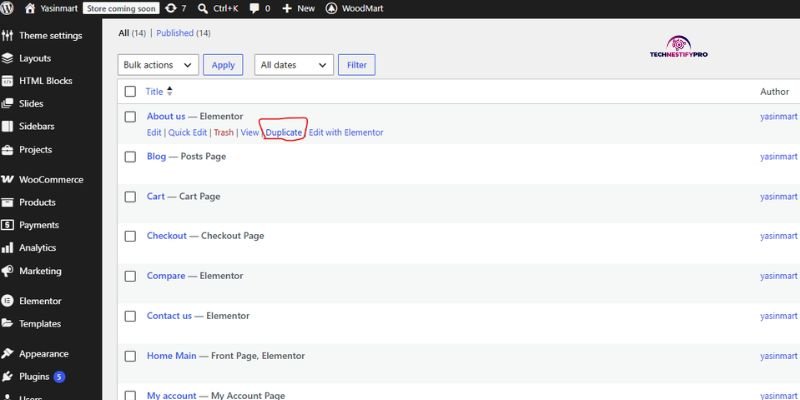
- Go to Pages → All Pages, hover over a page title, and click Duplicate. The copy opens as a draft.
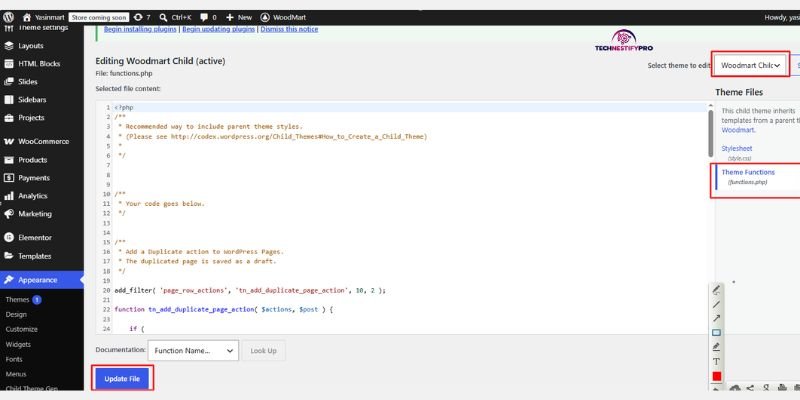
If you don’t see the Theme File Editor, your host may have turned it off. Use a code snippets plugin instead.
The code checks the user’s permission, protects the action with a nonce, creates the copy as a draft, and copies the page’s custom fields while skipping edit locks and old-slug records. It does not copy the categories and tags.
My test: I ran this on a local XAMPP site that uses the WoodMart theme. I created a WoodMart child theme first, so a theme update can’t erase the code. Then I opened Appearance → Theme File Editor, selected the child theme, opened Theme Functions (functions.php), pasted the code, and clicked Update File.
A Duplicate link then appeared under each page title in Pages → All Pages, between View and Edit with Elementor. It also appeared on my Elementor pages. When I hovered over the link, the address pointed to admin.php with a security nonce, which is the check that protects the action.
If you aren’t sure about code, use a plugin instead.
How to Duplicate a Page With a Plugin
A duplicate plugin adds a Clone or Duplicate link to your Pages list, and it can copy more than the content, such as the featured image and custom fields. It is the easiest option for most beginners.
Which Duplicate Page Plugin Should You Use?
Use a plugin built just for duplication, so you don’t install a whole add-on package for one task.
Here are three well-known options. Check each plugin’s current page before you install it.
| Plugin | What it adds to the Pages list | What to check |
| Yoast Duplicate Post | Clone and New Draft links, plus bulk cloning | Settings control which fields it copies |
| Duplicate Page | A duplicate link in the list | Settings for the copy’s status and redirect |
| Post Duplicator | A duplicate link in the list | Settings for the copy’s status and title |
Before you install any plugin, check its last update date, support activity, reviews, and compatibility with your WordPress version. Keep only one duplicate plugin active.
Steps for the Plugin You Chose
Install the plugin, activate it, hover over a page, and click its Clone or Duplicate link. The copy appears in your Pages list, usually as a draft. These steps use Yoast Duplicate Post as the example.
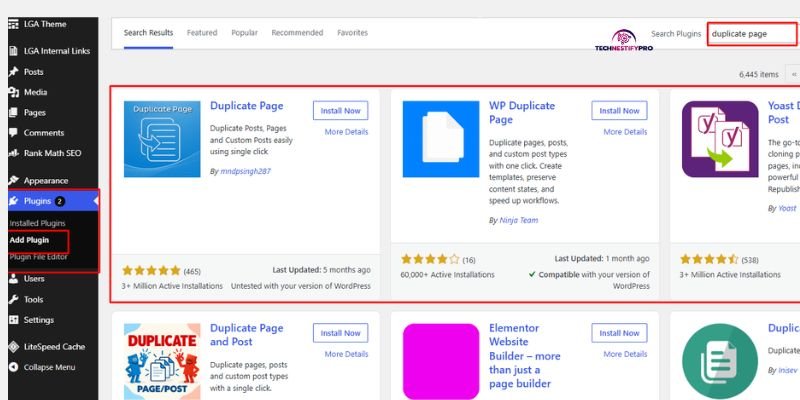
- Go to Plugins → Add New Plugin.
- Search for Duplicate Post, then click Install Now and Activate.
- Go to Pages → All Pages.
- In the Pages list, hover over the page that you want to copy.
- Click Clone to create a copy and stay on the list, or New Draft to create a copy and open it in the editor.
- Open the new draft and change the title, slug, and content.
The settings decide what the plugin copies, so check the copy before you publish. Don’t assume it copies every custom field or builder setting.
Clone, New Draft, and Rewrite and Republish: What’s the Difference?
Yoast Duplicate Post adds three links to each page. Clone and New Draft create a safe copy. Rewrite & Republish is different, and you should use it with care.
- Clone: creates a copy saved as a draft, and keeps you on the Pages list.
- New Draft: creates the same draft copy, then opens it in the editor.
- Rewrite & Republish: creates a copy and opens it in the editor. When you click Republish, the rewritten copy replaces the original page.
For a normal duplicate, use Clone or New Draft. Rewrite & Republish suits one job: editing a live page behind the scenes and swapping in the new version when it’s ready.
How to Duplicate a Page With the Duplicate Page Plugin
The Duplicate Page plugin adds a Duplicate This link to your Pages list. You can change its settings first, so each copy opens the way you want.
- Go to Plugins → Add New Plugin, search for Duplicate Page, then click Install Now and Activate.
- Open the plugin’s settings page (look under Settings → Duplicate Page).
- Under Choose Editor, pick the editor you use, such as the Gutenberg block editor.
- Set the post status to Draft, so the copy doesn’t go live. Click Save Changes.
- Go to Pages → All Pages and hover over a page.
- Click Duplicate This. The copy appears as a draft.
- Open the copy with Preview, and check how it looks next to the original.
Keep the status on Draft. Otherwise, you publish a second live page before you edit it. The settings may also let you choose where you land after clicking Duplicate This, and add a suffix to the copy’s title. Labels can change, so check them on your own screen.
How to Duplicate Pages in Bulk
Bulk duplication starts in the Pages list: select your pages, open Bulk actions, and look for the plugin’s duplicate or clone option. Not every plugin supports bulk duplication.
- Tick the boxes next to your pages.
- Open Bulk actions.
- Choose Clone (or your plugin’s equivalent) and click Apply.
- Review each new copy before you edit or publish it.
Back up your site first. Then check every copy’s title, URL, content, featured image, and status. Don’t publish a large batch of copies unless each page has its own purpose.
How to Duplicate a Page in Elementor
In Elementor, save the page as a template, then insert that template into a new page. A duplicate plugin can also copy an Elementor page, but check the result, because Elementor stores its layout in the page’s settings data.
- Go to Pages → All Pages, hover over the page, and click Edit.
- In the top bar, click Edit with Elementor.
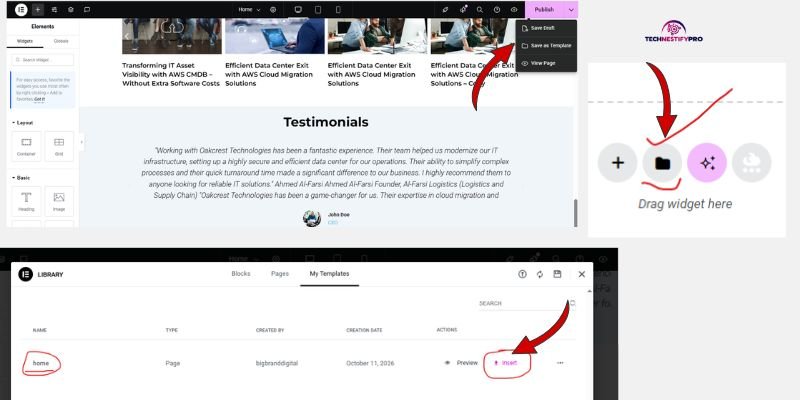
- In Elementor, click the small arrow next to the Publish or Update button.
- Pick Save as Template and give it a descriptive name, such as “Service page layout,” so you can spot it in your library.
- If Elementor asks where to save it, choose between a site template and a cloud template, then click Save.
- Go to Pages → Add New Page and click Edit with Elementor.
- Click the folder icon above the empty “Drag widget here” area. The template library opens.
- Open the Templates tab (some versions call it My Templates), find your template, and click Insert.
- Review the copy. It should include all the original’s sections and widgets.
- Replace the content, then set the page title, permalink, featured image, and SEO fields. Save the page as a draft, and publish only when it is ready.
Site template or cloud template? A site template stays on your own site. A cloud template saves to your Elementor account, so you can reuse it on other sites. If you only need the layout on this site, choose the site option. Labels and availability depend on your Elementor version and plan, so check your own screen.
Elementor documents this workflow in its official duplication guide. Screens may change between versions, so you need to check each label on your own screen. Review responsive layouts, forms, and dynamic content before you publish.
You can also use a duplicate plugin for Elementor pages. With the Duplicate Page plugin, set Choose Editor to the builder you use, then click Duplicate This in the Pages list. The copy appears as a draft that you open with Elementor.
Our guide to hiding the header in Elementor uses the same editor, and our Elementor vs Gutenberg comparison can help you choose between them.
How to Duplicate a Page in Divi
Divi’s layout tools let you reuse an existing page. When you start a new page with the Divi Builder, look for the option to clone an existing page, or save the page’s layout to the Divi Library and load it into a new page. Labels depend on your Divi version, so follow Divi’s official documentation for the current steps.
- Create a new page and open it with the Divi Builder.
- Choose the option to clone an existing page, or load a saved layout from the Divi Library.
- Replace the original page’s content.
- Set the title, permalink, featured image, and SEO fields.
- Save the page as a draft.
How to Duplicate a Page in WPBakery
In WPBakery, save the page layout as a template and load it into a new page, or use a duplicate plugin. WPBakery keeps its layout inside the page content as shortcodes, so copying only the visible text breaks the design.
- Open the original page in the WPBakery editor.
- Save the layout as a template, if your setup offers that option.
- Create a new page, open the WPBakery editor, and insert the saved template.
- Replace the content, then set the title, permalink, featured image, and SEO fields.
- Preview the page on desktop and mobile.
If you use a duplicate plugin instead, confirm that it keeps your WPBakery layout. Check WPBakery’s documentation for the exact current labels.
How to Duplicate a Page to Another Site (Multisite)
WordPress Multisite doesn’t copy pages between sites on its own. Export and import the page, or use a plugin that supports Multisite. Enabling Multisite does not copy pages across the network automatically.
- On the first site, navigate to Tools → Export and export your pages.
- Switch to the second site under My Sites.
- Open Tools → Import and then upload the file.
- Import or reconnect the media, then check the content, layout, and URLs.
- Confirm that the second site’s theme and required plugins are active.
Make sure the new site has the same theme features, blocks and page builder, because missing pieces can break the layout.
To learn how a network handles themes, read our guide: WordPress Multisite: One Theme or Multiple?.
Which Method Should You Use?
Use Copy all blocks for a quick content copy, a plugin for a fuller copy, and a builder’s own template for Elementor, Divi, or WPBakery pages.
| Your situation | Best method |
| Block editor page, content only | Copy all blocks |
| You want the featured image and settings copied | A duplicate plugin |
| Elementor page | Save as Template, or a compatible plugin |
| Divi or WPBakery page | The builder’s own template or clone option |
| Many pages at once | A plugin with bulk cloning |
| Moving a page to another site | Export and import |
| You like code and want no plugin | The code snippet |
| Your site runs on WordPress.com | The built-in Copy page option |
| You want to update a live page and swap it in | Yoast Rewrite & Republish (use with care) |
For most beginners, a duplicate plugin is the simplest choice because it gives you one dedicated action and less manual work.
What Gets Copied When You Duplicate a Page?
Duplicating a page copies its content, layout, and styling into a new, independent page. The copy gets its own title, URL, and ID, and it usually starts as a draft. What else it keeps depends on the method. Copy all blocks copies only your content blocks, and a plugin can copy much more. This table shows what each method copies by design, so you know what to fix by hand. A duplicate plugin copies whatever its settings allow.
| What gets copied | Copy all blocks | Elementor template | Code snippet (above) |
| Content | Yes | Yes (the layout) | Yes |
| Title | No | No | Yes (adds “(Copy)”) |
| Featured image | No | No | Yes, if the original has one (as a custom field) |
| URL (slug) | No | No | New slug from the title |
| Status | No | No | Draft |
| SEO plugin fields | No | No | Yes, if your SEO plugin stores it as a custom field |
| Elementor layout data | No | Yes | Yes (as a custom field; check the layout) |
Images and media: The copy points to the same files in your Media Library. WordPress doesn’t create new image files. If you delete an image from the library later, it disappears from both pages.
Independence: After you duplicate a page, the two pages don’t affect each other. Once you duplicate a page, you can edit or delete either page, and the other one stays exactly as it is.
Styling: Text, headings, buttons, columns, spacing, and block styles come across with the content. Settings stored outside the content, such as the featured image, page template, and SEO fields, depend on the method, as the table shows.
Before you publish the copy, check its featured image, URL, SEO title, meta description, canonical URL, and layout.
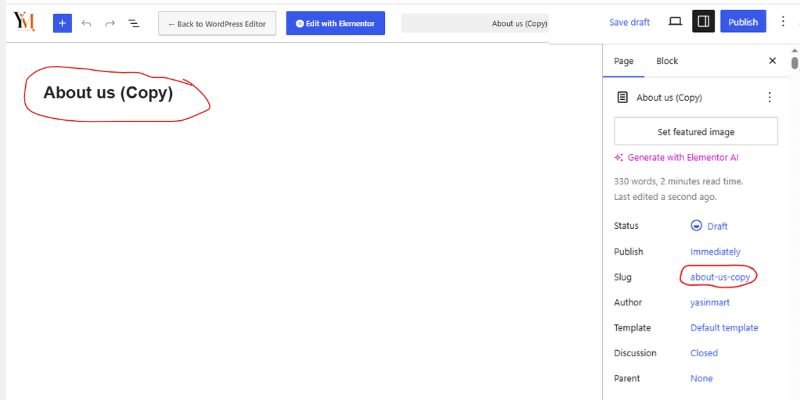
My test: When I clicked Duplicate on my About us page, WordPress created a draft called “About us (Copy)” with the slug about-us-copy. The copy opened with the Default template and still offered Edit with Elementor, so it kept its Elementor mode.
How to Duplicate a Page Without Losing SEO
Duplicating a page does not penalize your site. The risk comes from publishing a second page with nearly the same content, title, and search intent. Two near-identical pages can compete with each other, and Google usually picks one version to show. You don’t control which one, so make the copy unique before you publish it.
- Keep the Copy as a Draft Until It’s Unique
Leave the copy as a draft until you finish editing. Drafts stay private, so search engines can’t index them. Rewrite the introduction, headings, examples, and calls to action so the page serves its own purpose. If you build a new service page, explain that service. Don’t just swap the service name.
- Change the Title, Slug, and H1
Give the copy its own title, URL, and main heading. WordPress often adds a “-2” or “-copy” to a duplicate page’s URL.
- Edit the page title.
- Open the page settings and change the Permalink (slug).
- Change the H1 heading on the page.
For example, if the original page targets WordPress SEO services, a copy for speed optimization needs a title, slug, and H1 about speed optimization.
- Check the Canonical Tag
Make sure the copy’s canonical URL points to the copy, not to the original. The canonical tag tells Google which URL is the preferred version of a page. A page meant to stand on its own should have a self-referencing canonical. In Rank Math, open the page’s Advanced tab and check the Canonical URL field. Then view the page source after you publish to confirm the tag.
- Set Noindex Until the Page Is Ready
A draft is usually enough. If you must publish the copy before it is ready, set it to noindex. In Rank Math, go to Advanced → Robots Meta and choose No Index. Remove it when the page is unique and final. Noindex is not a substitute for a draft or a password, and it doesn’t guarantee that a URL never appears in search results.
- Update the Focus Keyword and Meta Description
Change the focus keyword, SEO title, and meta description. A duplicate plugin may copy the original’s SEO fields, and then two pages target the same keyword. A focus keyword is only a writing aid in your SEO plugin. It does not improve rankings by itself, so make sure the page answers the searcher’s question.
To compare SEO plugins, read our guide to the best WordPress SEO plugins.
- Update Internal Links
Link to the new page from related pages, and review every link inside the copy. Links copied from the original may point to the wrong place. Add the new page to your menu or to a related page, so visitors and search engines can find it.
Extra Tips and Best Practices
These habits prevent most duplication problems:
- Make a backup of your site before you duplicate anything important.
- Test a new method on a local or staging site first.
- Set the copy to Draft before you edit it.
- Edit the copy, never the original page.
- Rename the copy so you can tell it apart in the Pages list. Avoid titles like “Copy of Services.”
- Update image alt text if the new page has a different topic.
- Test forms, buttons, and calls to action on the new page.
- Check the mobile layout before you publish.
- Delete copies you don’t use.
- Keep your duplicate plugin updated, and remove it if you stop needing it.
Common Problems and Fixes
- The Duplicate Option Is Not Showing
The most common cause is an inactive plugin or a user role without permission to edit pages. Check these in order:
- The plugin isn’t active. Go to Plugins and activate it.
- Your role can’t edit pages. Sign in as an Administrator or Editor, because those roles can edit pages.
- The plugin doesn’t support your content type. Open the plugin’s settings and check the supported post types.
- A caching or plugin conflict hides the link. Clear your cache, then deactivate other plugins one at a time. See our guide to reducing plugin conflicts.
- The Copy’s URL Ends in “-2”
WordPress adds a number when the URL already exists. Edit the slug under Permalink before you publish.
- The Copy Is a Draft, Not Published
This is normal. Most methods create drafts on purpose. Publish the page after you finish editing.
- The Featured Image Is Missing
Copying all blocks doesn’t copy the featured image. Pick the featured image again on the new page, or use a plugin that copies it automatically.
- The Elementor Layout Is Broken or Empty
Copying blocks or text doesn’t keep an Elementor layout. Use Save as Template, or a plugin that supports Elementor, and open the copy with Elementor.
- Shortcodes or Builder Code Show as Text
The page was pasted into a different editor, or the plugin that renders it is inactive. Open the copy with the same builder as the original, and activate the required plugin.
- The SEO Fields Match the Original
Your method copied the SEO plugin fields. Change the SEO title, meta description, and focus keyword.
- The Copy Is Live on Your Site
The page was created with a published status. Change it to Draft or Private. If search engines already indexed it, think about redirects before you delete it.
To prevent this, set your duplicate plugin’s default status to Draft in its settings.
What Should You Do After Duplicating a WordPress Page?
After you duplicate a page, rename it, change its URL, rewrite its content, and update its SEO fields before you publish it. Work through this checklist:
- Change the title and H1.
- Change the slug.
- Rewrite the content so it is unique.
- Update the three SEO fields: focus keyword, SEO title and meta description.
- Check the canonical tag and robots settings.
- Check the featured image and alt text.
- Update internal and external links.
- Test buttons and forms.
- Preview the page on desktop and mobile.
- Publish only when the page is ready.
Conclusion
Whether you prefer a plugin or none at all, you now have a clear way to duplicate a page in WordPress. You can copy content with Copy all blocks, make a fuller copy with a plugin, reuse an Elementor page as a template, and move pages between sites.
Choose the easiest route for your setup, and keep the copy unpublished while you work. When you finish, give it a new title, URL and SEO settings, then publish. Whichever method you choose, review the copy first.
Want to keep learning? Read our guide to WordPress Multisite and themes next.
FAQs about Duplicating a Page in WordPress
You can duplicate a page in WordPress in two main ways. With a plugin such as Yoast Duplicate Post, click Clone beside the page in your Pages list. Without one, use Copy all blocks from the Options menu in the block editor and paste into a new page. Either way, save the copy as a draft, then change its title, URL and SEO fields before it goes live.
To copy one page in WordPress, find it under Pages → All Pages and hover over its title. A duplicate plugin adds a Clone or Duplicate link there. No plugin? Copy the blocks by hand into a new page. If you mean Apple Pages, the steps are different: duplicate the file in Finder, or use the app’s Duplicate option.
The easiest way is a duplicate plugin, which adds a Clone link to your Pages list. Prefer to skip the plugin? Edit the page in the block editor, click Options, and select Copy all blocks. Paste them into a new page, and save it as a draft.
Yes, if your duplicate plugin offers a bulk action. Select several pages in the Pages list, open Bulk actions, and choose the plugin’s duplicate option. Not every plugin supports this, so check yours. Back up first, and review each copy before you publish it.
Yes, if your duplicate plugin offers a bulk action. Select several pages in the Pages list, open Bulk actions, and choose the plugin’s duplicate option. Not every plugin supports this, so check yours. Back up first, and review each copy before you publish it.
Most are safe when they come from the official WordPress plugin directory and receive regular updates. Check the last update date, reviews, and compatibility with your WordPress version. Before you rely on it, test the plugin on a staging site. If you stop using it, uninstall it.
Rename the page, change its URL, rewrite its content, and update its SEO title, meta description, and focus keyword. Then check the canonical tag and the featured image. Add internal links, preview the page on mobile, and publish only when it is ready.
Open the page in the block editor, click Options, and choose Copy all blocks. Create a new page, paste the blocks, and save it as a draft. This copies only the content, so you add the featured image, URL, and SEO settings by hand.
Yes. Open the page in Elementor, save it as a template, and insert the template into a new page. A duplicate plugin can also copy Elementor pages. Check the labels in your Elementor version, because the screens change.
Keep the copy as a draft until you rewrite it. Change the title, slug, H1, focus keyword, and meta description, and check the canonical tag. If the page must go live before it is final, set it to noindex until it is ready.
To duplicate an entire page, use a duplicate plugin. One click can copy the content, settings and featured image. Copy all blocks is lighter, but it copies only the content. Whichever you pick, keep the copy as a draft and edit it before you publish.
Check the plugin first, because it may simply be inactive. Next, make sure your role can edit pages, and use an Administrator login if you’re unsure. If the link is still missing, check the plugin’s settings, then deactivate other plugins one at a time to find a conflict.




- Be Respectful
- Stay Relevant
- Stay Positive
- True Feedback
- Encourage Discussion
- Avoid Spamming
- No Fake News
- Don't Copy-Paste
- No Personal Attacks
- Be Respectful
- Stay Relevant
- Stay Positive
- True Feedback
- Encourage Discussion
- Avoid Spamming
- No Fake News
- Don't Copy-Paste
- No Personal Attacks
