How to Speed Up the WordPress Website
Published: 25 Nov 2025
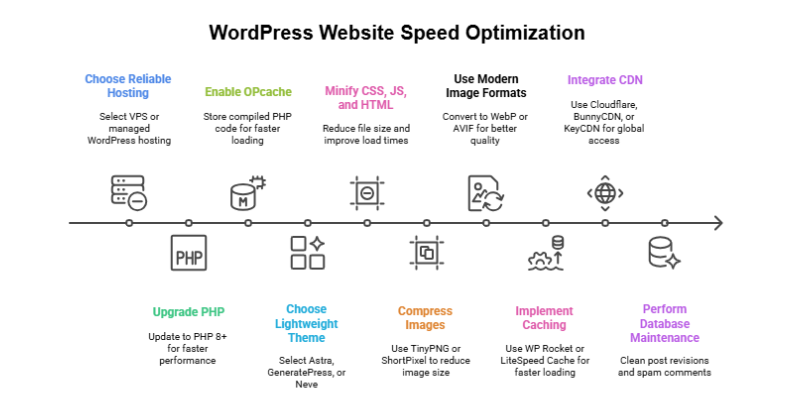
Many WordPress websites feel slow, and that’s not just annoying; it’s hurting your traffic and conversions. In 2025, over 53% of mobile users abandon sites that take more than 3 seconds to load, costing businesses billions in lost traffic and conversions.
A slow website frustrates visitors, increases bounce rates, and can lower Google rankings. Page speed affects both user experience and SEO.
If you’ve wondered how to speed up the WordPress website without breaking things or diving into complicated tech, this guide is for you. We’ll cover both simple and advanced techniques to make your site faster, improve Core Web Vitals, and enhance your SEO.
By the end, you’ll have a clear, actionable plan to speed up your WordPress website. Pro Tip: Always back up your site and test changes in a staging environment to protect your live site.
Understanding Performance Metrics & SEO
Before optimizing, it’s essential to know what to measure. Google prioritizes Core Web Vitals, which affect both SEO and user experience.
Core Web Vitals
- LCP (Largest Contentful Paint): Measures how long the main content takes to load. Aim for under 2.5 seconds.
- FID (First Input Delay): Measures how long the page takes to respond to the first user interaction. Aim for under 100ms.
- CLS (Cumulative Layout Shift): Measures visual stability. Aim for a value of under 0.1 to avoid unexpected shifts.
Other useful metrics:
- TTFB (Time to First Byte): Server response speed.
- Total Blocking Time (TBT): How long scripts block page interaction.
Example: A homepage that loads in 6 seconds may lose 40% of visitors before they see your content.
Reference: Google Core Web Vitals Guide
Step-by-Step Optimization Guide to Speed up WordPress Website
Optimizing your WordPress website can seem daunting, but if you follow the right steps in sequence, you can significantly improve speed and user experience. Now, here, we will cover every key area from hosting and themes to images, caching, and advanced techniques. So your site loads faster, keeps visitors engaged, and ranks better on Google.
1. Hosting & Server-Level Optimization
A fast website starts with a strong server. If your hosting is weak, no plugin or trick will fix your site speed. Follow these steps in the right order so nothing feels confusing.
Step 1: Check If Your Hosting Is Fast
Good hosting gives stable performance, strong security, and better speed. Shared hosting often slows down websites because many sites share the same resources.
Managed WordPress hosting or VPS hosting gives more power and better stability.
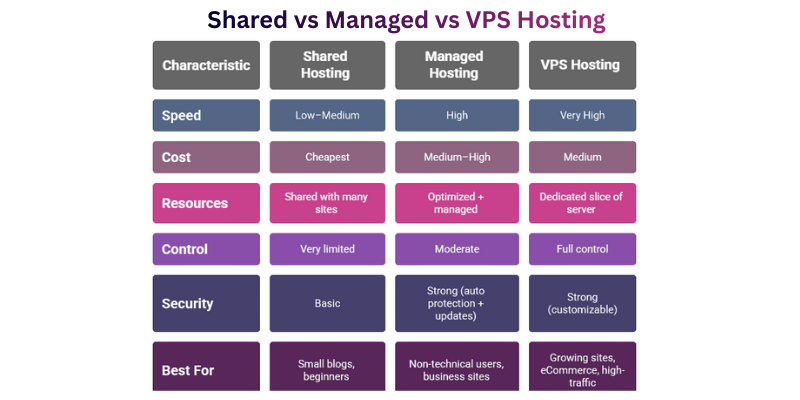
Beginner-friendly hosting:
- SiteGround
- Cloudways
- Hostinger
- Kinsta
Why it matters:
Your hosting decides how quickly your server responds.
If your server is slow, every page load slows down, even after caching, compression, or image optimization.
Example: A slow server can add 1–3 extra seconds before your page even starts loading.
WordPress works faster and more securely on PHP 8 or higher. You can check the official WordPress server requirements to make sure your hosting meets the latest standards.
Step 2: Update Your PHP to Version 8+
WordPress works faster and more securely on PHP 8 or higher. A newer PHP version makes your site load faster and keeps it secure.
You can update it inside your hosting panel or ask support to do it.
Older PHP versions take more time to process each request.
Newer versions handle code more efficiently, which means:
Why it matters:
- faster load times
- fewer errors
- stronger security
This one change alone can reduce load time by up to 20–30%.
Step 3: Enable OPcache
OPcache stores pre-compiled PHP code, so your server doesn’t repeat the same work every time someone visits your site. This improves speed without adding any plugins.
Most hosts offer OPcache; you may only need to enable it. If unsure, contact support.
Why it matters:
Without OPcache, your server processes the same PHP files again and again.
With OPcache, your site loads faster because the server reuses cached code.
This can improve performance even if you have no plugins installed.
Step 4: Turn On Object Caching (Redis or Memcached)
Object caching saves common database requests. If your host supports it, enabling Redis or Memcached helps store common database queries.
This reduces server load and speeds up page generation, especially on busy or e-commerce sites. This is especially helpful for:
- blogs with many posts
- WooCommerce stores
- sites using page builders
Ask your host to enable Redis or Memcached if available.
Why it matters:
WordPress makes many database queries.
Object caching reduces this load, helping pages appear faster, especially for returning visitors or busy websites.
Pro Tip
If you’re unsure how to apply these steps, simply ask your hosting company:
“Please update my PHP version to PHP 8+, and enable OPcache and object caching (Redis or Memcached) for my WordPress site.”
They will do everything for you.
TL;DR
- Fast hosting = faster website.
- Hosting quality affects everything.
- PHP 8+ makes WordPress faster and safer.
- OPcache speeds up PHP processing.
- Object caching reduces database load.
- These steps create a strong base for all other speed optimizations.
2. Theme & Code Optimization
A clean and lightweight theme plays a big role in how fast your WordPress site loads. Heavy themes and unnecessary scripts increase page size, slow down rendering, and hurt Core Web Vitals. By choosing the right theme and optimizing its code, you can reduce load time without changing your design.
Why It Matters
- Your theme controls most of the front-end code (HTML, CSS, JS).
- A heavy theme loads extra features you may never use, slowing down your site.
- Poorly optimized CSS/JS can freeze the page and increase Total Blocking Time (TBT).
- Cleaner code = faster rendering, better user experience, and higher Core Web Vitals scores.
Simple example:
A site using a heavy theme with animations, sliders, and bundled scripts may load in 5 seconds, while a lightweight theme with the same layout may load in under 2 seconds.
How to Optimize Theme & Code: Step-by-Step Optimization
Your theme and code shape how fast your site loads, even before you install plugins or add content. When they’re clean and lightweight, your pages open quickly and feel smooth for visitors. This section walks you through simple steps anyone can follow to keep their theme and code fast.
1. Choose a Lightweight Theme
Lightweight themes are built for speed and include only essential code.
Beginner-friendly options:
- Astra
- GeneratePress
- Neve
These load fast, work with most page builders, and come with clean coding standards.
What to avoid:
Themes packed with sliders, animations, page builders, or dozens of pre-installed plugins.
2. Minify CSS, JavaScript, and HTML
Minification removes unnecessary characters (spaces, comments) from files to make them smaller.
Tools (easy for beginners):
- Autoptimize
- WP Rocket
- LiteSpeed Cache (if your host uses LiteSpeed)
Just enable minify for:
✔ CSS
✔ JavaScript
✔ HTML
Smaller files mean quicker loading and better scores.
3. Defer Non-Critical JavaScript
JavaScript often delays loading because the browser must read and execute it.
Deferring scripts lets your main content load first, making the page feel faster.
In simple terms:
Your page becomes usable while background scripts load quietly.
How to enable:
Most caching plugins include a “Defer JS” toggle.
Example: Deferring JavaScript improves the initial loading experience and can boost your LCP score.
4. Remove Unused CSS and JavaScript
Themes and plugins load CSS/JS files everywhere, even where they are not needed.
This increases page weight.
Tools that help:
- Asset Cleanup
- Perfmatters (premium, beginner-friendly)
You can disable files on:
- Homepage
- Blog posts
- Specific pages
Example: Removing unused CSS (like slider or form styles) can reduce homepage load time by 0.5–1 second.
Pro Tip
If you want to customize your theme, use a child theme. This prevents your changes from being overwritten during updates and keeps your site stable.
TL;DR
- Pick a lightweight theme to reduce load time.
- Minify CSS/JS/HTML using plugins.
- Defer JavaScript so content loads faster.
- Remove unused CSS/JS to reduce page size.
- Use a child theme for safe customization.
3. Minimize Plugins to Speed Up Your WordPress Site
Too many plugins can slow down your site, even if they are small. Optimizing your plugins helps your site load faster and reduces conflicts.
Steps to Minimize Plugins
- Remove unnecessary plugins – Deactivate and delete plugins you don’t use.
- Combine functionality – Replace multiple plugins with one plugin that handles several tasks.
Use a plugin that manages SEO, caching, and image optimization together.
Pro Tip: Fewer plugins mean less code, fewer database queries, and a faster website. Always test your site after removing or combining plugins to ensure nothing breaks.
TL;DR
Keep your plugin count low by removing unused ones and replacing multiple plugins with single, multifunctional plugins to speed up your WordPress site.
4. Image Optimization
Images take up more space than text or code, so they can slow down websites quickly if not handled properly. Beginners often upload large photos directly from their phones or cameras without realising how heavy they are. With a few simple steps, you can keep your site fast without losing image quality.
Why It Matters
Fast-loading images improve user experience, reduce bounce rates, and help your site perform better in Google’s speed tests. Since visuals appear on every page from the homepage to blogs, optimizing them has one of the biggest impacts on overall performance.
How to Optimize Images to Speed Up a Website (Step-by-Step)
Compress your images, convert them to WebP, resize them to the right dimensions, and enable lazy loading. This lowers file size, reduces load time, and makes your pages open faster.
1. Compress Images
Large image files slow down loading times. Compressing reduces file size while keeping the picture clear.
Beginner-friendly tools:
These tools work with one click and keep quality intact.
Pro Tip: Avoid uploading huge images directly from your mobile camera. Resize them first to the size actually needed on the site.
2. Use Modern Formats (WebP or AVIF)
Modern formats make images much smaller without hurting clarity.
Why it’s good:
WebP and AVIF load faster, save bandwidth, and are supported by most browsers.
Many plugins convert your images automatically.
3. Serve Responsive Images
WordPress uses srcset, which automatically delivers the right image size depending on the device.
Benefit:
Mobile users get smaller images, so pages load quickly.
You don’t need to configure anything; WordPress handles it.
4. Enable Lazy Loading
Lazy loading only loads images when a visitor scrolls to them.
Why beginners love this:
It improves loading speed instantly with no extra setup.
WordPress already enables this by default (5.5+).
Example
A blog page with 2MB of uncompressed images can shrink to under 500KB after compression and WebP conversion, cutting load time by more than half.
Pro Tip
Always keep a backup of your original images before converting them to WebP or AVIF. This helps if you ever need high-quality versions later.
Reference Google Image Optimization Best Practices
5. Caching Strategy
Caching helps your site load faster by storing ready-to-use copies of your pages. Instead of loading everything from scratch, WordPress shows a saved version, which cuts load time and reduces server stress. This is one of the easiest and most effective steps for beginners.
Why it matters
When users visit your site, they expect pages to open fast. Caching removes extra steps and delivers content instantly. Faster pages improve user experience, reduce bounce rates, and help rankings.
Step-by-Step Optimization
1. Page Caching
Page caching creates a static version of each page and shows it to visitors. This avoids heavy PHP processing.
Beginner-friendly plugins:
- WP Rocket
- LiteSpeed Cache
- W3 Total Cache
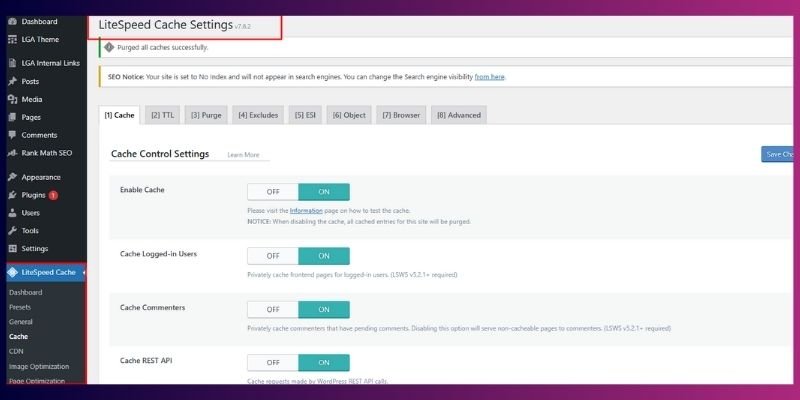
These tools can cut your load time by half with one click. For detailed setup and advanced options, check the LiteSpeed Cache official documentation
2. Browser Caching
Browser caching lets a visitor’s device store files like logos, CSS, or scripts. On the next visit, the browser loads them from local storage instead of your server.
Result: Faster repeated visits and smoother browsing.
Most caching plugins offer a “Browser Cache” toggle.
3. Preload Cache
Preloading builds cached pages before someone visits them.
This helps:
- New visitors load pages instantly
- Search engines crawl faster
- Your homepage and key pages stay ready at all times
Look for the “Preload” option in your caching plugin.
Real Example
A homepage that loaded in 4 seconds may drop to 1.8 seconds after enabling page caching and preloading.
Pro Tip
If you use a page builder like Elementor or Divi, clear the cache after big design updates to avoid layout issues.
TL;DR
Turn on page caching, browser caching, and preload using any good caching plugin. These three steps make your site load faster with very little work.
6. Content Delivery Network (CDN)
A CDN makes your website load faster by storing copies of your files on servers around the world. When someone visits your site, the CDN shows the content from the server closest to them. This reduces distance, improves load time, and helps your site handle more visitors.
Why it matters
If your audience is spread across different countries, a CDN prevents slow loading caused by long travel times between the server and the user. Faster global loading improves user experience and supports better SEO performance.
Step-by-Step Optimization
1. Choose a Reliable CDN
Beginner-friendly CDN options:
- Cloudflare (free plan available)
- BunnyCDN
- KeyCDN

These networks are known for speed, easy setup, and strong security.
2. Connect the CDN to Your WordPress Site
You can link the CDN using:
- A plugin (Cloudflare Plugin, BunnyCDN Plugin)
- Hosting panel options (many hosts have 1-click Cloudflare integration)
Most setups take less than 5 minutes.
3. Check TTFB Improvement
A CDN lowers TTFB (Time to First Byte) because users connect to a nearby server instead of a far one. This makes the site feel faster, especially for visitors outside your host’s region.
Real Example
A visitor in the UK may wait 1.2 seconds for your US-based site. With a CDN, that delay may drop to 300–400ms because the CDN serves the page from a closer location.
Pro Tip
If you use Cloudflare, enable “Auto Minify” and “Brotli Compression” for extra speed gains without extra work.
TL;DR
Use a CDN to serve your site from global servers. This speeds up loading for international users and reduces TTFB with very little setup.
7. Database Maintenance
Your WordPress database stores everything: posts, comments, settings, plugin data, and more. Over time, it collects extra items that you don’t need. This additional load slows down your site. Cleaning the database keeps your website light, fast, and more stable.
Why it matters
A clean database helps your site respond faster. When the database has fewer unnecessary entries, it takes less time to fetch information. This helps both page speed and overall server performance.
Step-by-Step Optimization
1. Remove Unnecessary Data
WordPress often saves extra items like:
- Old post revisions
- Deleted or spam comments
- Transient options (temporary data saved by plugins)
These items drain space and slow down queries.
2. Use Beginner-Friendly Plugins
Safe and easy tools for cleaning:
- WP-Optimize
- WP-Sweep
These plugins let you clean your database with one click.
3. Schedule Regular Cleanup
Make database cleaning a routine:
- Monthly for active sites
- Quarterly for small sites
This keeps your site fast without requiring manual checks.
4. Always Take a Backup First
Before cleaning, create a backup using your hosting panel or a plugin like UpdraftPlus. This protects your data if something goes wrong.
Real Example
A database with 10,000 old revisions can slow down queries. Cleaning them can cut the query time and improve load speed, especially on content-heavy blogs.
Pro Tip
If you use many plugins, disable and delete the ones you no longer need. They leave extra tables in your database.
TL;DR
Clean your WordPress database with plugins like WP-Optimize or WP-Sweep, schedule regular cleanups, and always back up first. A lighter database means faster load time and better performance.
8. Regularly Update WordPress, Themes, and Plugins?
Keeping WordPress, your themes, and plugins up to date improves speed, security, and compatibility. Updates often include bug fixes, performance enhancements, and new features that help your site run smoothly.
How to Update Safely
- Backup your site first – Always create a full backup before applying updates.
- Update WordPress core – Install the latest version for better performance and security.
- Update themes and plugins – Ensure all are compatible with your WordPress version.
Pro Tip
Test updates on a staging site if possible. This prevents any issues from affecting your live site.
TL;DR
Regular updates improve site speed, security, and stability. Always back up first and update WordPress, themes, and plugins safely.
How Do You Speed Up a WordPress Site Without Plugins?
You can make your WordPress site much faster even without installing plugins. You only need to optimize your server settings, clean extra files, compress images before upload, and enable features like Gzip for smaller file sizes. These steps help your site load quickly and feel smoother for visitors.
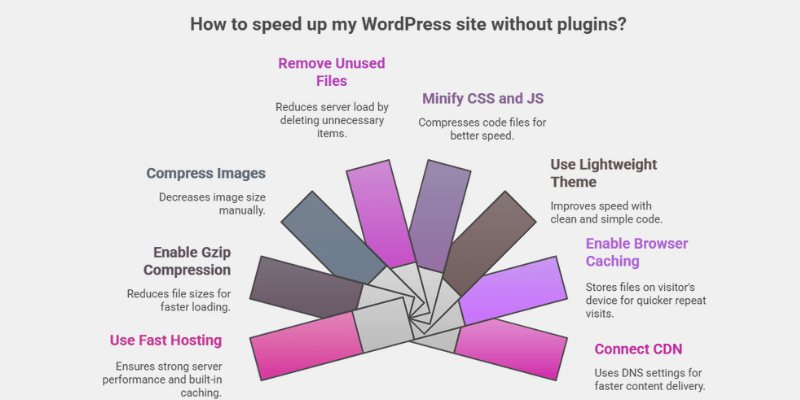
Steps to Speed Up Your Site Load Time Without Plugins
- Use fast hosting – Pick a host with strong server performance, updated PHP, and built-in caching.
- Enable Gzip compression – Add Gzip rules in your .htaccess file or ask your host to turn it on. Gzip makes your files smaller so they load faster.
- Compress images before upload – Use tools like TinyPNG or Squoosh to reduce image size manually.
- Remove unused themes and files – Delete themes, media, and folders you no longer use to reduce server load.
- Manually minify CSS and JS – Use online minifiers to reduce file size and upload the compressed version.
- Use a lightweight theme – Choose themes with clean and simple code for better speed.
- Enable browser caching – Add caching rules in .htaccess to store files on the visitor’s device for quicker repeat visits.
- Connect a CDN through DNS – Use Cloudflare or BunnyCDN without a plugin by changing DNS settings.
Pro Tip
Gzip compression and browser caching alone can cut your page size by more than half. When you combine this with smaller images and a clean theme, your site becomes fast even without any plugin support.
TL;DR
Turn on Gzip, compress images before upload, clean unused files, use a fast host, add caching rules, choose a lightweight theme, and connect a CDN through DNS. These simple steps speed up your WordPress site without using any plugins.
Best Plugins to Speed Up WordPress Site
Optimizing your WordPress site is easier with the right plugins. The best plugins to speed up a WordPress site help with caching, image optimization, and reducing load times without touching code.
I’ve already published a detailed article on the Best WordPress Speed Optimization Plugins. You can read it to find the top plugins, their features, and how to use them to make your site faster.
Steps to Use Plugins for Faster Loading
Pick the best plugins to speed up a WordPress site – Look for well-rated plugins that handle caching, minification, and lazy loading.
Use a plugin to speed up a WordPress website – Popular options include WP Rocket, LiteSpeed Cache, and W3 Total Cache.
Combine functionality with one plugin – Some plugins handle multiple tasks like caching, image optimization, and database cleanup, so you don’t need several separate plugins.
Check WordPress plugins for faster loading – Always test your site after installing a plugin to ensure it actually improves speed without breaking your site.
Choose the best plugin to speed up your WordPress website – Read reviews, check compatibility with your theme, and pick a plugin that is updated frequently.
Pro Tip
Avoid installing too many plugins. Even the best plugin to speed up a WordPress website can slow your site if it conflicts with other plugins. Test one plugin at a time for maximum results.
TL;DR
Use a reliable caching and optimization plugin to speed up WordPress. Pick one that combines caching, minification, and image optimization to achieve faster loading with minimal effort.
How to Check WordPress Website Speed?
You can check your WordPress site speed using free online tools that show how fast your pages load and what needs fixing. This helps you understand what slows your site down and what to improve next.
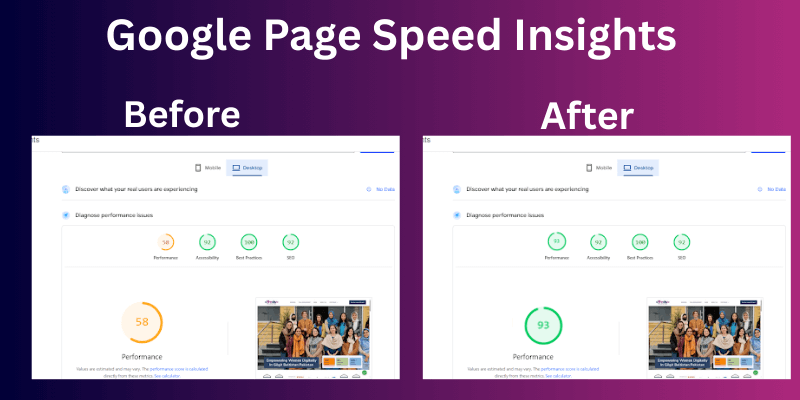
Steps to Check Your WordPress Speed
- Use PageSpeed Insights – Enter your URL and check your mobile and desktop scores.
- Check GTmetrix – See loading time, page size, and detailed waterfall reports.
- Use WebPageTest – Get advanced insights like TTFB and how your site loads from different countries.
- Focus on Core Web Vitals – Check LCP, FID (or INP), and CLS because these affect rankings.
- Test on real devices – Open your site on your own phone and laptop to see how fast it loads for users.
Pro Tip
Run each test 2–3 times because speed can change based on server load and network conditions. Always test after making any optimization, so you know what actually improved your speed.
TL;DR
Use PageSpeed Insights, GTmetrix, and WebPageTest to check how fast your WordPress site loads. Focus on Core Web Vitals and test your site on real devices for the most accurate results.
How to Increase WordPress Website Speed on Mobile?
You can increase WordPress site speed performance by using a lightweight theme, compressing images, enabling caching, lazy loading media, reducing heavy scripts, and connecting to a CDN. These steps make pages load faster, improve user experience, and reduce bounce rates.
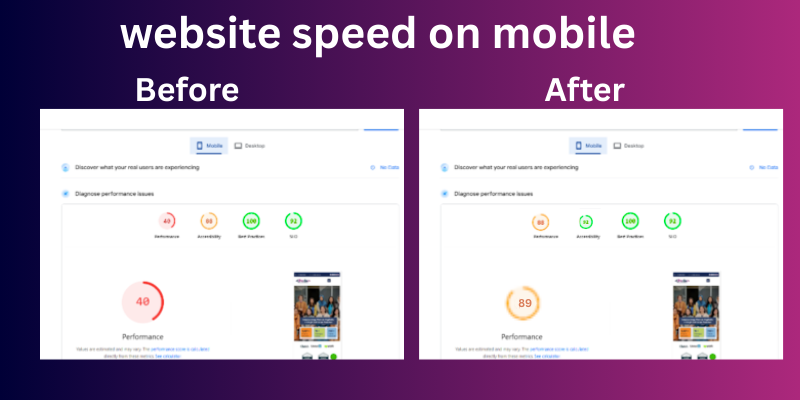
Now we’ll go step by step.
Steps to Speed Up WordPress on Mobile
- Use a lightweight, mobile-optimised theme
Choose a theme designed for speed and responsive layouts. Heavy themes with animations or sliders can slow mobile load times. - Compress and resize images for mobile
Use smaller, properly sized images. Tools like TinyPNG or Squoosh help. Serving WebP images reduces file size and saves mobile data. - Enable server-side and browser caching
Caching stores frequently used files so mobile users don’t have to download them every time. - Lazy load images and videos
Load media only when visible on the screen. This speeds up initial page load on mobile devices. - Reduce heavy scripts and third-party elements
Limit popups, unnecessary animations, and large JavaScript files that block mobile rendering. - Optimize fonts for mobile
Preload essential fonts and reduce the number of font styles. This prevents delayed text rendering. - Use a CDN to serve content faster
A CDN delivers your site from the nearest server, improving load speed for mobile users worldwide.
Pro Tip
Test your site on real mobile devices and slow network modes (3G/4G) to see how users actually experience your pages. Even small adjustments like lazy loading or smaller images can improve load time significantly.
TL;DR
For faster mobile WordPress sites: use a lightweight theme, compress and resize images, enable caching, lazy load media, reduce heavy scripts, optimize fonts, and connect a CDN. Test on real devices for best results.
How Do You Monitor and Maintain WordPress Speed Over Time?
You can monitor and maintain WordPress speed by testing your site monthly, tracking Core Web Vitals (LCP, CLS, INP), and reviewing any changes after updates or plugin installs. Use tools like PageSpeed Insights, GTmetrix, and WebPageTest to spot issues early and fix them before they slow your site.
Speed changes as you add plugins, upload images, or update WordPress. Regular monitoring keeps your site stable, mobile-friendly, and SEO-ready.
Why Ongoing Monitoring Matters for Website Performance
- Your site gets slower when unused plugins, heavy scripts, or unoptimized images pile up.
- Google checks page experience regularly, not just once.
- Speed issues usually grow slowly, so monthly checks prevent surprises.
Even small drops in performance can affect your rankings and user experience, especially on mobile.
How to Monitor Your Website Speed (Beginner-Friendly Steps)
You can monitor your website speed by testing it monthly with tools like PageSpeed Insights, GTmetrix, or WebPageTest. Track key metrics such as LCP, FID, CLS, and TTFB, and make small changes one by one to see what actually improves speed. Now we’ll look at the steps you need to follow.
1. Test Your Website Monthly
Use these free testing tools:
- PageSpeed Insights (Google)
- GTmetrix
- WebPageTest
These tools show what’s slowing your site, along with simple suggestions to fix it. Run tests on both mobile and desktop.
2. Track Your Core Web Vitals
Focus on these key metrics:
- LCP – How fast does your main content load
- FID (or INP in new updates) – How fast your site responds
- CLS – Whether elements move around while loading
- TTFB – How fast your server responds
If any metric turns yellow or red, review your recent changes and fix the issue.
3. Make One Change at a Time
Beginners often fix many things at once. This creates confusion because you won’t know which change caused the improvement or the problem.
Examples:
- Remove one plugin → Test again
- Compress images → Test again
- Enable lazy load → Check LCP afterwards
This simple habit keeps mistakes small and easier to fix.
4. Recheck Speed After Updates
Major updates, WordPress core, theme, or plugins can change performance.
Always run a quick test after updates to make sure nothing breaks your layout or speed.
Real Example
A user enabled lazy loading for all images. After the change:
- LCP improved by 1+ second
- Mobile performance score increased from 58 to 78
Small improvements like this add up when checked regularly.
Pro Tip
Keep a simple “speed log” in Google Sheets.
Record:
- Date tested
- Tools used
- LCP, CLS, TTFB
- Plugins added or removed
This helps you see patterns and catch issues early.
TL;DR
To keep your WordPress site fast, test monthly with tools like PageSpeed Insights, track Core Web Vitals, make changes one at a time, and recheck speed after updates. Regular monitoring keeps your site stable, fast, and SEO-friendly.
How Do You Debug and Fix WordPress Speed Optimization Issues?
Optimizing your site can sometimes cause problems, but most issues are easy to fix if you know where to look. Beginners can follow these simple steps to troubleshoot safely.
Common Issues and Fixes
- Issue: Minification is breaking your layout
Fix: Disable minification for the specific file or plugin, then test your site again. - Issue: Caching breaks dynamic content
Fix: Clear your cache, test, or exclude certain pages from caching to keep them working properly. - Issue: Plugin or theme conflicts
Fix: Deactivate new plugins one at a time and test changes to identify the culprit.
Pro Tip
Always use a staging site to test major optimizations. This prevents accidental downtime on your live site while you troubleshoot.
TL;DR
If speed tweaks break your site, check minification, caching, and plugin conflicts. Test changes on a staging site first to avoid issues, then fix step by step.
What Are Advanced Techniques to Make Your WordPress Site Even Faster?
Once you’ve applied basic optimizations like caching, image compression, and lightweight themes, advanced techniques can give your site an extra speed boost. These methods are especially useful for larger sites or users who want top performance.
1. Use Resource Hints
- What it is: Tools like rel=preload or rel=prefetch tell the browser which files are important and should load first.
- Why it matters: Your main content appears faster because the browser prioritizes critical resources.
- Pro Tip: Preload fonts, key scripts, or hero images to improve the perceived loading speed.
2. Enable HTTP/3 Support
- What it is: HTTP/3 is the latest web protocol for faster and more reliable data transfer.
- Why it matters: Sites load quicker, especially for users far from your server.
- How to use: Check if your host supports HTTP/3 (many managed WordPress hosts do) and enable it in your hosting panel.
3. Optimize Fonts
- What it is: Fonts can be large files that slow down your site.
- Tips for beginners:
- Preload critical fonts
- Use font subsets (only the characters you need)
- Avoid too many font variations
- Preload critical fonts
Optimizing fonts reduces render-blocking resources and improves Core Web Vitals.
4. Address Third-Party Scripts
- External scripts like analytics, ads, font libraries, and embeds slow down your site because they load from outside servers.
- Remove scripts you don’t need or replace heavy ones with lightweight alternatives.
- Load external scripts with async or defer so they don’t block the page while loading.
- Host fonts locally to avoid slow external font delivery.
- This step improves Core Web Vitals, especially FID and TBT, making your site feel smoother on mobile and desktop.
Real-World Example
A website enabled font preloading and HTTP/3:
- LCP dropped by 0.8 seconds
- Page felt faster on mobile devices
- Bounce rate decreased slightly because the site felt more responsive
TL;DR
Use resource hints, enable HTTP/3 if your host allows, and optimize fonts by preloading and using subsets. These advanced tweaks make your WordPress site faster and smoother for all visitors.
Complete SEO and Speed Optimization Checklist for WordPress
Speed and SEO go hand in hand. Follow this checklist to make your WordPress site fast, user-friendly, and optimized for search engines.
Step-by-Step Checklist
- Choose a fast hosting provider – Managed WordPress or VPS hosting works best.
- Upgrade PHP and enable OPcache – Faster code execution improves load times.
- Use a lightweight theme – Themes like Astra, GeneratePress, or Neve keep your site lean.
- Minify CSS, JS, and HTML – Reduces file size and improves load speed.
- Remove unused CSS/JS – Prevents unnecessary scripts from slowing your pages.
- Compress images and convert to WebP/AVIF – Smaller images load faster without losing quality.
- Enable lazy loading for images – Images load only when visible on the screen.
- Use a caching plugin and preload cache – Page caching speeds up repeat visits.
- Set up a CDN – Delivers your content from servers closest to your visitors.
- Clean your database regularly – Remove old revisions, spam comments, and temporary data.
- Test Core Web Vitals monthly – Track LCP, FID, CLS, and TTFB to maintain performance.
- Troubleshoot broken layouts – Check minification, caching, and plugin conflicts when something breaks.
Pro Tip
Keep this checklist handy and mark each step as you complete it. Regular maintenance ensures your WordPress site stays fast and ranks well in search engines.
TL;DR
Follow these 12 steps from hosting and PHP upgrades to caching, CDN, and Core Web Vitals checks to keep your WordPress site fast, smooth, and SEO-friendly.
Common Problems and Fixes
- Slow hosting – Your server may be too weak.
Fix: Upgrade to managed WordPress hosting or VPS for better speed. - Too many plugins – Extra plugins can add weight and conflicts.
Fix: Remove unnecessary plugins and combine functionality where possible. - Heavy theme – Themes with lots of animations or sliders slow loading.
Fix: Switch to a lightweight theme like Astra, GeneratePress, or Neve. - Large images – Big image files take longer to load.
Fix: Compress images and use modern formats like WebP or AVIF. - No caching – Pages generate dynamically every time.
Fix: Install a caching plugin like WP Rocket, LiteSpeed Cache, or W3 Total Cache. - Unoptimized database – Old revisions, spam comments, and transients can pile up.
Fix: Clean your database regularly using WP-Optimize or WP-Sweep. - Render-blocking scripts – JavaScript and CSS can delay page load.
Fix: Minify and defer non-critical scripts with plugins like Autoptimize. - No CDN – Visitors far from your server experience slower loads.
Fix: Use a CDN like Cloudflare or BunnyCDN to deliver content faster globally. - Ignoring mobile optimization – Mobile visitors face slow networks and small screens.
Fix: Test mobile speed and enable lazy loading, responsive images, and reduced scripts. - Skipping speed tests – You can’t fix what you don’t measure.
Fix: Regularly check site performance with PageSpeed Insights, GTmetrix, or WebPageTest.
Conclusion
By following this guide, you now know how to speed up the WordPress website step by step. You’ve learned how to optimize hosting, themes, images, plugins, caching, and more, all in a way that improves user experience, reduces bounce, and boosts SEO.
Take action today: test your site speed, apply these optimizations, and monitor the results. Once comfortable, you can explore advanced techniques like HTTP/3, resource preloading, or font optimization to make your site even faster.
Remember, every small improvement counts. With consistent effort, your wordpress site will load quickly, keep visitors happy, and perform better in search engines. You’ve got this!
FAQs
Many mobile visitors use slower networks or older devices. A common issue is large images or embedded videos, like YouTube backgrounds. Optimizing image size, enabling lazy load, and using a CDN can help. Also, choosing a lightweight theme makes a big difference.
Use speed‑testing tools like PageSpeed Insights or GTmetrix to see detailed reports. These tools highlight problems such as big images, slow server response, or unused scripts. Then fix the issues step by step. You don’t need to guess; test to know.
Yes, it can happen, especially if you enable aggressive optimizations like JS minification. Many users report site layout issues when they minify all scripts. Fix: Turn off one optimization at a time and test, or skip the problematic file.
Plugins like WP Rocket, LiteSpeed Cache, or W3 Total Cache can do a lot and are beginner‑friendly. Some developers say good hosting + clean code matters more. You can combine both: refine your code and use a reliable plugin.
Absolutely. Gzip (or Brotli) makes your CSS, HTML, and JS files much smaller. Smaller files mean less data to load, which boosts performance. Ask your host to enable it, or add it in server settings.
Yes, even local users benefit because a CDN speeds up delivery and reduces load on your main server. If you serve many images or heavy files, a CDN helps a lot. It also improves your site’s global reach.
It depends on your activity. If you create lots of posts or pages, cleaning monthly is helpful. For smaller sites, a quarterly cleanup works. Use tools like WP-Optimize to safely remove post revisions, spam comments, and transients.
Yes. You can: choose faster hosting, compress images manually, minify CSS/JS using online tools, and enable server‑side caching via .htaccess or your server settings. These steps work well when you don’t want to install extra plugins.
This often happens because of JavaScript minification, deferred scripts, or a bad CSS combination. Many Reddit users report breaking when they enable everything at once. Solution: Apply one optimization at a time, and use a staging site to test.
Run speed tests before and after each change with tools like GTmetrix or PageSpeed Insights. Compare your scores: look at load time, Core Web Vitals, and total size. If something gets worse, undo or tweak your change.
In some cases, your server response (TTFB) is still slow, or you don’t have the right type of cache (object vs page). Also, caching only works well when combined with other optimizations, like image compression or removing heavy scripts. Check your hosting settings or use a testing tool to dig deeper.




- Be Respectful
- Stay Relevant
- Stay Positive
- True Feedback
- Encourage Discussion
- Avoid Spamming
- No Fake News
- Don't Copy-Paste
- No Personal Attacks
- Be Respectful
- Stay Relevant
- Stay Positive
- True Feedback
- Encourage Discussion
- Avoid Spamming
- No Fake News
- Don't Copy-Paste
- No Personal Attacks
