How to Add WooCommerce Product Schema: The Complete Guide
Published: 9 Aug 2026

You’ve built a WooCommerce store. Your products are priced right, your photos look good, and you’re putting real effort into showing up on Google. Then you search for one of your own products, and it’s just a plain blue link. No stars. No price. No stock status. Nothing that makes someone stop scrolling and click. WooCommerce product schema is what’s missing, and it’s the reason some listings stand out while others don’t.
Meanwhile, a competitor’s listing sits right above yours with a star rating, a price tag, and an “In stock” badge. That’s not luck. That store added WooCommerce product schema, and Google rewarded it with a richer, more clickable listing.
This guide covers every method for adding WooCommerce product schema, from the version WooCommerce already gives you for free to full manual control with your own code. By the end, you’ll know exactly which method fits your store, how to test what you’ve built, how to fix the errors that trip up most WooCommerce sites, and how to make your product data ready for AI search tools as well as classic Google results.
TL;DR
- Complete, accurate schema also helps AI tools like ChatGPT and Google AI Overviews recommend your products, not just classic search.
- WooCommerce already adds basic product schema automatically, but it’s thin (name, price, stock, image only).
- A plugin like Rank Math or Yoast fills the gaps in minutes, no coding needed.
- Manual JSON-LD gives full control, best for custom or headless builds.
- Always test with Google’s Rich Results Test before considering it done.
- The #1 schema error on WooCommerce sites is duplicate markup from more than one source running at once.
What Is WooCommerce Product Schema?

WooCommerce product schema is structured data that describes a product in a way that search engines can understand. It is typically written in a format known as JSON-LD.
It tells search engines exactly what a product is: its name, price, currency, stock status, brand, and rating. Instead of Google guessing these details from your page design, you state them directly.
Your product page really has two audiences:
- Shoppers see the visible page: title, photos, price, reviews.
- Search engines read the schema: a hidden code block in the HTML stating the same facts in a machine-readable format.
Schema follows the Schema.org standard, supported by Google, Microsoft, Yahoo, and Yandex. Its Product type tells search engines a page represents something for sale, along with the price, availability, and reviews.
Say you sell headphones for $89.99. Without schema, Google has to infer the price and stock from your layout. With schema, you state it outright, and Google can turn your plain text link into a rich result: a listing with a photo, price, and star rating built right into the search page.
How to Add WooCommerce Product Schema: Quick Steps
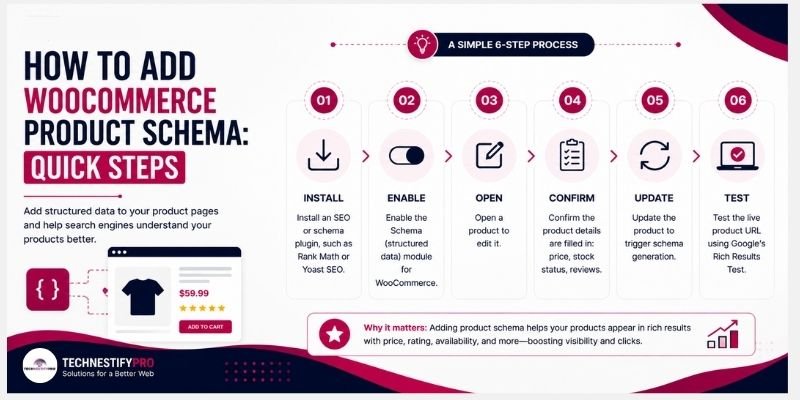
If you just want the short version before the full walkthrough:
- Install an SEO or schema plugin, such as Rank Math or Yoast SEO.
- Enable the Schema (structured data) module for WooCommerce.
- Open a product to edit it.
- Confirm the product details are filled in: price, stock status, reviews.
- Update the product to trigger schema generation.
- Test the live product URL using Google’s Rich Results Test.
In the upcoming sections, I’ll walk through each method in full detail, plus what to do if you want more control than a plugin gives you out of the box.
Why WooCommerce Stores Need Product Schema
Product schema doesn’t directly move your rankings up or down. What it does is change how your listing looks once it’s already ranking, and that has a measurable effect on clicks. It’s one piece of a bigger picture too; if you haven’t worked through the rest of your product page SEO yet, schema works best alongside those other fixes rather than as a standalone tactic.
A widely cited rich-results study found that search listings with visible price, rating, or availability info earn noticeably higher click-through rates than plain text listings for the same ranking position. The gap runs into double digits, which is a large swing for a change that costs nothing to implement.
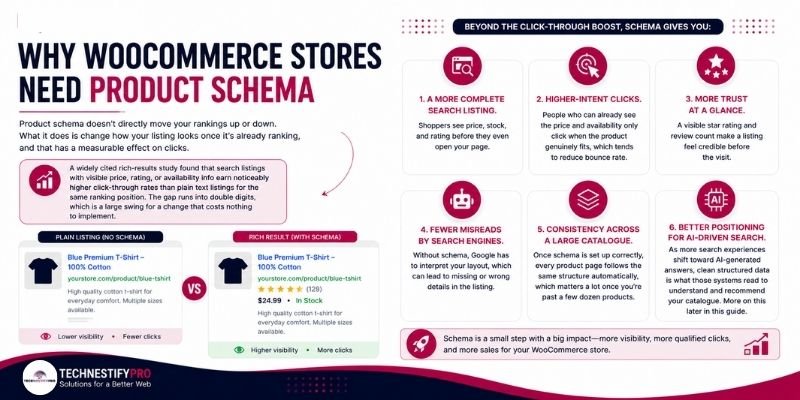
Beyond the click-through boost, schema gives you:
- A more complete search listing. Shoppers see price, stock, and rating before they even open your page.
- Higher-intent clicks. People who can already see the price and availability only click when the product genuinely fits, which tends to reduce bounce rate.
- More trust at a glance. A visible star rating and review count make a listing feel credible before the visit.
- Fewer misreads by search engines. Without schema, Google has to interpret your layout, which can lead to missing or wrong details in the listing.
- Consistency across a large catalogue. Once schema is set up correctly, every product page follows the same structure automatically, which matters a lot once you’re past a few dozen products.
- Better positioning for AI-driven search. As more search experiences shift toward AI-generated answers, clean structured data is what those systems read to understand and recommend your catalogue. More on this later in this guide.
How Google Shows Rich Results for WooCommerce Products
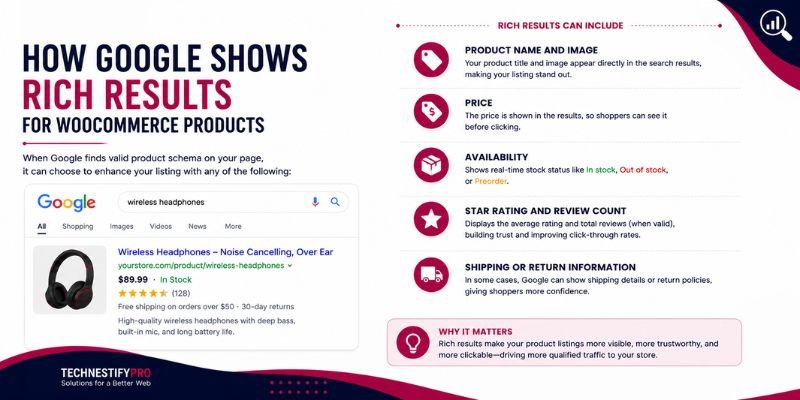
When Google finds valid product schema on your page, it can choose to enhance your listing with any of the following:
- Product name and image
- Price
- Availability (In stock, Out of stock, Preorder)
- Star rating and review count, when reviews are valid
- Shipping or return information, in some cases
Behind the scenes, Google runs a validation pass before it trusts your data. It crawls the page, reads the structured data, and checks that it matches what a visitor actually sees on the page. If the schema is valid and the page meets Google’s product structured data guidelines, Google may enhance the listing.
Three things matter here, and each one trips up real stores regularly:
- Rich results are never guaranteed. Even flawless schema doesn’t guarantee Google shows the enhanced listing for every query or every product. Google decides what appears.
- Your schema must match your visible page. If your schema claims “In stock” but the page shows “Out of stock,” Google can ignore the structured data entirely.
- Reviews follow stricter rules. Ratings need to come from real, visible reviews that follow Google’s guidelines. Fake, hidden, or copied reviews can disqualify the entire page from rich results.
Does WooCommerce Add Product Schema by Default?
Yes. WooCommerce outputs basic Product schema automatically on every single product page, without any setup on your part. If you’ve never touched schema settings, you’re not starting from zero.
The native schema pulls straight from your product editor, so it stays in sync with your catalogue as you update prices and stock. It typically includes:
- Product name and permalink
- Product image
- SKU and stock status
- Regular and sale price
- Short description
- Basic review and rating data, if WooCommerce reviews are enabled
For a small store, this baseline is often enough to qualify for rich results. The catch is that it’s intentionally thin. It usually leaves out brand information, full gallery images, detailed attributes like colour or size, custom review systems outside WooCommerce, and category-level schema. That’s the gap the rest of this guide fills.
What Google Needs in Product Schema
Google splits product schema properties into two groups: fields you must include to be eligible for rich results, and fields that unlock additional features once you have them.
| Field | Status | What it does |
| name | Required | The product title Google displays |
| image | Required | A clear, direct product photo |
| offers (price + priceCurrency) | Required | The price and the currency it’s listed in |
| availability | Recommended | Status: in stock, out of stock, or preorder |
| brand | Recommended | The manufacturer or brand name |
| sku | Recommended | Your internal stock code |
| gtin | Recommended | A global barcode number (GTIN-8/12/13/14), if you have one |
| aggregateRating | Recommended | Your average star rating and total review count |
| review | Recommended | Individual customer reviews |
| shippingDetails | Recommended | Shipping cost and delivery speed |
| Merchant return policy | Recommended | Your store’s return window and conditions |
Miss a required field, and your page fails eligibility outright. Skip a recommended field, and the page still qualifies, but it misses out on extra shopping features, and reviews specifically tend to have the biggest impact on click-through once they’re live.
If shipping is one of the fields you’re filling in, pairing it with automatic shipment tracking emails keeps the delivery info you’re promising in schema consistent with what customers actually experience after checkout.
The Real Challenge: Product Data Changes Constantly
Schema is simple to set up on ten static products. It gets harder the moment your store behaves like a real store.
Prices change during sales. Stock runs out and comes back. Reviews accumulate. Variations get added. Products get bulk-imported. If your schema doesn’t track those changes automatically, it goes stale, and stale schema is worse than no schema at all. Google can flag a mismatch between your schema and your live page, and that mismatch can get your structured data ignored altogether.
This is the core reason a “set it once and forget it” approach fails at scale. The fix isn’t complicated, but it does mean choosing a method that updates automatically rather than one you have to remember to revisit.
How to Add Product Schema to WooCommerce (3 Methods)

There are three ways to add product schema to WooCommerce: extend the schema WooCommerce already generates automatically, use an SEO plugin like rank math or yoast to generate it for you, or write manual JSON-LD code for full control. Most stores get the best result by using the built-in schema as a base and extending it with either a plugin or a small piece of code, rather than picking just one.
You have three real options, and they aren’t mutually exclusive. Many stores use the built-in schema as a base and extend it with either a plugin or a small piece of code.
Method 1: Use and Extend WooCommerce’s Built-In Schema
Start by confirming what’s already there. Open any product page, view the page source, and search for <script type=”application/ld+json”>. If WooCommerce is outputting its native schema, you’ll see a JSON-LD block with “@type”: “Product” inside it.
Check your theme and any active seo plugins if nothing shows up. Some themes disable or override WooCommerce’s structured data without making that obvious in the settings.
Once you’ve confirmed the native schema is live, you can extend it with a filter instead of replacing it entirely. This keeps WooCommerce’s default output and adds the fields it leaves out, such as brand, gallery images, and aggregate rating. Add this to your child theme’s functions.php file or a small custom plugin:
add_filter( 'woocommerce_structured_data_product', function( $markup, $product ) {
    // Add brand from a product attribute
    if ( $brand = $product->get_attribute( 'pa_brand' ) ) {
        $markup['brand'] = [
            '@type' => 'Brand',
            'name'  => $brand,
        ];
    }

    // Add gallery images alongside the main image
    $gallery_ids = $product->get_gallery_image_ids();
    if ( $gallery_ids ) {
        $images = is_array( $markup['image'] ?? [] )
            ? $markup['image']
            : ( ! empty( $markup['image'] ) ? [ $markup['image'] ] : [] );

        foreach ( $gallery_ids as $id ) {
            $url = wp_get_attachment_url( $id );
            if ( $url ) {
                $images[] = $url;
            }
        }
        $markup['image'] = array_values( array_unique( array_filter( $images ) ) );
    }

    // Add aggregate rating if reviews exist
    if ( $product->get_review_count() ) {
        $markup['aggregateRating'] = [
            '@type'       => 'AggregateRating',
            'ratingValue' => $product->get_average_rating(),
            'reviewCount' => $product->get_review_count(),
        ];
    }

    return $markup;
}, 10, 2 );This method works well if you want a clean starting point without installing another plugin, and your catalogue doesn’t need advanced identifiers like GTIN.
Method 2: Add Schema Using an SEO Plugin
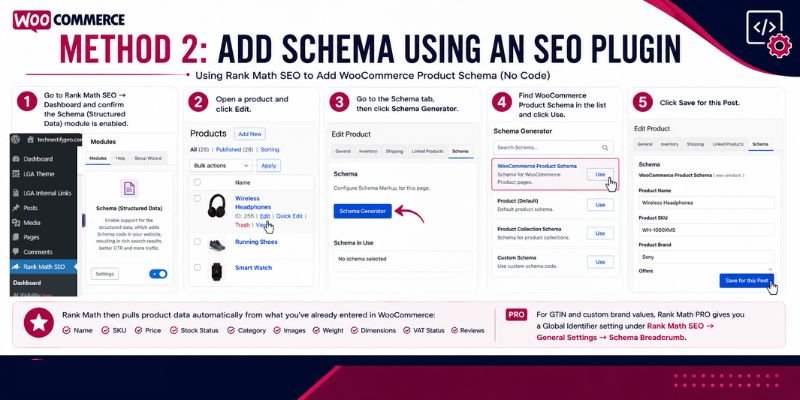
For most stores, a plugin is the simplest, most reliable path. It fills in the gaps the native schema leaves, adjusts automatically as products change, and needs no code.
Setting up Rank Math for WooCommerce product schema:
- Go to Rank Math SEO → Dashboard and confirm the Schema (Structured Data) module is enabled.
- Open a product and click Edit.
- Go to the Schema tab, then click Schema Generator.
- Find WooCommerce Product Schema in the list and click Use.
- Click Save for this Post.
Rank Math then pulls product data automatically from what you’ve already entered in WooCommerce: name, SKU, price, stock status, category, images, weight, dimensions, VAT status, and any reviews left on the product. For GTIN and custom brand values, Rank Math PRO gives you a Global Identifier setting under Rank Math SEO → General Settings → WooCommerce, and a Select Brand option to pull brand data from a product taxonomy.
Setting up Yoast SEO for WooCommerce product schema:
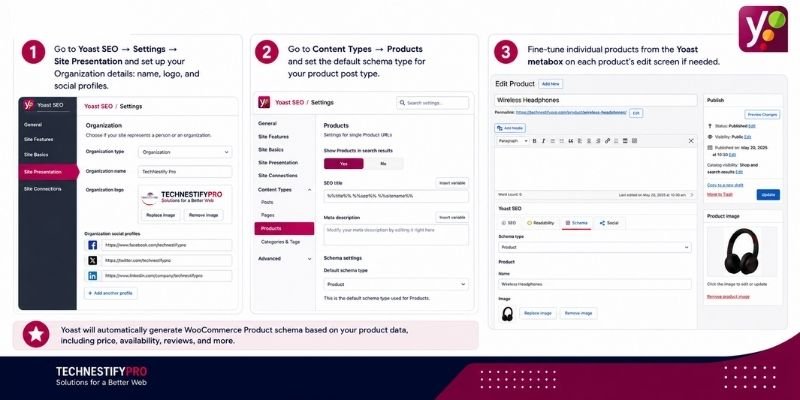
- Go to Yoast SEO → Settings → Site Presentation and set up your Organization details: name, logo, and social profiles.
- Go to Content Types → Products and set the default schema type for your product post type.
- Fine-tune individual products from the Yoast metabox on each product’s edit screen if needed.
Setting up SEOPress for WooCommerce product schema:
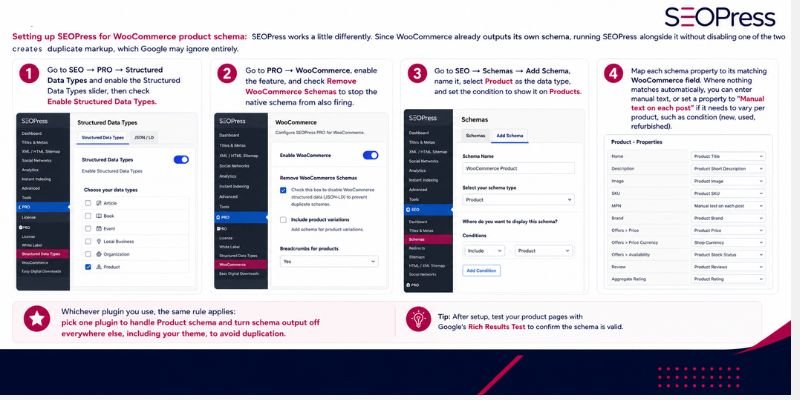
SEOPress works a little differently. Since WooCommerce already outputs its own schema, running SEOPress alongside it without disabling one of the two creates duplicate markup, which Google may ignore entirely.
- Go to SEO → PRO → Structured Data Types and enable the Structured Data Types slider, then check Enable Structured Data Types.
- Go to PRO → WooCommerce, enable the feature, and check Remove WooCommerce Schemas to stop the native schema from also firing.
- Go to SEO → Schemas → Add Schema, name it, select Product as the data type, and set the condition to show it on Products.
- Map each schema property to its matching WooCommerce field. Where nothing matches automatically, you can enter manual text, or set a property to “Manual text on each post” if it needs to vary per product, such as condition (new, used, refurbished).
Whichever plugin you use, the same rule applies: pick one plugin to handle Product schema and turn schema output off everywhere else, including your theme, to avoid duplication.
Method 3: Add Manual JSON-LD
It makes sense to use manual JSON-LD when you’re running a custom or headless build, need fields no plugin covers, or want to mix different schema types in one block.
Here’s a clean, static template you can adapt. Replace every value with what’s actually shown on the live product page:
<script type="application/ld+json">
{
  "@context": "https://schema.org/",
  "@type": "Product",
  "name": "Wireless Over-Ear Headphones",
  "image": [
    "https://example.com/wp-content/uploads/headphones.jpg"
  ],
  "description": "Noise-cancelling wireless headphones with 30-hour battery life.",
  "sku": "HEADPHONE-089",
  "brand": {
    "@type": "Brand",
    "name": "YourBrandName"
  },
  "offers": {
    "@type": "Offer",
    "url": "https://example.com/product/wireless-headphones/",
    "priceCurrency": "USD",
    "price": "89.99",
    "availability": "https://schema.org/InStock",
    "itemCondition": "https://schema.org/NewCondition"
  },
  "aggregateRating": {
    "@type": "AggregateRating",
    "ratingValue": "4.6",
    "reviewCount": "214"
  }
}
</script>You can add this using a child theme’s header.php file just before </head>, a header/footer scripts plugin, or a code snippets plugin scoped to run only on single product pages.
Static code has one weakness: it doesn’t update itself when your price or stock changes. For a WooCommerce store, a dynamic version that pulls live data is almost always the better choice:
add_action( 'wp_head', 'my_custom_product_schema' );
function my_custom_product_schema() {
    if ( ! is_product() ) {
        return;
    }

    global $product;
    if ( ! $product instanceof WC_Product ) {
        return;
    }

    $image = '';
    $image_src = wp_get_attachment_image_src( $product->get_image_id(), 'full' );
    if ( ! empty( $image_src[0] ) ) {
        $image = $image_src[0];
    }

    $data = [
        '@context'    => 'https://schema.org',
        '@type'       => 'Product',
        'name'        => $product->get_name(),
        'image'       => $image,
        'description' => wp_strip_all_tags( $product->get_short_description() ?: $product->get_description() ),
        'sku'         => $product->get_sku(),
        'brand'       => [
            '@type' => 'Brand',
            'name'  => 'YourBrandName',
        ],
        'offers'      => [
            '@type'         => 'Offer',
            'url'           => get_permalink( $product->get_id() ),
            'priceCurrency' => get_woocommerce_currency(),
            'price'         => $product->get_price(),
            'availability'  => $product->is_in_stock()
                ? 'https://schema.org/InStock'
                : 'https://schema.org/OutOfStock',
        ],
    ];

    if ( $product->get_review_count() ) {
        $data['aggregateRating'] = [
            '@type'       => 'AggregateRating',
            'ratingValue' => $product->get_average_rating(),
            'reviewCount' => $product->get_review_count(),
        ];
    }

    echo '<script type="application/ld+json">' . wp_json_encode( $data ) . '</script>';
}This version reads directly from the live product object, so your schema stays accurate without any manual upkeep as prices and stock change.
A Note on Variable Products
If you sell products in multiple sizes or colours, flat single-product schema undersells your catalogue. WooCommerce variable products need schema that reflects each variation, using three properties: productGroupID to tie variations together, variesBy to state what changes between them (like size or colour), and hasVariant to list each individual variation with its own price and availability.
Most schema plugins generate this automatically once you’ve set up product attributes and generated variations in WooCommerce. To confirm it’s working, view your schema output (in Rank Math, this is under the Schema tab of the product editor) and search the code for “productgroup.” You should see the productGroupID, variesBy, and hasVariant properties populated with your variation data. Without this, Google may only understand one variation of your product instead of the full range you sell.
How to Test Your Product Schema
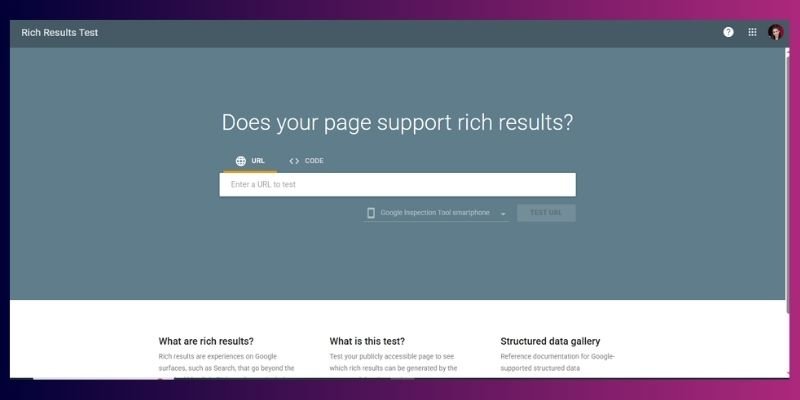
Never publish schema without testing it. Two tools check different things, and using only one leaves gaps.
Google’s Rich Results Test tells you whether your page is eligible for enhanced search features.
- Open Google’s Rich Results Test.
- Paste your live product URL, or paste raw code if testing on staging.
- Set the device to Smartphone, since Google primarily uses mobile-first indexing.
- Run the test and review the Detected Structured Data section.
- Confirm you see “Product” or “Merchant listing” detected, with name, price, availability, and image present.
Schema Markup Validator checks whether your JSON-LD follows the Schema.org standard more broadly, beyond just what Google uses for rich results. It flags deprecated properties, incorrect types, and syntax issues that Google’s own tool might not surface.
Understanding errors versus warnings: Fix errors first, always. An error means Google cannot reliably use your schema at all, usually because a required field like name, offers. price, priceCurrency, or availability is missing, or the JSON itself is malformed. A warning means the schema is valid but incomplete, such as a missing brand or review field. You should only add optional fields if the information is genuinely visible to visitors on the page.
When the two tools disagree: If the Rich Results Test passes but the Validator flags issues, your page is technically eligible, but the underlying structure isn’t clean. Fix it anyway, since it affects how other search engines and AI tools read your data, not just Google’s rich results. If the Validator passes but the Rich Results Test says you’re not eligible, check whether a required field is missing from the page itself, not just the schema.
Common Mistakes to Avoid in Product Schema
- Missing price or availability. These are required fields. Leaving either blank disqualifies the page.
- Adding fake reviews or ratings. Google checks that ratings correspond to real, visible reviews. Fabricated ratings can get your page disqualified from rich results entirely.
- Using outdated or incorrect product data. A schema that says “in stock” for a sold-out product breaks the trust Google places in your markup.
- Running multiple schema sources at once. WooCommerce, your SEO plugin, your theme, and a manual snippet can all try to output Product schema simultaneously. Pick one.
- Letting private or hidden products output public schema. If you’re hiding private products from your storefront, make sure their schema isn’t still being generated and crawled, since that can expose pricing or product details you meant to keep off public search.
Fixing Common WooCommerce Schema Problems
Schema not showing at all. Clear your cache, re-save the product to force regeneration, and re-test after a few minutes. If it’s still missing, check whether your theme has a setting that disables structured data output.
Missing price or reviews in the schema. Confirm the product itself has a Regular Price set in WooCommerce, and that Stock Status is set to In Stock, Out of Stock, or On Backorder rather than left blank. If you’re using WooCommerce backorder settings for any products, double-check that status is reflected correctly in your schema output, since “On Backorder” and “Out of Stock” map to different availability values and mixing them up can trigger a schema warning. If your plugin’s Schema Type is set to something other than Product, like Article or Web Page, it won’t pull WooCommerce data correctly.
Duplicate or conflicting schema. This is the single most common WooCommerce schema problem. It happens when WooCommerce’s native output, your SEO plugin, your theme, and a manual snippet all add Product schema on the same page. Google sees two or three Product blocks and may ignore all of them. Check every possible source: theme settings for “Schema” or “Rich Snippets” options, your SEO plugin’s schema settings, and any custom code. Choose one source and turn off Product model(schema) everywhere else. You can spot duplicates directly in the Rich Results Test, which lists every schema type it detects on the page.
Theme conflicts. Some themes strip out structured data entirely. Test the same product page on a default theme like Storefront. If schema appears there but not on your active theme, the theme is the cause, and moving schema output to a plugin (which doesn’t depend on theme code) usually fixes it.
Review and rating inconsistencies. This shows up when your schema states a rating or review count that doesn’t match what’s actually visible on the page, or the reverse: visible ratings with no matching schema. Confirm WooCommerce reviews are enabled both store-wide (WooCommerce → Settings → Products) and on the individual product (Product data → Advanced), then make sure your schema tool is pulling the same numbers shown on the page. Never include rating markup for a product that doesn’t actually display ratings to visitors.
Missing or invalid identifiers. SKU, GTIN, MPN, and brand fields sometimes come back flagged. Add a unique SKU under the product’s Inventory tab, assign the correct brand taxonomy if your plugin uses one, and only add a GTIN if you have a real one. Entering a fake identifier to silence a warning does more harm than leaving the field empty.
Monitoring Schema Health in Google Search Console
Testing one page tells you it works today. Search Console tells you how your entire catalogue is doing over time.
Product Snippets report (Search Console → Enhancements → Product Snippets) shows valid pages with product structured data, errors preventing rich results, and warnings limiting your enhancements. This covers standard search rich results.
Merchant Listings report (Search Console → Enhancements → Merchant Listings) covers structured data used in shopping-style experiences, like product grids and carousels, which always include pricing. This shows which products are eligible, what’s causing issues, and performance tied specifically to your structured data.
When you find an error, click it to see the affected URLs, fix the underlying issue in WooCommerce or your plugin settings, then click Validate Fix, so Google reprocesses the page.
When to re-test. Schema can break silently during routine site work. Re-test your live product URLs any time you switch SEO or schema plugins, modify WooCommerce templates, add a review or pricing extension, switch themes, or move the site to a new environment or domain. After fixing an issue, give Google time to recrawl and reindex; if you need it faster, use Search Console → URL Inspection → Request Indexing.
Quick Checklist Before You Call Schema “Done”
- Every product has a name, image, price, and currency in its schema
- Brand, SKU, and availability are filled in
- Real, visible reviews feed your star rating, and nothing is fabricated
- Only one source outputs Product schema for each page
- The page passes Google’s Rich Results Test with no errors
- Search Console shows no schema errors under Product Snippets or Merchant Listings
- Variable products show hasVariant data, not just a single flat variation
Making Your Product Schema Ready for AI Search
Search isn’t only about the traditional ten blue links anymore. Google’s AI Overviews and AI assistants like ChatGPT and Perplexity read structured data to decide what to mention when someone asks for a product recommendation. This works alongside classic rich results, not instead of them, and it’s a genuinely different target to optimize for.
Here’s what changes when you’re writing schema with AI retrieval in mind, not just classic Google rich results:
- Completeness matters more than the bare minimum. Classic rich results only require name, image, and offers. AI systems pull from whatever additional properties you provide, so filling in brand, description, GTIN, and aggregate rating gives an AI assistant more to work with when deciding whether your product fits a shopper’s question.
- Your description field carries more weight. AI tools often lean on the description property to understand what a product actually is and who it’s for, beyond just the product name. A generic, thin description gives an AI system little to summarize accurately.
- Consistency across your catalogue helps pattern matching. If your brand name, category structure, and attribute naming stay consistent across every product, it’s easier for an AI system to understand your catalogue as a whole rather than one product in isolation.
- Accuracy is non-negotiable. An AI assistant repeating a wrong price or a false “in stock” status to a user is a worse outcome for your store than simply not being mentioned. Keep schema and page content in sync, always.
None of this requires a separate schema strategy. It’s the same JSON-LD you’re already adding, just filled in more completely, and kept consistently accurate. Stores that treat schema as a one-time checkbox tend to do the bare minimum. It tends to show up more often and in more places for stores that treat it as regular catalogue maintenance.
Connecting Schema to Google Merchant Centre
If you run free or paid Shopping listings through Google Merchant Centre, your product schema does double duty. Google Merchant Centre normally relies on a product feed you submit directly, but Google also uses the structured data on your live product pages to cross-check and, in some cases, complete missing details from that feed.
A newer Merchant Centre feature, Automated Feeds, goes a step further and can import products directly from your site’s structured data without a separate feed plugin at all, reading Product schema as it crawls your pages. That makes accurate, complete schema not just an SEO asset but part of your Shopping feed infrastructure. If your Merchant Centre listings ever show gaps or mismatches, checking your live product schema is one of the first places to look.
What Actually Breaks Schema, and When to Recheck
Schema rarely breaks because you did something wrong the first time. It breaks because something else on the site changed after you set it up. A few specific scenarios account for most of the schema issues store owners run into:
- Bulk product imports. Importing hundreds of products through a CSV or migration tool can skip fields your schema depends on, like SKU or stock status, leaving newly imported products with incomplete schema even though older products are fine.
- Plugin swaps. Moving from one SEO plugin to another often leaves the old plugin’s schema settings partially active, creating duplicate markup until you fully deactivate the source you’re no longer using.
- Theme changes. A new theme can silently strip structured data if it handles product templates differently, even when nothing in your SEO plugin changed.
- Staging-to-production moves. URLs, settings, or even schema plugin configurations sometimes don’t carry over cleanly when a site moves from staging to a live domain.
The safest habit is to treat any of these four events as an automatic trigger to re-test a sample of product pages, rather than waiting until you notice a rankings or click-through drop to investigate.
Extra Tips and Best Practices
- Keep your schema in sync with what shoppers actually see on the page. A mismatch is one of the fastest ways to get your structured data ignored.
- Stick to one schema source per product. Running WooCommerce’s native schema alongside a full plugin schema and a manual snippet guarantees duplication.
- Never fabricate reviews, ratings, or availability to make your schema look stronger. Google looks for this, and it can disqualify or remove your page from the search results if it finds any.
- Re-test live product URLs after any theme switch, plugin change, or bulk import, not just when you first set schema up.
- Check the Product Snippets and Merchant Listings reports in Search Console separately. They track different types of results and can show different issues.
- There is a smaller layer called Open Graph product tags that you should set up along with your data if you care about how a product looks when it is shared on social media. These tags include product:price:amount, product:availability, and product:brand. Most plugins that handle Product schema handle these automatically too.
Conclusion
Adding WooCommerce product schema comes down to three things: choosing a method that fits your store, keeping the data accurate as your catalogue changes, and testing it properly before you consider it done. WooCommerce already gives you a starting point for free. From there, a plugin like Rank Math or Yoast covers most stores without touching code, while manual JSON-LD hands you full control for custom builds or fields no plugin reaches.
This pays off fastest if you’re running a sizeable catalogue, already collecting genuine reviews, or seeing impressions in Search Console without the clicks to match. Pick one product page right now, run it through Google’s Rich Results Test, and fix whatever it flags. Then work through the rest of your catalogue with the same checklist. Clean, accurate WooCommerce product schema is one of the few SEO tasks that keeps paying off with almost no ongoing effort once it’s set up correctly.
Once your schema is in place, it’s worth checking your WooCommerce product page SEO as a whole, since schema is just one part of what makes a product page rank and convert well.
Frequently Asked Questions
WooCommerce product schema is structured data, usually in JSON-LD format, added to a product page that tells search engines the product’s name, price, availability, brand, and rating. It’s what allows Google to show rich results like star ratings and prices directly in search.
Yes. WooCommerce automatically generates essential Product schema on each product page, which includes the name, image, SKU, stock status, and price. It doesn’t include brand, gallery images, or detailed review markup by default, so most stores extend it with a plugin or custom code.
No. Plugins like Rank Math and Yoast SEO generate WooCommerce product schema automatically from your existing product data, with no code required. Coding only becomes necessary if you wish to include fields that those plugins do not address, or if you are using a custom or headless setup.
Rank Math is a strong option because it automatically maps WooCommerce fields to schema properties, including weight, dimensions, GTIN, and variable product data, with minimal setup. Yoast SEO also supports Product schema and works well for stores that want simpler, more general SEO settings alongside it.
The most common causes are a missing required field (name, price, priceCurrency, or availability), duplicate schema from more than one source cancelling each other out, or Google simply not having recrawled the page yet. Run the page through Google’s Rich Results Test to see the exact cause.
Not directly. Schema doesn’t change where Google ranks your page, but it changes how the listing looks once it’s ranking, which can significantly improve your click-through rate. Higher click-through rates and better-qualified traffic can indirectly support your SEO performance over time.
Duplicate schema. It happens when WooCommerce’s native output, an SEO plugin, a theme, and sometimes a manual snippet all add Product schema to the same page at once. Google can ignore all of them when it detects multiple conflicting Product blocks, so picking a single source is the fix.
Yes. AI-driven search tools read structured data to understand and recommend products, similar to how classic search engines do, but they tend to reward more complete schema rather than just the bare minimum required fields. Accurate, detailed product schema improves your chances of being surfaced by these tools as well as in traditional search results.f




- Be Respectful
- Stay Relevant
- Stay Positive
- True Feedback
- Encourage Discussion
- Avoid Spamming
- No Fake News
- Don't Copy-Paste
- No Personal Attacks
- Be Respectful
- Stay Relevant
- Stay Positive
- True Feedback
- Encourage Discussion
- Avoid Spamming
- No Fake News
- Don't Copy-Paste
- No Personal Attacks
