How To Hide Private Products From a WooCommerce Store
Published: 18 Jul 2026
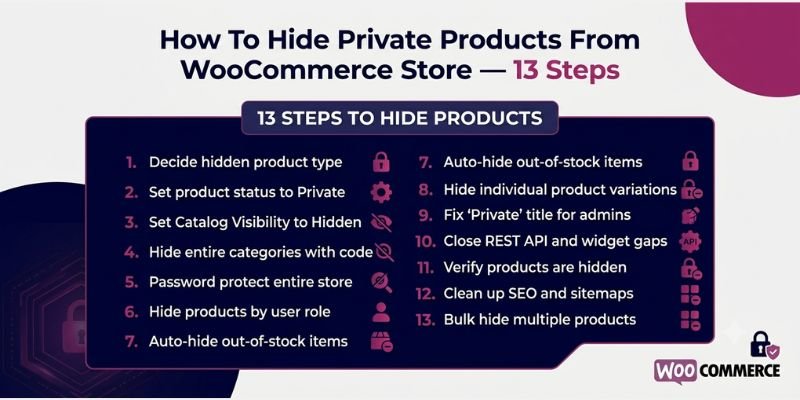
You mark a product as “Private” in WooCommerce, feel good about it, then check your shop page an hour later and there it is, sitting in the catalogue like nothing happened. Or a wholesale customer forwards you a link to something that was never meant to leave your inner circle. It’s an unsettling feeling, because WooCommerce doesn’t offer just one simple hide switch; it hands you a few different settings that all sound the same but quietly do different things behind the scenes.
If you’ve been searching for how to hide private products from your WooCommerce store and keep landing on half-answers, take a breath; you’re about to get the whole picture. This guide walks you through it step by step, in plain language, so you know exactly which setting to use and why, no matter how new you are to running a WooCommerce store.
What You Need Before You Start
Before touching any settings, get these basics sorted so you’re not stopping halfway through:
- Admin or Shop Manager access to your WordPress dashboard. Regular Editor or Author accounts don’t have permission to change product status or visibility.
- A clear idea of why you’re hiding each product. A wholesale item, a test listing, and a client-only order all call for different methods, so know your goal before you pick a setting.
- An incognito or private browser window. You’ll need this to check what customers actually see, since your own logged-in admin account previews things differently than the public does.
- Child theme access (optional). A couple of methods in this guide use small code snippets. You only need this if you plan to hide products by category or fix the admin-preview bug covered further down.
- An SEO plugin like Yoast or Rank Math (optional). Only needed if the product you’re hiding was previously showing up in Google and you want it fully out of search results.
Once you’ve got these ready, you can move through the rest of this guide in order.
Step-By-Step Guide To Hiding Private Products In WooCommerce
To hide private products in WooCommerce, go to Products → All Products, edit the product you want to hide, and set its Status to Private. You can also change Catalogue Visibility to Hidden if you want to remove it from the shop page and search results while keeping it accessible through a direct link. Save your changes to apply the new visibility settings.
Each step below builds on the last, starting with the two core settings, then moving into the more specific situations, wholesale catalogues, variations, bulk hiding, and cleanup, so follow along in order or jump to the step that matches your exact situation.
Step 1: Decide Which Kind Of “Hidden” You Actually Need
WooCommerce gives you four separate tools for this, and picking the wrong one is the single biggest reason products don’t stay hidden the way people expect:
- Private status removes the product from everyone except Admins and Shop Managers, including from search engines and the WooCommerce REST API. Use this when a product should disappear completely.
- Catalogue Visibility: Hidden keeps the product live and reachable by direct link; it just won’t show up on your shop page or in your store’s search. Use this when a specific customer still needs the link to work.
- Draft status unpublishes the product entirely. The URL stops working for everyone, including you. Use this only for products still in progress, never for something you’ve already shared a link to.
- Password Protected keeps the product page public and crawlable by search engines, but blocks the description and buy button behind a password. Use this only if you’re fine with the page staying indexable.
If you want a product locked down completely with zero chance of it leaking anywhere, the safest move is combining the first two: set Status to Private and Catalogue Visibility to Hidden on the same product.
Step 2: Set The Product Status To Private
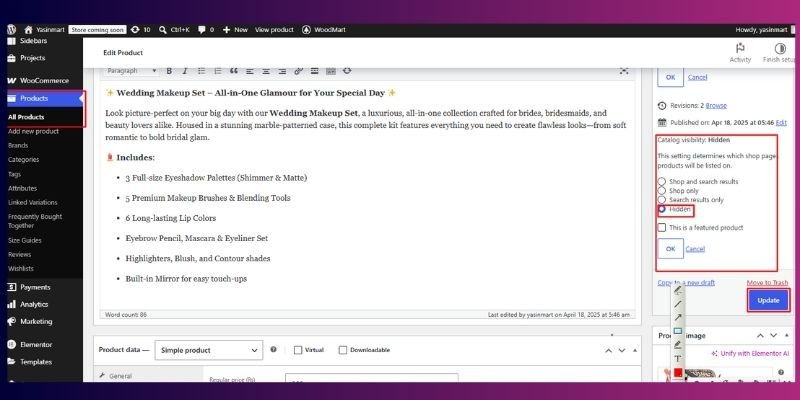
- Go to Products → All Products
- Open the product you want to hide
- In the Publish box, find Status: Published and click Edit
- Change the dropdown to Private
- Click OK, then Update
Once saved, guests and regular customers get a 404 if they try to visit the product’s URL directly. Only logged-in Admins and Shop Managers can see or edit it.
Step 3: Set Catalogue Visibility To Hidden
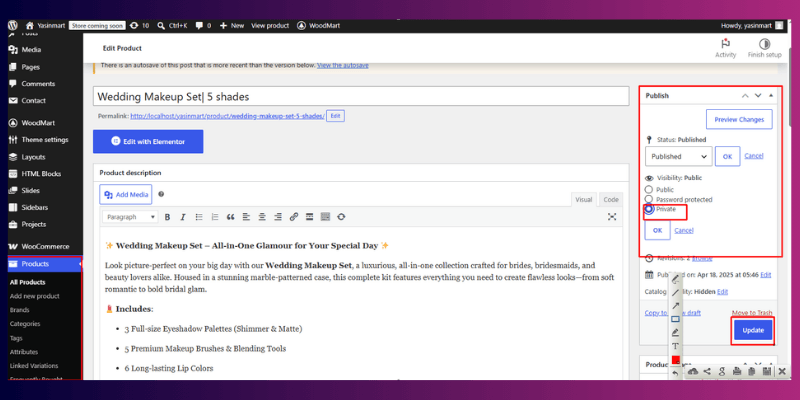
- Open the product in Products → All Products
- Find Catalogue visibility in the Publish box and click Edit
- Choose Hidden from the four options (Shop and search results, Shop only, Search results only, Hidden)
- Click OK, then Update
The product stays fully live and purchasable for anyone with the link; it just disappears from your shop page, category pages, and internal search.
Step 4: Hide An Entire Category Of Products At Once
If you regularly create private listings, don’t hide them one at a time.
- Go to Products → Categories and create a category like “Private” or “Internal”
- Move every product that needs hiding into that category
- Add this snippet to your child theme’s functions.php file to exclude the category from your shop query automatically:
function hide_private_category_from_shop( $query ) {
    if ( ! is_admin() && $query->is_main_query() && ( is_shop() || is_product_category() ) ) {
        $query->set( 'tax_query', array(
            array(
                'taxonomy' => 'product_cat',
                'field'    => 'slug',
                'terms'    => array( 'private' ),
                'operator' => 'NOT IN',
            ),
        ) );
    }
}
add_action( 'pre_get_posts', 'hide_private_category_from_shop' );Swap ‘private’ for your actual category slug. Everything in that category now stays off the shop page without repeating this step per product.
Step 5: Password Protect Or Hide Your Entire Store
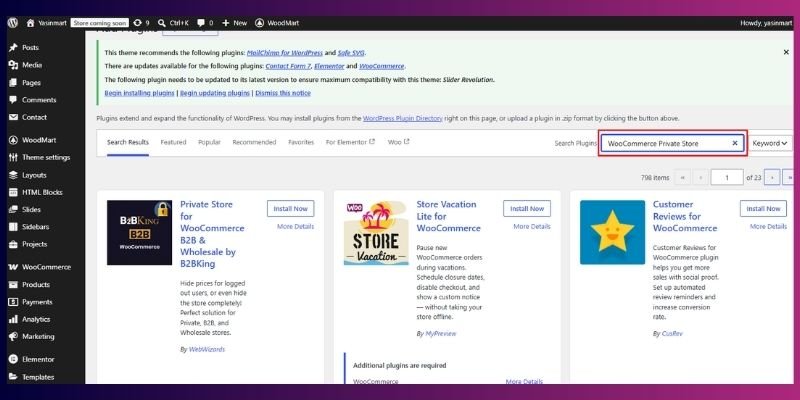
Sometimes the goal isn’t hiding one product, it’s hiding the whole catalogue. This fits private client portals, pre-launch stores, or wholesale-only shops where nothing should be public yet.
- Install a plugin like WooCommerce Private Store, since full-store password protection isn’t built into WooCommerce itself
- Go to the WordPress Dashboard → WooCommerce → Settings → Private Store
- Choose Password protected (visitors must enter a password to see anything) or Hidden from guests (the store unlocks automatically once someone logs in)
- Set a password (or several) in the Store passwords field, and choose how many days it stays valid
- Add a Redirect URL so people land somewhere useful after they log in or enter the password
Use this when the entire store needs to stay private, not just a handful of listings.
Step 6: Hide Products By User Role For Wholesale Or Membership Stores
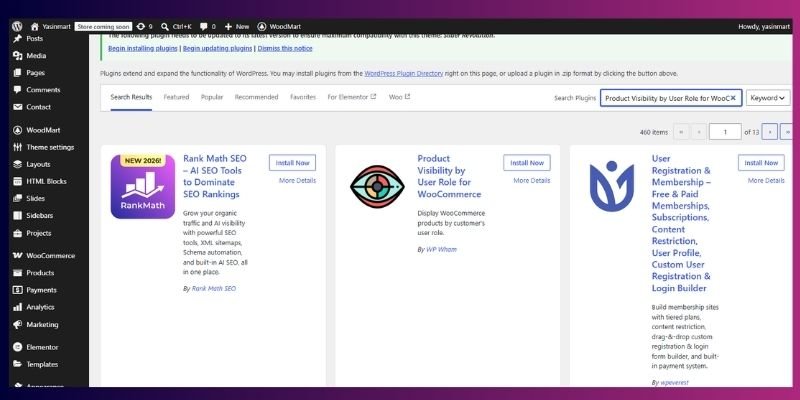
If different customers should see different catalogues, a wholesale plugin is the right tool, not catalogue visibility.
- Install the free Product Visibility by User Role for WooCommerce plugin, or WooCommerce’s own official Products Visibility by User Roles extension
- Open the product you want to restrict
- Find the Product Visibility panel on the edit screen
- Choose Hide mode to block one role while everyone else still sees it, or Show mode to make the product visible only to one role (like Wholesale Customer) and automatically invisible to everyone else
- Update the product
Show mode is the faster route if you’re building a whole wholesale-only section, since it hides the product from every other role in one step instead of hiding it from each role individually.
Step 7: Auto-Hide Out-Of-Stock Products
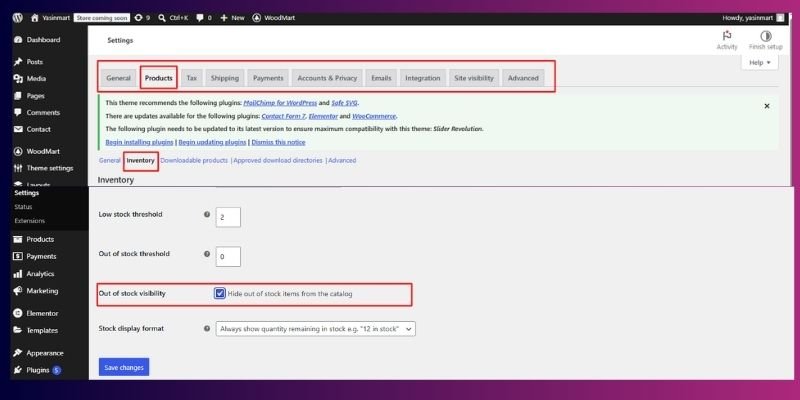
This one’s a store-wide setting, not a per-product one, and it’s easy to miss.
- Go to WordPress Dashboard→ WooCommerce → Settings → Products → Inventory
- Tick Hide out of stock items from the catalogue
- Save changes
Any product marked out of stock now disappears from the shop page and search automatically, and reappears the moment it’s restocked.
If you’d rather keep selling a product while it’s out of stock instead of hiding it completely, look into how WooCommerce backorders work first, since that lets customers order it anyway and pushes fulfillment to whenever you restock.
Step 8: Hide Individual Product Variations
Sometimes only part of a product needs hiding, like one size in a range that’s B2B-only.
- Open the variable product and go to the Variations tab
- Find the specific variation
- Toggle it to Disabled
- Save
One thing to know: disabled variations often still show up as a greyed-out, unclickable swatch on the frontend, depending on your theme. If you need that value to disappear completely rather than just become unselectable, remove it from the “Used for variations” list on the parent product and list it as its own separate product with Private status instead.
Step 9: Fix The “Private” Title Showing Up For Admins
If you’re logged in as an Admin or Shop Manager, WooCommerce still shows Private products to you on the shop page, usually with “Private” stuck in front of the title. This is intentional; it lets your team preview and manage private content without switching accounts, and customers never see it. Confirm this by checking the store in an incognito window instead.
If you still want it hidden from your own frontend view too, add this to your child theme:
add_filter( 'posts_where', 'hide_private_products_from_admin_frontend' );

function hide_private_products_from_admin_frontend( $where ) {
    if ( is_admin() ) {
        return $where;
    }
    global $wpdb;
    return $where . " AND {$wpdb->posts}.post_status != 'private' ";
}Step 10: Close The REST API And Widget Gap
Catalogue Visibility Hidden filters your shop loop and search, but it does not filter the WooCommerce REST API. A hidden product still returns normally from /wp-json/wc/v3/products for authenticated requests, which matters if you’re running a headless storefront that pulls products through the API. Add this to filter it out:
add_filter( 'woocommerce_rest_product_object_query', function( $args, $request ) {
    $args['tax_query'][] = array(
        'taxonomy' => 'product_visibility',
        'field'    => 'name',
        'terms'    => 'exclude-from-catalog',
        'operator' => 'NOT IN',
    );
    return $args;
}, 10, 2 );Also check your theme’s homepage sliders and “Recent Products” widgets; these often pull products through a separate query that skips catalogue visibility rules entirely. Look for a “respect catalogue visibility” setting in your theme or page builder.
Step 11: Check Whether A “Hidden” Product Is Actually Hidden
Sometimes a product still appears on your store even after you change its visibility. This can happen after a bulk import, product sync, or when a third-party plugin updates one setting but leaves another unchanged.
Start With a Simple Check
Before you assume something is wrong, open your store in an incognito window or log out of your WordPress account. Administrators can still see products that regular visitors cannot, so checking as a guest gives you the most accurate result.
If the product still appears, clear your website cache and browser cache, then check again.
Advanced Check Using the Database
If you have access to your WordPress database, run the following SQL query to verify the product’s actual status and visibility.
SELECT p.ID,
       p.post_title,
       p.post_status,
       GROUP_CONCAT(t.name SEPARATOR ', ') AS visibility_terms
FROM wp_posts p
LEFT JOIN wp_term_relationships tr
       ON tr.object_id = p.ID
LEFT JOIN wp_term_taxonomy tt
       ON tt.term_taxonomy_id = tr.term_taxonomy_id
      AND tt.taxonomy = 'product_visibility'
LEFT JOIN wp_terms t
       ON t.term_id = tt.term_id
WHERE p.ID = 1234
GROUP BY p.ID, p.post_title, p.post_status;Replace 1234 with your WooCommerce product ID before running the query.
How to Read the Results
- If post_status is publish and visibility_terms is empty, the product is fully visible to customers.
- If post_status is private, the product is only available to users with the right permissions.
- If you see values such as exclude-from-search or exclude-from-catalogue, WooCommerce has applied catalogue visibility rules to that product.
Another Option Without Using SQL
If you don’t have database access, you can check the product through the WooCommerce REST API.
Visit:
/wp-json/wc/v3/products/<product-id>Using administrator credentials.
If your settings were saved correctly, the response shows both the status (Published or Private) and catalog_visibility (Visible, Catalogue, Search, or Hidden).
Tip: If the settings look correct but the product still appears on your site, the problem usually comes from page caching, a custom theme, or a plugin that ignores WooCommerce’s catalogue visibility settings. Those are good places to investigate next.
Step 12: Clean Up The SEO Trail
Hiding a product from your shop page doesn’t remove it from Google if the link is already indexed or shared somewhere.
- Add a noindex tag through your SEO plugin
- Make sure your sitemap excludes the product (most SEO plugins do this automatically for Private and Draft items)
- Set up a 301 redirect to a relevant category page if the product had traffic or backlinks before you hid it
- Use a canonical tag directing to the main product if this one is a component of a bundle
- Request removal in Search Console if you need it gone from Google faster than the natural one-to-four-week recrawl window
Hiding a product is only one piece of your store’s SEO picture, if you haven’t already, it’s worth optimizing your WooCommerce product pages for SEO for everything you’re keeping public, so the products you want customers to find are working just as hard as the ones you’re hiding.
Step 13: Hide Multiple Products At Once
For anything beyond a handful of products, use the built-in bulk tool instead of repeating the steps above one product at a time.
- Go to Products → All Products
- Check the boxes next to the products you want to hide
- Choose Edit from the Bulk actions dropdown, then click Apply
- Set Visibility to Hidden (or Status to Private) in the bulk edit panel
- Click Update
For hundreds of products, WP-CLI is faster and scriptable if you have server access:
wp post update <ID> --post_status=privateLoop this across a list of IDs from a CSV to flip status for large batches in one run.
Quick Comparison: Which Method Should You Use?
| If You Want To… | Recommended Method | Why It Works |
| Keep a product hidden from customers while making it available to store administrators | Set the product status to Private | WooCommerce blocks the product from public pages, direct access, and the REST API. |
| Keep a product accessible only through its direct URL | Set Catalogue Visibility to Hidden | Customers won’t find it in your shop, categories, or search results, but anyone with the link can still open it. |
| Work on a product before launching it | Save it as Draft | The product stays completely unavailable until you’re ready to publish it. |
| Remove a product from your storefront without breaking an existing shared link | Use Catalogue Visibility: Hidden | The page remains accessible through its URL while disappearing from public listings. |
| Protect a product with a password | Choose Password Protected | Only visitors who know the password can view the product page. |
| Hide an entire product category | Exclude the category or use category visibility rules | A practical option when you need to hide multiple products together. |
| Make your entire WooCommerce store private | Use a WooCommerce Private Store plugin | Restricts access to your whole store until users log in or enter a password. |
| Show different products to wholesalers, members, or other user roles | Use a role-based visibility plugin | Displays products only to the customer groups you choose. |
| Automatically hide sold-out products | Enable “Hide out of stock items” in WooCommerce → Settings → Products → Inventory | WooCommerce removes unavailable products from your catalogue automatically. |
| Hide only selected variations, such as a size or colour | Disable the variation or create a separate private product | Prevents customers from selecting unavailable options. |
| Remove a hidden product from Google search results | Add a Noindex tag and remove it from your sitemap | Search engines stop indexing the page over time. |
| Hide dozens or hundreds of products at once | Use Bulk Edit or WP-CLI | Saves time when managing a large WooCommerce catalogue. |
Recommendation: For most stores, Private works best when nobody except your team should access the product. If you still want customers with a direct link to view it, choose Catalogue Visibility: Hidden instead. This small distinction prevents many of the visibility issues WooCommerce users run into.
Extra Tips And Best Practices
- Always confirm changes in an incognito window. Your own admin account previews things differently than a real customer does, so never trust what you see while logged in.
- Combine Private and Hidden for anything sensitive. One setting alone can leave a gap; using both closes almost every leak covered in this guide.
- Never use Draft for a product you’ve already shared a link to. Draft kills the URL completely. Use Hidden instead if the link needs to keep working.
- Tag hidden products for easy tracking. A simple internal tag or note helps you find and review them later without digging through hundreds of listings.
- Set a recurring reminder to review hidden products. Seasonal items and pre-launch products are easy to forget about once they’re out of sight.
- Test code snippets on staging first. A small mistake in a visibility filter can accidentally hide your entire catalogue, not just the products you meant to hide.
- Put custom code in a child theme, never the parent theme. Updating the parent theme later wipes out anything added directly to it.
- Check the REST API separately if you run a headless store. Catalogue Visibility Hidden doesn’t filter API responses by default, so headless front ends need their own filter.
Common Problems and How to Fix Them
Even if you set a product to Hidden or Private, you might notice behaviour that seems confusing at first. Most of these issues happen because of WooCommerce settings, themes, or caching rather than a bug.
- Hidden Products Still Show Up When You’re Logged In
If you’re signed in as an Administrator or Shop Manager, WooCommerce lets you see products that regular visitors can’t access. This helps you manage your store without constantly logging in and out.
Quick fix: Open your store in an incognito window or check it from another browser where you aren’t logged in. That shows you exactly what customers see.
- The Product Appears in a Homepage Slider or Featured Section
Some themes, page builders, and product sliders use their own product queries instead of WooCommerce’s default catalogue settings. Because of that, they may continue showing hidden products.
Quick fix: Check the widget or page builder settings for options like Respect Catalogue Visibility, Hide Hidden Products, or Exclude Private Products. If you don’t see those options, update the widget query manually.
- Google Still Shows the Product in Search Results
Hiding a product from your WooCommerce catalogue doesn’t automatically remove it from search engines. If Google already indexed the page, it may continue showing it until Google crawls the page again.
Quick fix: Add a noindex tag using your SEO plugin, remove the product from your XML sitemap, and request reindexing in Google Search Console. If nobody should access the product, change its status to Private instead of only hiding it.
- Disabled Variations Still Appear on the Product Page
Many WooCommerce themes display all variation options from the parent product, even when some variations are unavailable. Customers may see a greyed-out option instead of having it disappear completely.
Quick fix: Remove that attribute from Used for Variations if you no longer need it. If you still want to sell it only to selected customers, create it as a separate private product.
- The Product Link Stops Working
This usually happens when you change the product status to Draft instead of Hidden. A draft product becomes unavailable, so any shared links stop working.
Quick fix: Use Catalogue Visibility → Hidden when you want to keep the direct URL active while removing the product from your shop pages.
- Hidden Products Still Appear in a Headless Store or API
Catalogue visibility only affects the storefront. WooCommerce’s REST API may still return hidden products unless you filter them yourself.
Quick fix: If you’re using a headless WooCommerce setup, add a filter to your REST API query or mark the product as Private. WooCommerce automatically excludes private products from standard API responses.
Pro Tip
If your product still appears after changing its visibility, clear your website cache, CDN cache, and browser cache before troubleshooting further. Cached pages often make it look like your changes didn’t apply even though WooCommerce saved them correctly.
Conclusion
So, Guys, that’s it. You now know exactly how to hide private products from your WooCommerce store, and the parts most guides skip too. You know when to use Private, when Hidden fits better, why Draft can break a shared link, and why a “hidden” product can still leak through the REST API or Google search.
That’s real, practical knowledge that puts you ahead of most store owners.
Now go through your product list with fresh eyes. Apply the right setting to anything that should be private, wholesale-only, or not ready yet. If you’re managing a big catalogue, use the bulk edit method or WP-CLI to get it done in one sitting. Then check your SEO plugin to make sure hidden products are pulled from your sitemap too.
Your store is yours to control. Go make it exactly as public, or as private, as you want.
Frequently Asked Questions
Open the product and find Catalogue Visibility in the Publish box. Choose “Hidden.” The product disappears from the shop page and search results, but the page still works if someone has the direct link.
WooCommerce doesn’t have a built-in “archive” feature. Use Draft if you want the product fully unpublished, or Private if you want to keep it saved but visible only to your admin team.
Go to WooCommerce → Settings → Products → Inventory and turn on “Hide out of stock items from the catalogue.” Sold-out products disappear automatically and come back once you restock them.
Move the products into one category, then exclude that category from your shop page using a small code snippet or a visibility plugin. This hides the whole group in one step instead of product by product.
It’s the setting that controls where a product shows up on the shop page, in search, both, or nowhere at all if set to Hidden. You’ll find it in the Publish box on the product edit screen.
Most themes pull the category display from a template file, not a settings toggle. You’ll usually need to edit your theme’s product template or hide it with a bit of CSS.
Private is a product status, not a catalogue visibility setting. It hides the product from everyone except logged-in Admins and Shop Managers, including guests and search engines.
It’s a product with its status set to Private. It stays saved in your store with all its data, but only Admins and Shop Managers can view or edit it.
Go to WooCommerce → Settings → Products → Display and change “Shop page display” to “Show products” instead of “Show categories” or “Show both.”
Yes, with a role-based visibility plugin. Set a category or its products to show only for a role like Wholesale Customer, and it stays hidden from everyone else automatically.
It’s a plugin that shows or hides specific products based on a customer’s account role. It is the standard way for stores to manage wholesale and member-only catalogues.




- Be Respectful
- Stay Relevant
- Stay Positive
- True Feedback
- Encourage Discussion
- Avoid Spamming
- No Fake News
- Don't Copy-Paste
- No Personal Attacks
- Be Respectful
- Stay Relevant
- Stay Positive
- True Feedback
- Encourage Discussion
- Avoid Spamming
- No Fake News
- Don't Copy-Paste
- No Personal Attacks
