What Is WooCommerce Backorder? Simple Guide for Beginners (2026)
Published: 11 Jul 2026
Quick Answer
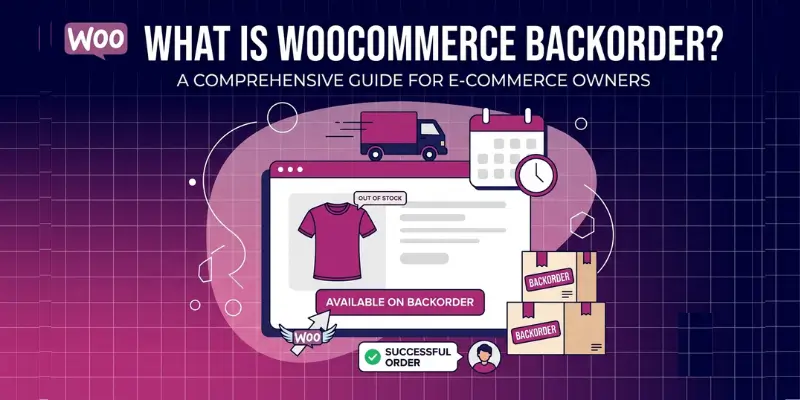
A WooCommerce backorder lets customers buy a product even when your stock shows zero. WooCommerce holds the order, and you fulfil it once new stock arrives. You enable it in Products > Inventory > Allow Backorders.
If you run a WooCommerce store, you have probably faced this: a popular product sells out, but customers keep trying to buy it. Without backorders enabled, you lose that sale completely.
Backorders solve this problem. They let customers place an order even when your stock is at zero, and you fulfil it once the product is back in stock.
In this guide, I’ll cover everything you need to know about WooCommerce backorders: what they are, how to set them up step by step, what customers see, which plugins make management easier, and how to avoid the most common mistakes store owners make.
I have set up backorders for dozens of WooCommerce stores across fashion, electronics, and home goods niches. The biggest mistake we see every time? Store owners enable backorders without turning on stock management first, and then wonder why the option does not appear.
If you’re setting up an online store for the first time, it’s worth understanding how WooCommerce works before using features like backorders.
What Is a WooCommerce Backorder?
A WooCommerce backorder is a feature that lets customers purchase a product even when its stock is zero. The order gets saved in your system, and you ship the product once new inventory arrives.
In simple terms, you keep selling the product, but the customer waits a little longer for delivery.
Example: You sell wireless headphones. They sell out on Monday. A customer visits your store on Wednesday and wants to buy a pair. With backorders enabled, they complete the purchase normally. You restock on Friday and ship their order. That is a backorder.
This feature directly affects your product availability status, order fulfilment process, and inventory management system.
Whether backorders make sense for your business depends on the type of products you sell and how you plan to manage your online store.
How Do WooCommerce Backorders Work?
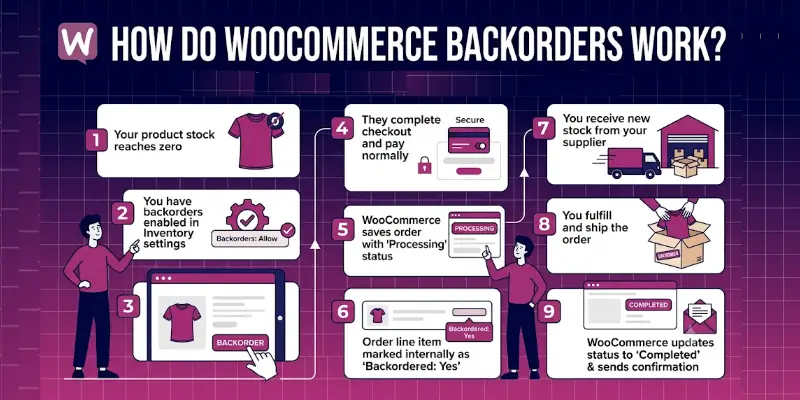
WooCommerce backorders work by saving a customer’s order when your stock hits zero, processing their payment immediately, and holding the order until you restock and ship. The customer pays now and receives the product later; WooCommerce handles everything in between automatically.
Here is the exact sequence of events when a customer places a backorder on your store:
- Your product stock reaches zero
- You have backorders enabled in the product’s Inventory settings
- A customer visits your product page and clicks Add to Cart
- They complete checkout and pay normally
- WooCommerce saves the order with a “Processing” status
- WooCommerce marks the order line item internally as “Backordered: Yes”. You can see this in WooCommerce → Orders → [order details]
- You receive new stock from your supplier
- You fulfil and ship the order
- WooCommerce updates the order status to “Completed” and sends the customer a confirmation
Pro Tip: Customers who place backorders expect communication. Send them a confirmation email that explains the delay and gives an estimated shipping date. To customise the backorder email template, go to WooCommerce → Settings → Emails → Processing Order. Silence after checkout leads to cancellations.
How to Enable Backorders in WooCommerce (Step by Step)
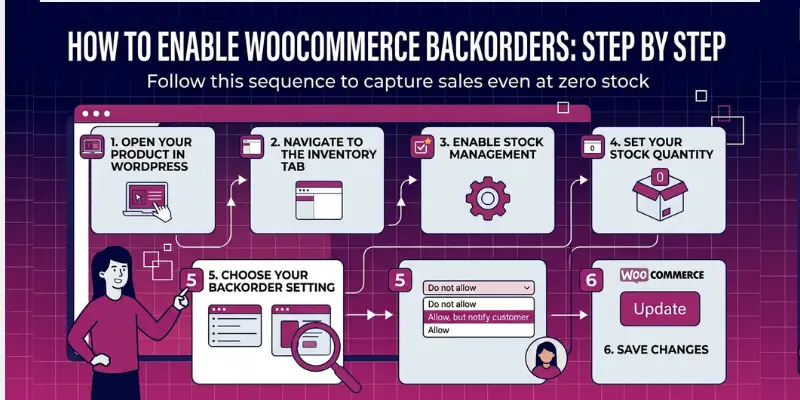
WooCommerce makes it straightforward to enable backorders on any product. Follow these five steps and your store will accept orders even when stock hits zero.
Quick Answer
To enable backorders in WooCommerce: go to Products → Edit Product → Inventory tab, tick Manage stock?, set your stock quantity, then set Allow Backorders to “Allow, but notify customer.” Click Update and your product will accept orders even at zero stock.
Step 1: Open Your Product in WordPress
Log in to your WordPress dashboard and click Products in the left-hand menu. Click All Products, then find and click the product you want to put on backorder to open the product editor.
Step 2: Navigate to the Inventory Tab
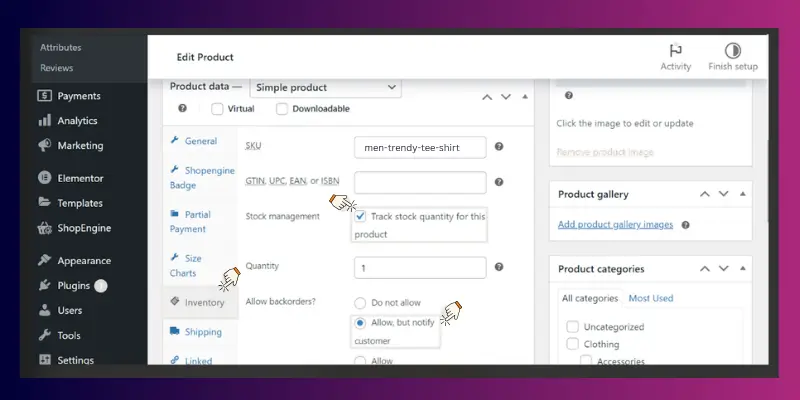
Scroll down past the product description until you reach the Product data panel. Click the Inventory tab; it is the third tab in the panel, after General and Shipping.
Product data → Inventory
Step 3: Enable Stock Management
Tick the checkbox labelled Manage stock?
⚠ Critical: do this first
If you do not tick Manage stock? first, the Allow Backorders dropdown will not appear at all. This is the most common setup mistake we see; store owners skip this step and spend 20 minutes wondering why the backorder option is missing.
Step 4: Set Your Stock Quantity
Enter your current stock level in the Stock quantity field. If your product is already sold out, enter 0. WooCommerce needs a number in this field to manage stock correctly. Do not leave it blank.
Step 5: Choose Your Backorder Setting
Open the Allow Backorders dropdown. You will see three options:
| Setting | What the customer sees | Best used when |
| Do not allow | Product shows as out of stock. Cannot add to cart. | Restock timing is unpredictable, or delay is over 4 weeks |
| Allow, but notify customer Recommended | Customer can buy and sees: “Available on backorder” | Best for most stores: honest, transparent, still captures the sale |
| Allow | Product appears fully in stock with no backorder notice | Only if you are certain about restock time and actively manage orders |
Our recommendation: Choose Allow, but notify the customer in almost every situation. It keeps your store transparent, reduces customer complaints after checkout, and still captures the sale you would otherwise lose.
💡 Pro Tip
After enabling backorders, send customers a confirmation email that explains the delay and gives an estimated shipping date. To customise this email, go to WooCommerce → Settings → Emails → Processing Order. The most common reason backorder clients cancel is silence after checkout; one proactive email prevents most of it.
Step 6: Save Your Changes
Click the Update button in the top right corner of the product editor. Your product now accepts orders even when stock is at zero. Test it by visiting the product page in a private browser window; you should see the “Available on backorder” message and an active Add to Cart button.
Need to turn off backorders? Return to the same Inventory tab, open the Allow Backorders dropdown, select “Do not allow”, and click Update. The product will immediately stop accepting orders when stock hits zero.
⚠ Important: If you skip Step 5 and do not tick ‘Manage stock?’, the Allow Backorders dropdown will not show up at all. This is the most common setup mistake we see.
What Do the Three WooCommerce Backorder Settings Mean?
When you open the Allow Backorders dropdown, you see three options. Here’s what each one does and when to use it are as follows:
| Setting | What the customer sees | When to use it |
| Do not allow | Product shows as out of stock. Cannot add to cart. | When you cannot predict restock time or have long supplier delays |
| Allow, but notify customer | Customer can buy, but sees a message: ‘Available on backorder’ | Best for most stores, keeps customers informed and builds trust |
| Allow | Product appears as in stock with no backorder notice | Only use if you are confident about restock time and actively manage orders |
Our recommendation: Use ‘Allow, but notify customer’ in almost every situation. It keeps your store honest, reduces customer complaints, and still captures the sale.
What Do Customers See When a Product Is on Backorder?
The customer experience depends on which backorder setting you choose. Here is what your shoppers will see on both the product page and in their order confirmation:
On the Product Page
• Add to Cart button remains active
• If you chose ‘Allow, but notify’, customers see the text: Available on backorder
• The stock status changes from ‘In Stock’ to ‘On backorder’
• If you chose ‘Allow’ with no notification, the product appears fully in stock; customers see nothing different
Improving product descriptions and stock information can also increase customer confidence before they complete a purchase.
In the Order Confirmation Email
• WooCommerce sends a standard order confirmation
• There is a status of ‘Processing’ for the order
• If you use a plugin (see below), you can include an estimated delivery date automatically
Pro Tip: Add a clear note in your product description when a product is on backorder. Something like: ‘Currently on backorder; ships within 7-10 business days.’ This sets expectations before checkout and dramatically reduces support emails.
What Should You Tell Customers When a Product Is on Backorder?
Clear communication is the difference between a loyal customer and a chargeback. Use these copy templates directly in your store:
Product Page Notice
“This item is currently on backorder. We expect to have it back in stock within 7-10 business days. Place your order today, and we will ship it to you as soon as it arrives. Your payment processes now, and your spot in the queue is guaranteed.”
Order Confirmation Email (add to your WooCommerce email template)
“Thank you for your order! There are currently backorders for one or more of the items you ordered. We expect to ship your order by [date]. We will send you a shipping confirmation as soon as your package is on its way. Please respond to this email if you have any questions.”
Backorder Shipped Notification
“Great news! Your backordered item has shipped! We know you have been waiting, and we appreciate your patience. Your tracking number is [X]. Thank you for trusting us with your order.”
Backorder vs Out of Stock vs Preorder: What Is the Difference?
A backorder means the product exists but is temporarily sold out, and customers can still order it. Out of stock means the product exists, but customers cannot order it. A preorder means the product does not exist in your inventory yet, but customers can reserve it before it launches.
These three terms confuse a lot of store owners. Here is a clear comparison:
| Term | Product status | Can customer order? | Best used when |
| Backorder | Exists but temporarily out of stock | Yes | Stock arrives within days or weeks |
| Out of Stock | Exists but unavailable | No | You cannot confirm restock timing |
| Preorder | Does not exist yet / not released | Yes | Launching a new product in future |
The key difference: backorders are for products you already sell and will restock. Preorders are for products that do not exist in your inventory yet. Out of stock is what you use when you cannot give customers a reliable delivery timeline and do not want to collect payment until you can.
How Do You Show Estimated Delivery Dates for Backorders?
This is one of the most common questions we get, and the honest answer is: WooCommerce does not show estimated delivery dates for backorders by default.
Out of the box, WooCommerce only shows the ‘Available on backorder’ text. It does not tell customers when to expect their order.
You have two options to fix this:
Option 1: Manual workaround (free, takes 2 minutes)
Add a sentence directly to your product description or short description field explaining the expected wait time. Example: ‘Currently on backorder, estimated to ship within 7-10 business days.’
Update this text whenever your restock timeline changes. Simple, but requires manual updates per product.
Option 2: Use the WooCommerce Lead Time plugin (recommended)
The WooCommerce Lead Time plugin by Barn2 automatically displays an estimated delivery date on your product page and in cart. You set the lead time per product or globally, and it updates dynamically.
This is the approach we recommend for any store with more than 10 products on backorder at a time; it saves hours of manual updates and reduces customer service emails significantly.
Best WooCommerce Backorder Plugins (2026)
Default WooCommerce gives you basic backorder controls, but it has real limitations: no maximum order quantity, no automatic delivery date display, no bulk editing by category. These plugins solve those problems:
| Plugin | Price | What it adds that WooCommerce cannot do |
| ShopEngine (Backorder Module) | Free | Set a maximum backorder quantity per product, show the available date on the product page, customise the backorder message text |
| WooCommerce Lead Time (Barn2) | Paid (~$49/year) | Automatically displays estimated shipping date on product pages, cart, and checkout. The best solution for delivery transparency |
| Backorder Manager Pro | Paid | Manage backorder rules globally or by category, bulk enable/disable without editing products one by one, restrict by user role |
| Smart Manager | Free/Paid | Bulk edit backorder status across hundreds of products from a spreadsheet-style view, export backordered product lists for supplier coordination |
Our pick: If you manage a small store (under 50 products), start with ShopEngine’s free backorder module. If delivery communication is your main pain point, add WooCommerce Lead Time. If you manage a large catalogue, Backorder Manager Pro saves the most time.
If you want to customize how stock or availability messages appear, there’s a built-in way to modify that text without a plugin, useful if you’d rather avoid adding another plugin just for this.
When Should You Allow WooCommerce Backorders?
Backorders are a powerful tool, but they are not the right choice for every situation. Use this decision guide:
Enable backorders when:
• Your stock arrives within a predictable timeframe (7-14 days)
• You sell high-demand products that sell out regularly
• You want to avoid losing sales during temporary supply gaps
• You have a reliable supplier relationship and consistent restock schedule
• You can send proactive updates to customers about their order status
Do not enable backorders when:
• Your supplier delay is unpredictable or longer than 3-4 weeks
• You cannot communicate a reliable shipping estimate to customers
• Your product has a high return or cancellation rate already
• Your customers are highly time-sensitive (gifts, events, seasonal items)
Example: A clothing store I worked with enabled backorders on a popular hoodie style during a supply delay. They set the backorder message to ’14-day estimated delivery’ and sent one proactive email update mid-wait. Result: zero cancellations and 23 additional sales they would have lost. The key was honest communication upfront.
Pros and Cons of WooCommerce Backorders
| Pros | Cons |
| You capture sales even when stock is zero | Customers may cancel if wait time is too long |
| You maintain revenue flow during supplier delays | Requires active communication and order tracking |
| You gauge real demand before committing to large stock orders | Can damage trust if delivery expectations are not met |
| You reduce the risk of overstocking slow-moving items | Adds complexity to your fulfilment and inventory workflow |
| High-demand customers secure their item immediately | Requires stock management to be enabled; adds admin overhead |
How Do You Manage Backorders in Bulk?
If you manage dozens or hundreds of products, editing backorder settings one product at a time is not realistic. Here are your options:
Using WooCommerce’s native bulk edit (limited)
1. Go to Products in your dashboard
2. Check the boxes next to the products you want to update
3. Click the Bulk actions dropdown and choose Edit
4. Click Apply
5. In the bulk edit panel, find the Backorders field and set it
6. Click Update
Limitation: WooCommerce’s native bulk edit does not let you filter by category, stock status, or price range. You edit everything you selected, nothing more specific.
Using a plugin for true bulk management
Smart Manager and Backorder Manager Pro both give you a spreadsheet-style interface where you can filter by category, tag, or stock status and apply backorder rules to exactly the products you need. For stores with 50+ products, this saves hours every time you need to update backorder status seasonally or after a supplier change.
Common WooCommerce Backorder Issues and How to Fix Them
Now let’s have a look at some of the common backorder issues and how to fix them:
| Problem | Why it happens | How to fix it |
| ‘Allow Backorders’ option not showing | Stock management is not enabled on that product | Edit the product > Inventory tab > tick ‘Manage stock?’ first |
| Product still shows as Out of Stock despite backorders enabled | Stock status set manually to ‘Out of stock’ overriding settings | Set Stock Status to ‘In Stock’ or ‘On Backorder’ in the same Inventory tab |
| Customers not seeing the backorder message | Using ‘Allow’ setting instead of ‘Allow, but notify’ | Change to ‘Allow, but notify customer’ in the backorder dropdown |
| Orders not showing as backordered in dashboard | Stock management not enabled before the order came in | Enable stock management and update the product; future orders will show correctly |
| Customers confused about delivery time | No lead time or delivery estimate shown | Add estimated delivery text to product description or use WooCommerce Lead Time plugin |
Should You Use WooCommerce Backorders for Your Store?
Use backorders if your stock arrives within a reliable timeframe, you want to avoid losing sales, and you can commit to communicating with customers about their order status.
Skip backorders if your delivery timeline is unpredictable, your product category is time-sensitive, or you do not have a system in place to send proactive order updates.
For most small to medium WooCommerce stores selling physical products, backorders are worth enabling, especially on your top 10 best-selling products. The revenue you capture during stock gaps outweighs the extra communication effort when you use the right message templates and a simple plugin.
Final Thoughts
WooCommerce backorders help you keep selling even when your shelves are empty, and when you manage them properly, your customers stay satisfied, and your revenue stays steady.
The setup takes under five minutes. The real work is communication: tell customers exactly what to expect, give them a realistic delivery estimate, and follow through.
Start by enabling backorders on your three best-selling products. Use ‘Allow, but notify customer’ as your default setting. Add a clear product description note with your estimated restock time. Then check back in two weeks and see how many sales you captured that you would have otherwise lost.
Next step: Go to your WooCommerce dashboard right now, find your top-selling product that runs out of stock most often, and enable backorders with the ‘Allow, but notify customer’ setting. It takes less than two minutes and could recover dozens of lost sales in the next stock gap.
Frequently Asked Questions About WooCommerce Backorders
A WooCommerce backorder lets customers buy a product even when it’s out of stock. Instead of blocking the purchase, the order is accepted and fulfilled after you restock the item. This helps store owners keep sales going while waiting for new inventory to arrive.
Enable Stock Management, then set Allow Backorders for your products. For all products at once, use WooCommerce’s bulk edit feature or a bulk editing plugin.
Yes, but only if you enable backorders in the product’s Inventory settings. By default, WooCommerce prevents purchases when stock hits zero. You need to actively turn backorders on per product or use a plugin to apply the setting globally.
No. A backorder means a product is temporarily unavailable; your supplier is restocking it. Discontinued means the product will not return. Always make this clear to customers in your product description and confirmation emails.
It depends entirely on your supplier’s restock speed. WooCommerce itself does not set or track a timeline. You need to communicate the estimated wait time manually or use a plugin like WooCommerce Lead Time to display it automatically on the product page.
Yes. WooCommerce tracks backordered quantities separately from your in-stock count. When you enable stock management, it records how many units are on backorder so you know exactly how many you need to order from your supplier. This makes inventory planning much easier.
Not with default WooCommerce. However, the ShopEngine backorder module lets you set a maximum backorder quantity per product; once that limit is hit, the product shows as unavailable. This is useful if you know exactly how many units your supplier can deliver in the next restock.
WooCommerce holds the order in Processing status indefinitely. You need to manually cancel and refund those orders. This is why we recommend only enabling backorders when you have confirmed your supplier can deliver. Do not use backorders as a way to collect payments on products you are not sure you can source.
Yes, and WooCommerce processes payment at checkout by default for backorders, the same as regular orders. Make sure your refund policy is clear in case you cannot fulfil. In most markets, you must refund promptly if you cannot deliver the product within the stated timeframe.




- Be Respectful
- Stay Relevant
- Stay Positive
- True Feedback
- Encourage Discussion
- Avoid Spamming
- No Fake News
- Don't Copy-Paste
- No Personal Attacks
- Be Respectful
- Stay Relevant
- Stay Positive
- True Feedback
- Encourage Discussion
- Avoid Spamming
- No Fake News
- Don't Copy-Paste
- No Personal Attacks
