How to Remove Unused CSS and JavaScript in WordPress
Published: 7 Oct 2026
Quick answer: How to Remove Unused CSS and JavaScript in WordPress
Find unused CSS and JavaScript with PageSpeed Insights or Chrome DevTools Coverage. Remove plugins and assets you don’t need, unload CSS and JS from pages that don’t use them, use a performance plugin to remove unused CSS, and defer or delay non-essential JavaScript. PageSpeed may flag an asset as unused even when your website still needs it elsewhere. Verify the site after each change to make sure nothing breaks.
If PageSpeed Insights reports “Reduce unused CSS” or “Reduce unused JavaScript,” you don’t need to delete every file it lists.
Unused code usually comes from themes, plugins, page builders, WooCommerce, and third-party services. The safer approach is to find where each file comes from, check whether the page actually needs it, and then remove it, unload it on pages where it isn’t needed, or load it later when appropriate.
I recently worked on a website that had a 44 mobile score and 72 desktop score in PageSpeed Insights. The report showed several performance problems, including unused CSS and unused JavaScript. I noticed that many of the reported issues were related to Elementor, including assets loaded for features the website did not need on every page.
I worked through the reported performance issues using LiteSpeed Cache and other speed optimizations. After the changes, the score improved to 77 on mobile and 90 on desktop.
This experience also showed me why you should not simply remove everything PageSpeed calls “unused.” An Elementor stylesheet, plugin script, or other asset may appear unused on one page but still be required somewhere else.
How to Find Unused CSS and JavaScript in WordPress?
The easiest way is to combine PageSpeed Insights, Chrome DevTools Coverage, and the file URL. PageSpeed shows potential savings, while Coverage helps you see how much of a CSS or JavaScript file the page actually used.
How Do You Find Unused CSS With PageSpeed Insights?
Run the exact page you want to optimize through PageSpeed Insights and check the “Reduce unused CSS” recommendation.
- Open PageSpeed Insights.
- Enter the URL of the page you want to improve.
- Run the test.
- Check the diagnostics and opportunities.
- Open Reduce unused CSS.
- Note the CSS files with the largest potential savings.
- Check Reduce unused JavaScript for scripts with large unused portions.
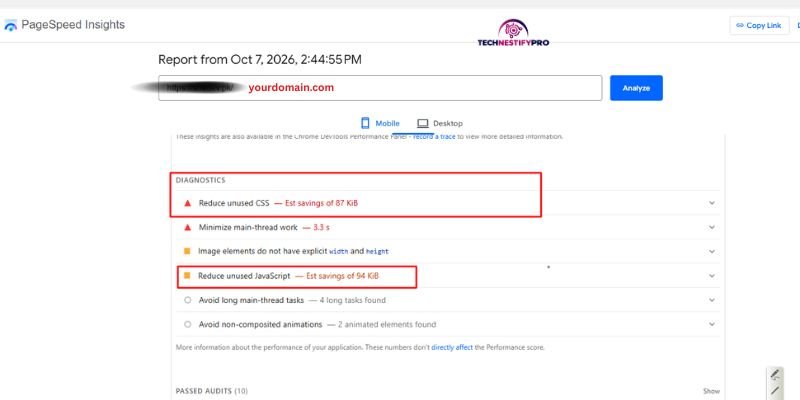
Don’t assume a file is unnecessary just because PageSpeed lists it. PageSpeed evaluates the page you tested. A stylesheet that is unnecessary on your homepage may still be required on another page.
How Can You Find Unused CSS and JavaScript With Chrome DevTools?
Use the Chrome Coverage panel to see which parts of a CSS or JavaScript file the browser did not use during the test.
- Open the page in Chrome.
- Right-click and select Inspect.
- Open the three-dot menu in DevTools.
- Go to More tools → Coverage.
- Click the reload button.
- Filter the results for CSS or JavaScript.
- Sort by unused bytes.
- Open the largest files and investigate their source.
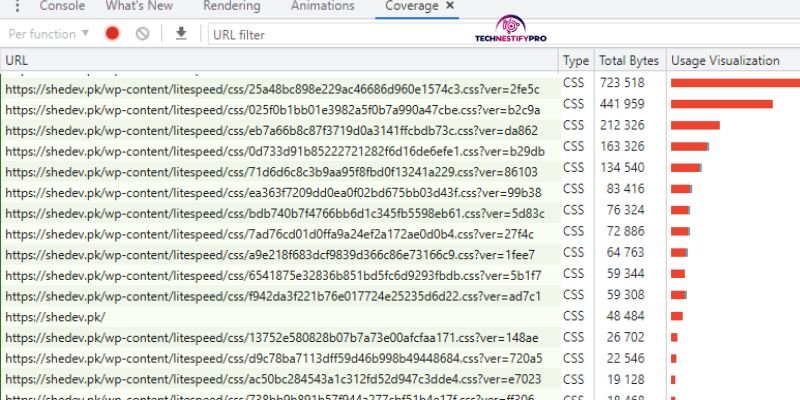
Coverage is useful for finding large files, but remember that it only records code used during your test. JavaScript that runs after a click, scroll, form submission, or other interaction can appear unused until you trigger that interaction.
How Do You Identify Which Plugin or Theme Is Loading an Unused File?
Check the file URL and its WordPress directory to identify its source.
For example:
- /wp-content/plugins/ usually points to a plugin.
- /wp-content/themes/ usually points to a theme.
- /wp-includes/ points to WordPress core.
- A third-party domain usually means an external service is loading the asset.
You can also use Query Monitor to identify the script or stylesheet handle. That handle is useful if you plan to remove an asset with WordPress code.
Ask one question. Once you know the source:
Does this page actually need this asset?
If the answer is no, you have several options depending on the situation.
How to Remove Unused CSS in WordPress: Methods
There are several ways to reduce unused CSS in WordPress, depending on where the extra styles come from. You can remove unnecessary plugins, reduce Elementor and page-builder assets, unload plugin CSS on specific pages, or use a performance plugin to generate only the CSS each page needs. Now, let’s go through each method and see when it makes sense to use it.
1. How Can You Avoid Bloated Plugins and Page Builders?
Remove plugins you don’t use and avoid loading large features when a simpler option can do the job.
Every plugin or page builder can add CSS that your pages don’t necessarily use.
- Check the CSS files reported by PageSpeed or Coverage.
- Identify which plugin or builder loads them.
- Remove plugins you no longer need.
- Remove unnecessary widgets and features.
- Replace an overly heavy plugin when a simpler solution is available.
- Test the page again.
Don’t judge a plugin only by its reputation. Check what it actually loads on your site.
2. How Can You Reduce CSS From Page Builders?
Use your page builder’s performance settings, reduce unnecessary elements, and disable features you don’t use.
Page builders often provide CSS for many widgets, effects, icons, and layout options.
Try these changes:
- Enable dynamic or optimized CSS loading when your builder provides it.
- Use fewer widgets where possible.
- Reduce unnecessary columns and nested elements.
- Disable icon libraries you don’t use.
- Remove unused builder add-ons.
- Avoid enabling the same CSS optimization feature in multiple plugins.
The exact settings depend on your page builder and version, so check the options available in your installation.
3. How Can You Reduce Unused CSS From Elementor?
Elementor can load CSS and JavaScript for widgets, add-ons, icons, animations, and other features. If your website uses only a small part of Elementor’s functionality, some of these assets may not be needed on every page.
On the client website I mentioned earlier, many of the performance issues reported by PageSpeed Insights were related to Elementor. This included assets for features the website did not need on every page.
The goal isn’t to remove Elementor. Instead, reduce the Elementor features and assets that your pages don’t actually use.
Here are some ways to do that:
- Remove Elementor widgets you don’t use.
Unused widgets and add-on packs can add extra CSS and JavaScript. Remove features you no longer need. - Reduce unnecessary Elementor add-ons.
If an add-on gives you one useful widget but loads assets for many other features, check whether you really need the entire add-on. - Use Elementor’s performance settings.
Check the performance settings available in your Elementor installation and enable options that reduce unnecessary CSS, JavaScript, or asset loading. - Reduce unnecessary icon libraries.
If your pages use only a few icons, loading an entire icon library can add extra CSS and font files. - Limit animations and effects.
Excessive animations can add CSS and JavaScript that visitors may not need. Keep effects that serve a purpose and remove unnecessary ones. - Use fewer widgets and nested elements.
A simple section does not need several widgets, containers, or decorative elements when a basic Elementor element can achieve the same result. - Check Elementor assets with PageSpeed Insights and Chrome DevTools.
Don’t assume every Elementor file is unnecessary. Check which assets are loaded and how much of each file the page actually uses. - Unload Elementor-related assets where appropriate.
If a feature is only needed on specific pages, an asset management tool can help prevent its CSS or JavaScript from loading elsewhere.
You can also use a performance plugin to remove unused CSS after making these changes. Test Elementor widgets, responsive layouts, menus, popups, forms, and other interactive elements after optimization.
Elementor itself isn’t necessarily the problem. The bigger issue is loading assets for features a particular page doesn’t use.
4. How Can You Remove Gutenberg CSS When Using a Page Builder?
Only remove Gutenberg’s block CSS if you have confirmed that your site does not need those block styles.
Don’t dequeue WordPress block CSS just because PageSpeed reports it.
If your site uses blocks in posts, pages, widgets, or other areas, removing the stylesheet can affect their appearance.
For a site that genuinely doesn’t need the stylesheet, developers can dequeue it with code such as:
add_action( 'wp_enqueue_scripts', function () {
    wp_dequeue_style( 'wp-block-library' );
    wp_dequeue_style( 'wp-block-library-theme' );
}, 100 );wp_dequeue_style() Removes a previously enqueued stylesheet by its handle.
Test posts, pages, widgets, menus, and mobile layouts before keeping this change.
5. How Can You Reduce Unnecessary Header and Footer CSS?
Keep your header and footer simple because their styles can be loaded across many pages.
If your header or footer contains multiple builder widgets, animations, icon libraries, and unnecessary elements, it can add CSS to every page.
Keep simple header and footer elements lightweight by avoiding unnecessary page-builder widgets and styling them with your theme’s CSS or custom CSS when appropriate.
For example, instead of using several builder elements just to create a simple:
- Navigation menu
- Text link
- Button
- Social icon
- Footer column
you can sometimes use simpler HTML and CSS.
Try:
- Removing unused header and footer widgets.
- Removing old custom CSS.
- Avoiding unnecessary animations and effects.
- Using your theme’s built-in header/footer options when they provide the same result.
- Using simple CSS for basic styling instead of adding another builder widget.
- Keeping repeated styling in a small, maintainable CSS block.
For complex builder-based headers and footers, simplifying the structure can reduce more CSS than trying to remove individual selectors afterwards.
6. How Can You Stop Plugin CSS From Loading on Pages Where It Isn’t Needed?
Unload a plugin’s CSS on pages that don’t use the plugin instead of removing the plugin itself.
Use this approach when you need the plugin on specific pages but not across your entire site.
For example, a contact form plugin may only need its stylesheet on your contact page.
- Identify the plugin CSS file.
- Check which pages actually use the plugin.
- Use an asset management tool such as Asset CleanUp or Perfmatters.
- Enable test mode if the tool provides it.
- Stop the stylesheet from loading on pages that don’t use it.
- Test the affected pages.
- Repeat for other unnecessary assets.
This is different from deleting the plugin. The plugin stays installed, but its assets stop loading where they aren’t needed.
7. How Can You Remove Unused CSS With an Optimization Plugin?
Use a performance plugin’s Remove Unused CSS or Used CSS feature to generate a smaller CSS payload for each page.
For example, WP Rocket’s Remove Unused CSS feature generates Used CSS and removes unused stylesheets from the optimized page.
The general process is:
- Open your performance plugin’s CSS settings.
- Enable its unused CSS feature.
- Allow it to process your pages.
- Clear the relevant cache if required.
- Open your pages in an incognito browser window.
- Check the layout on desktop and mobile.
- Check your menus, popups, forms, sliders, and other interactive features.
- Safelist styles that the optimization process incorrectly removes.
If an optimization plugin removes a style required by an interactive element, don’t keep fighting the page. Add the required class, ID, font, or stylesheet to the plugin’s exclusion/safelist options where supported. WP Rocket, for example, provides a CSS safelist for styles that need to remain available.
8. How Can You Lazy Load CSS Background Images?
Lazy-load background images that are below the initial viewport, but don’t delay important above-the-fold backgrounds unnecessarily.
CSS background images don’t always behave like normal <img> elements.
To optimize them:
- Identify large background images.
- Check whether they appear below the fold.
- Enable background-image lazy loading if your optimization tool supports it.
- Keep important hero backgrounds loaded normally when they are part of the initial view.
- Check the page visually after enabling the setting.
The goal isn’t to delay every background image. The goal is to avoid loading large visual assets before visitors need them.
9. Why Should You Replace YouTube Iframes With Preview Images?
A live YouTube iframe can load extra resources before the visitor actually watches the video. A preview image can delay those resources until the visitor chooses to play the video.
You can:
- Replace the iframe with a lightweight preview image.
- Add a play button.
- Load the YouTube player after the visitor clicks.
- Test the video on desktop and mobile.
Many WordPress performance plugins provide an option to replace YouTube iframes with preview images.
10. How Can You Disable WooCommerce CSS on Non-eCommerce Pages?
Don’t load WooCommerce styles on pages that don’t need WooCommerce functionality, but test carefully before dequeuing them.
A normal blog post usually doesn’t need the same WooCommerce CSS as a product, cart, or checkout page.
A developer can conditionally dequeue styles, but the exact handles can vary between WooCommerce versions, themes, and extensions.
The safer workflow is:
- Identify which WooCommerce styles are loading.
- Check whether the page actually uses WooCommerce components.
- Target only pages that don’t need them.
- Keep WooCommerce styles on product, cart, checkout, account, and other relevant pages.
- Test your store after the change.
Don’t apply a blanket WooCommerce CSS removal across the entire site.
11. How Does CSS Minification Reduce Page Weight?
Minification makes CSS files smaller by removing unnecessary characters such as whitespace and comments. It does not remove the unused CSS rules.
So minification and unused CSS removal solve different problems.
For example:
- Unused CSS removal: removes CSS the page doesn’t need.
- Minification: makes the remaining CSS smaller.
- Compression: reduces the transferred size further.
- Caching: prevents the browser from downloading the same asset repeatedly.
Enable CSS minification through your performance plugin, then test the layout.
You don’t need to combine every CSS file just because a plugin offers the option. On modern WordPress sites, combining files isn’t automatically better.
12. Which Tools Can Remove Unused CSS in WordPress?
Several WordPress performance plugins can reduce or remove unused CSS, but the best option depends on your hosting, existing optimization setup, and how much control you need.
Common options include:
- WP Rocket: Remove Unused CSS.
- LiteSpeed Cache: unused CSS/UCSS features through its optimization system.
- FlyingPress: unused CSS optimization.
- Perfmatters: Remove Unused CSS and asset management.
- Autoptimize: CSS optimization, with additional unused-CSS functionality through compatible services.
- Asset CleanUp: page-level asset unloading.
- Debloat focuses on reducing unnecessary CSS and JavaScript.
Don’t enable several plugins that perform the same optimization. Pick one main optimization system and test it.
How to Remove Unused JavaScript in WordPress: Methods
JavaScript needs more care than CSS.
A stylesheet can break a layout when removed, but JavaScript can also control menus, forms, sliders, popups, search, checkout, analytics, and other interactions.
A script that looks unused during an initial page load may still be required after a visitor clicks, scrolls, submits a form, or opens an element.
1. How Can You Remove JavaScript From Plugins You Don’t Need?
Delete plugins you no longer use instead of keeping their scripts loaded.
- Go to Plugins → Installed Plugins.
- Review plugins you no longer need.
- Deactivate them first.
- Check your site.
- Delete plugins you have confirmed you don’t need.
- Clear your cache.
- Run another performance test.
Removing the source plugin is cleaner than trying to unload every script it creates.
2. How Can You Stop Plugin JavaScript From Loading on Pages Where It Isn’t Needed?
Unload plugin scripts on pages that don’t use the plugin’s functionality.
For example:
- Contact form scripts don’t need to load on every blog post.
- Slider scripts don’t need to load on pages without a slider.
- Review-widget scripts don’t need to load on pages without the widget.
- Popup scripts may not need to load on every page.
Use an asset manager to identify the scripts, unload them where appropriate, and test the affected pages.
This is often safer than trying to delete the JavaScript file itself.
3. How Can You Defer JavaScript in WordPress?
Defer JavaScript so the browser can parse the page before executing non-critical scripts.
WordPress supports defer and async script strategies through wp_enqueue_script(). Since WordPress 6.3, developers can specify a loading strategy through the $args parameter (see the WordPress 6.3 script loading strategies announcement)
For example:
wp_enqueue_script(
    'my-script',
    get_stylesheet_directory_uri() . '/js/my-script.js',
    array(),
    '1.0',
    array(
        'strategy'  => 'defer',
        'in_footer' => true,
    )
);Use defer when the script doesn’t need to execute before the document is parsed.
After enabling it, test:
- Navigation menus
- Mobile menus
- Forms
- Sliders
- Popups
- Search
- Login
- WooCommerce features
Don’t blindly defer every script.
4. How Can You Delay JavaScript Until User Interaction?
Delay non-essential JavaScript until the visitor interacts with the page.
This is different from removing the script.
The script still loads, but it waits until an interaction such as a click, scroll, or touch triggers it.
A typical process is:
- Enable JavaScript delay in your optimization plugin.
- Test the page before interacting.
- Open the menu.
- Submit forms.
- Open popups.
- Play videos.
- Test sliders and other interactive elements.
- Exclude scripts that need to run earlier.
Delay can work well for third-party scripts, but it isn’t appropriate for every JavaScript file.
5. How Can You Reduce Third-Party JavaScript?
Remove third-party services you don’t need, eliminate duplicate tracking, and delay non-essential third-party scripts where appropriate.
Common sources include:
- Google Analytics
- Google Tag Manager
- AdSense
- YouTube
- Live chat
- Social media widgets
- Advertising scripts
- Heatmaps
- Tracking tools
For example:
Google Analytics: remove duplicate analytics implementations.
Google Tag Manager: remove unused tags and triggers rather than loading unnecessary services.
YouTube: use a preview image instead of loading the full player immediately.
Chat widgets: load them only where they are useful or after interaction when the service supports it.
Social embeds: replace heavy live embeds with lightweight links or images when the live functionality isn’t necessary.
Be careful with advertising and analytics. Delaying or removing them can change tracking or ad behaviour, so verify the business function after optimizing them.
6. How Can You Minify JavaScript?
Minify JavaScript to reduce the size of the files that still need to load.
Minification removes unnecessary characters without changing the intended code.
To do it:
- Enable JavaScript minification in your performance plugin.
- Clear the cache.
- Test the site.
- Check interactive elements.
- Exclude a script if minification causes a JavaScript error.
Minification doesn’t remove unused JavaScript. It simply reduces the size of the JavaScript that already loads.
7. How Can Developers Remove Unused JavaScript With wp_dequeue_script()?
Use wp_dequeue_script() to stop a registered JavaScript file from loading when a page doesn’t need it.
WordPress provides wp_dequeue_script() for removing an enqueued script by its handle.
A basic example looks like this:
add_action( 'wp_enqueue_scripts', function () {

    if ( ! is_page( 'contact' ) ) {
        wp_dequeue_script( 'example-script' );
    }

}, 100 );The important part is the script handle.
Find the correct handle using a tool such as Query Monitor or by inspecting how the plugin registers its script.
Don’t copy a random handle from another website. Use the exact handle that your site registers for the script.
And remember: if another script depends on the one you remove, that dependency can cause functionality to fail.
How Do You Safely Remove Unused CSS and JavaScript?
Make one change at a time, clear the relevant caches, and test the pages that depend on the asset.
Removing unused code isn’t about getting every PageSpeed warning to disappear. The goal is to reduce unnecessary work without breaking the site.
What Should You Test After Removing CSS or JavaScript?
Test the parts of the site that visitors actually interact with, not just whether the homepage looks normal.
Check:
- Desktop layout
- Mobile layout
- Main navigation
- Mobile menu
- Contact forms
- Signup forms
- Search
- Sliders
- Carousels
- Popups
- Videos
- Comments
- Login
- WooCommerce products
- Cart
- Checkout
- Account pages
Also test the site while logged out. A cached or logged-in view can hide problems that normal visitors experience.
What Should You Do If Removing CSS or JavaScript Breaks Your Website?
Undo the last optimization, identify the asset responsible, and exclude it instead of forcing the optimization.
- Re-enable the CSS or JavaScript.
- Clear your WordPress cache.
- Clear your CDN and browser cache if applicable.
- Confirm that the problem disappears.
- Identify the exact asset that caused it.
- Add that asset to the optimization plugin’s exclusion or safelist.
- Test the affected page again.
For example, WP Rocket provides a CSS safelist for styles that its Remove Unused CSS process accidentally leaves out.
If optimization causes problems on a specific page, disable unused CSS optimization for that page instead of turning it off across the entire site.
If the breakage looks like a plugin clash, follow the steps to reduce WordPress plugin conflicts after an update, and if your admin screen is affected, see WordPress dashboard widgets missing.
Final Takeaway
To remove unused CSS and JavaScript in WordPress safely, don’t delete every file that PageSpeed reports as unused.
First, find where each asset comes from and check whether the page actually needs it. You can then remove unnecessary plugins or assets, unload CSS and JavaScript from pages that don’t use them, optimize unused CSS, or defer and delay JavaScript that doesn’t need to run immediately.
Also review page builders, WooCommerce assets, and third-party scripts when they add code your pages don’t need.
Make one change at a time, clear the relevant caches, and test the site on desktop and mobile. Keep the optimization only when it improves performance without breaking the site’s layout or functionality.
Frequently Asked Questions
Use PageSpeed Insights or Chrome DevTools to find unused CSS and JavaScript. Then remove unnecessary assets, unload them where they aren’t needed, or defer and delay non-essential JavaScript. Test the site after each change.
Find the unused CSS with PageSpeed Insights or Chrome DevTools, identify its source, and remove or unload it where the page doesn’t need it. You can also use a Remove Unused CSS feature in a performance plugin.
Limit the Elementor widgets, add-ons, icon libraries, animations, and other features your site doesn’t actually use. You can also use asset management or unused-CSS optimization to prevent unnecessary Elementor styles from loading.
Go to Settings → WP Rocket → File Optimization and enable Remove Unused CSS. WP Rocket generates the CSS each page needs and removes unused styles. Test your site and safelist any styles that cause layout problems.
Identify the stylesheet you don’t need and remove it with WordPress functions such as wp_dequeue_style(). Only remove a stylesheet after confirming that no page or feature depends on it.
Use PageSpeed Insights or Chrome DevTools to identify unnecessary scripts, then find which plugin, theme, or service loads them. Remove, unload, defer, or delay the scripts when appropriate.
Remove unnecessary plugins and scripts, prevent plugin JavaScript from loading on pages that don’t use it, and defer or delay non-essential scripts. Also review third-party scripts such as analytics, chat widgets, and social embeds.
Use a performance plugin that supports JavaScript defer or add the defer loading strategy when enqueuing scripts. Test menus, forms, popups, sliders, and other interactive features afterwards.
Use a performance plugin with a JavaScript delay feature to run non-essential scripts after user interaction. Test interactive features and exclude scripts that need to run earlier.
Yes. JavaScript can control menus, forms, sliders, popups, search, checkout, and other features. A script may look unnecessary when the page first loads but become active after a visitor interacts with it, so test the site before and after removing the script.
Yes. Cutting excess CSS and JavaScript lowers the amount of code the browser must download and process. The improvement depends on how much unused code the page loads.
No. PageSpeed identifies unused code according to the page being tested and the conditions of that test. A file may still be needed on another page or after an interaction, so check its purpose before removing it.




- Be Respectful
- Stay Relevant
- Stay Positive
- True Feedback
- Encourage Discussion
- Avoid Spamming
- No Fake News
- Don't Copy-Paste
- No Personal Attacks
- Be Respectful
- Stay Relevant
- Stay Positive
- True Feedback
- Encourage Discussion
- Avoid Spamming
- No Fake News
- Don't Copy-Paste
- No Personal Attacks
