How to Create a Church Website with WordPress (Free Step-by-Step Guide)
Published: 27 Oct 2026
Key takeaways
- How to create a church website with WordPress: Get a domain and hosting, install WordPress, import a church starter template, then add your pages, sermons, events and giving. Check it on a phone and a computer before you go live.
- You can build a basic site in about 1 to 2 days. You do not need to code.
- A free church starter template gives you a ready-made design to edit.
- Every church site needs these pages: Home, About, Plan Your Visit, Sermons, Events, Ministries, Give and Contact.
- Free tools can handle sermons, events, giving and forms. Always test donations first.
- Replace all demo content before you go live.
- A lean setup costs about $200 or less in the first year.
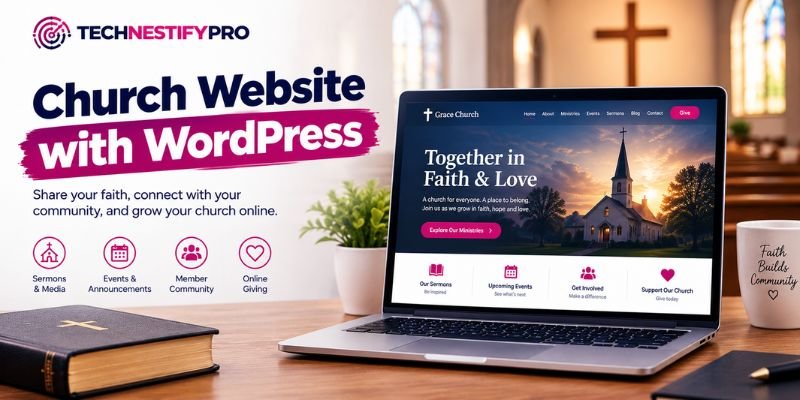
Your church needs a website, but where do you start? Domains, hosting, themes and plugins can feel confusing. Many volunteers get stuck before they even begin.
Here is the good news. You do not need to code. A small budget is enough. In this guide, you will learn how to create a church website with WordPress, one simple step at a time.
You will use free tools wherever you can. You will also learn how to add sermons, events, online giving and a private prayer request form. Take your time. You can finish a basic site over one weekend.
What you will build
- A homepage that shows your service times and address first
- A “Plan Your Visit” page for first-time guests
- A sermons page with video
- An events calendar
- An online giving page
- A contact page that includes a map and a message form
How to Create a Church Website with WordPress? (Quick Answer)
To create a church website with WordPress, buy a domain and hosting, install WordPress, and import a church starter template. Build your core pages. Then add sermons, events, online giving and a contact form. Check everything on both a phone and a computer before you go live.
| Detail | What to expect |
| Skill level | Beginner. No coding needed. |
| Time needed | About 1 to 2 days for a basic site. Day one is for importing the template and testing it. Day two is for adding your own content. Allow more time for sermons, events and giving. |
| First-year cost | Around $200 or less for a lean setup: domain, hosting, a free theme and free plugins. |
| Main tools | WordPress, a theme or ready-made template, and a handful of free plugins. |
| Best for | Churches that want to own and control their website |
From my own build: On day one, I installed the template and checked that everything worked. On day two, I replaced the demo content with my client’s own content.
The 16 steps to Create a Church Website with WordPress, at a glance:
- Decide what your site must do.
- Choose a domain name and hosting.
- Install WordPress and set the basics.
- Choose a theme and import a church template.
- Add your logo, colours, fonts, header and footer.
- Build your core pages.
- Create your menu and set your homepage.
- Add sermons.
- Add your livestream.
- Add an events calendar.
- Set up online giving.
- Add forms, a map and a newsletter signup.
- Make the site fast, mobile-friendly and accessible.
- Secure and back up your site.
- Configure your website’s SEO and create a Google Business Profile.
- Test everything and launch.
Why Use WordPress for a Church Website?
WordPress suits churches because you own your site, you can start at a low cost, and plugins add sermons, events and giving when you need them.
- You own your content. Your pages, sermons and photos stay with you. You can move to a new host without starting over.
- You can start small. Launch with a few pages. Add features later.
- Plugins add church features. Events, donations, forms and sermon tools all have free options.
- Help is easy to find. WordPress has official documentation, forums and many video lessons.
- Volunteers can learn it. The editor works much like a word processor.
What is the difference between WordPress.org and WordPress.com?
WordPress.org is free software that you can install on your own hosting. This guide uses it. WordPress.com is a hosted service, and your plan decides which themes and plugins you can use. Self-hosted WordPress gives you more control. A hosted plan can be simpler but may limit features.
How does WordPress compare with other ways to build a church website?
WordPress usually gives you more control and flexibility than other options, but you manage updates, backups and security. Hosted website builders are quicker but more limited. Church-specific platforms bundle giving and member tools for a monthly fee. The table below shows the differences.
Here’s a comparison of the main website-building options.
| Option | Best for | Main trade-off |
| WordPress (self-hosted) | Churches that want full control and flexibility | You manage updates, backups and security, or assign someone to do it |
| Hosted website builders | Very simple sites built fast | Fewer options, and moving your site later can be harder |
| Church-specific platforms | Churches that want giving, sermons and member tools in one place | Monthly fees, and you depend on one provider |
What to Gather Before You Build Your Church Website
A little prep saves hours later. Collect these items first. Then the building goes fast.
- Your church name and logo. Your domain and site should match the name people already know.
- Service times, address, phone number and email. These go on your homepage and contact page. Double-check every detail.
- A few clear photos. Photos of your actual church building and congregation help visitors feel more confident and welcome. Ask permission first, especially for children.
- A short “about us” text. Write 150 to 300 words about your story and beliefs. Keep it warm and simple.
- A list of your ministries and regular events. You will turn this list into pages and calendar entries.
- One or two people to manage the site. Every site needs an owner. Choose them now, so updates never get forgotten.
- A small budget. You’ll need to purchase a domain name and a hosting plan. Most churches can start for a low yearly cost.
Step-by-Step Guide to Creating Your Church Website
Follow these steps in order. Each one builds on the last. If you get stuck, check the “Common Problems and Fixes” section near the end.
You don’t need to complete the entire website in a single day. Many churches build the core pages first. They add sermons, events and giving later.
Step 1: Decide What Your Website Must Do
Before you buy anything, write down your top three goals. This keeps your site simple and focused.
Here are common goals:
- Help new visitors decide to come this Sunday
- Share sermons for people who missed a service
- Let members give online
- Show upcoming events
- Collect prayer requests
Pick the three that matter most right now. Every choice you make later, from theme to plugins, should support these goals.
Step 2: Choose a Domain Name and Hosting
Your domain is your web address, like yourchurch.org. Your hosting is the space where your site files live. You need both.
Pick your domain
- Use your church name if you can. Choose a name that people can easily remember.
- Keep it short. Avoid hyphens and numbers.
- Try .org or .com first. The .church ending also works.
- If your name is taken, add your city, like gracechurchaustin.org.
- Turn on domain privacy when you buy. Without it, your contact details can show in public domain records and bring spam. Many registrars include it for free.
Pick your hosting
Choose a reputable WordPress host. Look for these features:
- One-click WordPress install
- An SSL certificate at no extra cost, allowing your website to use HTTPS.
- Daily backups
- Helpful support that answers fast
Do not choose the cheapest plan without reading reviews. A slow or unreliable host will frustrate visitors on Sunday mornings. Many hosts include a free domain for the first year, so check before you buy a domain separately.
Once you buy a plan, connect your domain to it. Your host will show you how.
From my own build: My client already had a domain and hosting, so I started at Step 3. If you already own both, you can skip this step too.

Step 3: Install WordPress and Set the Basics
Most hosts install WordPress for you in one click. Look for a button called “Install WordPress” in your hosting dashboard.
Once it is installed, log in. Your login page is usually yourchurch.org/wp-admin. Then do these quick settings:
- Go to Settings > General. Enter your site title and a short tagline, like “A welcoming church in Austin.”
- On the same page, check that your WordPress Address and Site Address both start with https.
- Set your time zone. This matters later for events.
- Go to Settings > Permalinks. Choose Post name. This gives you clean web addresses like yourchurch.org/about. If pages later show a 404 error after a permalink change, the fix is quick.
- Navigate to Appearance > Customize > Site Identity. Upload a site icon. Use a square image, size 512 by 512 pixels.
Now clean up the sample content:
- Go to Pages and move the sample page to the trash. Then empty the trash.
- Go to Posts and delete the “Hello World” post the same way.

Step 4: Choose a Theme and Import a Church Template
A theme controls how your site looks. The easiest way to start is with a starter template. This is a ready-made design that you import and then edit.
Here is how it works with the free Kadence theme. Other themes have similar tools.
- Navigate to Appearance > Themes > Add New.
- Search for “Kadence.” Click Install, then Activate.
- Open Starter Templates from your WordPress menu. Install the starter templates plugin if it asks. In my build, the menu sat under Site Assist. The name can differ by version.
- Type “church” in the search box. Pick the template named Church.
- Choose your colours and fonts if the importer asks. You can change them later.
- Import the full site and wait for the import to finish.
From my own build: I used the Kadence theme and imported the Church starter template for a client in the US. The import ran without problems. When I showed the template to my client, he liked the design and structure. The template pages open in Elementor, so I edited them there. The import came with demo content that you must replace before you launch: lorem ipsum filler text, stock photos of people, sample names, a sample address and phone number, event dates from 2021 and demo donation campaigns.

Within a few minutes, you will have a full church site to edit. Any template can become a church site, even if it has a different name. Choose the layout you like best.
Popular choices include Kadence, Astra and Blocksy. Some people prefer church-specific themes with built-in sermon and event pages. Whatever you choose, look for these traits:
- Loads fast
- Looks good on phones
- Easy for volunteers to edit
- Updated regularly
Free church website templates are enough for most churches. Pick a theme you feel comfortable using.
Step 5: Make It Yours: Logo, Colours, Fonts, Header and Footer
Customize the template to match your church’s style. Go to Appearance > Customize.
- Logo. Upload your church logo in Site Identity.
- Colors. Pick two or three main colours. Make sure text is easy to read on every background.
- Fonts. Use no more than two fonts. Pick clear, simple ones.
- Buttons. Keep the style the same across the whole site.
- Header. Add a “Give” button in the main navigation menu. Guests and members will find it fast.
- Footer. Add your address, service times, phone number and social links. The footer shows on every page.

Save your changes often. Then view your site in a new tab to see how it looks. If you plan to edit theme files, use a child theme so updates do not erase your changes.
Step 6: Plan and Build Your Core Pages
Your pages tell visitors who you are and when to visit. In this step, you’ll build the essential pages for your church website. If you imported a starter template, many of them already exist, so you only need to edit them.
What pages does a church website need?
A church website needs at least these pages: Home, About, Plan Your Visit, Sermons, Events, Ministries, Give and Contact. You can add more later.
Create each page under Pages > Add New. If your template already made them, edit them instead. Here’s what each page should include.
- Home. Put service times and your address at the top. Add a short welcome. Add three clear buttons: Plan Your Visit, Watch a Sermon and Give.
- About. Share your story, beliefs and leaders. Add photos and short bios. Write in a warm, natural tone that speaks directly to visitors.
- Plan Your Visit. Answer what first-timers wonder. What should I wear? Where do I park? What happens with my kids? How long is the service?
- Sermons. You will set this up in Step 8.
- Events. You will set this up in Step 10.
- Ministries. List each group, such as kids, youth, worship and outreach. Provide a brief introduction and details on how visitors can participate.
- Give. You will set this up in Step 11.
- Contact. Add your address, phone, email, a form and a map.
Start with simple text and a few photos. You can improve each page over time. Also add a short privacy policy page. It should explain what you do with the names and emails people share through your forms.
Step 7: Build Your Menu and Set Your Homepage
Your menu helps people find things. Keep it short and clear.
- Go to Appearance > Menus. Click Create a new menu. Name it “Main Menu.”
- Add your pages: Home, About, Plan Your Visit, Sermons, Events, Ministries, Give, Contact.
- Drag them into a sensible order.
- Place smaller pages under a main item to create a dropdown. For example, put each ministry under “Ministries.”
- Tick the box for your primary menu location. Save the menu.
Next, tell WordPress which page is your homepage:
- Go to Settings > Reading.
- Choose A static page.
- Select your Home page.
- Save changes.
Try to keep your main menu to seven items or fewer. Too many choices confuse visitors.
Step 8: Add Sermons
Sermons are one of the most visited parts of a church website. You have two easy ways to add them.
Option A: Use blog posts (the simple way)
This needs no extra plugin.
- Go to Posts > Categories. Add a category named “Sermons.”
- Go to Posts > Add New. Type the sermon title.
- Upload your video to YouTube or Vimeo first. Then paste the video link on its own line in the post. WordPress will embed the player.
- Add the speaker, date, Bible passage and a short summary.
- Add a featured image. Choose the “Sermons” category. Click Publish.
- On your Sermons page, add a block that lists posts from the “Sermons” category.
Do not upload large video files straight to WordPress. They slow your site down. Use YouTube or Vimeo instead.
Option B: Use a sermon plugin
A sermon plugin adds fields for speaker, series, Bible passage and topic. Many also create a podcast feed. This is better if you have a large archive. Before you install one, check that it was updated recently and works with your version of WordPress.
For each sermon, add:
- Title and date
- Speaker
- Series
- Bible passage
- Video or audio
- Notes (optional)
Group sermons by series and topic, not just by date. This makes older messages easy to find. If you share audio, compress your MP3 files first. Smaller files load faster.
From my own build: The Church template has a “Current Series” section on the homepage. It showed “No posts” because no sermons were published yet. Publish at least one sermon before you show the homepage to anyone.
Step 9: Add Your Livestream
A livestream helps members who cannot attend. It also lets new people see your church before they visit.
- Stream through YouTube Live or Facebook Live.
- Create a page called “Watch Live.” Add it to your menu.
- Paste your live stream link on the page. The player will appear.
- Add a short note: “Not live right now? Watch last week’s sermon below.”
- Test the page before Sunday. Test the audio and video playback on your mobile device.
If you do not stream yet, skip this step. You can add it later.
Step 10: Add an Events Calendar
A calendar keeps everyone informed. The free The Events Calendar plugin works well for most churches.
- Go to Plugins > Add New. Search for “The Events Calendar.”
- Click Install, then Activate.
- Go to Events > Settings. Choose your default view, time zone and currency.
- Go to Events > Add New. Enter the title, description, date, time and image.
- Add your venue and organizer. Pick a category, such as “Youth” or “Community.”
- Click Publish.
The plugin creates an events page for you. Copy its link. Then add it to your menu using Appearance > Menus > Custom Links.
To show events on your homepage, add an “upcoming events” block, or add event cards by hand. Remove old events so your calendar stays fresh.
Step 11: Set Up Online Giving
Online giving is now a basic need. It helps regular members. It also helps people who cannot come in person.
You have two choices:
- Use a giving tool your church already has. Many churches link to or embed one. This is often the quickest path.
- Add a donation plugin to your site. GiveWP is a popular free option.
Here is how to set up a donation plugin:
- Install and activate the plugin.
- Set your base country and currency in its settings.
- Create a donation form. Choose your suggested amounts and a custom amount.
- Link a payment service like Stripe or PayPal to your donation form. Check which options work in your country.
- Keep test mode on. Make a test donation. Confirm the receipt email arrives.
- When everything works, turn test mode off.
- Add the form to your “Give” page.
Recurring monthly gifts need a paid add-on in GiveWP. Using Stripe with the free plugin may also add an extra platform fee on top of Stripe’s own fees. Check the plugin’s current plans before you decide. UK churches should also check Gift Aid support.
Write a short note on the Give page that explains how gifts are used. Add a warm thank-you message after each gift.
From my own build: The template’s homepage came with two demo donation campaigns. They had sample goals of $140,000 and $30,000 and “Donate Now” buttons. Each card showed an “Insecure Donation” label. That label usually means the site is not using https yet. Replace the demo campaigns and check https before you accept any gifts.
Step 12: Add Forms, a Map and a Newsletter Signup
Forms help people reach you. Use a form block provided by your theme or install a free form plugin.
Contact form
- Ask for name, email and message
- Send notices to your church email
- Turn on spam protection
- Write a friendly success message
Prayer request form
- Make the name field optional
- Add a box that asks, “May we share this with our prayer team?”
- Keep requests private by default
- Add a short privacy note under the form
Map
Insert a map into your Contact page, enter your church’s address, and make sure the location marker points to the correct building.
Newsletter signup
Connect a simple signup form to your email tool. Then you can send weekly updates.
Submit each form yourself to test it. Check that the message arrives.
Step 13: Make Your Site Fast, Mobile-Friendly and Accessible
Most first-time guests will check your site on a phone. Make that experience smooth.
Mobile
- Open your site on your own phone
- Check that buttons are easy to tap
- Make sure text is readable without zooming
- Test your Give and Contact forms
Speed
- Compress images before you upload them
- Use an image optimization plugin
- Add a caching plugin
- Keep videos on YouTube or Vimeo
Accessibility
- Add short alt text to every image
- Use strong contrast between text and background
- Use headings in order, from large to small
- Navigate your website using only the Tab key to test keyboard accessibility.
- Use a free accessibility tool such as WAVE to identify and correct the issues it reports.
An accessible site helps older members, people with low vision and everyone on a bright phone screen. Aim to follow WCAG 2.2, the web accessibility guidelines from the W3C. Rules differ by country, so check what applies to your church.
Step 14: Secure and Back Up Your Site
Your site holds member messages and giving pages. Protect it.
- Use strong, unique passwords. Store them in a password manager.
- Turn on two-factor login for admin accounts.
- Install a trusted security plugin.
- Install a backup plugin. Save backups somewhere other than your host, such as cloud storage.
- Keep WordPress, your theme, and all plugins up to date. Back up first, because an update can cause plugin conflicts.
- Set up user roles. Give most volunteers the Editor or Author role. Keep only one or two Administrators.
Roles protect your site. A volunteer can update an event without touching your settings.
Step 15: Help New Visitors Find You (SEO and Google Business Profile)
Many people search “church near me” before they visit. Help them find you.
- Install a free SEO plugin. Give every page a descriptive title and a concise meta description.
- Mention your city on your homepage and contact page.
- Claim your Google Business Profile. Add your hours, photos, website link and phone number.
- Keep your church name, address and phone number the same everywhere online.
- Link between related pages, such as your sermons and ministries.
- If you want to see traffic, install Google Analytics on WordPress or use a simple stats tool.
Google Business Profile is free. It often brings more first-time visitors than anything else on this list.
Step 16: Test Everything and Launch
Before you announce your site, run through this checklist:
- Replace all demo text, photos, names, addresses, phone numbers and event dates
- Update or remove template footer credits and copyright text
- Click every link in your menu, buttons and footer
- Submit every form
- Make a test donation, then turn test mode off
- Check every page on both mobile and desktop devices.
- Try two different browsers
- Run a speed test
- Ask two church members to try the site and tell you what confused them
- Check that service times and your address are correct
- Confirm your privacy policy page is live
When you feel ready, remove any “coming soon” page. Then tell your church. Mention the site in the service, the bulletin, your email list and social media.
Free Tools for a Church Website: What Each One Does
Free tools can help you create a fully functional website for your church. This table shows what to start with and when paying makes sense.
| What you need | Free option to start with | When to pay |
| Theme or template | Kadence, Astra or Blocksy (free versions) | You want advanced design features or a church-specific theme |
| Events calendar | The Events Calendar (free version) | You need ticketing or advanced event features |
| Online giving | GiveWP (free core plugin) or the giving tool your church already uses | You want recurring gifts or lower Stripe fees |
| Forms | Your theme’s built-in form feature or a free plugin for creating forms. | You need advanced fields or payments inside forms |
| SEO | A free SEO plugin | You want extra tools such as redirects |
| Security | A trusted free security plugin | You want extra firewall or scanning features |
| Backups | A free backup plugin that saves to cloud storage | You want automatic, more frequent backups |
| Speed | A free caching plugin and an image optimizer | You have a large image library or heavy traffic |
| Email signups | The free plan of an email service | Your list grows past the free limit |
How Much Does a Church Website Cost?
A church website usually costs about $200 or less in the first year on a lean setup. That covers a domain, hosting, a free theme and free plugins. A fuller setup with a premium theme and paid features costs more. Since prices can vary, review the latest rates before making a purchase.
A church website can cost very little. Prices change, so check current rates before you buy.
Lean setup
- Domain: usually about $10 to $20 per year
- Hosting: usually about $3 to $15 per month
- Theme: free
- Plugins: free versions
Many churches can launch for around $200 in the first year with this setup.
Fuller setup
- Domain and hosting: same as above, or a higher-tier plan
- Premium theme: often a one-time cost of $50 to $100
- Paid plugin features: such as recurring giving or extra security
- Email tool: for newsletters
Payment processors also charge fees on donations. Ask each tool if it offers a nonprofit discount. Start lean. Upgrade only when you know what you need.
Extra Tips and Best Practices for WordPress Church Website
A few simple habits keep your church website useful for years. These tips cover updates, photos, volunteers and tracking results. Use them while you build and after you launch.
- Start small. Launch with five core pages. Add more later.
- Put service times where nobody can miss them. Display them at the top of your homepage.
- Update monthly. Set a reminder to check events, sermons and staff details.
- Ask permission for photos. Get written consent from parents before you post a child’s picture. Never post a child’s full name with their photo.
- Use real photos. Real people feel more welcoming than stock images.
- Train your volunteers. A one-hour session and a one-page guide go a long way.
- Keep logins safe. Share access through a password manager, not email.
- Back up before big changes. Create a backup before updating any theme or plugin.
- Track what matters. Watch visits to your Plan Your Visit page, sermon views and Give page visits.
- Ask for feedback. Ask members and guests what they could not find.
Common Problems and Fixes for Your WordPress Church Website
Do not worry if something looks wrong. Most WordPress problems have a simple fix. Look for your issue below and follow the suggested solution.
- My homepage shows blog posts. Navigate to Settings > Reading and choose a static page for your homepage.
- My menu does not appear. Go to Appearance > Menus and assign it to the primary menu location.
- My event times are wrong. Check your time zone in Settings > General.
- The donation form will not work. Check that your payment account is connected and that test mode matches your setup.
- My donation form says “Insecure Donation.” Make sure your site loads with https before you accept gifts.
- My template still shows sample text and photos. Replace every demo block, image, name, address and date before launch.
- Form emails go to spam. Install an SMTP plugin so your emails send reliably.
- My sermon video will not play. Upload the video on YouTube or Vimeo, then embed it on your website using its link.
- My site loads slowly. Compress your images and turn on a caching plugin.
- My pages look broken on a phone. Use the mobile preview in the Customizer and fix spacing or oversized images.
What to Add Later to Your Church Website
After launch, you can add a second language, a private member area, church management software links, a podcast feed and small group sign-ups. Your initial website can be simple without including every feature. Add these upgrades when you are ready:
- A second language for your congregation
- A private member area for groups or directories
- Links to your church management software
- A podcast feed for sermon audio
- Small group sign-ups and event registration
Conclusion
You now know how to create a church website with WordPress. You picked a domain and hosting, imported a template and built your core pages. You added sermons, events, giving and forms. You also protected your site and prepared it for new visitors.
Do not wait for a perfect site. Launch the basics. Then improve it a little each month. A clear, friendly website can be the first welcome a guest ever receives.
Your next step: set up your Google Business Profile today. New to WordPress? Read our WordPress for beginners guide to learn the basics. Then keep growing your site with our other WordPress guides.
FAQs
You can start for around $200 in the first year. That covers a domain and basic hosting. A free theme and free plugins keep costs low. You can add premium tools later when you need them. Prices change, so check current rates.
WordPress itself is free. But you still need a domain and hosting, which cost a small amount. Many themes and plugins have free versions. This helps keep your overall expenses to a minimum. Free website builders exist, but they often limit your control.
Start with Home, About, Plan Your Visit, Sermons, Events, Ministries, Give and Contact. These cover what most visitors look for. You can add a leadership page, a blog or a prayer page later. Display your church’s service schedule on the homepage. Keep the menu short and clear.
There is no single best theme. Pick one that loads fast and works well on phones. It should also be easy for volunteers to edit. Kadence, Astra and Blocksy are popular and flexible. A church-specific theme can save time if you want sermon and event pages built in.
The simplest way is to create a “Sermons” category and post each message as a blog post. Upload your video to YouTube or Vimeo and paste the link into the post. For a bigger archive, use a sermon plugin. It adds fields for speaker, series and Bible passage. Always keep large video files off your own server.
You can add a donation plugin or link to a giving tool your church already uses. With a plugin, you create a form and connect a payment gateway like Stripe or PayPal. Always test with test mode first. Then switch test mode off and put the form on your Give page.
Grace is a paid church and religion WordPress theme by ThemeREX, sold on ThemeForest. It works with an events calendar and the Give donation plugin. It is not the free Grace theme on WordPress.org.
Yes. Older versions of the Grace church WordPress theme used Visual Composer, now called WPBakery Page Builder. Newer versions switched to Elementor, so your version determines which builder you use. Check the seller’s page for your version.
Sources and Further Reading
These official pages back up the details in this guide. Prices and features change, so check them before you decide.
- WordPress documentation: official help for settings, menus, pages and posts
- GiveWP plugin on WordPress.org: the free donation plugin used in Step 11
- GiveWP Recurring Donations add-on: details on paid recurring gifts
- The Events Calendar plugin: the free events plugin used in Step 10
- Web Content Accessibility Guidelines (WCAG) 2.2: the W3C accessibility standard
- WAVE accessibility checker: a free tool to test your pages
- Google Business Profile Help: how to claim and manage your church listing



- Be Respectful
- Stay Relevant
- Stay Positive
- True Feedback
- Encourage Discussion
- Avoid Spamming
- No Fake News
- Don't Copy-Paste
- No Personal Attacks
- Be Respectful
- Stay Relevant
- Stay Positive
- True Feedback
- Encourage Discussion
- Avoid Spamming
- No Fake News
- Don't Copy-Paste
- No Personal Attacks
