WooCommerce Failed Order Spam Bots: How to Stop Them
Published: 31 Jul 2026
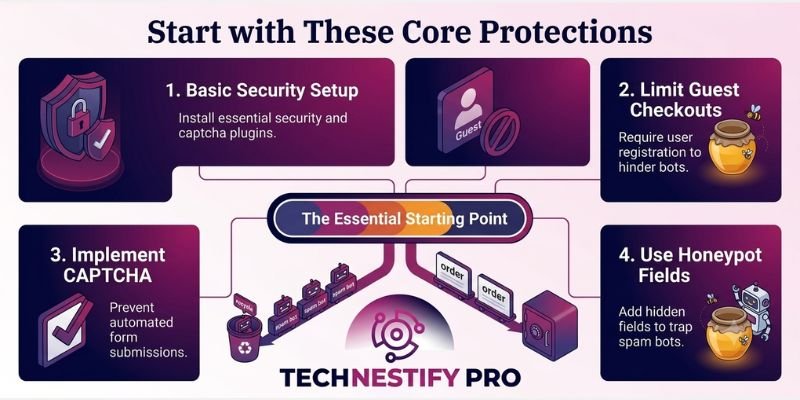
If you run a WooCommerce store, you’ve probably opened your orders page and seen something strange: a pile of failed orders, none of them from real customers. This isn’t rare. Bad bots made up 43% of all holiday shopping traffic in the 2025 season, up from 31% the year before, according to Radware’s 2026 E-Commerce Bot Threat Report. Fake account creation attempts have grown even faster, climbing 259% between 2023 and 2024, then another 89% in 2025, according to HUMAN Security’s 2026 State of AI Traffic report.
This problem is getting worse, not better, and most stores are dealing with it whether they’ve noticed it yet or not.
I ran into this exact issue while working with a UK-based clothing store on WooCommerce. Their orders page was filling up with failed orders every day, and none of them matched real buying behaviour. Below is exactly what I did to fix these WooCommerce failed order spam bots, why it happens in the first place, and the extra layers you can add if one fix isn’t enough for your store.
Why Do Failed Orders Happen? Card Testing and Bot Motives Explained
Most WooCommerce failed order spam isn’t random. It usually comes down to one of a few motives:
- Card testing. This is the most common cause. Fraudsters run stolen credit card numbers through your checkout in small, automated batches to find out which cards are still active, before using the working ones elsewhere. Your store isn’t the target; it’s being used as a free testing ground.
- Bug and vulnerability scanning. Some bots submit fake orders to probe for known security holes in your WooCommerce or plugin versions, hoping to find something exploitable.
- Fake account creation. Bots create accounts to farm discount codes, abuse referral programs, or build a base for later fraud.
- General malicious targeting. Occasionally, it’s a direct attempt to disrupt or overload a specific store.
Card testing is why failed orders specifically (rather than completed fraudulent ones) pile up — the whole point is testing a card without completing a real purchase, so most attempts are designed to fail or get abandoned right after the payment step.
Why Your Specific Store Gets Targeted
Bot attacks aren’t random. Some WooCommerce stores get hit far more than others, and it usually comes down to a few risk factors:
- Open guest checkout. This was exactly the issue with the clothing store client above. Stores that let anyone place an order without creating an account are lower-friction, easier targets.
- High traffic volume. Busier stores give bots more cover; more real orders means fake ones are harder to notice at first.
- Outdated WooCommerce or plugin versions. Bots actively scan for stores running known-vulnerable versions, since those are easier to exploit.
- No CAPTCHA or rate limiting in place. A checkout with zero friction is simply cheaper for bots to hit at scale than one with even basic protection.
- Easily resold product types. Stores selling goods that are quick to resell, like clothing, electronics, or gift cards, are more attractive for card testing specifically, since a working card often gets used for a real fraudulent purchase right after.
- Running on WooCommerce itself. Being on a widely used platform cuts both ways: it’s well-supported, but it also means bots are pre-built and already tested against it, unlike a custom-built store they’ve never encountered before.
If your store checks two or more of these boxes, that’s likely why you’re seeing this activity, and it’s a good signal for which fixes below to prioritize first.
Tools and Access You’ll Need to Stop WooCommerce Spam Bots
- Admin access to WordPress and WooCommerce – to change settings and install plugins.
- A CAPTCHA tool – reCAPTCHA for WooCommerce, hCaptcha, or Cloudflare Turnstile all work.
- A free Cloudflare account – not required for the first fix, but useful for extra protection.
- A few minutes of comfort in your WooCommerce settings no developer skills needed.
If you’re still in the process of setting up your store, our guide to getting your store ready covers account and security settings from scratch, worth a look before you launch.
How to Stop WooCommerce Failed Order Spam Bots
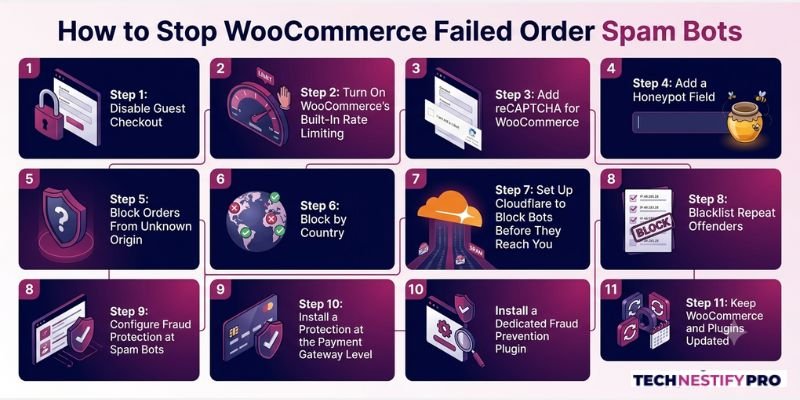
To stop WooCommerce failed order spam bots, disable guest checkout, enable WooCommerce’s built-in rate limiting, add CAPTCHA to your checkout and login forms, and use Cloudflare’s Bot Fight Mode to block bots before they reach your site. Disabling guest checkout alone often cuts spam noticeably, as it did for a UK clothing store I worked with. Now let’s discuss all in detail.
Step 1: Disable Guest Checkout (the fix that worked first)
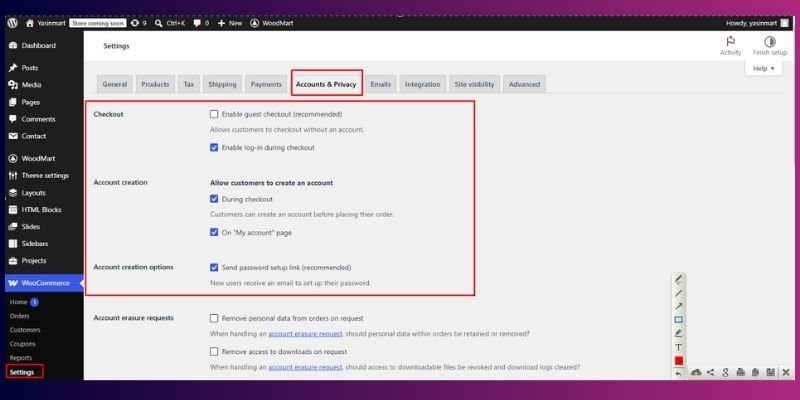
This is the exact setting I changed for the clothing store client, and it’s the one I’d recommend trying first for any store.
Go to WooCommerce > Settings > Accounts and Privacy. Under “Guest checkout,” uncheck “Allow customers to place orders without an account.” Keep “Allow customers to log into an existing account during checkout” checked, so returning customers aren’t affected.
For that client, spam and failed orders dropped noticeably after this one change. Bots that were placing fake orders without registering simply couldn’t get through anymore. It’s not a complete fix for every store, since some bots can bypass basic registration, but it’s the single highest-impact change for the amount of effort involved.
Step 2: Turn On WooCommerce’s Built-In Rate Limiting
Go to WooCommerce > Settings > Advanced > Features, and enable “Rate Limiting Checkout Block and Store API.” This slows down how many order attempts can happen in a short window, which makes card-testing scripts far less effective.
Step 3: Add reCAPTCHA for WooCommerce
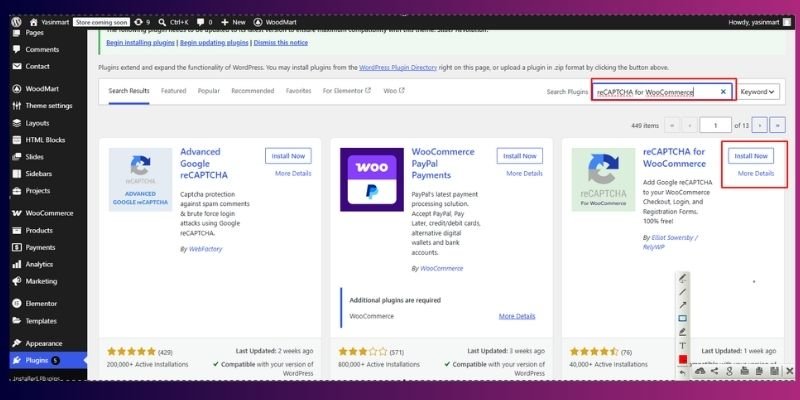
Install reCAPTCHA for WooCommerce (or hCaptcha) and add it to your checkout, login, and account registration pages.
- Go to your Google reCAPTCHA admin console and register your site to get a site key and secret key
- In wordpress, go to Plugins > Add New and install a reCAPTCHA plugin for WooCommerce
- Activate the plugin, then open its settings page
- Paste in your site key and secret key
- Enable it specifically on the checkout, login, and registration forms
- Choose v3 (invisible) or v2 (visible challenge); see the note below
A quick note on versions: reCAPTCHA v3 runs invisibly in the background and scores traffic without interrupting users, which is usually the better choice for checkout pages. reCAPTCHA v2 shows a visible challenge (like the “I’m not a robot” checkbox or image puzzle), which is more disruptive but occasionally catches what v3 misses. Many stores run v3 for regular pages and fall back to v2 only if spam continues.
Step 4: Add a Honeypot Field
A honeypot is a hidden field real visitors never see or fill in, but bots do, since they tend to auto-fill every field on a form. If that hidden field gets filled in, you know it’s a bot, and you can block the order automatically.
- Install a security or anti-spam plugin that supports honeypot fields (many form and anti-spam plugins, including OOPSpam, include this)
- Open the plugin’s spam protection settings
- Enable the honeypot option
- Confirm it’s applied to your checkout and registration forms specifically, not just contact forms
- Save changes and monitor your failed orders over the next few days to confirm it’s catching bot submissions
Step 5: Block Orders From Unknown Origin
Some anti-spam tools, like OOPSpam, let you activate origin tracking and block any order attempt with an unknown or missing origin — a common sign of a bot script rather than a real browser session.
- Install the OOPSpam plugin (or a similar anti-spam tool that offers origin tracking)
- Open its settings page inside your WordPress dashboard
- Find the “Unknown Origin” or “Order Origin” option
- Enable blocking for orders with a missing or unrecognized origin
- Save your changes and check your orders log after a few days to confirm it’s working as expected
Step 6: Block by Country
If most of your spam traffic comes from regions you don’t sell to or ship to, blocking those countries outright is a quick, low-effort win. Most WooCommerce anti-spam plugins, including OOPSpam, let you restrict checkout access by country with a simple settings toggle.
- Open your anti-spam or fraud prevention plugin’s settings
- Look for a “Country Restriction” or “Geo-Blocking” section
- Add the countries you don’t currently sell or ship to
- Save your changes
- Review your failed orders after a week to confirm spam from those regions has dropped
Step 7: Set Up Cloudflare to Block Bots Before They Reach You
Set up a free Cloudflare account, connect your site, and turn on Bot Fight Mode. You can layer on Web Application Firewall (WAF) rules and IP blocking for repeat offenders too.
- Sign up for a free account at Cloudflare
- Add your site and follow the prompts to point your domain’s nameservers to Cloudflare
- Once your site is active, go to Security > Bots in your Cloudflare dashboard
- Turn on Bot Fight Mode
- Optionally, go to Security > WAF to create custom rules blocking suspicious traffic patterns
- Give it 24–48 hours for DNS changes to fully propagate before judging results
Step 8: Blacklist Repeat Offenders
If the same IPs, email domains, or regions keep showing up in your failed orders, block them directly through your anti-spam plugin’s blacklist feature.
- Review your WooCommerce failed orders and note repeat IPs, email domains, or patterns
- Open your anti-spam or fraud prevention plugin’s settings
- Find the blacklist section (usually under IP, email, or domain blocking)
- Add each offending entry
- Save changes and keep updating this list as new patterns show up
Step 9: Configure Fraud Protection at the Payment Gateway Level
Plugin-level defences stop a lot of spam, but your payment gateway can catch what slips through, especially for card testing specifically.
- Stripe has an Advanced Fraud Protection feature (Radar) that scores transactions and can automatically block or flag suspicious ones based on card behaviour, velocity, and known fraud patterns.
- PayPal offers Advanced Credit and Debit Card Payments settings with built-in fraud filters you can tighten for higher-risk transactions.
- Other gateways typically offer similar fraud tools under their security or risk settings; it’s worth checking regardless of which one you use, since this layer catches attempts that never should have reached WooCommerce in the first place.
Step 10: Install a Dedicated Fraud Prevention Plugin
For ongoing, hands-off protection, a fraud prevention plugin ties everything above into one system, scoring every order in real time and automatically flagging, holding, or blocking anything suspicious.
- Research and choose a WooCommerce-compatible fraud prevention plugin that fits your budget and store size
- Install and activate it from Plugins > Add New
- Open its settings and configure the risk-scoring rules (most come with sensible defaults to start)
- Decide what should happen to flagged orders: hold for review, auto-block, or notify you by email
- Review flagged orders regularly for the first few weeks to fine-tune the sensitivity
Step 11: Keep WooCommerce and Plugins Updated
Bots often scan for known bugs in outdated versions. Regular updates close those gaps before bots can exploit them.
- Back up your site before updating anything (a plugin or hosting backup tool works fine)
- Go to Dashboard > Updates in your WordPress admin
- Update WordPress core, WooCommerce, and all active plugins
- Where available, turn on auto-updates for security patches specifically
- Set a recurring monthly reminder to check for updates manually, even with auto-updates on
Extra Tips and Best Practices to Stop WooCommerce Failed Order Spam Bots
- Check failed orders weekly. Spam patterns shift over time, so regular reviews help you catch new bot behaviour early.
- Whitelist your own IP before testing new settings, so you don’t accidentally lock yourself out.
- Don’t over-restrict checkout. Too much friction can push away real customers along with the bots.
- Watch for repeat chargebacks. A spike in failed orders followed by chargebacks is often a sign of card-testing bots progressing to real fraud attempts.
Common Problems and Fixes
CAPTCHA is blocking real customers too. Switch to invisible reCAPTCHA v3 or hCaptcha, so it only challenges suspicious activity, not every visitor.
Rate limiting isn’t stopping the spam. Rate limiting alone rarely solves persistent bot activity. Pair it with Cloudflare and a fraud prevention plugin for a layered defence.
Spam continues even after disabling guest checkout. Bots may be creating fake accounts instead. Add CAPTCHA to your registration page too, not just checkout.
Wrapping Up
Bot-driven spam isn’t going away; bad bot traffic made up 43% of all holiday shopping traffic in the last season alone. The good news is that stopping WooCommerce failed order spam bots doesn’t take complicated tools; it takes the right layers, applied in the right order.
Here’s the sequence that matters most:
- Start with account requirements. Disabling guest checkout is usually the biggest single win, and it’s exactly what noticeably cut spam for the UK clothing store I worked with.
- Add friction where bots operate. Rate limiting, reCAPTCHA, and honeypot fields each close a gap the last layer missed.
- Block at the edge. Cloudflare and country restrictions stop a lot of traffic before it ever reaches your checkout.
- Catch what slips through. Payment gateway fraud settings and a dedicated fraud prevention plugin cover what the earlier layers can’t.
None of these steps is complicated on their own. The results come from stacking them, not from finding one perfect fix.
Your store deserves a clean orders dashboard and a checkout that works for real customers, not bots quietly draining your resources in the background. Start with disabling guest checkout today, and build outward from there.
Frequently Asked Questions
Start by disabling guest checkout, then layer on rate limiting, reCAPTCHA, and Cloudflare’s Bot Fight Mode. Most stores see a noticeable drop after the first change alone.
WooCommerce includes basic rate limiting, but full anti-spam protection isn’t built in. You’ll need CAPTCHA, a fraud prevention plugin, or a tool like OOPSpam for complete coverage.
A spam order is usually a bot testing your checkout or probing for bugs, with no real intent to complete a purchase. A fraudulent order goes further; it uses stolen payment details to actually complete a transaction. Card testing often sits between the two, since it’s automated like spam but tied to real (stolen) card data.
Combine guest checkout restrictions, CAPTCHA, honeypot fields, country blocking, and a fraud prevention plugin. No single method catches everything on its own.
Install a reCAPTCHA plugin, connect it to your Google reCAPTCHA API keys, and enable it on your checkout, login, and registration forms. Use v3 for an invisible experience, or v2 if you need a visible challenge.
Tools like OOPSpam let you activate origin tracking and block orders with a missing or unrecognised origin, which is a common bot signature.
Yes, they’re usually the same problem described differently. Both refer to non-genuine orders created by bots or scripts rather than real customers.
No, but it removes a large share of low-effort spam, as seen with the clothing store case above. Combine it with the other steps for stronger, longer-term results.




- Be Respectful
- Stay Relevant
- Stay Positive
- True Feedback
- Encourage Discussion
- Avoid Spamming
- No Fake News
- Don't Copy-Paste
- No Personal Attacks
- Be Respectful
- Stay Relevant
- Stay Positive
- True Feedback
- Encourage Discussion
- Avoid Spamming
- No Fake News
- Don't Copy-Paste
- No Personal Attacks
