How to Fix 404 Error After Changing WordPress Permalinks (2026 Guide)
Published: 29 Sep 2026
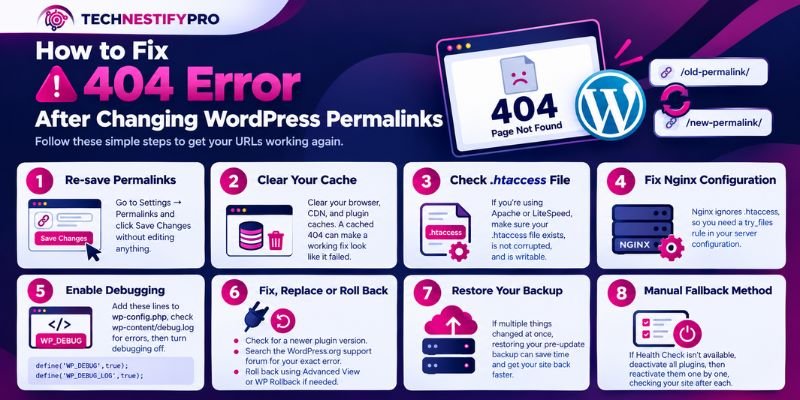
To fix a 404 error after changing WordPress permalinks, go to Settings → Permalinks and click Save Changes without editing anything. That refreshes (flushes) the rewrite rules and rewrites your .htaccess file. It resolves the “page not found” error on most WordPress sites in under a minute.
If your homepage loads but every post and page shows a 404 on your WordPress site, this guide shows you how to find the cause and fix it, in order.
Key takeaways
- A 404 after a permalink change almost always means the rewrite rules are out of sync with your site.
- Refreshing permalinks fixes most cases. If it doesn’t, check the cache, then .htaccess, then your server settings.
- Nginx sites need a try_files rule in the server config, because Nginx ignores .htaccess.
- If you changed your structure on purpose, you need 301 redirects for your old URLs.
How I tested these fixes
I tested the troubleshooting process on a WordPress staging site by changing the permalink structure and then checking how WordPress handled post and page URLs. I also tested the common failure points in the order described in this guide: re-saving permalinks, clearing cache, checking .htaccess, and verifying the server rewrite configuration.
The key test was simple: the homepage continued to load while individual WordPress URLs returned 404 errors. Re-saving the permalink settings rebuilt the rewrite rules and restored the affected URLs. I then repeated the checks after clearing the site cache to make sure an old cached 404 was not masking the result.
Before you start
- Back up your site, especially before you edit .htaccess or the database.
- Clear your caches after every fix, before you test. A cached 404 error can cause a functioning solution to look like it failed.
- Check whether only inner pages fail or the whole site does. If even the homepage returns a 404, check your Site URL and Home URL first (see “Still stuck?” below).
Quick answer: 404 Error After Changing WordPress Permalinks
- In your WordPress dashboard, go to Settings → Permalinks
- Leave your current structure selected and click Save Changes.
- Purge your caches, then open an inner post, a page, and a category URL in a private browser window.
If those pages load, WordPress simply had stale rewrite rules. If they still return a 404, use the diagnostic below.
How I approach WordPress 404 troubleshooting
I don’t treat every WordPress 404 as a permalink problem. The first step is to identify where the request is failing.
I check:
- Whether the homepage loads; this helps separate a site-wide problem from an inner-URL problem.
- Whether the 404 uses the WordPress theme or a plain server page; this shows whether the request reached WordPress.
- Whether the same content loads through its WordPress query URL, such as ?p=123, is useful for separating a routing problem from missing content.
- Whether re-saving permalinks changes the result; this tests the stored rewrite rules.
- Whether clearing cache changes the result; this rules out a cached 404.
- Which web server the site uses; Apache/LiteSpeed and Nginx handle rewrite rules differently.
- Whether the problem started after a migration, plugin installation, or URL change; the timing often points to the layer that needs checking.
This approach prevents unnecessary changes to the database, .htaccess, plugins, or server configuration before the actual cause is known.
Why this 404 happens
This 404 happens because WordPress’s rewrite rules, the instructions that turn a clean URL like /my-post/ into the right post, fall out of sync with your server the moment you change your permalink structure.
WordPress stores rewrite rules that tell the server how to turn a clean URL, such as /my-post/, into the right post or page. When you save permalinks, WordPress tries to update those rules for you.
On Apache and LiteSpeed, that update fails if the .htaccess file is missing, corrupted, or not writable by the server. WordPress usually shows a notice under Save Changes with the rules to paste in by hand, so look for it. Nginx has no .htaccess file, so its rules live in the server config instead.
Your content is still in the database. WordPress just can’t route the request to it. That is why the homepage works and inner pages don’t.
Which 404 do you have after changing permalinks?
Work out which layer failed before you pick a fix. Two questions do that.
Did you change the structure on purpose, or did links just break?
- Links broke by themselves. The rewrite rules or the server setup are wrong. Use Fixes 1–7.
- You changed the structure and want old URLs to keep working. You need redirects. Go to Fix 8.
Is it a WordPress 404 or a server 404?
- A WordPress 404 shows your theme’s layout, header, and menu. WordPress loaded and found no matching content.
- A server 404 shows a plain page from Apache, LiteSpeed, or Nginx, with no theme. The request never reached WordPress, so the rewrite rules aren’t running. A host-branded error page still counts as a server 404.
Add one more test. Find a post’s ID in the editor’s address bar and open yoursite.com/?p=123, using your real ID. If that loads the post, or WordPress redirects it to a pretty URL that then returns a 404, the content exists, and the routing is what broke.
404 Error Symptoms and Quick Fixes
Match your own symptom to a fix before reading further, so you skip straight to the section that applies to you.
| What you see | Likely cause | Go to |
| Homepage works, inner pages 404 | Stale rewrite rules | Fix 1 |
| Plain server “not found” page | .htaccess missing, empty, or not read | Fix 3 and 4 |
| Fixed, but the 404 stays | Cache | Fix 2 |
| Only shop or product pages 404 | WooCommerce or custom post type rules | Fix 6 |
| New plugin content (courses, events, listings) 404s right after install | Rules not flushed for new content types | Fix 6 |
| wp-admin 404s or you can’t log in | Rules, plugin, or Site URL | Fix 7 |
| Homepage and every page 404, often after a migration | Wrong Site URL or Home URL | Still stuck? |
| Old links 404 after a structure change | Missing redirects | Fix 8 |
How to find which URLs are broken
Google Search Console lists the URLs Google couldn’t load. Open Indexing → Pages and click Not found (404). Your host’s access logs, filtered to status 404, also catch broken images and files that Search Console misses. A redirect plugin’s 404 log works too.
Before you change anything, write down 10–20 URLs that should work, so you can retest them after each fix.
Fix 1: Refresh (flush) your permalinks
Saving permalinks forces WordPress to flush and rebuild its rewrite rules. On Apache and LiteSpeed, it also writes fresh rules to .htaccess when the file is writable. WordPress’s official Customize permalinks documentation lists the six structure options and notes that your host must configure the server for pretty permalinks to work.
- Go to Settings → Permalinks.
- Keep your current structure selected.
- Click Save Changes.
- Test your saved URLs.
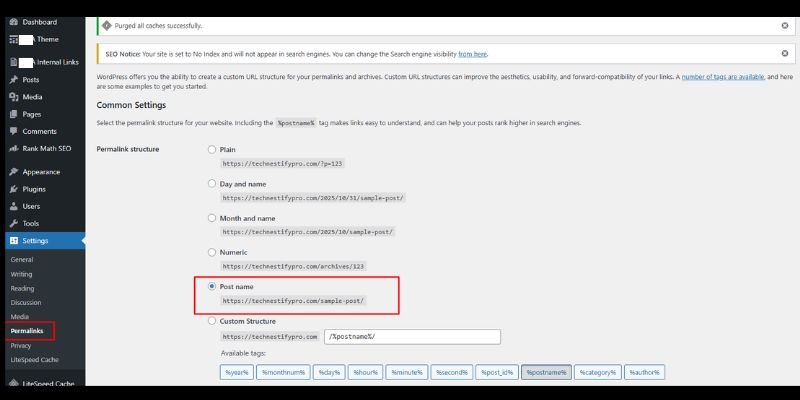
If a plain save doesn’t work, run the Plain-and-back reset:
- Copy your current structure into a note first. If you use a Custom Structure such as /%year%/%postname%/, copy the exact string so you can restore it.
- Select Plain and click Save Changes.
- Select your original structure, usually Post name, and click Save Changes again.
Switching to Plain removes the pretty-URL rules, and switching back writes them fresh. Your clean URLs stop working while Plain is active, so switch back right away, ideally during a quiet period.
Fix 2: Clear every cache
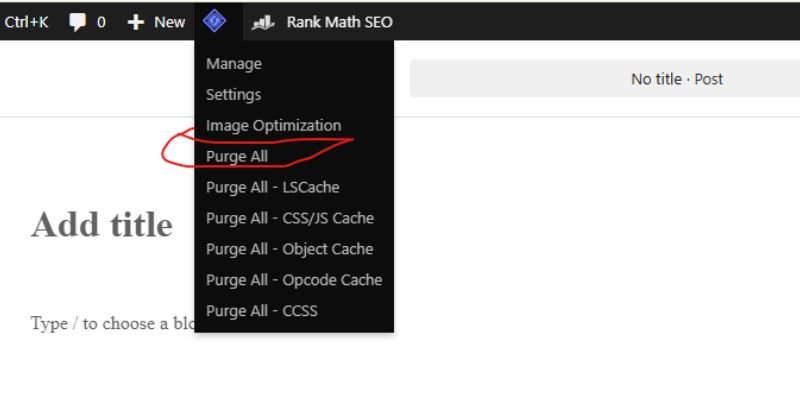
A cache can serve an old 404 after you’ve fixed the cause. Clear them in this order:
- Test in a private browser window.
- Purge your caching plugin. Click Purge All if you use LiteSpeed Cache.
- If you use a CDN, purge your CDN cache.
If the URL loads in a private window but not in your normal browser, your browser cache is the problem.
Fix 3: Check and regenerate .htaccess
Apache and LiteSpeed read rewrite rules from a hidden .htaccess file in your WordPress root folder. If that file is missing, empty, or broken, inner pages return a 404.
- Connect by SFTP or open your host’s File Manager, and turn on show hidden files.
- Open the folder that contains wp-content and wp-admin. On many cPanel hosts, that folder is public_html. On other hosts, it may be a folder named after your domain.
- Download a copy of .htaccess as a backup.
- Rename the file to .htaccess-old.
- Navigate to Settings in your WordPress dashboard → Permalinks and click Save Changes.
- Test your URLs.
If WordPress can’t create the file, it shows the rules for you to paste in. Use this default block:
# BEGIN WordPress
<IfModule mod_rewrite.c>
RewriteEngine On
RewriteBase /
RewriteRule ^index.php$ - [L]
RewriteCond %{REQUEST_FILENAME} !-f
RewriteCond %{REQUEST_FILENAME} !-d
RewriteRule . /index.php [L]
</IfModule>
# END WordPressKeep the file in the right place. .htaccess belongs in the WordPress root folder, next to wp-content and wp-admin, not inside either of them. A copy in the wrong folder does nothing.
Set the right permissions. A file permission of 644 is the normal setting for .htaccess. Some older guides tell you to make the file world-writable (666) as a fix. Don’t. If you change a permission temporarily, change it back.
Watch for rules you’ll lose. Caching, security, and redirect plugins often add their own rules to .htaccess. The default block above doesn’t include them. After you regenerate the file, re-save each of those plugins’ settings so they write their rules back. With LiteSpeed Cache, saving its settings rewrites its rules.
Restore it from a host backup. If .htaccess worked before a recent change, restoring the old version brings back all your custom rules at once. Many hosts, including those with cPanel backup tools, let you restore a single file from a recent backup. When possible, use that rather than the default block.
On a subdirectory install, re-saving permalinks sets the correct RewriteBase for you, so use that instead of pasting the block by hand.
On my staging test, I renamed the existing .htaccess file and re-saved the WordPress permalink settings. WordPress generated a fresh rewrite configuration, and the affected post URLs began loading again.
I would not replace .htaccess blindly with the default WordPress rules. Plugins for caching, security, redirects, and server optimization can add their own directives. After regenerating the file, I check those plugin settings again rather than assuming the default WordPress block is the complete configuration.
Fix 4: When saving permalinks doesn’t fix it
If Fixes 1–3 fail, the server may not be reading your rewrite rules at all.
The server ignores .htaccess
On Apache, two settings must allow rewrites. The mod_rewrite module must be enabled, and the site’s directory must permit .htaccess overrides through AllowOverride. On shared and managed hosting, only your host can change these. Ask support: “Is mod_rewrite enabled, and does AllowOverride permit rewrite rules for my site’s directory?”
On your own server, enable mod_rewrite, set AllowOverride All for the site, and restart Apache.
The file is locked or not writable
Some hosts and security plugins stop WordPress from writing to .htaccess. If Settings → Permalinks shows a notice that WordPress can’t update the file, paste the rules in yourself, or ask your host to make the file writable.
LiteSpeed
LiteSpeed reads .htaccess rewrite rules the same way Apache does, so Fix 3 applies unchanged. The extra step is your cache plugin. After you regenerate .htaccess, save LiteSpeed Cache’s settings so its rules return.
Nginx
Nginx ignores .htaccess, so pretty permalinks depend on a rule in the server config. This rule goes inside your site’s location / block:
location / {
    try_files $uri $uri/ /index.php?$args;
}If WordPress lives in a subdirectory such as /blog/, use a block for that path:
location /blog/ {
    try_files $uri $uri/ /blog/index.php?$args;
}After you edit the config, test it and reload Nginx:
sudo nginx -t
sudo systemctl reload nginxThree mistakes cause most Nginx permalink 404s: the try_files line is missing, it sits in the wrong location block, or the config was edited but never reloaded. On managed hosting, you can’t edit this yourself, so ask your host to check the rule. Test on staging first.
Fix 5: “The requested URL was not found on this server”
That message is classified as a server 404, not a WordPress one. It usually means the rewrite rules aren’t reaching WordPress. Work through Fix 3 and Fix 4 first, because they cover an empty or missing .htaccess and a server that ignores it.
| Message you see | What it usually means |
| Plain server “Not Found” page | Rewrite rules aren’t reaching WordPress |
| Your theme’s “page not found” layout | WordPress loaded and found no content at that URL |
| A block theme’s message saying nothing was found here | WordPress started up and found nothing to show for that URL |
Fix 6: New plugins, WooCommerce, and custom post types
If regular pages work but other URLs 404, the rewrite rules for those content types are stale.
After you install a plugin that adds new content
Plugins that add their own content types, such as LMS, membership, events, or directory plugins, create new URL patterns. Their pages can return a 404 until you flush the rules. This behaviour doesn’t point to a user error or a plugin defect. To fix it:
- Navigate to Settings in the WordPress Dashboard → Permalinks and click Save Changes.
- Test one of the new URLs.
- See whether the plugin’s documentation suggests a particular permalink setting. Many plugin vendors recommend Post name.
WooCommerce shop, product, and category pages
- Go to Settings in the WordPress Dashboard → Permalinks and click Save Changes. If you changed a product or category base, check that field first.
- Go to WooCommerce → Settings → Advanced → Page setup and confirm the Shop page is assigned.
- Test a product URL and a product category URL.
Developers who register custom post types should call flush_rewrite_rules() only in a plugin activation hook, never on every page load.
Fix 7: Locked out of wp-admin, or no dashboard access
You can flush the rules without the dashboard in three ways.
- WP-CLI (needs SSH)
Run this from your WordPress root folder:
wp rewrite flush --hardThe --hard flag updates .htaccess rules as well as the rewrite rules stored in the database. It works only on single-site installs. To regenerate .htaccess from the command line, WP-CLI needs the mod_rewrite module listed in a wp-cli.yml file, as the wp rewrite flush documentation explains:
apache_modules:
- mod_rewriteA plain wp rewrite flush refreshes only the stored rules and leaves .htaccess alone. If you can’t set up the config, restore .htaccess by SFTP instead (see Fix 3). Many hosts offer WP-CLI and SSH.
- SFTP or File Manager
- Restore or rename
.htaccess(see Fix 3). - Rename
wp-content/pluginsto plugins-off to rule out a plugin conflict, then rename it back. - If your domain recently changed, check that
WP_HOMEandWP_SITEURLinwp-config.phpmatch your live address.
- PHP (developers)
If you have no SSH, one line of PHP flushes the rules. Add this to your child theme’s functions.php, load any page on the site once, then remove it immediately:
add_action( 'init', function () {
    flush_rewrite_rules();
} );Flushing on every page load slows your site, so never leave this snippet in place.
If you don’t already have one, setting up a child theme gives you a safe place to add a snippet like this without it disappearing on the next theme update.
How to change your permalink URL in WordPress without getting 404s
To change permalinks without breaking links, back up your URLs before you touch anything, then update the structure, and test before you move on, whether you’re changing the whole site or a single post.
WordPress lets you change permalinks across the entire site or on a single post. Do it in this order so you don’t create 404s.
Change the site-wide structure
- Back up your site and screenshot Settings → Permalinks. If you haven’t reviewed your permalink structure since setup, the core settings worth configuring after installing WordPress cover the reasoning behind the Post Name structure.
- Write down 10–20 URLs you want to keep working.
- On the same page, pick a structure (Plain, Day and name, Month and name, Numeric, Post name, or Custom) and click Save Changes.
- Test your saved URLs in a private window, then set up redirects for any that fail (see Fix 8).
Change one post or page URL
- Open the post in the editor.
- Edit the URL slug in the sidebar.
- Click Update.
WordPress remembers the old slug and normally redirects it, but test the old URL to confirm. The Permalinks page also has optional category base and tag base fields. Changing them changes those URLs too.
Fix 8: Keep your old URLs after a structure change
When you switch structures on purpose, every old URL should redirect to its new address. Otherwise, visitors and Google land on 404 pages.
- Let WordPress try first
Test your old URLs before you add anything. WordPress sometimes redirects them by slug on its own, but site-wide structure changes are less predictable.
- Add a 301 redirect if the test fails
For a change from /2025/03/post-name/ to /post-name/, one server rule can cover every post. Place the rule ahead of the # BEGIN WordPress section of your .htaccess file :
RedirectMatch 301 ^/[0-9]{4}/[0-9]{2}/(.+)$ /$1Every site’s structure differs, so adapt the pattern. This rule also matches paginated date archives such as /2025/03/page/2/, so test those URLs too. If you prefer no code, the Redirection plugin can create the same rule. Keep just one redirect plugin active. Test on staging first.
- Test properly
- Open 10–20 old URLs in a private window.
- Confirm each one ends on a live page after a 301 redirect.
- Check Not found (404) in Search Console over the next few weeks and add redirects for anything that appears.
Still stuck? Other causes to rule out
If Fixes 1 through 8 didn’t solve it, the cause probably isn’t your permalinks at all, it’s one of three things underneath them: a stale URL setting, damaged core files, or a plugin or theme fighting with WordPress.
- Wrong Site URL or Home URL
If the whole site returns a 404, or you moved or cloned the site, the addresses stored in your database may still point to the old domain. See our full guide to WordPress Site URL vs Home URL for every method to check and fix this: the dashboard, wp-config.php, database, and WP-CLI, plus a 3-question diagnostic if you’re not sure which field is wrong.
- Old domain inside your content. After a domain move, old URLs can sit inside posts, widgets, and options. Run a database search-and-replace with a dry run first:
wp search-replace 'https://old-domain.com' 'https://new-domain.com' --all-tables --dry-runIf the preview looks right, run it again without –dry-run. You can get the same outcome from the free Better Search Replace plugin, which has its own dry-run mode and skips the command line entirely.
- Damaged or missing core files
WordPress core files can end up damaged after a failed update or an incomplete file transfer. Check them with WP-CLI:
wp core verify-checksumsIf missing or changed files show up in the results, back up your site first, then reinstall the core files:
wp core download --skip-content --forceThe --force flag overwrites core files and --skip-content skips the default themes and plugins so your own content stays in place. Your host may also offer a one-click integrity check.
- Plugin or theme conflict
Disable plugins one at a time and then check the site before moving to the next. See our guide to reducing WordPress plugin conflicts after an update.
How to prevent this on client sites
A few habits keep permalink changes from ever turning into a client emergency; here’s what to build into your process.
- Before touching live URLs, back up the site and try the change on staging first.
- Take a screenshot of your permalink settings before you touch them.
- List old and new URLs and prepare redirects before launch.
- Re-save permalinks after every migration or restore.
- Check Search Console for new 404s in the first week after any change.
If you don’t have one-click staging through your host, running a local WordPress install works just as well for testing a structure change safely.
Common mistakes to avoid
Most permalink 404s don’t come back once you’ve fixed them; they come back because of one of these easy-to-repeat mistakes.
- Trying to find .htaccess before turning on hidden files in your file manager.
- Editing the wrong .htaccess. The correct location is the WordPress root, not inside wp-admin or wp-content.
- Changing only one of the Site URL or Home URL fields after a migration.
- Testing before clearing caches.
- Swapping in the default .htaccess block, then forgetting to re-save your caching and security plugins.
- Running two redirect plugins at once.
- Leaving world-writable permissions (666) on .htaccess.
- Leaving the PHP flush snippet in functions.php.
Conclusion
You can diagnose most WordPress 404 errors after a permalink change without touching the database. Begin with a permalink re-save, clear your cache next, and check .htaccess or the Nginx rewrite configuration if the problem remains.
The most useful clue is usually the gap between a working homepage and broken inner URLs. If the homepage loads but posts and pages return a 404, the content is normally still there, and the routing layer is where to look first.
If you changed the URL structure on purpose, treat redirects as a separate task. The goal is not only to make the new URLs work, but also to make sure useful old URLs reach their new destinations.
More Queries about 404 Error After Changing Permalinks
Go to Settings in the WordPress dashboard → Permalinks and click Save Changes. If that doesn’t work, clear your caches, regenerate .htaccess, and check your server settings.
Refresh the permalinks first. If the error stays, check .htaccess on Apache or LiteSpeed, or the try_files rule on Nginx.
Open Settings → Permalinks and click Save Changes without changing anything. Developers can use wp rewrite flush –hard or flush_rewrite_rules().
No. A 404 is temporary. Once you fix the cause, such as stale rewrite rules or a broken .htaccess file, the URL loads normally again. The only lasting damage is a search engine dropping the URL from its index first, so redirect any 404 that used to rank.
Open Settings → Permalinks, pick a structure, then save your choice. To change one post, edit its slug in the editor and click Update. Test old URLs afterwards and redirect any that fail.
A site-wide structure change alters the URL of every post. Changing one post’s slug changes only that post, and WordPress normally redirects the old slug.
The homepage doesn’t need rewrite rules, but inner pages do. In most cases, broken rewrite rules or a bad .htaccess file are to blame.
No. Re-saving your current structure rebuilds the rules. Use the Plain-and-back reset only if a plain save fails.
It’s usually safe, and it rebuilds the rules. Your clean URLs stop working while Plain is active, so save your custom structure first and switch back right away.
Some plugins add new content types with their own URL patterns. Re-save Settings → Permalinks so WordPress adds the rules for them.
Three things commonly go wrong on a new server: different rewrite settings, a missing .htaccess file, or a stale Site URL. Fix it by re-saving permalinks and checking both address fields. If you’re in the middle of a move rather than troubleshooting one already done, this walkthrough of migrating a WordPress site covers the DNS and file-transfer side in more depth.
Run wp rewrite flush –hard over SSH, restore .htaccess by SFTP, or flush the rules with a one-time PHP snippet.
A few 404s are normal. The damage happens when a URL that ranks or has links starts returning a 404. Redirect those.
No. A server-level rule in .htaccess works. A plugin is easier if you don’t want to edit files.




- Be Respectful
- Stay Relevant
- Stay Positive
- True Feedback
- Encourage Discussion
- Avoid Spamming
- No Fake News
- Don't Copy-Paste
- No Personal Attacks
- Be Respectful
- Stay Relevant
- Stay Positive
- True Feedback
- Encourage Discussion
- Avoid Spamming
- No Fake News
- Don't Copy-Paste
- No Personal Attacks
