Is WordPress Multisite One Theme or Multiple? (Tested)
Published: 9 Oct 2026
By Haj Bibi
Quick answer: Is WordPress Multisite One Theme or Multiple?
WordPress Multisite supports multiple themes. The network’s Super Admin adds a theme one time and decides whether sites can use it. After that, every site picks the theme it wants to run, which means a single network can show many different designs. Even so, any one site has just one theme active at any moment.
Tested on XAMPP for Windows (64-bit) with WordPress 7.1.3, using a subdirectory Multisite network.
You are planning a Multisite network, and one question keeps coming back: will every site have to look the same? The answer decides whether Multisite fits your project.
I built a test network on my own computer to check this myself. This guide answers your query, “Is WordPress Multisite one theme or multiple?” step by step, and shows you where I made a mistake so you won’t have to.
What Is WordPress Multisite?
WordPress Multisite is a built-in feature that lets you run many websites from one WordPress installation. All sites in the network run on a single set of WordPress files and use the same login. A Super Admin handles the entire network from one dashboard.
Multisite arrived in WordPress 3.0. Each site keeps its own posts, pages, media and settings.
How Do Themes Work in WordPress Multisite?
Themes live at the network level: the Super Admin installs them once, and each site chooses which available theme to use. One copy of each theme is stored in the network’s wp-content/themes folder. All sites read from that same folder.
New to themes? Start with how WordPress themes work on a single site, then see how a network changes the picture.
WordPress provides a Multisite network administration guide that explains how to manage sites and themes across your network.
What Are the Four Theme States: Installed, Network Enabled, Enabled for One Site and Active?
A theme goes through up to four states: installed, network enabled or enabled for a single site, and finally active. Only the last step belongs to the individual site.
| State | Who controls it | What it means |
| Installed | Super Admin | The theme files exist once in the network |
| Network enabled | Super Admin | Every site can choose this theme |
| Enabled for one site | Super Admin | Only that site can choose it |
| Active | Each site | The theme that site actually shows visitors |
This is what appeared on my Network Admin → Themes screen:
| Theme | Version | State | Links on the screen |
| Twenty Twenty-Five | 1.0 | Network enabled | Network Disable |
| Twenty Twenty-Four | 1.3 | Installed only | Network enabled, Delete |
| Twenty Twenty-Three | 1.6 | Installed only | Network enabled, Delete |
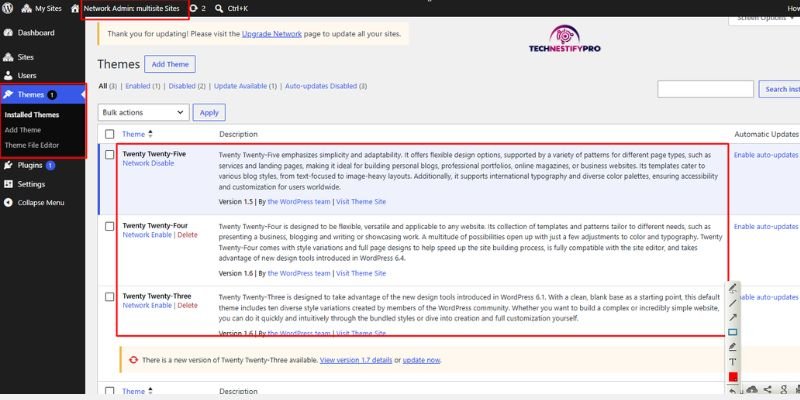
Screenshot: the Network Admin Themes screen with the three themes.
Can One Site Use More Than One Theme at Once?
No. A single site can have only one theme active at a time. The phrase “multiple themes” means the network offers several themes, and different sites pick different ones.
- You can still vary page layouts inside one theme. Use page templates, block patterns or the Site Editor.
- Multisite has no built-in way to mix themes on a single site. A plugin can do it, but that’s a workaround.
What Is the Difference Between Network Enable and Network Activate?
Network Enable is the option for themes, and it makes a theme available to sites. Network Activate is the option for plugins, and it switches a plugin on across every site. People mix up the two terms.
- Network Enable (themes): the theme becomes available for sites to pick, and no site has to change.
- Network Activate (plugins): the plugin runs on all sites, and site admins can’t turn it off.
- WordPress has no setting that forces one theme onto every site.
Who Controls What: Super Admin or Site Admin?
The Super Admin is in charge of the entire network, while a site admin manages just their own site. Multisite adds Super Admin as a role above Administrator, Editor, Author, Contributor and Subscriber.
| Task | Super Admin | Site admin |
| Install or delete themes | Yes | No |
| Network: enable or disable a theme | Yes | No |
| Activate an available theme on their site | Yes | Yes |
| Edit colours, menus and content on their site | Yes | Yes |
| Install plugins | Yes | No |
What to Set Up Before You Manage Multisite Themes
You will change network-wide settings. A short setup keeps your test safe. Check that you have these:
- A local site or staging copy. I used XAMPP on Windows, so no live site was at risk. If you haven’t set it up yet, follow our guide to install WordPress on localhost with XAMPP first.
- A backup. It lets you restore the network if a change breaks it.
- A Super Admin login. Only this role can manage themes.
- At least three themes installed. Install a few themes so you can compare which ones are merely available to a site and which one it actually uses. I used Twenty Twenty-Five, Twenty Twenty-Four and Twenty Twenty-Three.
- Two or three test sites. One site can’t show you how the network behaves.
How to Check If Your WordPress Site Is Already Multisite
Look for My Sites and Network Admin in the top toolbar after you log in as Super Admin. A single-site install doesn’t show them.
- Log in and look at the admin toolbar. My Sites → Network Admin means you are on a network.
- Open wp-config.php. This line confirms Multisite:
php

define( 'MULTISITE', true );- Developers can test it in code with is_multisite(), which returns true on a network.
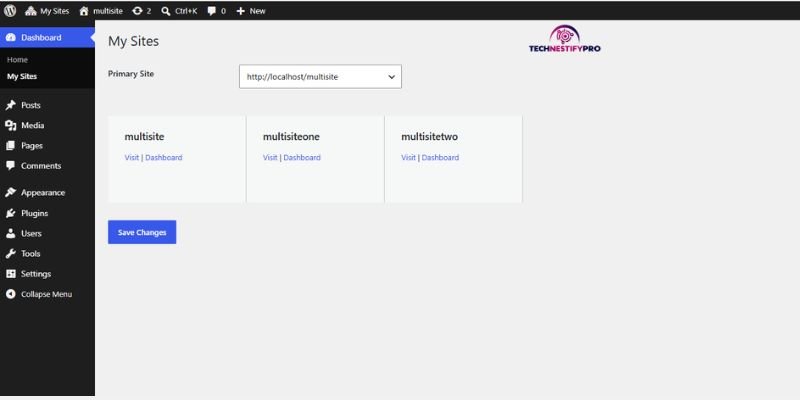
Screenshot: the My Sites → Network Admin menu.
How to Create a Multisite Network
Add the network setting to wp-config.php, deactivate your plugins, run Tools → Network Setup, and then put each generated block into the right file. The define() lines go in wp-config.php. The rewrite rules go in .htaccess.
- Back up your site.
- Add this line above the “stop editing” comment in wp-config.php:
php
define( 'WP_ALLOW_MULTISITE', true );- Deactivate all plugins.
- Go to Tools → Network Setup and choose the network type.
- Copy the first block into wp-config.php. Mine looked like this:
php

define( 'MULTISITE', true );
define( 'SUBDOMAIN_INSTALL', false );
define( 'DOMAIN_CURRENT_SITE', 'localhost' );
define( 'PATH_CURRENT_SITE', '/mymultisite/' );
define( 'SITE_ID_CURRENT_SITE', 1 );
define( 'BLOG_ID_CURRENT_SITE', 1 );- Copy the second block into .htaccess, replacing the old WordPress rules:
apache

RewriteEngine On

RewriteRule .* - [E=HTTP_AUTHORIZATION:%{HTTP:Authorization}]

RewriteBase /mymultisite/

RewriteRule ^index.php$ - [L]

# add a trailing slash to /wp-admin

RewriteRule ^([_0-9a-zA-Z-]+/)?wp-admin$ $1wp-admin/ [R=301,L]

RewriteCond %{REQUEST_FILENAME} -f [OR]

RewriteCond %{REQUEST_FILENAME} -d

RewriteRule ^ - [L]

RewriteRule ^([_0-9a-zA-Z-]+/)?(wp-(content|admin|includes).*) $2 [L]

RewriteRule ^([_0-9a-zA-Z-]+/)?(.*.php)$ $2 [L]

RewriteRule . index.php [L]- Log in again. Network Admin now appears.
My mistake: on my first try, I pasted the rewrite rules into wp-config.php instead of .htaccess. PHP can’t read those lines, so the setup breaks. If your site shows an error or a blank screen after the Network Setup, check this first. Rewrite rules belong only in .htaccess.
The .htaccess step applies to Apache, which XAMPP uses. If you are using another server, follow its own rewrite instructions.
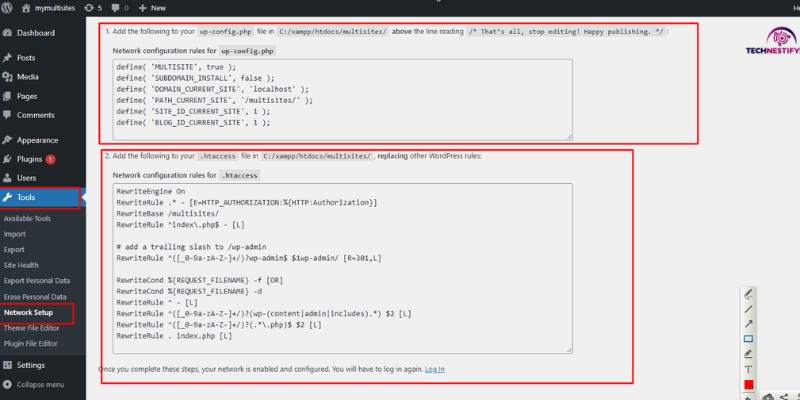
Screenshot: the Network Setup screen.
Subdomain or Subdirectory: Does It Change Which Themes a Site Can Use?
No. The URL structure doesn’t affect theme choice. A subdomain network (site.example.com) and a subdirectory network (example.com/site) handle themes the same way.
- Subdomains need wildcard DNS and hosting support.
- Subdirectories are simpler to start with. My install lives at localhost/mymultisite/, and I used subdirectories (SUBDOMAIN_INSTALL is false in my config).
What Does the Network Admin Dashboard Look Like?
The Network Admin is a separate dashboard with its own Sites, Themes, Users, Plugins and Settings screens. Open it from My Sites → Network Admin → Dashboard.
- Sites: list, add and edit every site.
- Themes: install themes and control which ones sites can use.
- Plugins: install plugins and network-activate them.
- Settings: network-wide options, including banned site names.
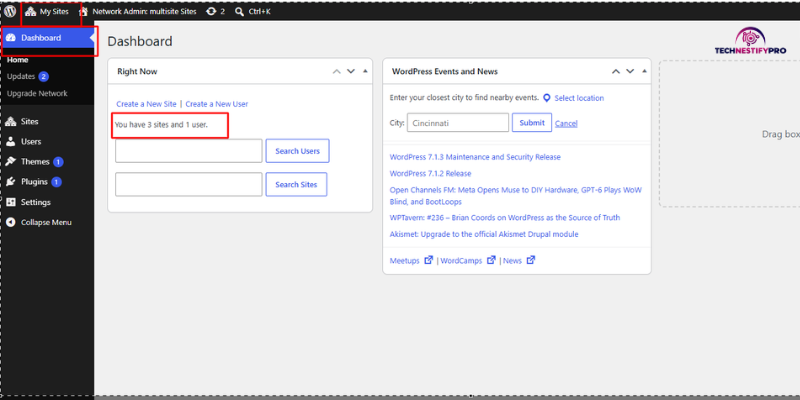
Screenshot: the Network Admin dashboard.
How to Install a Theme on the Network
Open Network Admin → Themes → Add New Theme, install the theme, and then network-enable it. Only the Super Admin can add themes, and a site’s own dashboard has no Add New button for themes.
- Go to My Sites → Network Admin → Themes.
- Click Add New Theme.
- Search for the theme in the WordPress theme directory, or click Upload Theme and choose a ZIP file.
- Click Install Now.
- If you want sites to use it. Choose Network Enable.
Installing a theme doesn’t make it available to sites. My Twenty Twenty-Four and Twenty Twenty-Three rows show this: both are installed, and both still offer Network Enable.
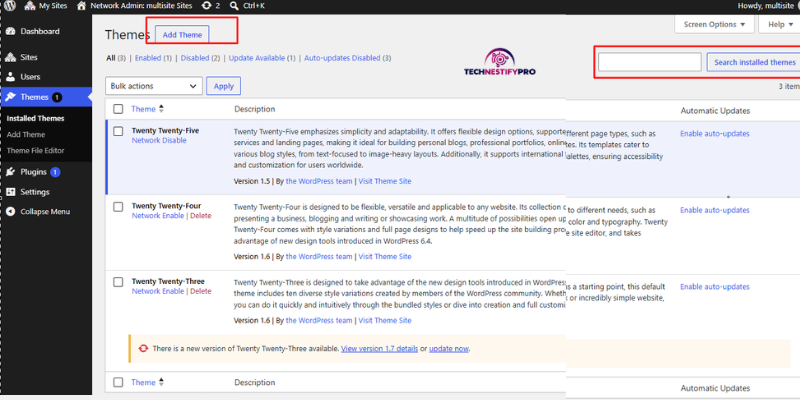
Screenshot: the Add New Theme screen in Network Admin.
How to Make a Theme Available to Every Site
Go to Network Admin → Themes and click Network Enable under the theme. Every site can then choose it.
- Open Network Admin → Themes.
- Find the theme.
- Click Network Enable.
- Open a site’s Appearance → Themes to confirm that it appears.
On my screen, the link under a theme changes from Network Enable to Network Disable once the theme is network enabled. WP-CLI does the same in one line:
bash
wp theme enable twentytwentyfour –network
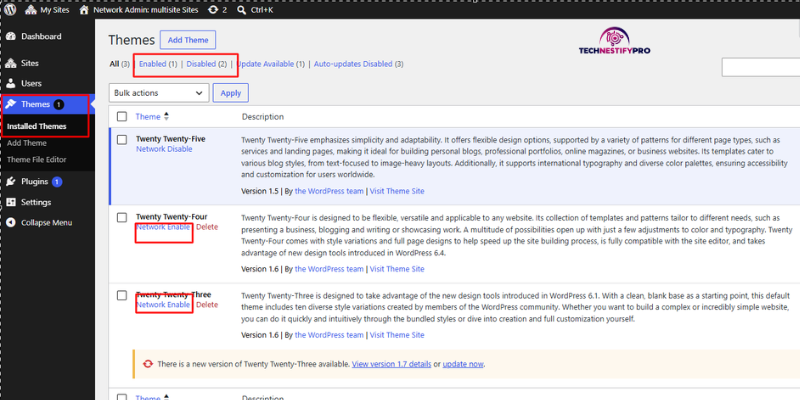
Screenshot: the Network Enable link on the Themes screen.
Does Network Enabling Force Every Site to Switch?
No. It only makes the theme available. Each site keeps its current active theme until its admin changes it.
- A new theme you enable doesn’t change any existing site.
- This lets you add approved options without disrupting live sites.
How to Enable a Theme for One Site Only
Open Network Admin → Sites, edit the site, choose its Themes tab, and click Enable. Only that site can then choose the theme.
- Go to Network Admin → Sites.
- Hover over the site and click Edit.
- Open the Themes tab.
- Click Enable under the theme.
This tab lists themes you could enable for that one site. It can look empty when every theme is already network-enabled.
bash
wp theme enable twentytwentythree –url=http://localhost/mymultisite/site2/
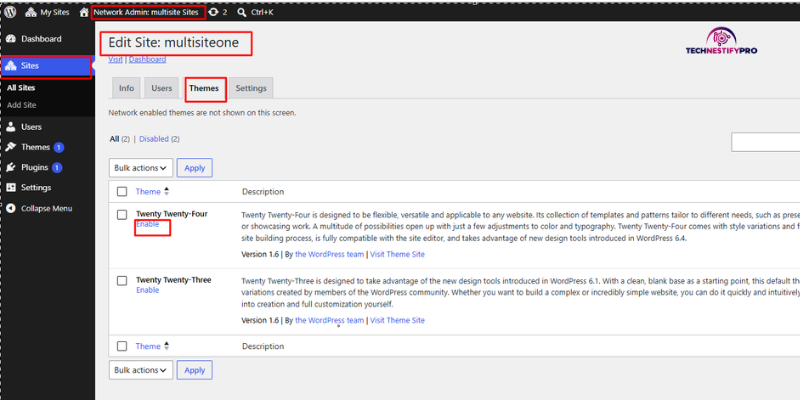
Screenshot: the Themes tab on the Edit Site screen.
How Each Site Chooses Its Own Theme
A site admin opens Appearance → Themes on their own dashboard and activates any theme available to that site. They can’t install or delete themes.
- Log in to the subsite’s dashboard.
- Go to Appearance → Themes.
- Click Activate on an available theme.
Two sites on the same network can run different themes at the same time, because each site stores its own active theme.
How to Disable a Theme on the Network or for One Site
Click Network Disable under the theme in Network Admin → Themes, or use Disable on a site’s Themes tab. The theme then stops being available.
- Network-wide: Network Admin → Themes → Network Disable.
- One site: Network Admin → Sites → Edit → Themes tab → Disable.
I did not test what happens to a site that is still using a theme you disable. So switch every site to another theme first, and then disable the old one. That is the safe order.
Do Multisite Sites Share Theme Settings?
No. Sites share theme files but keep their own settings. Colours, menus, widgets and Site Editor changes are saved separately for each site.
- Each site stores its settings in its own database tables, such as wp_2_options for the second site.
- Block themes work the same way. Global styles and template changes live in each site’s own content.
- The exception is the files. If you edit a theme’s PHP or CSS, every site that uses that theme gets the change.
You can check this yourself. Open phpMyAdmin in XAMPP, select your network’s database, and look at the table names. Each site you add gets its own set of tables.
How Do Child Themes Work on Multisite?
Child themes work the same way as on a normal site, and each one needs its parent theme installed on the network. Install both in Network Admin, then enable the child theme for the sites that should use it.
- Put your site-specific changes in a child theme, not in the shared parent.
- Give each site its own child theme if it needs a different logo, colours, or layout.
Read our child theme setup guide for the full process.
How Do Plugins Differ From Themes on Multisite?
Plugins can be forced on for every site with Network Activate, while themes can only be offered with Network Enable. Plugins also follow stricter rules for site admins.
| Themes | Plugins | |
| Who installs | Super Admin only | Super Admin only |
| Make available to sites | Network Enable | Network Activate for all sites, or let each site decide |
| Can a site admin turn it off? | Yes, by choosing another theme | Not if network activated |
| Who deletes | Super Admin, in Network Admin | Super Admin, in Network Admin |
| Compatibility issues | Rare | Some plugins don’t support Multisite |
Can site admins install their own plugins? No. By default, they don’t see the Plugins menu. Want site admins to see the Plugins menu? Open Network Admin → Settings → Network Settings and turn it on. Site admins can then activate available plugins, but they still can’t install new ones.
What to Watch Out for With Multisite Themes
Every site reads the same theme files. That saves time, and it means a mistake can reach many sites at once. These four points matter most.
Every Site Using a Theme Gets Its Updates at Once
Update a theme once, and every site using it receives the new version immediately.
Each site keeps its own settings, but a bug in the update spreads to all of them.
- On my network, one theme had updates waiting: Twenty Twenty-Three (1.6 to 1.7).
- Test updates on a staging copy first.
- Back up the whole network before updating.
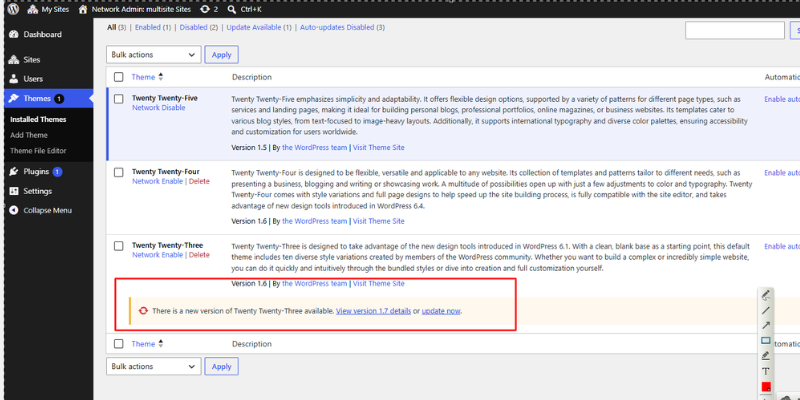
Screenshot: the update notices under the themes.
Deleting a Theme Can Take Sites Offline
Removing a theme that a site still runs can break that site. Find out which sites use it before you press Delete.
- On my screen, Delete appeared only next to themes that were not network-enabled.
- Don’t assume no site uses the theme. Check the Themes tab on each site before you remove the theme.
- Switch affected sites to another theme first.
Site Admins Cannot Install Themes
Only the Super Admin can add themes. Site owners must ask the Super Admin each time they want a theme added.
- This rule works well when you run a network for clients, because you decide which themes go live.
- Plan a simple way for site owners to request a new theme.
Child Themes Need Their Parent Installed
Without its parent theme installed, a child theme won’t run. Add the parent to the network first, then enable the child theme.
How to Maintain Themes Across a Multisite Network
Update themes from Network Admin, remove the ones you don’t use, and test changes on staging first. One central update serves every site.
- Go to Network Admin → Updates, and update each theme once for the entire network.
- Unused themes still need updates and security checks, so delete the ones you don’t need.
- Re-test your themes after each WordPress core update.
- Back up the network before bulk changes.
- Keep the list of available themes short.
Should Your Network Use One Theme or Many?
Use one theme when sites must look alike, and several approved themes when sites serve different needs. Every extra theme adds one more update to test.
| Your situation | Best setup |
| Every site must match one brand | One shared theme |
| An agency offers a few designs to clients | Two or three approved themes |
| One site needs something very different | A site-specific theme that only that site can use |
| Every site needs its own separate theme | Consider separate installations |
When Does One Shared Theme Work Best?
One shared theme works best when brand consistency matters more than visual independence. Franchises, school districts and company departments are typical examples.
- Each site keeps its own content and menus.
- You test & update one theme, not many.
- Child themes allow small local changes, such as a logo.
When Do Multiple Themes Make More Sense?
Multiple themes make sense when sites serve different audiences or need different designs. Universities, agencies and publishers often fit this.
- Make only a small set of well-supported themes available.
- Don’t enable every installed theme “just in case.”
What Are the Benefits and Limitations of Multisite Themes?
The benefit is central control, and the limitation is shared risk.
- Benefits: you install and update themes in one place, and the Super Admin decides which themes sites can use.
- Limitations: a theme problem can affect many sites, some plugins aren’t Multisite-compatible, and the setup is more complex than a single site.
What Is WordPress Multisite Used For, and Which Theme Setup Fits Each Use?
Multisite suits groups of related sites that share ownership, and the theme setup follows the use.
| Use | Typical theme setup |
| Internal or department sites | One shared theme |
| Franchise or location sites | One shared theme with child themes |
| Blog networks | A few approved themes |
| Agency client sites | Two or three approved themes |
| Localized or regional sites | A shared theme, or per-region themes |
Extra Tips and Best Practices
- Begin with one or two themes, and add another only when a site truly needs it.
- Keep site-specific code in a child theme, and leave the shared parent theme untouched.
- Try each new theme on a staging site before you enable it on the network.
- Move every site to a different theme before you disable or delete the old one.
- Keep a simple list of which site runs which theme.
- Read the changelog first, then run the update from Network Admin.
- Back up the whole network before any bulk change.
Common Problems and Fixes
- My site shows an error or a blank screen after Network Setup. You may have pasted the rewrite rules into wp-config.php, so move them to .htaccess. I made this mistake myself.
- A theme doesn’t appear on a subsite. It is not available to that site, so enable it at the network level or enable it for that specific site.
- Site admins can’t find Add New for themes. Site admins can’t add themes. Ask the Super Admin to install it in Network Admin.
- A subsite name is rejected as reserved. WordPress blocks words such as “blog,” so choose another name.
- Subsite pages show “not found” on XAMPP. Check that Apache’s mod_rewrite is on and that .htaccess is allowed in your folder, then restart Apache.
- A plugin misbehaves on the network. Not every plugin supports Multisite. Deactivate it, then look for a version or alternative that does.
- A theme edit changed other sites. You edited a shared file, so undo the edit and use a child theme.
Key Takeaways
Is WordPress Multisite one theme or multiple? Multiple. WordPress Multisite supports many themes across one network. The Super Admin installs each theme once and sets who can use it. Each site chooses one active theme from that list.
- Sites read from one set of theme files, and every site stores its own settings separately.
- The Super Admin alone controls which themes exist on the network and which sites can use them.
- Keep the available list short, and test updates on staging.
Next step: build your own test network on a local site. Then compare your options in our list of the best WordPress themes.
Frequently Asked Questions
Yes. The Super Admin decides which themes a site can use, and the site admin activates one of them. That lets two sites on one network look completely different. Their settings stay separate.
WordPress Multisite runs many websites from one WordPress installation. All sites share the same core files, themes and plugins. Each site stores its own posts, pages, media and settings in separate database tables. A Super Admin manages the whole network from Network Admin.
WordPress Multisite fits you when you manage several related sites from a single installation. WordPress Multisite, originally known as WordPress MU (WPMU), became part of WordPress core in version 3.0, so you don’t install it separately.
The best WordPress Multisite host depends on your network size and setup. Look for reliable URL rewriting, support for your chosen subdomain or subdirectory structure, enough PHP memory and server resources, daily backups, and staging. If you use subdomain-based Multisite, the host should also support wildcard subdomains.
Only the Super Admin can install themes on a WordPress Multisite network. Site admins can switch to a theme that is available to them, but they can’t add or remove one. Their Themes screen doesn’t show an Add New button.
Network Enable opens a theme up for sites to choose, and it leaves every site’s appearance alone. Activation comes second: a site admin picks the theme to display on that site. So a theme can be network enabled while no site actually runs it.
Yes, the Super Admin controls theme access for the whole network or for single sites. Each site admin sees only the themes opened up to their site. To set this per site, use the Themes tab on that site’s edit screen.
Open Network Admin, choose Sites, and click Edit under the site you want. Then switch to the Themes tab and click Enable beneath the theme. After that, only this site can select it.
All sites that run the theme receive the update at the same moment, since they share one copy of its files. Each site keeps its own settings. A bug in the new version would show up everywhere, so test updates on a staging site first.
No, many themes on a network don’t slow down any single site, because a site loads only its own active theme. Speed depends more on your hosting, your plugins and how well each theme is coded. Unused themes mainly create extra update and security work.
Back up your site and add define( ‘WP_ALLOW_MULTISITE’, true ); to wp-config.php. Deactivate your plugins, then open Tools, then Network Setup. Put the generated define() lines in wp-config.php and the rewrite rules in .htaccess, then log in again.
Yes. Follow the same steps as for a new network, after backing up and deactivating plugins. Your existing site becomes the main site of the network. Check that your plugins support Multisite before you reactivate them.




- Be Respectful
- Stay Relevant
- Stay Positive
- True Feedback
- Encourage Discussion
- Avoid Spamming
- No Fake News
- Don't Copy-Paste
- No Personal Attacks
- Be Respectful
- Stay Relevant
- Stay Positive
- True Feedback
- Encourage Discussion
- Avoid Spamming
- No Fake News
- Don't Copy-Paste
- No Personal Attacks
