How to Hide the Header in Elementor WordPress (5 Working Methods)
Published: 30 Sep 2026
Quick Answer: How to Hide Header in Elementor WordPress
To hide the header in Elementor WordPress, switch the page to Elementor Canvas. Option 1: Click Edit on the page, then change the Template to Elementor Canvas in the right sidebar. Option 2: Click Edit with Elementor, open Page Settings at the top, and change Page Layout to Elementor Canvas. Your other pages keep their header and footer. Want to keep the footer? Hide only the header with CSS (Method 4).

Whether you’re searching for how to hide, remove, or make your header disappear, all three point to the same thing here. This guide uses “hide” throughout because it’s reversible, but the methods below work regardless of which word you used to find this page.
Looking to edit your header rather than hide it? Open Templates → Theme Builder → Header in Elementor Pro, or your theme’s header customizer if you’re not using Elementor’s Theme Builder.
Key Takeaways
- Elementor Canvas is the fastest method and works on the free version, best for single landing pages.
- Display Conditions (Elementor Pro) let you hide the header sitewide or on one specific page without losing your layout.
- Theme settings (Hello Elementor, Astra, GeneratePress) can disable the header at the theme level, no Elementor Pro required.
- Custom CSS is the fallback when your theme overrides Elementor’s settings.
- Mobile-only hiding uses Elementor’s Responsive Conditions, useful when your custom header works fine on desktop but looks cluttered on smaller screens.
- Hiding the header is reversible and SEO-safe. Deleting it is not; hiding keeps your page structure and navigation intact.
Hiding your header makes sense on a landing page, a sales funnel, or any page where you’ve built a custom header inside the Elementor canvas and don’t want the theme’s default one competing with it, especially if you’re choosing Elementor as your page builder specifically for that flexibility. This guide walks through five ways to do it, tells you upfront which ones work on free Elementor versus which require Pro, and includes a mobile-only method most other guides skip entirely.
I ran into the mobile-cluttered-header problem building a landing page for a client last month; the custom header looked exactly right on desktop, but on mobile it pushed the hero section below the fold. Method 5 below is the fix that solved it without touching the desktop layout at all.
Do You Need Elementor Pro? (Check This First)
Before you pick a method, it’s worth knowing this upfront: not every way to hide your Elementor header works on the free plugin. Two of the five methods below need Elementor Pro, and the other three don’t, so check the table first to save yourself a wasted attempt.
| Method | Works on Free Elementor? | Requires Elementor Pro? |
| 1. Elementor Canvas | Yes | No |
| 2. Display Conditions | No | Yes |
| 3. Theme Settings | Yes | No |
| 4. Custom CSS | Yes | No |
| 5. Mobile-Only Hiding | No | Yes |
If you’re on free Elementor, jump straight to Method 1 or Method 3; they’ll get you there without upgrading.
Which Method Should You Use?
Not sure which method fits your situation? Match what you’re trying to do against the table below; it points you straight to the right method instead of making you read all five.
| Your Situation | Recommended Method |
| Hiding the header on one landing page only | Method 1: Elementor Canvas |
| Hiding the header across your entire site | Method 2a: Display Conditions (sitewide) |
| Hiding the header on a few specific pages | Method 2b: Display Conditions (single page) |
| Your theme keeps showing its own header regardless | Method 3: Theme Settings |
| Elementor’s settings aren’t taking effect | Method 4: Custom CSS |
| You only want it hidden on phones/tablets | Method 5: Mobile-Only Hiding |
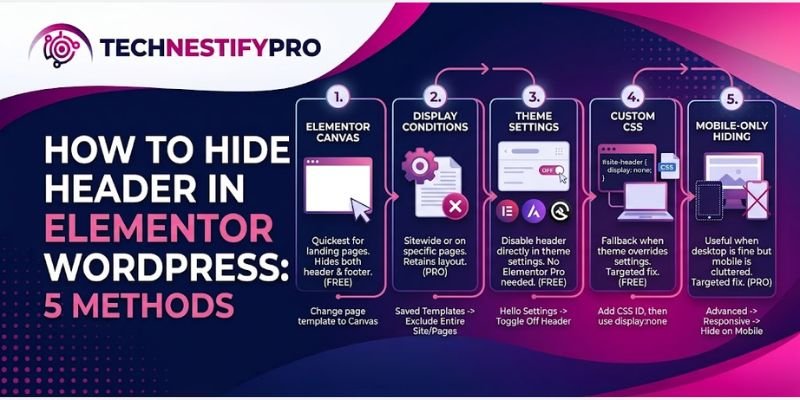
How to Hide the Header in Elementor: Step-by-Step
Pick the method that matches your goal. Start with Method 1 if you want a clean landing page. Each method ends with a quick way to undo it.
Method 1: How Do I Hide the Header on One Page (Elementor Canvas)?
The simplest way to hide the header on a single page is to switch that page to the Elementor Canvas layout. You can do it in the WordPress editor by changing the Template, or in the Elementor editor by changing the Page Layout. You don’t need Elementor Pro for this. Every other page on your site keeps its header and footer.
Note: Canvas removes the header and footer together. To keep the footer, use Method 2.
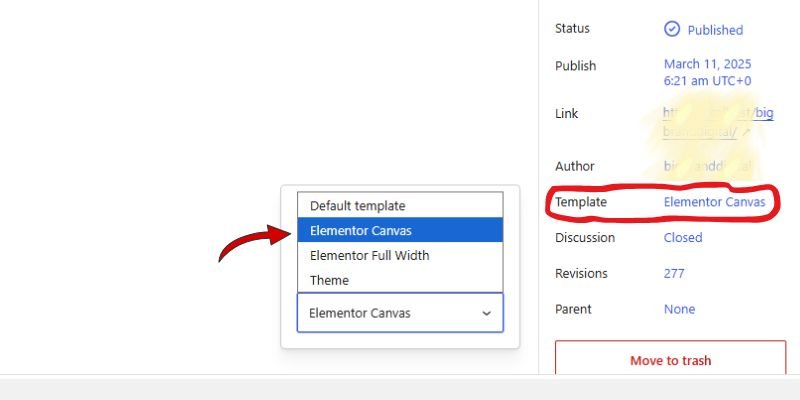
Option A: Change the Template in the WordPress Editor
- Go to the Page you want to edit and click Edit under the page name. Don’t choose Edit with Elementor.
- Open the settings sidebar on the right. If you can’t see it, click the settings icon at the top right.
- Find Template and choose Elementor Canvas.
- Click Update.
- Open the edited page in a private window to check whether it is working or not.
Option B: Change the Page Layout in the Elementor Editor
- Open the page you want to edit and click Edit with Elementor.
- Open Page Settings from the top toolbar. On older versions, use the gear icon at the bottom left of the panel.
- Under General Settings, find Page Layout. It shows Default.
- Open the dropdown and choose Elementor Canvas.
- Click Publish or Update, then check the page in a private window.
Watch out for Hide Title. You’ll find it just above Page Layout. It only removes the page heading, not the header. Leave it off for this method.

To undo it: set Template or Page Layout back to Default, then click Update.
Elementor Canvas is a blank page template built into Elementor; it strips out the header and footer from the page, leaving you a completely clean canvas. It’s the quickest way to hide the header, works on the free version of Elementor, and is ideal for single pages like landing pages or sales funnels.
Method 4: How Do I Hide the Header With Elementor Pro Display Conditions?
To hide the header on certain pages, add an Exclude rule to your header template’s Display Conditions. This needs Elementor Pro.
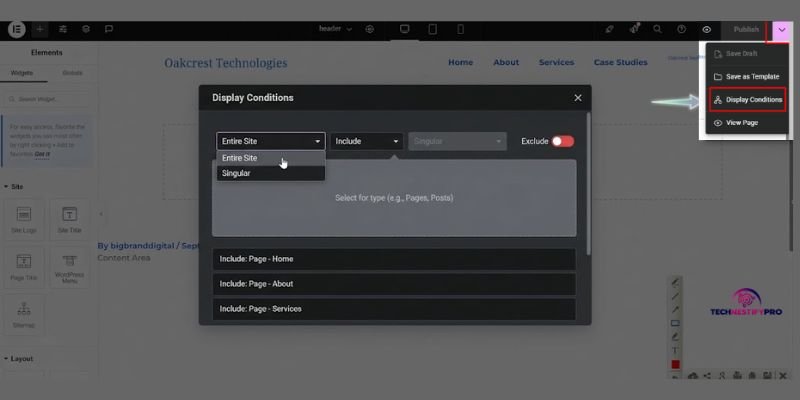
Display Conditions let you control exactly where your header and footer templates appear, sitewide or on individual pages, without switching your whole page to Canvas. This requires Elementor Pro and Elementor’s Theme Builder feature. For the full technical breakdown straight from Elementor, see their official Display Conditions documentation.
2a. How Do I Hide the Header Sitewide?
- Go to Templates → Saved Templates → Published.
- Find your Header template and click Edit with Elementor.
- Next to the Publish/Update button, click the small arrow to open the dropdown.
- Select Display Conditions.
- Change the condition from Include to Exclude, and set it to Entire Site.
- Click Save & Close, then Update.
2b. How Do I Hide the Header on One Specific Page?
- Open your Header template the same way (Templates → Saved Templates → Edit with Elementor).
- Click Display Conditions.
- Click Add Condition, then set its value to Exclude.
- Choose Singular → Pages, then select the specific page you want the header hidden on.
- Click Save & Close, then Update.
Repeat the same steps on your Footer template if you want to hide that too.
Method 3: How to Hide the Header on Every Page With Your Theme Settings
To hide the header on every page, turn on your theme’s setting that disables its built-in header and footer. In Hello Elementor, it’s the Disable Theme Header and Footer toggle.
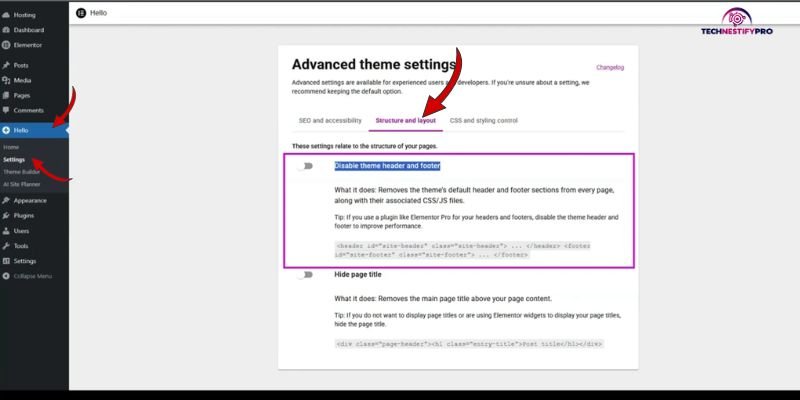
Many WordPress themes let you disable their built-in header and footer directly in the theme’s own settings, no Elementor Pro required, and no risk of Elementor and your theme fighting over which header shows up. If you’re planning to customize these settings further, doing it using a child theme keeps your changes safe from being wiped out by future theme updates.
Hello Elementor theme:
- In your WordPress dashboard, go to Hello → Settings.
- Click the Structure and Layout tab.
- Toggle on Disable Theme Header and Footer.
- Refresh your site to confirm.
Astra and GeneratePress: both themes include a similar toggle; look for Header/Footer Builder settings (Astra) or Layout Elements (GeneratePress) in their respective theme customizer panels. If you haven’t picked a theme yet, themes like Astra are worth considering specifically for this kind of built-in flexibility.
Make Canvas Your Default Layout
Prefer one switch for the whole site? Open the Elementor menu at the top left and go to Site Settings → Layout. Change Default Page Layout to Elementor Canvas. Any page left on Default will now load without the header and footer. Pages you’ve set to another layout stay as they are.
Check that this option appears in your Elementor version. Test it on a staging site first, because it affects every page set to Default.
Method 2: How to Hide the Header With Custom CSS
To hide the header with CSS, give the header an ID or class and set it to display: none. This works in free Elementor.
If your theme or a caching setup is overriding Elementor’s own settings, hiding the header with CSS is a reliable fallback that works regardless of what else is happening on the page.
- Select the header section in Elementor and open the Advanced tab.
- Under CSS ID, give it a unique ID, e.g. site-header.
- Go to Elementor → Custom CSS (or add this to your theme’s Additional CSS):
#site-header {
  display: none;
}- Save and refresh to confirm the header is hidden.
This method also works well as a targeted fix when only part of the header (like a specific widget) needs to disappear; just scope the CSS selector to that element instead.
Method 5: How to Hide the Header on Mobile Only
To hide the header on mobile only, select the header section in Elementor and turn on Hide On Mobile in its Advanced settings. This works in free Elementor.
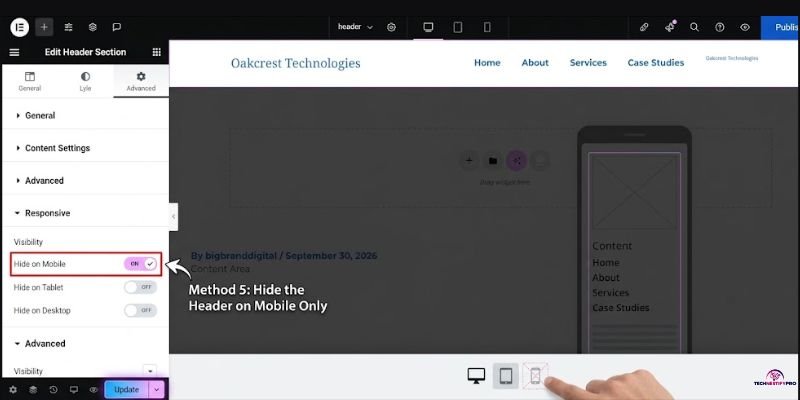
This is a genuinely common need if your custom header works fine on desktop but looks cluttered on small screens, especially if you’ve already run into other mobile layout issues on your site.
- Select your header section and open the Advanced tab.
- Scroll to Responsive.
- Under Visibility, check Hide on Mobile (or Tablet, depending on which breakpoint you want to target).
- Update and preview using Elementor’s device preview toggle to confirm.
This uses Elementor’s built-in Responsive Conditions feature and works independently of the other four methods; you can combine it with any of them.
How to Hide Only the Header and Keep the Footer
To hide only the header on a single page, you need to add a short CSS rule that targets that page’s ID. The footer stays, and no other page changes. This works in free Elementor.
Every WordPress page carries its own ID class, such as page-id-123. A rule built on that class affects only the page it names.
- Open Pages and click Edit under your page name. Look at the address bar. The number after
post=is your page ID. - Open Appearance → Customize → Additional CSS.
- Paste this rule and swap
123for your ID.
/* Hide the theme header on one page only */
.page-id-123 #site-header {
  display: none;
}- Click Publish, then load the page in a private tab. The header should be gone, and the footer should still be there.
Which Header Name Does Your Theme Use?
#site-header belongs to Hello Elementor. Other themes name their header differently.
| Theme | Header selector |
|---|---|
| Hello Elementor | #site-header |
| Astra | #masthead |
| GeneratePress | #masthead |
Confirm yours first. Right-click the header, choose Inspect, and read the ID or class on the <header> tag. A rule that does nothing usually has the wrong name.
Use the Same Rule on Other Pages
- Homepage only:
.home #site-header { display: none; } - Every blog post:
.single-post #site-header { display: none; } - Several pages: list each selector, separated by commas.
To undo it: delete the rule and click Publish again.
What About Hiding the Header on Scroll?
If what you actually want is a header that hides when scrolling down and reappears when scrolling up (rather than being hidden permanently), that’s a different technique using Elementor’s Sticky motion effects combined with custom JavaScript. It’s a great option for improving on-page UX without removing the header altogether, worth a dedicated guide of its own, which we’ll be covering soon.
Header Still Showing? Common Problems and Fixes
Don’t worry if the header won’t go away. These five causes cover most cases.
- You see the old page. Your cache is serving a saved copy, so clear your cache plugin, your host cache and Cloudflare, then reload in a private window.
- You used Hide Title. That switch only removes the page heading, so open Page Layout (or Template) and choose Elementor Canvas instead.
- Your CSS does nothing. Your theme probably uses a different header name, so right-click the header, choose Inspect, and copy the real ID or class into your rule.
- A different header appears after you exclude your Pro header. That is your theme’s own header taking over, so use Canvas or the page-specific CSS on that page.
- The editor won’t open or save your change. Another plugin may be getting in the way, so turn plugins off one at a time and test, or follow our plugin conflicts guide.
Final Thoughts
By now, you know exactly how to hide the header in Elementor WordPress, and just as importantly, which of the five methods actually fits your situation. Canvas gives you a fast, Pro-free fix for a single landing page. Display Conditions hand you sitewide or page-specific control once you’re on Elementor Pro.
Theme settings let you skip Elementor entirely if your theme already supports it, and Custom CSS is there as a reliable fallback when nothing else takes effect. Responsive Conditions solve the one problem most guides skip: a header that works fine on desktop but crowds the screen on mobile.
Whichever method you pick, hiding, not deleting, is what keeps your site’s structure, navigation, and SEO intact while still giving you the clean, distraction-free layout you’re building toward. Try the method that matches your goal, and if you run into anything unexpected, the FAQs below cover the most common follow-up questions, from page titles to header transparency to mobile-only visibility.
Still new to how themes and headers work together? Our guide on how WordPress themes work is a good starting point.
FAQs: Hide the Header in Elementor WordPress
Open the page in Elementor, click the Settings icon, and toggle on Hide Title. This removes just the page title while keeping the rest of your header and layout intact.
Most themes have a built-in option under Appearance → Customize → Header to disable it, or you can add display: none; CSS targeting your theme’s header class through Appearance → Customize → Additional CSS.
Select your header section, go to the Style tab, and set the Background to transparent or set its opacity/color to match your page background. This is a styling change, not a visibility change, so the header stays functional.
You’ll need Elementor’s Sticky motion effect paired with a small JavaScript snippet that detects which way the page is being scrolled, covered in the “What About Hiding the Header on Scroll?” section above.
With Elementor, switch the page’s template to Elementor Canvas, or use Display Conditions for more control. Without Elementor, most themes have a built-in toggle under Appearance → Customize → Header, or you can hide it with display: none; CSS.
Use one of five methods: Elementor Canvas, Display Conditions, your theme’s settings, Custom CSS, or Responsive Conditions for mobile only. Hide it rather than delete it; all five keep your site’s structure intact and are easy to reverse.
Use “hide,” not “remove.” Elementor Canvas hides it on a single page, and Display Conditions hides it sitewide; both keep your layout intact, unlike actually deleting header elements.




- Be Respectful
- Stay Relevant
- Stay Positive
- True Feedback
- Encourage Discussion
- Avoid Spamming
- No Fake News
- Don't Copy-Paste
- No Personal Attacks
- Be Respectful
- Stay Relevant
- Stay Positive
- True Feedback
- Encourage Discussion
- Avoid Spamming
- No Fake News
- Don't Copy-Paste
- No Personal Attacks
