ERR_TOO_MANY_REDIRECTS: How to Fix It in Chrome, Safari and WordPress (2026)
Published: 8 Nov 2026
Quick Answer: ERR_TOO_MANY_REDIRECTS means your browser got stuck in a redirect loop. One address redirects the browser to another, which then sends it back to the original address. The browser gives up and shows the error. On WordPress sites, the most common causes are mismatched site URLs, conflicting HTTPS rules, a faulty plugin, a broken .htaccess file, and a Cloudflare SSL mode set to Flexible.
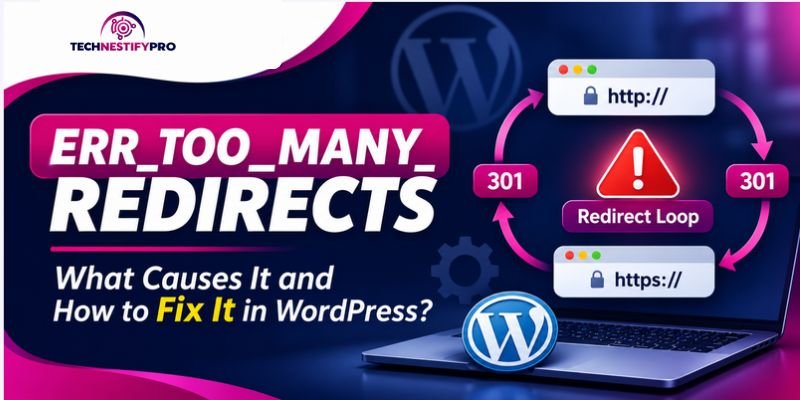
You open your website and see “This page isn’t working. Redirected you too many times.” Your site is down, and the message gives you no clue why. Visitors see the same wall, and the fear sets in fast.
Take a breath. This error looks scary, but it has a small number of causes, and you can fix each one. This guide shows you how to fix ERR_TOO_MANY_REDIRECTS step by step, whether you are a visitor or the owner of a WordPress site.
Practical troubleshooting note: The checks in this guide follow the order I recommend for diagnosing a WordPress redirect loop: identify the URLs in the redirect chain, check the WordPress URL settings, then test plugins, server rules, HTTPS and any CDN. The examples show common configurations and symptoms; they are not presented as a lab test on a site or hosting setup.
What Does ERR_TOO_MANY_REDIRECTS Mean?
ERR_TOO_MANY_REDIRECTS is a browser error. It means a web page keeps sending your browser to another address, and that address sends it back. The browser stops after about 20 redirects and shows the error instead. People also search for this as “too many HTTP redirects” or “redirected you too many times.”
How Does a Redirect Loop Work?
A redirect informs your browser that a webpage has changed its location. A proper redirect takes you to the intended destination page. A loop never ends.
Here is a simple example:
- You visit http://example.com.
- The site redirects you to https://example.com.
- Something else redirects you back to http://example.com.
- Steps 2 and 3 repeat until the browser quits.
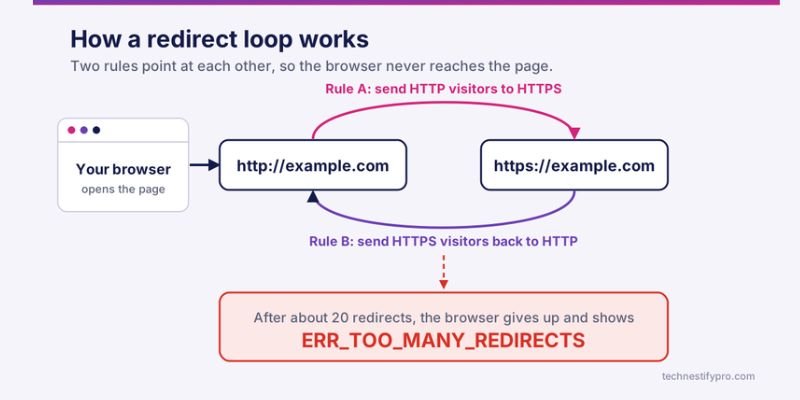
The browser protects you by stopping. Chrome and Firefox both give up at roughly 20 redirects.
What Does the Error Look Like in Chrome, Safari, Firefox and Edge?
The cause is the same everywhere. Only the wording changes.
| Browser | Message you see |
| Chrome | This page isn’t working. example.com redirected you too many times. ERR_TOO_MANY_REDIRECTS |
| Edge | This page isn’t working right now. example.com redirected you too many times. |
| Firefox | The page isn’t redirecting properly |
| Safari | Safari displays the message: “The website example.com couldn’t be opened because too many redirects occurred.” |
The error appears on phones and computers alike because the loop starts on the website’s side.
What Causes ERR_TOO_MANY_REDIRECTS?
A redirect loop always comes from two rules that point at each other. These are the usual pairs on a WordPress site.
| Cause | How it creates a loop | How common on WordPress |
| Mismatched WordPress Address and Site Address | WordPress sends visitors to a URL that redirects back | Very common, especially after a move |
| Conflicting HTTPS rules | A plugin, .htaccess and the host all force HTTPS in different ways | Very common |
| Cloudflare SSL mode set to Flexible | Cloudflare connects to your server over HTTP, and your server redirects to HTTPS | Very common with Cloudflare |
| Faulty plugin or theme | A redirect, SSL, SEO or cache plugin adds a conflicting rule | Common |
| Broken .htaccess rules | One bad rewrite rule bounces every request | Common |
| www and non-www rules that disagree | One rule adds www, another removes it | Common |
| Stale cookies or cached redirects | Your browser replays an old redirect | Common for single visitors |
| Server behind a proxy that hides HTTPS | WordPress thinks every request is HTTP and keeps redirecting | Less common |
The Cloudflare team documents the same pattern in its own guide to this error. You can read it in Cloudflare’s too many redirects troubleshooting page.
A practical way to narrow it down: Don’t change several settings just because they all look related. First, note whether the loop is between http and https, between www and non-`www`, or between two versions of a page. That small detail points you toward the right setting and helps you avoid changing a working part of the site.
Quick Checklist Before You Fix the Redirect Loop
A few minutes of preparation will save you from making things worse. Gather these items first. Each one has a reason.
- A fresh backup of your site and database. Some fixes edit core files. A backup lets you undo any mistake.
- Access to File Manager or FTP. You may be locked out of the dashboard. File access lets you fix the site anyway.
- A private (incognito) browser window. It ignores your saved cookies and cache, so you see the real state of the site.
- A redirect checker or the curl command. These show you the exact URLs that bounce. You will use this in Step 1.
- Knowledge of your server type. Apache and LiteSpeed use .htaccess. Nginx does not. Your host’s control panel usually tells you which one you have.
- Knowledge of whether you use Cloudflare or another CDN. CDN settings cause many loops, so you need to know if one sits in front of your site.
How Do You Fix ERR_TOO_MANY_REDIRECTS as a Visitor?
If the error appears on a site you don’t own, clear that site’s cookies first. A stale cookie often keeps one visitor stuck while everyone else loads the page fine. Then try a private window.
Follow the steps for your browser. Clear only the one site’s data, so you stay signed in everywhere else.
Chrome and Edge
- Click the icon to the left of the address bar.
- Open Cookies and site data, then Manage on-device site data.
- Delete the entry for the site that shows the error.
- Reload the page.
Safari on iPhone and Mac
On iPhone or iPad: Open Settings, tap Apps, then Safari. On older iOS versions, tap Safari directly. Open Advanced, tap Website Data, search for the site, and delete it.
On Mac: Open Safari, go to Settings, then Privacy. Click Manage Website Data, search for the site, and click Remove.
Firefox
- Open Settings, then Privacy & Security.
- In the Cookies and Site Data section, select Manage Data.
- Search for the site and remove it.
When the Problem Isn’t on Your Side
Try these quick checks too:
- Open the page in a private window.
- Try another browser or another device.
- Turn off extensions that rewrite URLs or force HTTPS.
- Check that your device date and time are correct.
If the error appears everywhere, the loop lives on the website. Only the site owner can fix it. If that’s you, keep reading.
Which ERR_TOO_MANY_REDIRECTS Fix Should You Try First?
Start with the fix that matches your symptom. This table saves you from trying everything at random.
| What you notice | Most likely cause | Go to |
| The site works in a private window but not in your normal browser | Stale cookies or cached redirect | Step 2 |
| It started right after you changed a URL, moved hosts or switched domains | Mismatched site URLs | Step 3 |
| It started right after a plugin install or update | Plugin conflict | Step 4 |
| It started after you edited redirects or permalinks | Bad .htaccess rule | Step 5 |
| It started right after you turned on SSL or HTTPS | Conflicting HTTPS rules | Step 6 |
| You use Cloudflare or another CDN | SSL mode or CDN rule | Step 7 |
| The loop flips between www and non-www, or between /page and /page/ | Canonical host or slash rule | Step 8 |
| Only wp-admin or the login page loops | Login and cookie setup | See the wp-admin section below |
How to Fix ERR_TOO_MANY_REDIRECTS on a WordPress Site, Step by Step
Now you will fix the loop on your own site. Work through the steps in order. Start with the simplest and safest ones. After each step, test your site in a private window.
Change one thing at a time. That way, you will know exactly which change fixed the problem.
Step 1: Find Where the Redirect Loop Happens
Don’t guess. Look at the exact URLs that bounce. The pattern tells you which step to use.
Open a terminal and run this command. Replace example.com with your domain:
curl -sIL --max-redirs 10 https://example.com | grep -iE "^(HTTP|location)"A loop between HTTP and HTTPS looks like this (example output):
HTTP/1.1 301 Moved Permanently
Location: https://example.com/
HTTP/2 301
location: http://example.com/
HTTP/1.1 301 Moved Permanently
Location: https://example.com/The same two URLs keep repeating. That is your loop. If curl runs out of redirects, it stops and reports error 47.
You can also use a free online redirect checker. Or open your browser’s DevTools, click the Network tab, tick Preserve log, and reload the page. You will see the repeating 301 or 302 lines.
Compare the redirect pattern with the possible causes below:
| Pattern you see | What it means |
| http and https versions keep swapping | HTTPS rules or CDN SSL mode conflict (Steps 6 and 7) |
| www and non-www keep swapping | Two canonical host rules disagree (Step 8) |
| /page and /page/ keep swapping | Trailing slash rules disagree (Step 8) |
| One URL redirects to itself | A redirect plugin or server rule points at itself (Steps 4 and 5) |
Step 2: Clear Every Cache
Browsers cache permanent redirects (301 and 308) very firmly. So an old loop can keep showing after you fix the cause. Clear every layer before you test.
- Browser: Clear cookies and cache for your site, or test in a private window.
- WordPress cache plugin: Open your caching plugin and click its clear or purge button.
- Host cache: Most hosts have a “Clear cache” or “Flush cache” button in the control panel.
- CDN cache: In Cloudflare, open Caching, then Configuration, then click Purge Everything.
- Object cache: If you use Redis or Memcached, flush it from your host panel.
Test again in a private window. If the error is gone, the old cache was the problem.
WordPress note: If your site uses LiteSpeed Cache, purge its cache from the WordPress dashboard as well as any separate cache provided by your hosting panel. Clearing only the browser cache does not remove a cached response stored on the server. After purging, open the page in a private window so you are not testing against old browser data.
Step 3: Match Your WordPress Address and Site Address
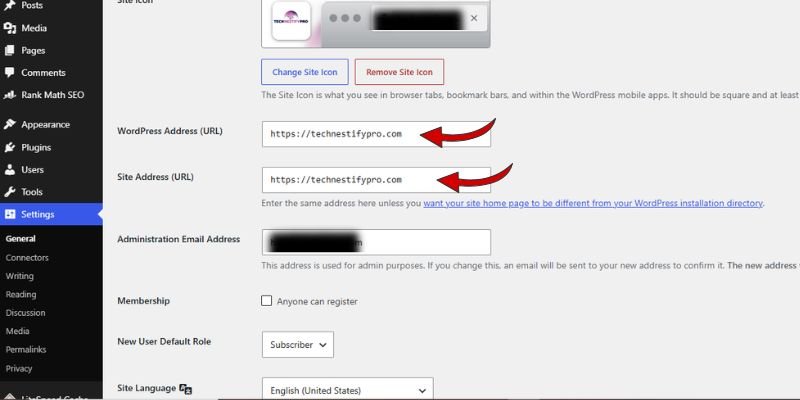
This is the most common WordPress cause. Both URLs must use the same protocol (http or https) and the same host (www or not). They should match exactly, unless you installed WordPress in its own folder.
If you want a deeper explanation of the two settings, read our Site URL vs Home URL guide.
If you can open wp-admin:
- Go to Settings, then General.
- Check WordPress Address (URL) and Site Address (URL).
- Make both identical, for example, https://www.example.com.
- Click Save Changes.
If you are locked out, use wp-config.php:
- Open File Manager or FTP and find wp-config.php in your site’s root folder.
- Add these two lines near the top, right after the opening <?php tag:
define( 'WP_HOME', 'https://www.example.com' );
define( 'WP_SITEURL', 'https://www.example.com' );- Save the file and reload your site.
These values override the database, so the change takes effect immediately.
A common URL-setting mistake: The two fields should use the same preferred domain and protocol. For example, if the live site is https://example.com, don’t leave one field as http://example.com or https://www.example.com. Also check whether your host redirects the www version. If WordPress and the host disagree about the preferred address, visitors can be sent back and forth.
Before editing either value, copy the current URLs somewhere safe. If the site was intentionally installed in a subdirectory, don’t replace that path with the domain root without checking the installation setup.
If you use WP-CLI:
wp option update home 'https://www.example.com'
wp option update siteurl 'https://www.example.com'If you prefer the database: To change these values directly, access phpMyAdmin, locate the wp_options table, and update the home and siteurl entries. Your table prefix may differ from wp_.
Step 4: Deactivate Plugins and Test Your Theme
Some plugins add their own redirects. The usual suspects are SSL plugins, redirect managers, SEO plugins with a redirect feature, and cache or security plugins. Two plugins that both force HTTPS will fight each other.
Let’s test them. Our plugin conflict in WordPress explains the method in more detail.
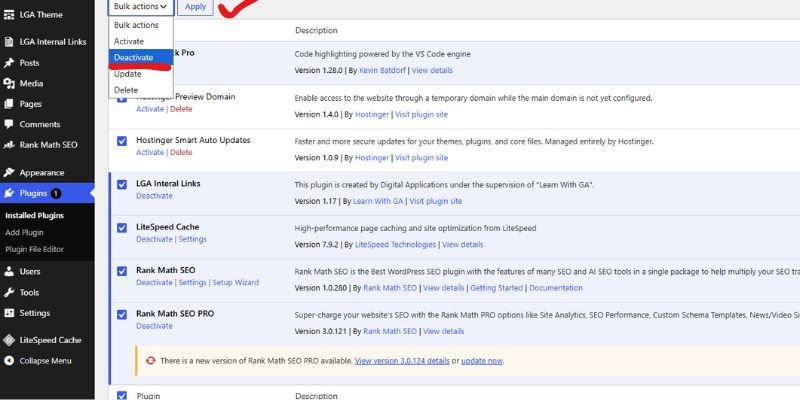
If you can open wp-admin:
- Go to Plugins, then Installed Plugins.
- Tick the box at the top to select all plugins.
- Select Deactivate from the Bulk actions dropdown, then press Apply.
- Test your site. If the loop is gone, a plugin caused it.
- Reactivate the plugins one by one. Test after each one. The plugin that causes the redirect loop to appear again is responsible for the issue.
If you are locked out:
- Access your site’s wp-content directory through File Manager or an FTP client.
- Rename the plugins folder to plugins_old. WordPress deactivates every plugin.
- Check whether your website loads correctly. If it does, change the folder name back to plugins.
- Enable your plugins individually again through the WordPress dashboard.
With WP-CLI: Run wp plugin deactivate –all.
If plugins aren’t the cause, test your theme. Navigate to wp-content/themes and change the name of your currently active theme’s folder. WordPress will switch to an available default theme. If the redirect loop disappears, the active theme is likely causing the problem. Check its functions.php file for custom redirect code, or contact the theme developer.
What this test tells you: If deactivating plugins stops the loop, don’t leave every plugin disabled. Change the theme folder back to its original name. Then enable the plugins individually, checking your website after each one.
Pay close attention to plugins that manage SSL, redirects, login security or caching. The plugin that makes the loop return is the one to investigate first. This one-at-a-time method is more useful than reinstalling several plugins at once because it helps isolate the cause.
Step 5: Reset the .htaccess File
The .htaccess file manages URL redirects on Apache and LiteSpeed web servers. One bad rewrite rule can trap every visitor in a loop.
- Open File Manager or FTP and find .htaccess in your site’s root folder. Turn on “show hidden files” if you can’t see it.
- Rename it to .htaccess_old. This keeps a backup.
- Test your site. If the redirect loop no longer appears, the previous .htaccess file was likely responsible.
- Open your WordPress admin dashboard, navigate to Settings → Permalinks, and select Save Changes. WordPress writes a fresh file.
If you can’t log in, create a new .htaccess file with the default WordPress rules:
# BEGIN WordPress
<IfModule mod_rewrite.c>
RewriteEngine On
RewriteBase /
RewriteRule ^index.php$ - [L]
RewriteCond %{REQUEST_FILENAME} !-f
RewriteCond %{REQUEST_FILENAME} !-d
RewriteRule . /index.php [L]
</IfModule>
# END WordPressThese are the standard rules described in the WordPress .htaccess documentation.
Keep the original file: Rename the existing file instead of deleting it. If the replacement does not solve the problem, you can restore the backup and ask your host to inspect the server rules. Also remember that .htaccess applies to Apache and LiteSpeed setups; editing it will not fix an Nginx redirect rule.
Using Nginx? Nginx does not use .htaccess files. Instead, its redirect instructions are defined in the server configuration. Contact your hosting provider to review these settings, or check your hosting control panel for redirect options.
Step 6: Fix HTTPS and SSL Conflicts
Forcing HTTPS is good practice. Applying HTTPS redirects through multiple settings can cause the rules to conflict and create a redirect loop. One layer says “go to HTTPS.” Another says “go back to HTTP.”
First, confirm your SSL certificate is active. An expired or missing certificate breaks the HTTPS redirect. Check your host’s SSL page, and install or renew the certificate if needed.
Next, force HTTPS in one place only. Pick one:
- Your host’s Force HTTPS setting. This is the cleanest option when your host offers it.
- One rule in .htaccess. Use this if your host has no built-in option.
- One WordPress plugin. Use this only if the first two aren’t available.
Then turn off the others. Remove extra HTTPS code from .htaccess, and deactivate any SSL plugin you no longer need.
A useful check before changing anything: Open the host panel and see whether HTTPS redirection is already enabled. Review your WordPress plugins and .htaccess file for any additional redirect rules that may conflict.
If two layers are forcing HTTPS, choose one layer to handle the redirect and remove the duplicate rule. Don’t disable the SSL certificate itself; the goal is to remove conflicting redirects, not to turn off HTTPS.
Here is a clean .htaccess rule you can use if you pick option 2:
RewriteEngine On
RewriteCond %{HTTPS} off
RewriteRule ^ https://%{HTTP_HOST}%{REQUEST_URI} [L,R=301]If your site sits behind a load balancer or reverse proxy, WordPress may see every request as plain HTTP and keep redirecting. Add this to wp-config.php so WordPress trusts your proxy’s header:
if ( isset( $_SERVER['HTTP_X_FORWARDED_PROTO'] ) && $_SERVER['HTTP_X_FORWARDED_PROTO'] === 'https' ) {
    $_SERVER['HTTPS'] = 'on';
}Use this only when you control the proxy. Otherwise, anyone could fake the header.
Step 7: Fix Cloudflare and CDN SSL Settings
A CDN can cause a loop that you can’t see inside WordPress. The issue arises from conflicting redirect settings between the CDN and the origin server.
The classic example is Cloudflare’s Flexible SSL mode. Cloudflare receives the visitor’s HTTPS request but connects to the origin server using HTTP. The server then redirects that request to HTTPS. Cloudflare asks over HTTP again. The loop begins.
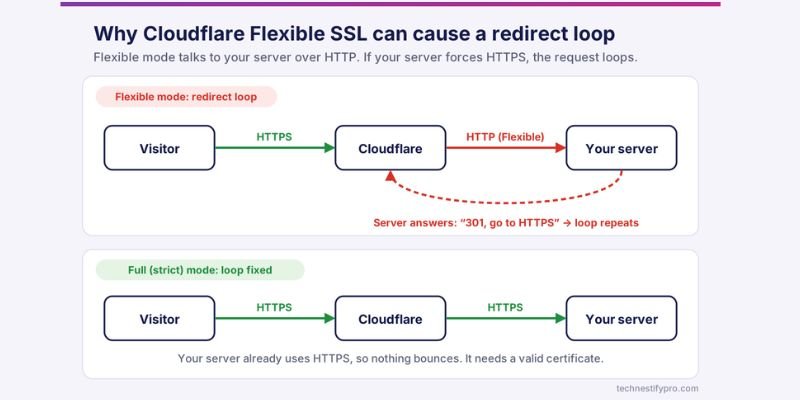
First, test whether Cloudflare is the cause:
- Sign in to your Cloudflare account and select your website from the dashboard.
- Go to Overview, then Advanced Actions, and click Pause Cloudflare on Site.
- Test your site. If the loop stops, Cloudflare’s settings caused it.
Then fix the SSL mode:
- Open SSL/TLS, then Overview.
- Select Full (strict) instead of the Flexible SSL mode.
- Make sure your server has a valid certificate first. Full (strict) needs one.
- Unpause Cloudflare and test again.
Cloudflare’s documentation lists other settings that can cause loops. Here they are in plain language:
| Cloudflare setting | When it loops | Fix |
| Flexible mode | Your server redirects HTTP to HTTPS | Switch to Full or Full (strict), or remove the HTTPS redirect from your server |
| Full or Full (strict) | Your server redirects HTTPS back to HTTP | Remove the HTTP redirect from your server |
| Always Use HTTPS | Your server redirects HTTPS to HTTP | Remove that server redirect, or turn off Always Use HTTPS |
| HSTS | A setting sends visitors back to HTTP | Fix the HTTP redirect, or turn HSTS off |
| Redirect Rules or Page Rules | Two rules conflict, or a rule points to itself | Review and remove the conflicting rule |
Other CDNs work the same way. Pause or bypass the CDN, confirm the loop stops, then fix its SSL settings.
A useful distinction: If the site works when the CDN is paused, the problem is likely in the connection between the CDN and your origin server, or in a CDN redirect rule. If the loop continues with the CDN bypassed, return to the WordPress and server checks instead of repeatedly changing CDN settings.
Step 8: Fix www, Trailing Slash and Old URL Conflicts
Choose one main version of your site. For example, pick https://www.example.com or https://example.com. Then redirect every other version to it in one hop, in one direction.
Check these places for rules that disagree:
- Your host’s control panel (force www or force non-www)
- .htaccess
- Redirect and SEO plugins
- CDN rules
If a trailing slash loops, one rule adds the slash and another removes it. Pick one form. Check Settings, then Permalinks, and remove the extra rule that fights it.
After a migration: Check the old domain, the new domain, and both www versions before running a database replacement. A broad search-and-replace can change URLs you did not intend to change, so keep the backup and use –dry-run first. Review the preview before running the command for real.
After a migration, old URLs may still sit inside your content and settings. Run a search-and-replace with WP-CLI. Always test first with –dry-run:
wp search-replace 'http://old-domain.com' 'https://www.example.com' --dry-runIf the preview looks right, run the same command without –dry-run. Create a backup of your database before making these changes.
What If Only wp-admin, wp-login or One Page Redirects in a Loop?
Sometimes the front of your site works, but the login page loops. Or only one page fails. Both cases have clear fixes.
If only wp-admin or the login page loops:
- Clear cookies for your site, then try again in a private window.
- Check WP_HOME and WP_SITEURL (Step 3). A mismatch breaks login cookies.
- Check that FORCE_SSL_ADMIN isn’t forcing HTTPS while your site URLs use HTTP.
- Rename the plugins folder (Step 4). Security plugins that change the login URL often cause this. If a plugin stopped working before the loop began, read about when a plugin stops working altogether.
- Add the proxy header code from Step 6 if you use a proxy.
WordPress login troubleshooting note: When the homepage loads but /wp-admin keeps redirecting, check the WordPress Address and Site Address before changing login settings. Then clear that site’s cookies and temporarily test without security or login-related plugins. A plugin that changes the login URL can affect the login route even when the rest of the website works.
If only one page loops:
- Open your redirect plugin and your SEO plugin’s redirect manager. Look for a rule that sends the page to itself, or to a URL that sends it back.
- Check .htaccess for a rule that matches that page.
- Remove the rule that points the URL at itself, then clear your caches.
Extra Tips to Prevent ERR_TOO_MANY_REDIRECTS
- Test major changes on a staging site before updating your live website. A staging copy keeps your live site safe.
- Force HTTPS in one place only. Write down where you set it.
- Pick one main version of your domain. Redirect all other versions to it.
- Save a copy of your .htaccess file before making any edits.
- Re-run the curl check after every redirect change. It takes ten seconds.
- Keep every redirect to a single hop. Short paths are faster and easier to debug.
- Avoid running two plugins that do the same redirect or SSL job.
- Keep a log of your changes. If something breaks, you know what to undo.
- Set up uptime monitoring that follows the full redirect chain. Some basic checks only read the first response and miss loops.
Common ERR_TOO_MANY_REDIRECTS Problems and Fixes
- I fixed the setting, but the error is still there. Clear your browser, plugin, host and CDN caches, then test in a private window.
- The site works in incognito but not in my normal browser. Delete cookies and cached files for that one site.
- I can’t open wp-admin. Use File Manager or FTP to rename the plugins folder, or set the URLs in wp-config.php.
- The loop only happens on my phone. Clear Safari or Chrome site data on that phone and turn off any content blockers.
- The browser keeps forcing HTTPS even after I fixed the server. Your browser may have saved an HSTS rule. Delete the stored site data and reload the page.
- I tried everything, and it still loops. Check your server error log, run a database search-and-replace for old URLs, and ask your host to check server-level rules.
Does ERR_TOO_MANY_REDIRECTS Hurt SEO?
Yes. A looping page never loads, so search engines can’t crawl or index it. Google says Googlebot follows up to about 10 redirect hops. A loop never ends, so Googlebot gives up. Google explains how it treats redirects in its redirects and Google Search documentation.
Here is what to watch for:
- Search Console may report the affected URLs as a Redirect error in the Page indexing report.
- If the loop hits important pages, or your whole site, those pages can drop out of search until you fix it.
- Long redirect chains without a loop also waste crawl time and slow down visitors.
After you fix the loop, check the affected URL again with the redirect checker or curl. Confirm that it reaches the intended final URL and returns a successful response rather than repeating 301 or 302 redirects. Then open Search Console, inspect an affected URL, and click Request indexing. Keep every old URL pointing to its final page in a single redirect.
Conclusion
You now know how to fix ERR_TOO_MANY_REDIRECTS. You learned how a redirect loop works, how to read the loop with curl, and how to test the eight most common causes in a smart order. You also learned how to protect your SEO and prevent the error from coming back.
Start with the quick wins: clear your caches and match your WordPress URLs. Then move on to plugins, .htaccess, HTTPS and Cloudflare. Change one thing at a time, and test after each change. You will find the cause.
Next step: While your site is back up, run the curl check from Step 1 on your own homepage. Then read our guide on fixing a broken WordPress site to learn how to handle the next error with the same calm method.
Questions People Ask About the Too Many Redirects Error
Here are quick answers to the questions readers ask most about this error.
It means your browser got stuck in a redirect loop. One address redirects to another, which then points back to the first. The browser stops after about 20 redirects and shows the error. The cause is almost always a setting on the website, not a problem with your device.
Delete the cookies for that one site, then reload the page. Try a private window to test with a clean state. Turn off extensions that rewrite URLs. If the error appears in every browser, the website has the problem, and only the owner can fix it.
The usual reason is the Flexible SSL mode. Cloudflare connects to your server over HTTP, and your server redirects HTTP to HTTPS. Cloudflare asks over HTTP again, and the loop starts. Switch to Full (strict) and make sure your server has a valid certificate.
It is another way to describe the same problem. Your site sends the browser through more redirects than it will follow. Usually, HTTP and HTTPS rules point at each other. Find the repeating URLs with curl -IL, then remove the rule that sends visitors back.
Safari shows “Too many redirects occurred” when the page loops, the same way Chrome does. A stale cookie in Safari can cause it for you alone. Clear that site’s website data in Safari settings, then reload. If it still fails, the site owner needs to fix the loop.
It is almost always the website’s. Redirect rules, SSL settings or CDN settings create the loop. The one exception is a bad cookie in your own browser. Clear that site’s cookies and try a private window before you assume the site is broken.
Yes. A stale or corrupted cookie can keep replaying an old redirect. That makes the site loop for you while it works for everyone else. Delete the cookies for that one site and reload. A private window is a fast way to confirm this cause.




- Be Respectful
- Stay Relevant
- Stay Positive
- True Feedback
- Encourage Discussion
- Avoid Spamming
- No Fake News
- Don't Copy-Paste
- No Personal Attacks
- Be Respectful
- Stay Relevant
- Stay Positive
- True Feedback
- Encourage Discussion
- Avoid Spamming
- No Fake News
- Don't Copy-Paste
- No Personal Attacks
