How to Update PHP in WordPress (Step-by-Step, Updated October 2026)
Published: 29 Oct 2026
Quick Answer: How Do You Update PHP in WordPress?
You can not change PHP through your WordPress dashboard. Instead, you need to access your hosting account and update it there. First, back up your website and update your plugins. Then open your host’s PHP settings, select PHP 8.3 or 8.4, apply the change, and test your site.
Urgent security notice (October 2026): On October 21, 2026, the PHP project issued updates for PHP 8.5.12, 8.4.27, 8.3.36, and 8.2.35 to address two critical security flaws: CVE-2026-109618 and CVE-2026-109619. No official releases were provided for PHP 8.1 or earlier. If your website uses an unpatched version or runs PHP 8.1 or an older release, take action promptly. See the security section below for details.
You log in to your WordPress dashboard and notice a warning that your PHP version is outdated. Soon after, you hear about a serious PHP security vulnerability and start wondering what steps to take and where to find the right settings.
Don’t worry. This step-by-step guide explains how to upgrade PHP on your WordPress website safely. You don’t need coding skills. Before you begin, make a backup, set aside around 15–30 minutes, and make sure you can log in to your hosting account.
I recently changed the PHP version on my WordPress website, technestifypro.com, using Hostinger’s hpanel. I explain my experience and the steps I took in the Hostinger section below. I also verified the CVE identifiers, patched PHP releases, and support timelines using the official documentation from php.net and WordPress.org.
Key Takeaways
- Your host controls PHP, not WordPress.Updating WordPress core, its plugins, or its themes does not automatically upgrade the PHP version running on your hosting server.
- WordPress.org recommends PHP 8.3 or greater. Most sites should pick 8.3 or 8.4.
- Create a backup before making changes, and if possible, try the PHP update on a staging copy of your website first.
- After you switch, confirm that Site Health shows a patched version number such as 8.3.36.
Can You Update PHP From the WordPress Dashboard?
No, you can’t. WordPress only displays your PHP version. Your hosting provider manages PHP on its server, so log in to your hosting account to change the version or contact your host and ask them to update it for you.
PHP version and WordPress version are two separate things. WordPress is the software you update through the dashboard, while PHP is the language engine your hosting provider installs on the server. Updating WordPress core, plugins, or themes never changes PHP.
Think of WordPress as a car and PHP as the engine of a car. WordPress sits on top. Your host owns the engine.
Before You Upgrade WordPress PHP: What to Get Ready
Prepare these seven things before updating PHP on your WordPress site. A few minutes of prep keeps your site safe.
- Your hosting login. You update PHP through your hosting provider’s control panel, not through WordPress.
- WordPress admin access. Use it to check your PHP version and update your plugins.
- A backup tool. UpdraftPlus and Duplicator are good options, and many hosting providers also offer one-click backup tools.
- A staging site (optional but smart). A staging site gives you a private copy of your website where you can test the new PHP version.
- A list of your plugins and theme. Check that each one supports the new PHP version.
- A quiet time window. Pick a low-traffic hour.
- 15 to 30 minutes. The PHP switch takes only a few minutes, but testing your website takes longer.
How to Update PHP in WordPress: Step by Step
To update PHP in WordPress, check your current version, update your software, create a backup, change PHP through your hosting control panel, and then clear the caches and test your site. Follow each step in order, and always create a backup before making changes.
Step 1: Check Your Current PHP Version
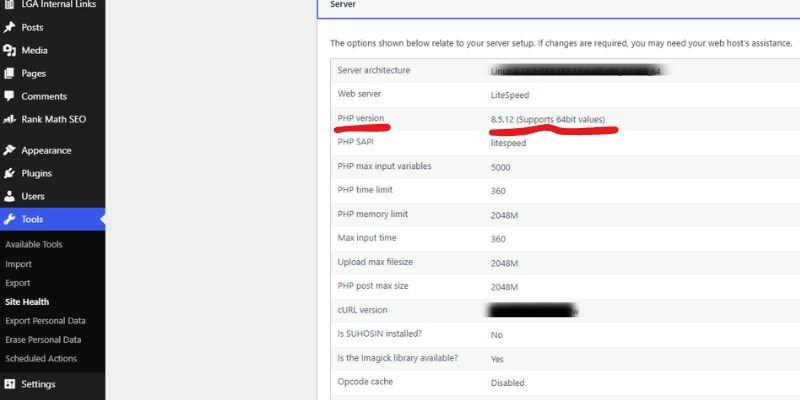
Go to Tools > Site Health > Info > Server and note the complete PHP version number.
You’ll need this information if you have to revert to the previous PHP version. For other methods and how to read the patch number, see How Do I Check My WordPress PHP Version? in the upcoming section.
Step 2: Update WordPress, Themes, and Plugins
Update everything first, because plugin developers fix PHP compatibility problems in their updates.
- Go to Dashboard > Updates.
- Update WordPress core, plugins, and themes.
- Delete plugins and themes you no longer use.
Step 3: Check Plugin and Theme Compatibility
Visit each plugin’s page on WordPress.org and check the “Requires PHP” line. For premium plugins and themes, review the developer’s documentation or changelog. You can also use a PHP compatibility checker plugin to scan your site for compatibility with the target PHP version.
If a plugin turns out to be incompatible, our guide on how to reduce WordPress plugin conflicts after an update shows you how to track it down.
Step 4: Back Up Your Website
Create a full backup of your files and your database, then download a copy to your computer. Keep it until you finish testing.
Step 5: Create a Staging Site and Test There
Create a staging copy of your website, switch PHP on the staging site, and test everything before updating your live site. Follow this approach when upgrading between PHP versions, such as from 8.1 to 8.4. If you only update to a newer patch within the same version series, such as from 8.3.30 to 8.3.36, the risk is lower, so create a backup and proceed with the update.
Step 6: Find the PHP Setting and Check Which Sites It Affects
Find “PHP Version,” “PHP Configuration,” or “PHP Settings” in your hosting control panel. Some hosting panels apply PHP changes to all websites in your account, while others let you change the version for each site separately. Read the screen before you click.
Step 7: Change the PHP Version
For most websites, select PHP 8.3 or 8.4, and refer to the PHP version table to compare versions and their support dates. Your hosting provider may use different menu names, but the process remains the same. Menus change over time, so if a step doesn’t match your screen, search your host’s help pages for “change PHP version.”
Hostinger (hPanel, my host)
- Log in to Hostinger and open Websites.
- Click Manage next to your site.
- Open Advanced > PHP Configuration.
- Go to the PHP Versions tab and select the version you want to use.
- Click Update, then confirm.
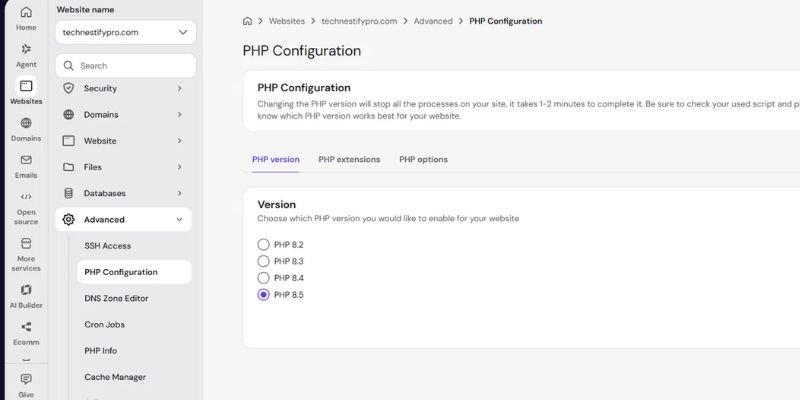
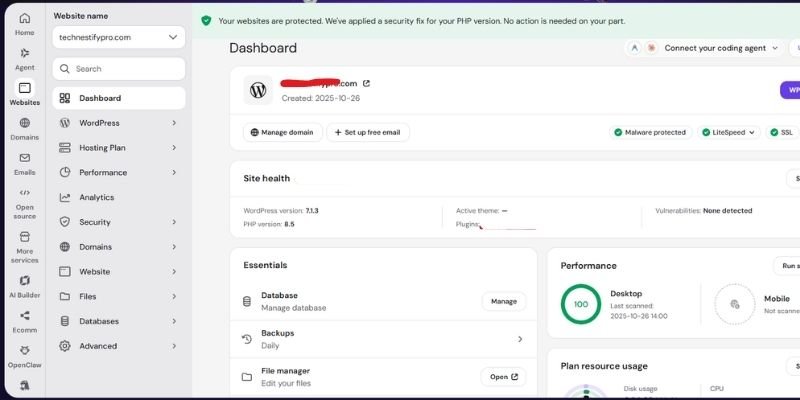
My experience: I recently updated technestifypro.com from PHP 8.3 to PHP 8.4 myself. Later, Hostinger automatically applied a security fix and updated my PHP version to 8.5 to protect websites against a PHP vulnerability.
After noticing the change, I checked WordPress Site Health and confirmed that my PHP version was 8.5. I also checked the website’s security status and plugin updates.
One thing I learned is that PHP version management isn’t always something you need to handle manually. Your hosting provider may apply security fixes when needed.
cPanel hosts
- Log in to cPanel.
- Open MultiPHP Manager (or Select PHP Version).
- Tick your domain.
- Choose the new PHP version.
- Click Apply.
Plesk
- Open Websites & Domains.
- Click PHP Settings for your domain.
- Choose the new PHP version and apply.
Bluehost, HostGator, SiteGround, GoDaddy, DreamHost, Namecheap, Cloudways
- Bluehost / HostGator: open your site’s settings, find PHP Version, and click Change.
- SiteGround: open Site Tools > Devs > PHP Manager, click the pencil icon, choose manual mode, pick your version, and confirm.
- GoDaddy: use cPanel (MultiPHP Manager) on web hosting, or the site settings on Managed WordPress.
- DreamHost: open Manage Websites, choose PHP Version, and change it.
- Namecheap: open cPanel and use Select PHP Version.
- Cloudways: open Server Management > Settings & Packages > Packages and change the PHP version there.
WP Engine and Kinsta
Both are managed hosts. Find the PHP setting in your website’s dashboard. For example, WP Engine provides it in the site overview, while Kinsta lists it under Tools > PHP Engine.
How to Update PHP in WordPress Without cPanel
You can update PHP without cPanel by using your host’s own dashboard, and nearly every host has one. Find “PHP Version,” “PHP Settings,” or “PHP Configuration” in your hosting panel, usually under Advanced, Websites, or Tools.
- Custom host dashboards (Hostinger hPanel, SiteGround Site Tools, Kinsta, WP Engine, Cloudways): open your site, then search the menu for “PHP.” Use the host steps above.
- Plesk: In Plesk, go to Websites & Domains > PHP Settings and select the new PHP version.
- Managed hosts that hide the setting: ask support to change it. Use the support message template below.
- VPS or dedicated server without a panel: you or your sysadmin install the new PHP packages and point your web server (Apache or Nginx with PHP-FPM) at them. Back up first, and ask your provider if you don’t manage the server yourself.
If you can’t find the setting after a few minutes, contact support. Their support team can usually update the PHP version within a few minutes.
My Host Isn’t Listed
Open a support chat and send this message:
Hello, I’d like to update the PHP version for my WordPress website: [your domain]. Site Health shows PHP [your version]. Please tell me which PHP versions are available, whether the change applies only to this site, and whether the October 2026 security fixes (PHP 8.5.12, 8.4.27, 8.3.36, 8.2.35) are installed.
My Host Updates PHP Automatically
Some hosts manage PHP for you, and SiteGround’s Managed PHP option is one example. Check your panel to see whether automatic updates are on. If you want control, switch to manual mode.
Step 8: Confirm the Exact PHP Version
Go to Tools > Site Health > Info > Server and check whether the PHP version number reflects the updated patch. The full version number guide explains how to read it. Most panels let you pick a PHP line (like 8.3), not an exact patch, and your host installs the latest patch it has. If you still see an older patch, ask your host to apply the fix.
Step 9: Clear Your Caches
Clear your hosting cache, your caching plugin, and your CDN. Old cached pages can hide problems or show old errors.
Step 10: Test Your Website
- Open your website’s homepage in a private browsing window.
- Click through a few pages and posts.
- Log in to the WordPress dashboard.
- Test forms, menus, search, and checkout if you run a store.
- Check Site Health for new warnings.
Pro tip: A patch update inside the same line carries little risk. Jumping a whole line (8.1 to 8.4) needs staging and more testing.
For advanced users: If you use WP-CLI, run wp –info to see which PHP version the command line uses. Your web server may use a different PHP version than the one shown there.
How Do I Check My WordPress PHP Version?
Go to Tools > Site Health > Info > Server in your WordPress dashboard. Your PHP version appears there. Record the complete version number, including all the digits at the end.
Method 1: Site Health
- Log in to WordPress.
- Go to Tools > Site Health.
- Click the Info tab.
- Open Server.
- Read the PHP version line.
Method 2: Your Hosting Panel
Your host’s PHP settings page also shows the version. Look for “PHP Version,” “PHP Configuration,” or “MultiPHP Manager.”
Method 3: Query Monitor (Optional)
If you already use the free Query Monitor plugin, it shows your PHP version in its admin bar menu.
How to Read the Full Version Number
PHP versions have three parts, like 8.3.36. The first two numbers (8.3) identify the PHP version series, while the last number (36) indicates the patch level. To protect your site against the October 2026 vulnerabilities, use PHP 8.5.12, 8.4.27, 8.3.36, 8.2.35, or a later patch in the same series. If your site runs PHP 8.3.30, it has not received the required fix yet.
Which PHP Version Should WordPress Use Right Now?
Choose PHP 8.5, the newest release, if your hosting environment, WordPress version, theme, and plugins support it. If your website needs more time before upgrading, PHP 8.4 is also a good choice.
WordPress.org recommends PHP 8.3 or later, but its minimum supported version is not the same as its recommended version. WordPress can still run on older PHP versions, but those versions may no longer receive official security updates.
Before upgrading, check your theme and plugins for compatibility, create a backup, and confirm that your website works correctly after the change. Whichever PHP version you select, ensure it includes the latest available security patches.
| PHP version | Status (October 2026) | Patched release | Official support ends | What to do |
|---|---|---|---|---|
| 8.5 | Active support | 8.5.12 | Active: Dec 31, 2027. Security: Dec 31, 2029 | Fine if your plugins support it |
| 8.4 | Active support | 8.4.27 | Active: Dec 31, 2026. Security: Dec 31, 2028 | Best pick for long support |
| 8.3 | Security fixes only | 8.3.36 | Dec 31, 2027 | WordPress.org’s recommended baseline |
| 8.2 | Security fixes only | 8.2.35 | Dec 31, 2026 | Plan your move now |
| 8.1 | End of life | None official (last release 8.1.34) | Dec 31, 2025 | Update now |
| 7.4 and older | End of life | None official | Ended | Update now |
Sources: php.net supported versions, php.net security advisory, WordPress.org requirements. The PHP security team also published source-code backports for PHP 7.4, 8.0, and 8.1, but those are not official releases. Ask your host whether it applies them (UpGuard).
Is PHP 8.4 Stable for WordPress?
Yes, in most cases. Current WordPress guidance lists PHP 8.4 as compatible, and many hosts offer it. Your plugins and theme affect how well your site works with the new PHP version, so test it on a staging site if you use older or custom plugins.
What Is the Latest PHP Version for WordPress?
PHP 8.5 is the newest release line, and WordPress documentation lists it as compatible (ESEOSpace summary of WordPress.org guidance). Most sites do well on 8.3 or 8.4 because more plugins have tested against them.
Do I Need to Update PHP Because of the October 2026 Security Flaws?
Yes, if your PHP version is below the patched release for its line, or if you run PHP 8.1 or older. The security section below gives the facts.
Why Should You Update PHP on WordPress?
Update PHP on your WordPress site for four main reasons: better security, faster performance, improved compatibility, and support for future WordPress updates.
- Security
Older PHP versions no longer receive security updates, which makes websites running them potential targets for attackers. The October 2026 flaws show how serious that gets (see the security section below).
- Speed
Newer PHP versions run WordPress code faster. Your pages load quicker, and your server works less per visit.
- Plugin and Theme Compatibility
Developers drop support for old PHP versions. If you wait too long, your plugins and themes stop updating or stop working.
- Future WordPress Updates
An outdated PHP version can lead to compatibility problems with future WordPress releases. WordPress may raise its minimum supported PHP version as newer releases become available. Although WordPress supports PHP 7.4 and newer, using an older version that has reached end of life can leave your website vulnerable to security threats.
WordPress.org recommends PHP 8.3 or later, while its hosting handbook recommends PHP 8.4 or later for production websites. Before upgrading PHP, make sure your WordPress version, theme, and plugins support the version you plan to install.
The October 2026 PHP Security Flaws (PHP2Shell)
Two serious PHP vulnerabilities, known as PHP2Shell, allow attackers to execute code on a server without logging in. The PHP project fixed them on October 21, 2026.
- What Happened?
According to php.net, PHP 8.5.12, 8.4.27, 8.3.36 and 8.2.35 fix two critical vulnerabilities that can allow unauthenticated remote code execution. Both vulnerabilities have a CVSS v4.0 severity score of 9.2.
- CVE-2026-109618: remote code execution through out-of-memory corruption.
- CVE-2026-109619: remote code execution through stale global state.
Security firms Wiz and Calif reported finding the flaws using AI tools (GIGAZINE). According to UpGuard, the vulnerability IDs leaked before the scheduled release, and patched PHP builds became available several hours ahead of schedule.
- Which PHP Versions Does It Affect?
Any PHP version that lacks the security patch remains vulnerable. According to Laravel Forge, these flaws affect PHP versions dating back to 2004.
PHP 8.1 and older have no official release. UpGuard reports that the PHP security team published minimal source backports for 7.4, 8.0, and 8.1, so check whether your host applies them. The safest option is to install a patched release from a PHP version that still receives official support.
3. Does It Affect WordPress Sites?
Yes, if the site runs on unpatched PHP. WordPress is a PHP application, and updating WordPress, plugins, or themes cannot fix a PHP flaw. WordPress.org said the issues are not specific to WordPress and that no WordPress update is planned (ESEOSpace).
Automattic said sites it hosts, including WordPress.com, WordPress VIP, WP Cloud, Pressable, and Tumblr, are already protected. If you host your site elsewhere, check with your host.
4. How Does It Affect Websites Around the World?
PHP runs most of the web, so a PHP flaw reaches a huge number of sites. These figures show exposure, not confirmed damage:
- PHP powers 70.8% of websites whose server-side language W3Techs can identify (W3Techs, July 15, 2026).
- WordPress runs 40.8% of all websites (W3Techs, August 18, 2026).
- Security firm CybelAngel counts about 2.24 million internet-facing PHP hosts, with 59% on versions that get no fix (CybelAngel).
- An analysis of api.wordpress.org data from October 22, 2026 found 40.4% of reporting WordPress sites on PHP 8.3 or later, 23.7% on 8.2, 30.2% between 7.4 and 8.1, and 5.7% older (Digidop). That figure includes only websites that communicate with WordPress.org, and a site running PHP 8.3 remains vulnerable until its hosting provider installs version 8.3.36 or another patched release.
5. Are Attackers Using It?
Sources disagree on scale.CybelAngel reports that Cloudflare’s CTO and Aikido observed attacks before the public disclosure, while UpGuard says proof-of-concept code is publicly available. UpGuard also notes that the PHP Foundation and Cisco PSIRT had reported no confirmed malicious exploitation when the vulnerabilities were disclosed. By October 22, Sansec judged mass exploitation less likely than first feared, because public exploits need specific server conditions (FlowNinja summary).
I couldn’t find a verified count of WordPress websites that have been hacked. Treat the flaws as urgent, not as proof that attackers hit your site.
6. What Should You Do Right Now?
- Check your exact PHP version (see Step 1).
- Back up your site.
- Switch to a supported PHP line, such as 8.3 or 8.4.
- Confirm that Site Health shows a patched release.
- Look for signs of a break-in (see the hacked-site section).
Was My Site Hacked Before I Updated PHP?
Possibly, but you can check your website in about five minutes. Updating PHP helps protect against new attacks, but it won’t remove an intruder who has already gained access.
- Go to Users and check for any administrator accounts you don’t recognize.
- Look for files that changed without a reason.
- Ask your host to scan your account.
- Change your admin and hosting passwords.
Although reports of exploitation exist, I couldn’t find a verified count of compromised WordPress websites. Check your site, and don’t panic.
How to Update PHP on Localhost or Windows
To update PHP on localhost, change the PHP version inside your local tool (Local, XAMPP, Laragon, or WAMP), then restart its server. This only changes PHP on your own computer. It does not change the PHP on your live website, so you still need the host steps above for that.
Run php -v in a terminal or command prompt first to see which PHP version your computer’s command line uses. Your local server tool may use a different PHP version, so also check it under Tools > Site Health in your local WordPress dashboard.
- Local (by WP Engine): In Local by WP Engine, open your site, go to Settings or the Overview tab, and select a new PHP version from the PHP version dropdown. Local may offer to download that version first. Restart the site afterwards.
- Laragon: Right-click the Laragon window, select PHP, and choose the version you want to use. To add a version Laragon doesn’t list, download the Windows build from windows.php.net and extract it into Laragon’s binphp folder, then select it.
- XAMPP: XAMPP includes a specific PHP version with each release. The simplest path is to install a newer XAMPP release that ships the PHP version you want, after you back up your htdocs folder and databases.
- WAMP: click the WAMP icon, open PHP > Version, and choose a version you have installed. Install additional PHP versions from the WAMP add-ons page.
- Plain PHP installed on Windows: For a standalone PHP installation on Windows, download the Thread Safe or Non-Thread Safe build that matches your web server from windows.php.net. Extract the files, then update your PATH and web server configuration to use the new folder. Restart your web server, then run php -v to verify the PHP version.
Menu options may vary between versions, so consult your tool’s documentation if a step doesn’t match what you see. Back up your local site before changing PHP, then test it as thoroughly as you would test a live website.
Extra Tips and Best Practices for Updating PHP
Follow these ten practices to make PHP updates easier and smoother.
- Test on a staging site first.
- Update during a quiet time for your traffic.
- If your PHP version is several releases behind, upgrade one version at a time and test your site after each upgrade.
- Keep plugins and themes updated every month.
- Turn on automatic backups.
- Check Site Health every few months for PHP warnings, and check again whenever PHP ships an emergency release.
- Check PHP settings and extensions after the update, such as memory limit and max execution time.
- Choose plugins that receive regular updates, as their developers are more likely to maintain compatibility with newer PHP versions.
- Subscribe to your host’s status and security emails.
- Write down your PHP version and the date you changed it.
Common Problems After a PHP Update in WordPress
Most problems come from an old plugin or theme, and you can fix them by rolling back first.
White screen or “Critical error” message. A plugin or theme probably doesn’t support the new PHP. Switch back to your previous PHP version through your hosting control panel, then update or replace the plugin. WordPress often emails the name of the plugin that caused the error, so check your inbox.
- You can’t log in to wp-admin. Connect by FTP or your host’s File Manager, rename the plugins folder to plugins-old, and reload your site. Then roll PHP back in your hosting panel if the site still fails. If you get stuck in a redirect loop instead, check that your Site URL and Home URL match.
- Site Health still shows the old version. Clear your caches, confirm that you selected the correct domain (subdomains and add-on domains may have separate PHP settings), and wait a few minutes. If the old version still appears, contact your hosting provider for help.
- A 403 error appears. An old rule in your .htaccess file may conflict. Rename that file and let WordPress create a new one. If your pages return 404 errors afterward, resetting your permalinks usually fixes it.
- A plugin warns about deprecated functions. The plugin is probably old. Look for an updated version or a replacement.
- Your hosting panel has no PHP option. Some hosts hide it or manage it for you. Ask support to make the change.
- How to find the error: Turn on WP_DEBUG_LOG in your wp-config.php file. WordPress then writes errors to a log file, and your host’s panel also has an error log. Turn debug mode off when you finish.
Should You Fix This Yourself or Ask Your Host?
Most beginners can update PHP on their own if they have a backup and access to the PHP settings in their hosting control panel. Ask your host or a developer if you can’t find the setting, your site uses heavily customized or very old plugins, or you run a store with live orders. You don’t need a developer to handle a standard PHP version upgrade.
If your host runs old PHP and won’t update it, move to a host that supports current PHP versions. Running old PHP puts your site at risk. If you’re ready to switch, our guide to hosting your own WordPress website walks you through choosing a host and setting up your site.
Conclusion
You now know how to update PHP on your WordPress site safely. You check your version, back up your site, switch PHP in your hosting panel, confirm the exact patch number, clear caches, and test. This helps protect your site against the October 2026 vulnerabilities and may improve its performance.
Your next step: open Tools > Site Health right now and check your PHP number. Then read our guides on plugin conflicts and common WordPress errors, and your Site Health guide, to keep your site healthy.
FAQs about Updating PHP in WordPress
You update PHP through your hosting account, not your WordPress dashboard. Log in to your hosting panel, open the PHP settings, select a supported version such as PHP 8.3 or 8.4, and save your changes. Back up first, then test your site.
Go to Tools > Site Health > Info > Server in your WordPress dashboard. The PHP version appears on that screen. Your hosting panel also shows it, and you can read the full number, including the patch, in both places.
PHP 8.5 is the latest release series, and WordPress documentation lists it as compatible. WordPress.org recommends PHP 8.3 or newer, while PHP 8.3 and 8.4 may offer broader plugin compatibility because more plugins have been tested with them.
Yes, in most cases. Current WordPress guidance lists PHP 8.4 as compatible, and many hosts offer it. Your plugins and theme decide how well your own site runs on it, so test on staging first.
PHP 8.3 or 8.4 works best for most sites. WordPress.org recommends PHP 8.3 or newer, and PHP 8.4 will receive security updates through December 31, 2028. Check your plugins and theme for compatibility before upgrading, and avoid PHP 8.1 or older versions.
It can, but it rarely does if you prepare. Most problems come from old plugins or themes. Update your plugins and theme first, create a backup, and test the new PHP version on a staging site if possible. If anything breaks, revert to your previous PHP version.
Your site runs on code that no longer gets security fixes, so attackers can target known flaws. Some plugins may stop working, and you may lose the ability to update WordPress. Your site can also load slower.
Yes. Most hosting providers let you change your PHP version in just a few clicks. Make a backup first and follow the steps in this guide. If you can’t find the PHP setting, contact your hosting provider’s support team for help.
Check your PHP version every few months. Each PHP version receives security updates for a limited period, so plan your upgrade before your current version reaches its end-of-support date. Apply emergency security releases right away.
Your cache may still display outdated information, or you may have updated the PHP version for a different domain. Clear your caches, check the right site in your host’s panel, wait a few minutes, and reload Site Health. If the old PHP version still appears, contact your hosting provider for assistance.
Change the PHP version inside your local tool, such as Local, Laragon, XAMPP, or WAMP, then restart its server. This updates PHP only on your local computer, not on your live website.




- Be Respectful
- Stay Relevant
- Stay Positive
- True Feedback
- Encourage Discussion
- Avoid Spamming
- No Fake News
- Don't Copy-Paste
- No Personal Attacks
- Be Respectful
- Stay Relevant
- Stay Positive
- True Feedback
- Encourage Discussion
- Avoid Spamming
- No Fake News
- Don't Copy-Paste
- No Personal Attacks
