WooCommerce Pizza Builder Pro: Full Review, Features, Pricing, and Setup Guide (2026)
Published: 6 Aug 2026
Quick Answer:
WooCommerce Pizza Builder Pro is a premium WooCommerce plugin designed for pizza restaurants. It replaces standard product variations with a dedicated pizza customization interface, allowing customers to build their own pizzas while automatically calculating prices based on selected ingredients, sizes, and other options.
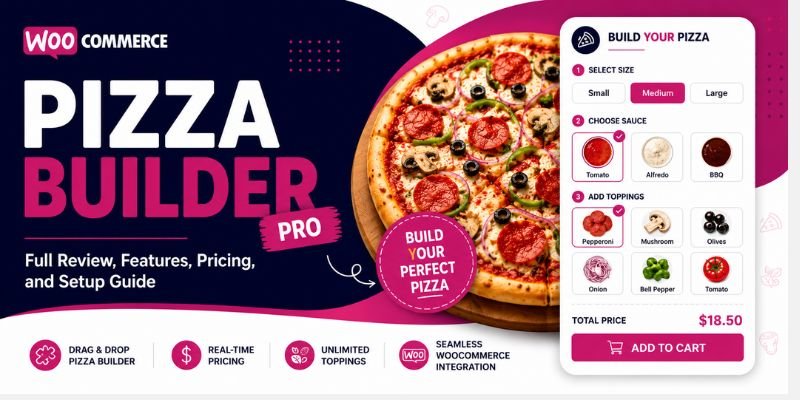
Running an online pizza business isn’t the same as selling standard WooCommerce products, and WooCommerce Pizza Builder Pro was built to solve that challenge. Every customer has different preferences. One person wants a thin crust with extra cheese, while another prefers a large pizza with half pepperoni, extra mushrooms, and no onions.
Trying to manage all these combinations using WooCommerce product variations quickly becomes difficult. As your menu grows, so does the number of variations, making your business tougher to maintain and your ordering process more difficult.
That’s where WooCommerce Pizza Builder Pro makes a real difference.
Instead of relying on hundreds of product variations, it gives customers an interactive pizza builder where they can choose sizes, crusts, sauces, cheeses, and toppings while the total price updates automatically. On the store owner’s side, it simplifies ingredient management, pricing, and menu updates through centralized controls.
In this guide, you’ll learn:
- What WooCommerce Pizza Builder Pro is
- Its standout features
- Pricing and licensing
- How to install and configure it
- Best practices for building a pizza menu
- Performance optimization tips
- Common problems and solutions
- How it compares with other WooCommerce customization plugins
- Whether it’s the right choice for your restaurant
Whether you’re launching a new pizza delivery website or improving an existing WooCommerce store, this guide will help you make an informed decision.
Quick Facts About WooCommerce Pizza Builder Pro
| Feature | Details |
| Plugin Name | WooCommerce Pizza Builder Pro |
| Plugin Type | Premium (Paid) WooCommerce Extension |
| Price | $100.00 (One-time purchase) |
| Payment Option | PayPal Pay in 4 – Four payments of $25.00 each |
| Developer | AdverGroup Web Design and Marketing Solutions (US-based agency) |
| Built For | Pizzerias, restaurants, and food delivery businesses using WordPress + WooCommerce |
| Core Function | Interactive pizza customization with live, size-based, and zone-based pricing |
| Platform | WordPress + WooCommerce |
| Customization | Create your own pizza by selecting from a variety of crusts, sauces, cheeses, and toppings. |
| Pricing System | Dynamic pricing based on pizza size, ingredients, and pricing zones |
| Master Ingredient List | Yes |
| CSV Import | Yes |
| Mobile Responsive | Yes |
| WooCommerce Integration | Fully integrates with WooCommerce products, cart, checkout, taxes, and payment gateways |
| Best For | Restaurants with customizable pizza menus and online ordering |
Key Takeaway: If your restaurant offers customizable pizzas with multiple sizes, crusts, and toppings, WooCommerce Pizza Builder Pro can simplify menu management while giving customers a smoother ordering experience.
What Is WooCommerce Pizza Builder Pro?
WooCommerce Pizza Builder Pro is a premium plugin that extends WooCommerce with a dedicated system for creating customizable pizza products. Instead of forcing customers to choose from long dropdown menus or dozens of product variations, it presents an organized builder where they can personalize every part of their order.
A typical customer can:
- Select a pizza size
- Choose a crust
- Pick a sauce
- Add or remove cheese
- Select meat and vegetable toppings
- Include premium extras
- See the updated price instantly before adding the pizza to the cart
WooCommerce automatically saves all selected options with each order, helping restaurant staff prepare pizzas accurately and reduce order mistakes.
Unlike general product add-on plugins, WooCommerce Pizza Builder Pro is built specifically for pizza businesses. Its features reflect how restaurants actually manage ingredients, pricing, and customization rather than treating pizza as just another customizable product.
Key Features
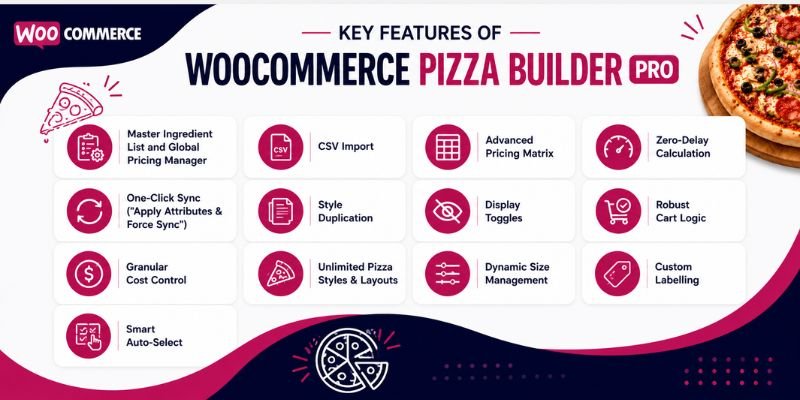
- CSV Import – Upload your full ingredient list and base prices in one batch instead of entering them manually one at a time.
- Master Ingredient List and Global Pricing Manager – Centralizes every topping, crust, and sauce price in one place instead of editing each product separately.
- Advanced Pricing Matrix – Set a global price for an ingredient (for example, a topping at a base price), then override it for specific pizza styles using dedicated price tables.
- Zero-Delay Calculation – Prices are calculated server-side, so the total appears instantly with no loading delay as customers build their order.
- One-Click Sync (“Apply Attributes & Force Sync”) – Automatically generates and updates WooCommerce product variations in accordance with your Master List settings.
- Style Duplication – Clone an existing pizza style’s full configuration to speed up adding new menu items.
- Display Toggles – Hide the product image or turn off default labels (like a “(Plain Cheese)” tag) for speciality pizzas.
- Robust Cart Logic – Uses a dedicated injection method so complex custom builds pass into the cart reliably, avoiding common WooCommerce validation failures.
- Granular Cost Control – Set different ingredient prices for each size (small, medium, large, extra-large) and even by coverage zone, since a topping on a full pizza can be priced differently than the same topping on just one half.
- Unlimited Pizza Styles & Layouts – Create distinct configurations for each menu item, including deep dish, thin crust, and gluten-free options. Use either a Grid layout (for size cards and full/left-half/right-half topping selection) or a simpler List layout for items such as calzones that do not require zone-based toppings.
- Dynamic Size Management – Enable or disable specific sizes per style (for example, offering a gluten-free crust only in a small size) without creating a separate product.
- Custom Labelling – Rename size labels per style, such as changing “Small” to “Personal 10-inch” for a specific pizza line.
- Smart Auto-Select – Automatically pre-selects the first available size so customers can’t accidentally trigger an “Add to Cart” error from an empty selection.
What Real Pricing Looks Like in Practice
The plugin’s own demo product, a Thin Crust Pizza, shows how the Advanced Pricing Matrix and Granular Cost Control work together:
| Size | Price |
| Small (12″) | $15.35 |
| Medium (14″) | $18.00 |
| Large (16″) | $21.50 |
| X-Large (18″) | $23.50 |
Standard toppings (bacon, black olives, anchovies, fresh basil, fresh garlic, Canadian bacon) add $2.35 each, while a premium topping like fresh mozzarella adds $3.45. This is the kind of size-based and ingredient-based pricing the Master Ingredient List and Pricing Matrix are built to manage automatically, rather than you creating a separate product variation for every combination.
Who Should Use This Plugin?
WooCommerce Pizza Builder Pro is best suited for businesses that sell made-to-order pizzas and want a more efficient way to handle customer customization.
It’s a good fit for:
- Pizza restaurants
- Local pizzerias
- Food delivery businesses
- Takeaway services
- Cloud kitchens
- Restaurant chains with online ordering
- Businesses offering “Build Your Own Pizza”
If your menu includes only a few fixed pizzas with no customization, the default WooCommerce product system may be sufficient. However, once customers begin choosing different sizes, crusts, sauces, and toppings, a dedicated pizza builder becomes much easier to manage.
What You’ll Need Before You Set It Up
A little prep before installing the plugin saves you from stopping mid-setup:
- A working WooCommerce store – Products, checkout, and payment gateways should already be functional.
- The plugin file and a valid license key – This is a premium plugin, so purchase it in advance and have the license key ready during activation.
- Your full menu mapped out – Sizes, crusts, sauces, cheeses, and toppings, each with a price, written down before you start.
- A recent site backup – Standard practice before installing any premium plugin, so you can roll back quickly if anything behaves unexpectedly.
- SSL and your payment gateway already configured – The builder sits on top of your existing checkout, so those need to already be working.
Pro Tip: Create a full website backup before installing premium plugins. If anything unexpected happens, you can restore your site within minutes.
Step-by-Step: How to Install and Set Up WooCommerce Pizza Builder Pro
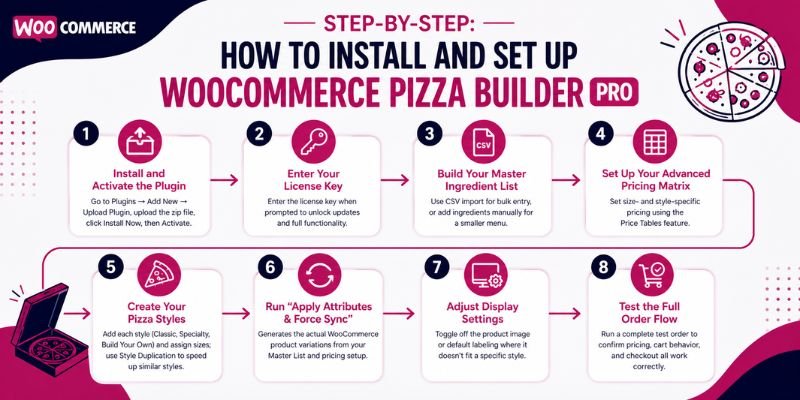
Installing WooCommerce Pizza Builder Pro doesn’t take long, but taking the time to configure it properly will save you hours of menu management later. A well-organised setup also creates a smoother ordering experience, reducing customer confusion and minimizing order errors.
Now, we’ll walk through the complete setup process, along with practical recommendations you can apply to almost any WooCommerce pizza store.
Step 1: Install WooCommerce Pizza Builder Pro
After purchasing the plugin from the official developer, download the ZIP file to your computer.
Now log in to your WordPress dashboard.
Navigate to:
Plugins → Add New → Upload Plugin
Then:
- Click Choose File
- Select the plugin ZIP file
- Click Install Now
- Activate the plugin
If your purchase includes a license key, enter it after activation so you can receive future updates and support.
Step 2: Review WooCommerce Settings
Review your WooCommerce settings before creating your pizza menu;
Go to:
WooCommerce → Settings
Verify the following:
Store Information
- Store address
- Currency
- Measurement units
Payments
Enable the payment methods your customers will use.
For example:
- Stripe
- PayPal
- Cash on Delivery
- Local Payment Gateways
Delivery Options
Configure:
- Delivery zones
- Local pickup
- Delivery charges
- Free delivery thresholds
Tax Settings
Confirm that your tax calculations match your local regulations.
Step 3: Plan Your Menu Before Adding Products
Many restaurant owners jump straight into adding pizzas.
A better approach is to plan your menu first.
Write down:
Pizza Sizes
Example:
- Personal
- Small
- Medium
- Large
- Extra Large
Crust Types
Example:
- Thin Crust
- Thick Crust
- Stuffed Crust
- Cheese Burst
- Gluten-Free
Sauces
Example:
- Tomato Sauce
- BBQ Sauce
- Garlic Sauce
- Alfredo Sauce
- Spicy Sauce
Cheese Options
Example:
- Mozzarella
- Cheddar
- Parmesan
- Vegan Cheese
Meat Toppings
Example:
- Pepperoni
- Chicken
- Beef
- Sausage
- Turkey Ham
Vegetable Toppings
Example:
- Mushrooms
- Jalapeños
- Onions
- Tomatoes
- Sweet Corn
- Bell Peppers
- Olives
Premium Add-ons
Example:
- Burrata
- Truffle Oil
- Shrimp
- Double Cheese
- Extra Chicken
Planning everything first makes the setup process much faster.
Step 4: Build Your Master Ingredient List
Now it’s time to create your ingredient database.
Instead of creating ingredients for every pizza individually, add them once.
Example:
| Ingredient | Category |
| Mozzarella | Cheese |
| Pepperoni | Meat |
| Chicken | Meat |
| Mushrooms | Vegetables |
| Jalapeños | Vegetables |
| BBQ Sauce | Sauce |
As your menu grows, this centralized approach becomes much easier to manage.
Best Practice: Keep ingredient names consistent. For example, don’t use “Mozzarella” in one place and “Fresh Mozzarella” in another unless they are actually different products.
Step 5: Configure Pricing Rules
Pricing is one of the most important parts of your setup.
Avoid using flat pricing for every pizza size.
Instead, adjust ingredient prices according to pizza size.
Example:
| Ingredient | Small | Medium | Large | XL |
| Pepperoni | $1.00 | $1.50 | $2.00 | $2.50 |
| Extra Cheese | $1.25 | $1.75 | $2.50 | $3.25 |
| Chicken | $1.50 | $2.00 | $2.75 | $3.50 |
This reflects real-world ingredient costs and keeps your pricing more accurate.
Step 6: Create Pizza Styles
Instead of adding every pizza as a completely separate setup, organize your menu into styles.
Example:
Classic Pizzas
- Cheese Pizza
- Pepperoni Pizza
- Veggie Pizza
Signature Pizzas
- BBQ Chicken
- Meat Lovers
- Supreme
Specialty Pizzas
- Gluten-Free
- Keto
- Vegan
Grouping similar products makes your menu easier to manage.
Step 7: Organize Ingredient Categories
Customers shouldn’t have to scroll through dozens of toppings in one long list.
Create logical categories such as:
- Cheese
- Meat
- Vegetables
- Sauces
- Premium Extras
This improves usability and helps customers customize their pizzas more quickly.
Step 8: Upload High-Quality Images
Good photos influence purchasing decisions.
For your menu:
- Use real pizza photos whenever possible.
- Compress images before uploading.
- Keep image sizes consistent.
- Use WebP format to reduce file size.
Avoid stock images that don’t accurately represent your food.
Step 9: Test the Entire Ordering Process
Before making your menu live, complete several test orders.
Check whether:
- Prices update correctly.
- Ingredient selections work as expected.
- The correct options appear in the cart.
- Taxes are calculated properly.
- Payment methods function correctly.
- Confirmation emails include customization details.
Testing every step helps you catch small issues before customers encounter them.
Performance Optimization Tips
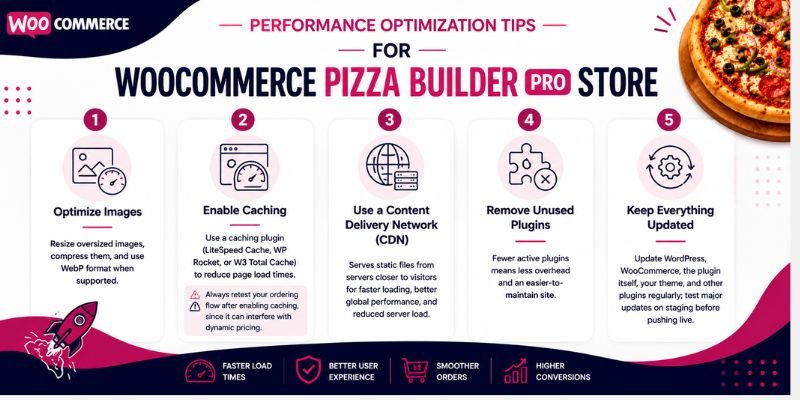
Even the best ordering experience can suffer if your website loads slowly.
Here are a few ways to improve performance.
Optimize Images
Large pizza photos can slow down your website.
Before uploading:
- Resize oversized images.
- Compress them.
- Use WebP format when supported.
Enable Caching
Caching reduces page load times by serving pre-generated content to visitors.
Popular caching plugins include:
- LiteSpeed Cache
- WP Rocket
- W3 Total Cache
Always test your ordering flow after enabling caching to ensure dynamic pricing continues to work correctly.
Use a Content Delivery Network (CDN)
A CDN stores copies of your website’s static files on multiple servers around the world.
Benefits include:
- Faster loading times
- Better global performance
- Reduced server load
This is especially useful if your customers are spread across different regions.
Remove Unused Plugins
Every plugin adds some overhead. Regularly review your installed plugins and remove those you no longer use. A leaner WordPress installation is generally easier to maintain and often performs better.
Keep Everything Updated
Software that is outdated can result in security vulnerabilities and compatibility issues.
Update:
- WordPress
- WooCommerce
- WooCommerce Pizza Builder Pro
- Your theme
- Other plugins
Before updating a live website, test major updates on a staging site whenever possible.
Best Practices for a Better Ordering Experience
Installing the plugin is only the beginning. How you organize your menu has a big impact on customer satisfaction.
Highlight Popular Choices
If certain pizzas or toppings are customer favourites, make them easier to spot. One effective approach is to feature your best-selling toppings near the top of each category, since customers often choose familiar options first.
People often appreciate recommendations when they aren’t sure what to order. Maintaining a balanced menu works well for most restaurants; you can include ready-made signature pizzas for customers who want a quick choice, alongside a “Build Your Own Pizza” option for those who prefer customization. This approach successfully appeals to different types of customers.
Keep Pricing Transparent
Display pricing changes immediately as customers customize their pizza. Whenever a customer adds or removes an ingredient, the total price updates automatically in real time. For instance, starting with a large pizza at a base price, adding extra cheese, pepperoni, or mushrooms will reflect instantly on the total before checkout. There is no need to wait until the final screen to see the actual cost.
Transparent pricing builds trust and reduces abandoned carts. Unexpected costs at checkout can frustrate customers, whereas real-time price updates create full transparency and help customers make informed decisions as they customize their order.
Don’t Overcomplicate the Menu
Providing an excessive number of options can slow down decision-making.
Focus on your most popular ingredients and add new options based on customer demand rather than trying to include everything at once.
Offer Signature and Custom Pizzas
A balanced menu works well for most restaurants.
Include:
- Ready-made signature pizzas for customers who want a quick choice.
- For people who like to make things their own, there is a “Build Your Own Pizza” choice.
This approach appeals to different types of customers.
Review Customer Feedback
Pay attention to:
- Frequently requested toppings
- Common complaints
- Confusing menu items
- Abandoned orders
Small improvements based on real feedback can make your ordering process more effective over time.
WooCommerce Pizza Builder Pro vs. Alternative Solutions
WooCommerce Pizza Builder Pro isn’t the only way to sell customizable pizzas online. Depending on your business model, another solution might be a better fit.
Here’s how it compares with common alternatives.
| Feature | WooCommerce Pizza Builder Pro | WooCommerce Variations | Product Add-Ons Plugins |
| Designed for Pizza Businesses | ✅ | ❌ | ❌ |
| Dynamic Ingredient Pricing | ✅ | Limited | Varies |
| Central Ingredient Management | ✅ | ❌ | ❌ |
| Visual Pizza Builder | ✅ | ❌ | Limited |
| CSV Ingredient Import | ✅ | ❌ | Usually No |
| Best for Large Pizza Menus | ✅ | ❌ | ⚠️ |
| Easy to Maintain | ✅ | ❌ | Moderate |
When Should You Choose WooCommerce Pizza Builder Pro?
This plug-in is a good choice if your company or business:
- Offers build-your-own pizzas – It replaces confusing variation combinations with an interactive, visual builder where customers can easily choose their preferred sizes, crusts, sauces, and toppings.
- Has multiple pizza sizes and crust options – It allows granular cost control by adjusting ingredient prices per size and lets you manage options like offering specific crusts or options only in certain sizes.
- Frequently updates ingredient prices – A centralized Master Ingredient List and Global Pricing Manager allow you to update an ingredient price once globally rather than modifying each product variation individually.
- Wants to simplify menu management – Store owners can avoid manual entry overhead through CSV imports and one-click synchronization via the “Apply Attributes & Force Sync” feature.
- Receives many online orders – With server-side zero-delay price calculation and a robust cart injection method, the plugin provides a reliable, fast experience that minimizes checkout errors.
When Another Solution May Be Enough
If you don’t need to make a lot of changes, a simpler option like the built-in WooCommerce variable product system might work just fine for your restaurant. You can likely rely on default options if you:
- Sell only a few fixed pizzas – If your menu is composed purely of pre-set combinations, the default WooCommerce product configuration provides everything you need without extra tools.
- Don’t allow topping customization – When customers are not permitted to add or remove individual toppings, you completely avoid the massive multiplication of possible variations that makes standard stores difficult to maintain.
- Have a very small menu – A limited selection of items means you won’t face severe overhead when managing or updating ingredients manually row by row.
- Only need simple product options – Basic product choices, such as a straightforward size selection dropdown, can be easily handled by standard core features without specialized extensions.
Choosing the right plugin ultimately depends on your exact menu structure and operational workflow, rather than simply selecting the option with the longest list of features.
Pros and Cons of WooCommerce Pizza Builder Pro
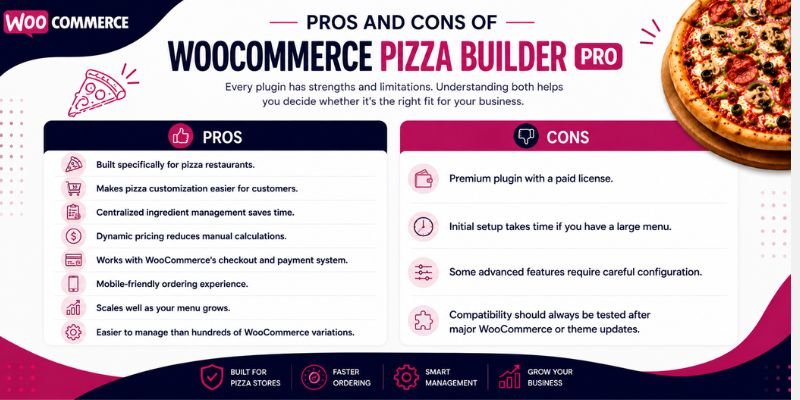
Every plugin has strengths and limitations. Understanding both helps you decide whether it’s the right fit for your business.
Pros
- Built specifically for pizza restaurants.
- Makes pizza customization easier for customers.
- Centralized ingredient management saves time.
- Dynamic pricing reduces manual calculations.
- Works with WooCommerce’s checkout and payment system.
- Mobile-friendly ordering experience.
- Scales well as your menu grows.
- Easier to manage than hundreds of WooCommerce variations.
Cons
- Premium plugin with a paid license.
- Initial setup takes time if you have a large menu.
- Some advanced features require careful configuration.
- Compatibility should always be tested after major WooCommerce or theme updates.
Extra Tips and Best Practices
If your setup requires a dedicated extension like WooCommerce Pizza Builder Pro, following these expert guidelines will help you build a more stable store and protect your profit margins:
- 1. Load your Master Ingredient List through CSV import first – Even if you have a relatively small menu, performing a bulk upload via a spreadsheet is much faster than entering elements manually and keeps your ingredient data perfectly consistent from day one.
- 2. Use Price Tables sparingly – Although the Advanced Pricing Matrix gives you the flexibility to override ingredient costs for specific styles, overusing this feature and overriding too many prices can make your overall pricing structure very difficult to audit and verify later.
- 3. Re-run Force Sync after every update – Any changes or updates made to your central Master List or Global Pricing Manager do not push to live items automatically; you must run the “Apply Attributes & Force Sync” command every time, or your active variations will fall completely out of sync with your intended pricing.
- 4. Test on an actual mobile device – Online food ordering traffic skews overwhelmingly toward smartphones and tablets, making it essential to test the interactive visual builder and complete cart sequence on real mobile screens rather than relying solely on a web browser’s desktop preview mode.
- 5. Check your order confirmation emails – Always place test orders to confirm that highly customized pizza builds and specific topping coverage zones are formatted clearly and are perfectly readable for your kitchen staff, not just for the customers placing the order.
Common Problems and How to Fix Them
Even a well-configured WooCommerce store can occasionally run into issues. Here are some typical challenges and effective solutions to tackle them.
Prices Don’t Update Correctly
If your pizza prices aren’t updating as customers make their selections, the issue is usually related to pricing configuration, caching, or synchronization settings. Identifying the root cause can help restore accurate, real-time pricing.
Possible Causes of Pricing Issues:
- Incorrect pricing rules — Errors or typos within the Advanced Pricing Matrix or size-based tables can cause unexpected final costs.
- Cached pages serving outdated information — Aggressive caching plugins can freeze the front-end layout, displaying stale pricing details rather than executing live server-side data calculations.
- Pricing changes not synced after editing ingredients — Modifying item values inside the Master Ingredient List does not update live menus automatically until a manual synchronization command is executed.
How to Fix It:
- Review your pricing configuration.
- Clear your website and browser cache.
- Re-sync ingredient or pricing data if the plugin provides this option.
- Test with all caching temporarily disabled to identify conflicts
Customers Can’t Add Pizzas to the Cart
If customers encounter difficulties while attempting to add items to their shopping cart, please investigate the potential causes listed below and follow the recommended troubleshooting procedures to identify and resolve the underlying issue.
What Causes This Issue?
- Required options haven’t been selected.
- JavaScript conflicts.
- Theme compatibility issues.
How to Resolve It:
- Confirm all required fields are configured correctly.
- Switch temporarily to a default WooCommerce theme for testing.
- Check the browser console for JavaScript errors.
- Disable recently added plugins one at a time to identify conflicts.
Mobile Layout Doesn’t Look Right
If your pizza builder doesn’t display correctly on mobile devices, customers may struggle to customize their orders or complete the checkout process. This issue is often caused by theme compatibility problems, custom CSS, or unoptimized images
Common Causes:
- Theme styling conflicts.
- Custom CSS overrides.
- Large images affecting layout.
Here’s How to Fix It
- Test with different devices.
- Review custom CSS.
- Compress oversized images.
- Update your theme if a compatibility update is available.
Website Becomes Slow
A slow ordering page can affect both user experience and search performance.
Review:
- Image optimization.
- Number of active plugins.
- Hosting performance.
- Caching configuration.
- PHP version.
- Database optimization.
Website speed often has a greater impact on conversions than adding more visual effects.
Publishing Checklist
Before making your pizza ordering page live, review this checklist:
- WordPress updated.
- WooCommerce updated.
- WooCommerce Pizza Builder Pro installed and activated.
- Ingredient list completed.
- Pricing rules tested.
- Mobile layout reviewed.
- Checkout tested.
- Payment gateways working.
- Images optimized.
- Website speed tested.
- Backup created.
- SEO title and meta description added.
Wrapping Up
WooCommerce Pizza Builder Pro addresses a challenge that many pizza restaurants face: offering flexible customization without turning WooCommerce into a maze of product variations.
Its centralized ingredient management, dynamic pricing, and interactive ordering interface make it easier to manage growing menus while providing customers with a more intuitive ordering experience.
That said, the plugin isn’t the right solution for every business. Restaurants with a small menu and limited customization may find WooCommerce’s standard product options sufficient. However, if your business relies on build-your-own pizzas or frequently updates ingredient pricing, a dedicated pizza builder can simplify both menu management and online ordering.
Before making a purchase, review your menu requirements, confirm compatibility with your current WooCommerce setup, and test the plugin in a staging environment whenever possible. A little preparation can save you time and help you deliver a smoother experience for your customers.
If you’re comparing customization and inventory scenarios more broadly, our guide on WooCommerce backorders covers another common setup decision worth understanding alongside this one.
FAQs
WooCommerce Pizza Builder Pro is a premium plugin that adds an interactive pizza customization system to WooCommerce. Customers can build their own pizzas by selecting sizes, crusts, sauces, and toppings while the total price updates automatically.
Yes. Most configuration is handled through the WordPress dashboard, although planning your menu and pricing before setup will make the process easier.
Yes. The plugin supports dynamic pricing, allowing you to assign different prices based on pizza size or other pricing rules.
It works with many WooCommerce-compatible themes, but compatibility can vary depending on customizations. Testing on a staging site before launching changes is always recommended.
Yes. WooCommerce continues to manage your store, so you can sell drinks, desserts, and other menu items alongside customizable pizzas.
Yes. The builder is designed to work on smartphones and tablets, making it suitable for customers ordering on mobile devices.
Although it’s designed for pizza restaurants, some businesses offering customizable food items may also find it useful. Whether it’s suitable depends on how closely your menu matches the plugin’s customization workflow.
Yes, WooCommerce Pizza Builder Pro is a dedicated plugin built specifically for pizza and food businesses.
It costs $100.00 as a one-time purchase, or $25.00 x 4 through PayPal’s Pay-in-4 option.
Confirm current support for split-topping configuration directly with the plugin provider, as this can vary by version.
It’s built specifically for pizza menus, with a Master Ingredient List and CSV import; general plugins handle any product type but need more manual setup.




- Be Respectful
- Stay Relevant
- Stay Positive
- True Feedback
- Encourage Discussion
- Avoid Spamming
- No Fake News
- Don't Copy-Paste
- No Personal Attacks
- Be Respectful
- Stay Relevant
- Stay Positive
- True Feedback
- Encourage Discussion
- Avoid Spamming
- No Fake News
- Don't Copy-Paste
- No Personal Attacks
