How to Sell on WordPress Without WooCommerce? (Complete Beginner to Pro Guide)
Published: 13 Apr 2026
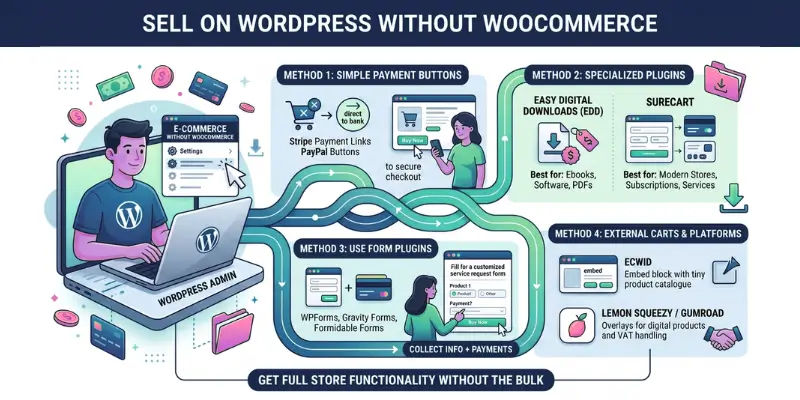
You don’t need a full online store, but most guides make it feel like you do.
Many people get stuck trying to figure out how to sell on WordPress without WooCommerce because everything online points them toward complex setups, heavy plugins, and confusing steps. It quickly turns into frustration instead of progress. Many people think you must install WooCommerce to sell on WordPress. That’s not true.
The good news is, you don’t need a complicated setup to start selling.
If you only want to sell a service, an ebook, or a single product, WooCommerce can feel heavy. You don’t need a full online store setup with carts, inventory, and dozens of settings.
In most cases, you only need a simple selling system:
- a product
- a checkout
- a payment processor
- and a way to deliver it
In this guide, I’ll walk you through everything step by step in a simple way, so you can understand your options and choose the method that fits your needs without the stress or confusion.
This guide is perfect for:
- Freelancers selling services
- Bloggers selling digital products
- Agencies offering packages
- Creators selling courses or templates
Real Insight from Experience
From working with freelancers, bloggers, and small business owners, one thing is clear: most WordPress websites don’t need a full e-commerce store to start selling.
Many people install WooCommerce first, then realize they only need a simple payment setup for one product, service, or digital download.
In real cases:
- Freelancers only need a payment button to collect fees
- Bloggers only need a checkout page to sell an ebook
- Coaches only need a simple booking + payment system
That’s why simpler selling methods often work better in the beginning.
What You Need Before You Start
Before you begin, it helps to have a few basics ready. Don’t worry, you don’t need anything complex. Just make sure you have these essentials in place, so your setup goes smoothly.
- A WordPress Website
You need a working WordPress site because this is where you’ll display your products or services and manage your content. - A Clear Product or Service
Know what you’re selling, whether it’s a service, ebook, course, or template. This helps you create a focused selling page and avoid confusion. - Payment Processor (Stripe or PayPal)
These tools handle payments securely. They allow you to accept money without building a full e-commerce system. - A Simple Checkout Method (Button, Form, or Plugin)
You’ll need a way for customers to pay. This could be a buy button, payment form, or lightweight plugin, depending on your setup. - Basic Page Builder or Block Editor Knowledge
You should know how to create pages or edit content in WordPress. This helps you add buttons, product details, and layout your page properly. - An Email Address for Customer Communication
After someone pays, they expect confirmation. You’ll use email to send receipts, access details, or follow-ups.
These simple things are enough to get you started without relying on a full WooCommerce store.
Can You Sell on WordPress Without WooCommerce?
Yes, you can sell on WordPress without WooCommerce.
You don’t need a full e-commerce store to start selling. WordPress allows you to accept payments, create a simple checkout process, and deliver products using lightweight tools or payment integrations.
This works best when:
- You sell a single product
- You offer services or consultations
- You sell digital products like ebooks, templates, or courses
WooCommerce is a better choice when:
- You need inventory management
- You sell multiple physical products
- You require shipping, taxes, or product variations
Simple rule:
If your website works like a sales page with a checkout, you don’t need WooCommerce. If it works like a full online store, then WooCommerce is the better option.
Why This Approach Works for Most Websites
Many website owners don’t actually need a full store setup.
For example:
- A freelancer only needs a payment button to collect fees
- A blogger needs a simple checkout page to sell an ebook
- A coach needs a booking + payment system
In these cases, using a simple selling method:
- Keeps your site fast
- reduces setup time
- avoids unnecessary plugin complexity
This is why many modern websites now use checkout-based selling instead of a full cart system.
When Should You Sell Without WooCommerce? (Decision Guide)
You should sell on WordPress without WooCommerce when you don’t need a full online store with carts, inventory, and complex settings. WooCommerce is better for full stores, but it also requires a proper SEO setup. You can learn how to optimize your WooCommerce product pages for SEO to get better results.
If your goal is to accept payments quickly and keep your setup simple, a lightweight selling method works better.
To help you choose the right approach, here’s a clear breakdown:
| Use Case | Best Method | Why |
| One product | Payment button | Fast setup with a simple checkout process |
| Digital products | Easy Digital Downloads | Handles secure file delivery automatically |
| Services | Payment form | Collect customer details and payment in one step |
| No checkout needed | Product catalog | Display products and redirect users to external links |
Simple rule:
If customers already know what they want and just need to pay, use a checkout-based selling system instead of a full cart setup.
Why This Decision Matters
Many people choose the wrong setup and make things harder than needed.
For example:
- A freelancer installs WooCommerce just to collect payments
- A blogger builds a full store to sell one ebook
- A coach uses a cart system when a simple checkout page would work
This adds:
- extra setup time
- slower website performance
- unnecessary complexity
Choosing the right method helps you:
- launch faster
- Keep your site lightweight
- improve the checkout experience
Focus on what your website actually needs, not what most people recommend.
Why Many People Avoid WooCommerce
Many people avoid WooCommerce when they don’t need a full online store.
If your goal is simply to sell, like accepting payments for a service or selling one product, WooCommerce can feel too complex for the job.
Many of these concerns come from common trade-offs people notice when comparing platforms, especially when looking at the real advantages and limitations of WooCommerce.
Here are the most common reasons:
1. Setup Complexity
WooCommerce comes with many settings, plugins, and configurations.
For beginners, this can feel confusing and time-consuming, especially when you only need a basic checkout process.
2. Slower Performance
WooCommerce adds extra scripts and database load.
If your hosting is not optimized, this can slow down your website and impact user experience and SEO.
3. Too Many Features
WooCommerce is built for full e-commerce stores.
Features like cart systems, shipping rules, and tax settings are often unnecessary if you’re selling a simple product or service.
4. Rising Costs
While WooCommerce itself is free, many important features require paid extensions.
Payment gateways, subscriptions, and advanced options can increase your overall cost.
If you don’t need a full store, don’t use a full store system.
Why This Matters for Beginners
Many users install WooCommerce first, then realize later they didn’t need it.
For example:
- A freelancer only needs a payment button, not a cart system
- A blogger selling an ebook needs a simple checkout, not inventory management
- A coach needs a booking + payment setup, not a full store
Choosing a simpler setup helps you:
- launch faster
- Keep your site lightweight
- Reduce ongoing maintenance
Start simple. You can always switch to WooCommerce later if your business grows.
Why WooCommerce Is Overkill for Simple Selling
WooCommerce is powerful, but it’s not always the right fit, especially if you’re selling just one or a few products.
Most of its features are designed for full online stores, not simple selling setups.
Here’s where it becomes unnecessary:
- You don’t need cart systems for a single product
- You don’t need inventory management for services or digital downloads
- You don’t need shipping and tax settings if you’re not selling physical goods
In these cases, WooCommerce adds extra steps without adding real value.
Best Ways to Sell on WordPress Without WooCommerce
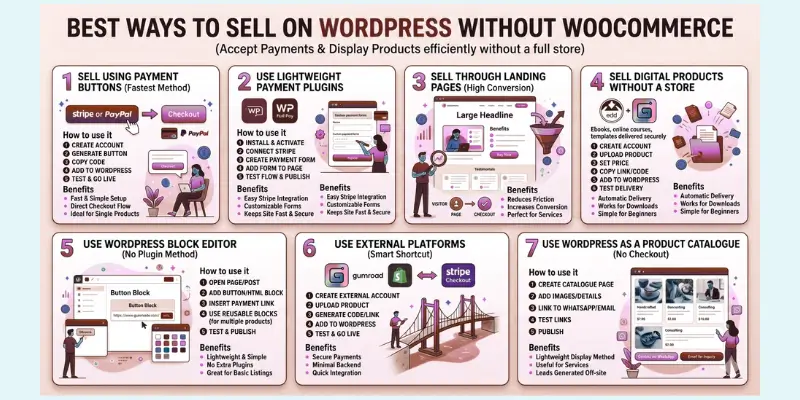
Selling on WordPress doesn’t always require a full WooCommerce store. Several practical methods let you accept payments, display products, and manage sales efficiently. Here’s a breakdown of the most effective ways:
1. Sell Using Payment Buttons (Fastest Method)
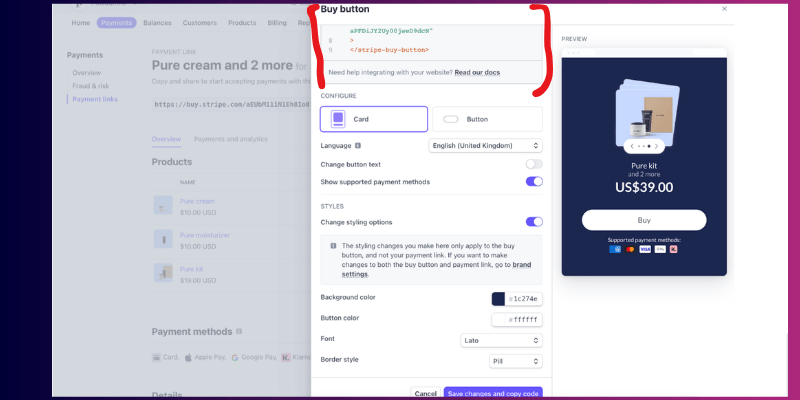
This method is perfect if you sell a single product or a service. You create a Stripe or PayPal Buy Now button and embed it directly on your WordPress page. Visitors click the button and go straight to checkout, skipping carts and extra steps.
You can also use Square Payment Links, which work similarly to Stripe and allow you to create simple checkout pages without adding plugins.
How to use it:
- Step 1: Create an account on Stripe or PayPal
- Step 2: Generate a “Buy Now” button for your product or service
- Step 3: Copy the embed code or link
- Step 4: Add the button to your WordPress page or post
- Step 5: Test the checkout in sandbox mode, then go live
Benefits:
- Fast and simple setup
- Direct checkout flow (no cart needed)
- Ideal for freelancers or single-product sales
- Works for digital or physical items
2. Use Lightweight Payment Plugins
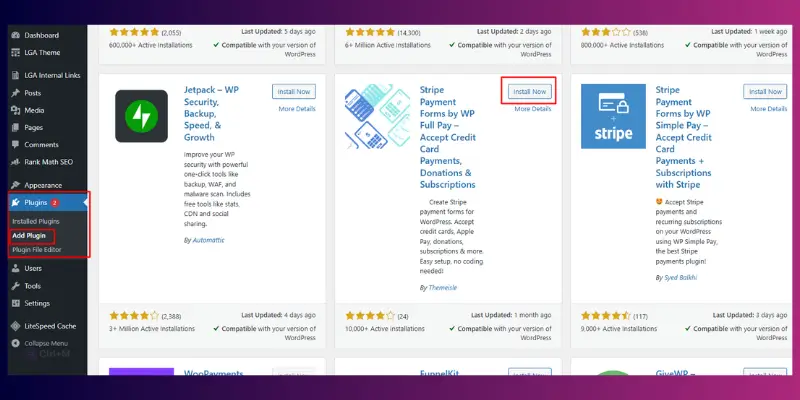
If you want more flexibility than a simple button, plugins like WP Simple Pay or WP Full Pay allow you to accept payments without setting up a full store. You can create custom payment forms, collect customer info, and manage basic data.
How to use it:
- Step 1: Install and activate the plugin on WordPress
- Step 2: Connect your Stripe account or payment gateway
- Step 3: Create a payment form with product details and price
- Step 4: Add the form to a page, post, or block
- Step 5: Test the payment flow, then publish
Benefits:
- Easy integration with Stripe
- Customizable payment forms
- No heavy eCommerce features
- Keeps site speed fast and secure
3. Sell Through Landing Pages (High Conversion Method)

Instead of a traditional store, you can build a focused landing page for your product or service. Use clear headlines, benefit-driven content, and a payment button to guide visitors through a simple purchase process.
Landing pages focus on guiding visitors to buy with minimal distraction. Perfect for services or digital products.
How to use it:
- Step 1: Create a new WordPress page for your product or service
- Step 2: Add a compelling headline and clear description
- Step 3: Add images, benefits, and testimonials
- Step 4: Embed a payment button or form
- Step 5: Test the checkout and make the page live
Benefits:
- Reduces friction in checkout
- Increases conversion rates
- Focuses user attention on the offer
- Perfect for services or digital products
- Testimonials and trust signals improve buyer confidence
- Direct flow: visitor → page → checkout
4. Sell Digital Products Without a Store (Easy Digital Downloads )
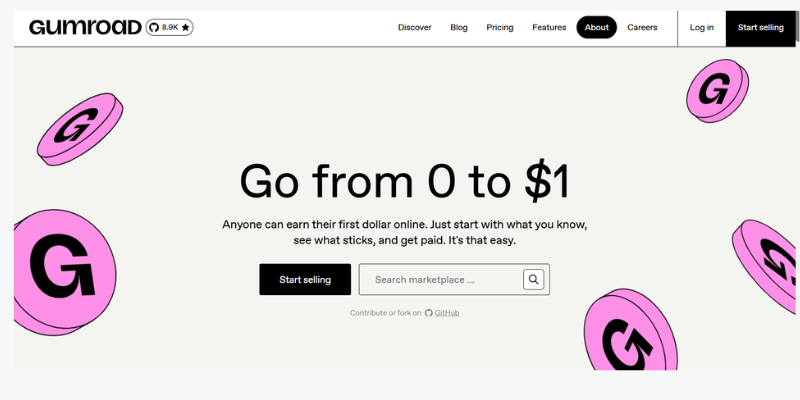
Digital products like ebooks, courses, templates, or software can be sold using Easy Digital Downloads or Gumroad. The platforms handle secure delivery and file access after payment.
How to use it:
- Step 1: Create an account on Easy Digital Downloads or Gumroad
- Step 2: Upload your digital product (file, ebook, course)
- Step 3: Set product price and payment options
- Step 4: Copy the checkout link or embed code
- Step 5: Add the link or button to your WordPress page
- Step 6: Test purchase and file delivery
Benefits:
- Automatic delivery after purchase
- No need for a full eCommerce setup
- Works for downloads, memberships, or online courses
- Keeps workflow simple for beginners
5. Use WordPress Block Editor (No Plugin Method)
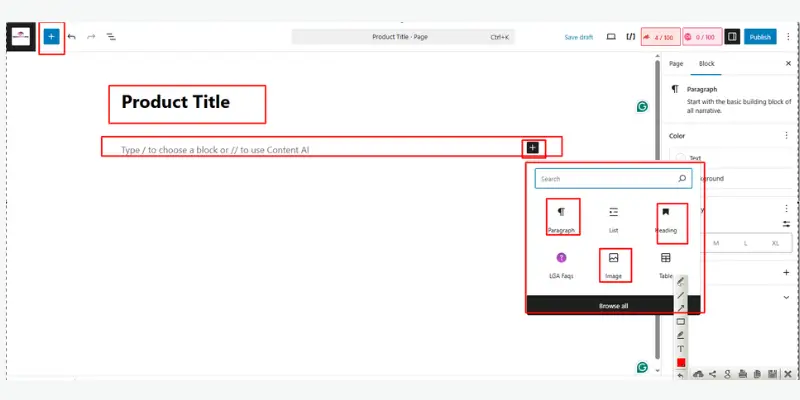
You can sell products directly using the WordPress editor by adding a button block linked to a payment page or checkout. Reusable blocks let you set up multiple products easily.
How to use it:
- Step 1: Open the page or post where you want to sell
- Step 2: Add a Button Block or HTML Block
- Step 3: Insert your Stripe or PayPal payment link
- Step 4: Use reusable blocks if selling multiple products
- Step 5: Test checkout, then publish
Benefits:
- Lightweight, fast, and simple
- No extra plugins required
- Great for simple product listings
- Beginner-friendly setup
6. Sell Using External Platforms (Smart Shortcut)
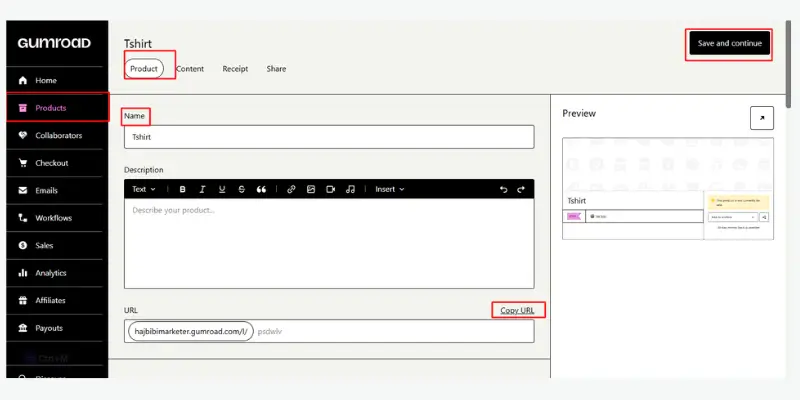
Platforms like Gumroad, Shopify Buy Button, or Stripe Checkout can handle payments while WordPress acts as a showcase. You embed the checkout button or link on your page.
How to use it:
- Step 1: Create an account on the external platform
- Step 2: Upload your product and set the price
- Step 3: Generate an embed code or checkout link
- Step 4: Add it to your WordPress page or post
- Step 5: Test the checkout and go live
Benefits:
- Secure payment processing
- Minimal backend management
- Works with digital or physical products
- Quick integration for beginners
7. Use WordPress as a Product Catalogue (No Checkout)
Instead of selling directly, you can create a product catalogue page with images, prices, and descriptions. Redirect interested customers to WhatsApp, email, or external checkout pages to complete the purchase.
This method works for service providers, affiliate marketers, or sellers with limited physical items. It’s simple, lightweight, and lets visitors inquire or purchase off-site
If you just want to display products or services without selling directly on WordPress, you can use a catalogue
How to use it:
- Step 1: Create a product catalogue page
- Step 2: Add images, descriptions, and prices
- Step 3: Link each product to WhatsApp, email, or an external checkout
- Step 4: Test all links to ensure they work
- Step 5: Publish your catalogue
Benefits:
- Lightweight display-only method
- Useful for services or limited physical items
- Easy to set up for beginners
- No need to manage payments on-site
Comparison of Ways to Sell on WordPress Without WooCommerce
Choosing the right way to sell on wordpress can feel confusing when you have so many options. Each method works differently, and the best choice depends on what you’re selling and how simple you want your setup to be. This comparison will help you quickly understand which method fits your needs.
| Method | Best For | Setup Difficulty | Key Feature | Limitations |
| Payment Buttons | Single product, freelancers | Very Easy | Direct checkout (no cart) | No customer management or automation |
| Payment Plugins | Services, simple products | Easy | Custom payment forms | Limited advanced ecommerce features |
| Landing Pages | High-conversion offers | Easy | Focused sales funnel | Requires good copywriting |
| Limited advanced e-commerce features | Ebooks, courses, templates | Easy | Automatic file delivery | Not ideal for physical products |
| Block Editor (No Plugin) | Beginners, simple setup | Very Easy | No plugin required | Limited functionality |
| External Platforms | Creators, hybrid selling | Easy | Secure hosted checkout | Less control over user experience |
| Product Catalog | Services, affiliates | Very Easy | Display products only | No direct payment system |
How to Choose the Right Method (Quick Guide)
- If you want the fastest setup → Use Payment Buttons
- If you want more control → Use Payment Plugins
- If you want better conversions → Use Landing Pages
- If you sell digital products → Use EDD or Gumroad
- If you want zero plugins → Use Block Editor
- If you want hands-off selling → Use External Platforms
- If you only want to show products → Use Catalogue
Pro Tip (What Most People Get Wrong)
Many beginners pick the most powerful tool instead of the right tool.
The best method is the one that:
- matches your product
- Keep your setup simple
- gives your users an easy checkout experience
Best WooCommerce Alternatives (Tools Comparison)
You’re not limited to just a few tools. There are many WooCommerce alternatives, but they fall into three main types:
- Simple payment tools (for quick selling)
- WordPress plugins (for lightweight setups)
- Full ecommerce platforms (for scaling)
Choosing the right type matters more than choosing the tool.
1. Lightweight WordPress Plugins (Best for Simplicity)
These are the closest alternatives if you want to stay inside WordPress but avoid complexity.
Popular options:
- Easy Digital Downloads
- WP Simple Pay
- WP Full Pay
- MemberPress
| Tool | Best For | Key Features | Ease of Use | Limitations |
| Easy Digital Downloads | Digital products | File delivery, download control, payment integration | Easy | Not ideal for physical products |
| WP Simple Pay | Services, simple payments | Stripe integration, payment forms, subscriptions | Very Easy | Limited store features |
| WP Full Pay | Simple checkout setup | One-time & recurring payments, form-based checkout | Easy | Fewer integrations than WooCommerce |
These tools are designed for specific use cases, not full stores.
- Easy Digital Downloads → digital products
- WP Simple Pay → simple payments
- MemberPress → memberships
- SureCart → modern checkout system
Why they work:
- Simple setup
- Fast performance
- No unnecessary features
These are ideal for beginners and small sellers.
2. External / Hybrid Platforms (Smart Shortcut)
These tools handle the heavy work (checkout, payments, delivery), while WordPress acts as your front-end.
Popular options:
- Gumroad
- Ecwid
- Shopify Buy Button
- Sellfy
Example: Ecwid runs your store on its own servers and embeds into WordPress, so you don’t manage everything yourself.
Why they work:
- Secure payment processing
- Less maintenance
- Easy integration
Best for creators and businesses who want less technical work.
3. Full E-commerce Platforms (For Scaling)
These are complete alternatives to WooCommerce (not just plugins).
Popular options:
- Shopify
- BigCommerce
- Wix eCommerce
- Squarespace Commerce
These platforms offer:
- Hosting
- Inventory management
- Built-in checkout systems
Example: Shopify is widely used because it provides hosting, security, and full e-commerce features in one place.
Best for:
- Large stores
- Physical products
- Businesses planning to scale
Complete Comparison Table (All Types)
| Tool Type | Best For | Examples | Ease of Use | Key Advantage | Limitation |
| Lightweight Plugins | Simple selling | EDD, WP Simple Pay, MemberPress | Very Easy | Fast & simple setup | Limited scalability |
| External Platforms | Hybrid selling | Gumroad, Ecwid, Sellfy | Easy | Handles payments & delivery | Less control |
| Full Ecommerce Platforms | Large stores | Shopify, BigCommerce, Wix | Medium | All-in-one system | Higher cost |
How to Choose the Right Alternative
Don’t just pick a tool. Match it with your business model:
- Selling ebooks or downloads → Easy Digital Downloads
- Selling services → WP Simple Pay
- Selling subscriptions or memberships → MemberPress
- Want simple checkout without plugins → Gumroad or Stripe
- Want a full store with growth → Shopify or BigCommerce
Simple rule: Choose based on what you sell, not what others recommend.
How to Accept Payments on WordPress Without WooCommerce (Step-by-Step)
You can accept payments on WordPress without WooCommerce using simple tools like Stripe, PayPal, or payment forms.
You only need:
- A payment processor (Stripe or PayPal)
- A checkout method (button, form, or link)
- A WordPress page to place it
This setup works for services, digital products, and simple sales.
Below are the easiest methods you can follow. Each one is explained step by step so you can set it up without confusion.
Method 1: Add Stripe Payment Button
Stripe is one of the most popular payment processors. It allows you to accept credit/debit cards and supports global payments.
Step 1: Create a Stripe Account
Go to the Stripe website and sign up. Add your:
- Business details
- Bank account
So you can receive payments.
Step 2: Create a Product & Payment Link
- Go to your Stripe dashboard
- Click on “Products” → “Add Product”
- Enter product name and price
- Save it
- Now, go to Payment Links and create a link for that product
Step 3: Generate a Payment Button
- Stripe will give you a payment link
- You can use this link inside a button
Step 4: Add a Button in WordPress
- Open your WordPress page or post
- To add a block, click the “+” button
- Choose Button Block
- Paste your Stripe payment link
- Change text to “Buy Now” or “Pay Now”
Step 5: Test Payments (Important Step)
Before going live:
- Enable Test Mode in Stripe
- Use Stripe test card numbers
- Complete a test payment
- Check if everything works (payment + confirmation)
Step 6: Go Live
- Turn off test mode
- Publish your page
- Start accepting real payments
Stripe handles:
- Payment processing
- Security
- Transaction confirmation
Method 2: Add PayPal Buy Now Button
PayPal is another simple and trusted way to accept payments, especially for beginners.
Step 1: Create a PayPal Business Account
- Go to PayPal
- Sign up for a Business account
- Add your bank details to receive payments
Step 2: Create a “Buy Now” Button
- Go to the PayPal dashboard
- Go to “Pay & Get Paid” and click on “PayPal Buttons”
- Select the “Buy Now” button
- Enter product name and price
Step 3: Copy Button Code
- PayPal will generate an HTML embed code
- Copy this code
Step 4: Add a Button to WordPress
- Open your page/post
- Add a Custom HTML block
- Paste the PayPal button code
- Preview the button
Step 5: Test Checkout
- Click the button yourself
- Complete a test transaction
- Make sure the payment is received and the confirmation works
PayPal is great because:
- Many users trust it
- Easy to set up
- Works worldwide
Method 3: Create a Payment Form
Payment forms allow you to collect customer details + payment in one step. This is useful for services, bookings, or custom orders.
Step 1: Install a Payment Plugin
- Go to the WordPress dashboard
- Click Plugins → Add New
- Search for:
- WP Simple Pay
- WP Full Pay
- Click Install and then Activate
Step 2: Connect Payment Gateway
- Open plugin settings
- Connect your Stripe account
- Follow the authorization steps
Step 3: Create a Payment Form
- Click Add New Form
- Choose a template or start from scratch
- Add fields like:
- Name
- Payment amount
Step 4: Customize the Form
- Set price (fixed or custom)
- Add product/service name
- Customize button text (e.g., “Pay Now”)
- Enable recurring payments if needed
Step 5: Add Form to Your Page
- Copy the shortcode or block
- Paste it into your page or post
- Preview the form
Step 6: Add Confirmation Message & Email
- Set a success message after payment
- Enable email notifications for:
- You (admin)
- Customer (receipt or confirmation)
Step 7: Test Payment Flow
- Use test mode
- Submit a test payment
- Check:
- Payment success
- Email delivery
- Form behavior
Step 8: Go Live
- Disable test mode
- Publish your page
- Start collecting payments
Payment forms are best for:
- Freelancers
- Service providers
- Booking systems
- Custom orders
Important Tip (Most Beginners Miss This)
No matter which method you choose, always test:
- Successful payment
- Failed payment
- Confirmation email
- Product delivery or access
This ensures your full payment workflow (checkout → payment → confirmation) works perfectly.
Final Advice
Start simple.
- One product → Use Stripe or PayPal button
- Services → Use payment form
- More control → Use plugin
You can always upgrade later, but a simple system helps you start faster and avoid confusion.
How to Add Products in WordPress Without WooCommerce
You can add products in WordPress without WooCommerce using simple methods like pages, catalogue plugins, or payment integrations.
Common methods:
- Use WordPress pages as product listings
- Use product catalogue plugins to organize multiple products
- Add products manually using the block editor or page builder
- Link products to payment buttons (Stripe or PayPal)
Now, let’s look at each of these methods one by one so you can choose the one that fits your needs best.
Method 1: Use Pages as Product Listings (Simplest Way)
If you’re just starting, this is the easiest method.
Create a normal WordPress page and treat it like a product page. Add all the important details so visitors understand what you’re offering and how to buy.
How to do it:
- Go to Pages → Add New
- Add the product name as the title
- Write a clear description (what it is, who it’s for, benefits)
- Add product image
- Mention the price clearly
- Add a Buy Now button (Stripe or PayPal link)
This works best for:
- Single products
- Services
- Digital downloads
Method 2: Use Simple Catalogue Plugins (For Multiple Products)
If you want to display multiple products in an organised way, use a product catalogue plugin.
These plugins help you create a structured product catalogue without adding a full cart system.
How to do it:
- Go to Plugins → Add New
- Search for “Product Catalogue Plugin”
- Install and activate it
- Create product categories (e.g., ebooks, services)
- Add products with:
- Name
- Description
- Price
- Image
- Display products using shortcode or block
This is useful when:
- You have multiple products
- You want better organization
- You don’t need full checkout features
Method 3: Add Product Details Manually (Full Control)
You can manually design your product layout using the WordPress block editor or a page builder.
With this feature, you are able to design your product exactly the way you want.
What to include in every product:
- Product name
- Clear description (simple and benefit-focused)
- High-quality image
- Price
- Key features or benefits
- Call-to-action (Buy Now / Get Access)
This method works well if:
- You want a custom design
- You are using landing pages
- You focus on conversions
Method 4: Link Products to Payment Buttons
Adding products is not enough; you need a way to collect payments.
Connect your product to a payment method like Stripe or PayPal.
How to do it:
- Create a payment link (Stripe/PayPal)
- Add a Buy Now button on your product page
- Link the button to your checkout page
This creates a simple flow:
Product Page → Click Button → Payment → Confirmation
Best Practice (Important for Beginners)
Always make sure your product page answers these questions:
- What is this product?
- Who is it for?
- What problem does it solve?
- How can I buy it?
If these are clear, your chances of getting sales increase.
Common Mistakes to Avoid
- Adding products without a clear payment option
- Writing confusing or incomplete descriptions
- Not testing the payment button
- Ignoring mobile layout
Pro Tip
Start simple.
- One product → use a page + payment button
- Multiple products → use the catalogue plugin
- High conversions → use landing page style
You don’t need a complex system to start selling.
Focus on clarity, simplicity, and user experience.
What Can You Sell on WordPress Without WooCommerce?
You can sell almost anything on WordPress without WooCommerce, as long as you can accept payments and deliver the product or service.
Common things you can sell:
- Digital products (ebooks, courses, templates)
Sell downloadable files or online content with automatic delivery after payment. - Services (freelancing, consulting, coaching)
Accept payments for your time, skills, or sessions using payment buttons or forms. - Subscriptions and memberships
Charge users for ongoing access to content, communities, or tools. - Donations
Collect support or contributions using simple payment buttons. - Physical products (limited setup)
Sell a few physical items without a full store, but without advanced features like inventory or shipping management.
Simple rule: If you can define what the customer gets after payment, you can sell it without WooCommerce.
Key Considerations Before Selling Without WooCommerce
Before you start selling on WordPress without WooCommerce, you need to make sure your setup is secure, reliable, and easy for users.
Important things to consider:
- Payment Security
Always use trusted payment processors like Stripe or PayPal. They handle secure transactions and protect customer data, so you don’t need to manage sensitive information yourself. - Transaction Fees
Every payment method charges a small fee per transaction. Check the fee structure of Stripe or PayPal so you can price your product correctly and avoid surprises. - Scalability
Simple setups work well in the beginning, but think ahead. If your business grows, you may need more advanced features like customer accounts or automation. - User Experience
Keep your checkout process simple. Fewer steps mean fewer drop-offs. Make it easy for users to understand what to do and how to pay. - Mobile Optimization
Most users will visit your site from mobile devices. Make sure your product pages, buttons, and checkout process work smoothly on smaller screens.
Simple rule:
If your payment process is secure, simple, and easy to use, you’re on the right track.
This ensures your selling system (product → checkout → payment) works smoothly for both you and your customers.
WooCommerce vs Selling Without WooCommerce (Quick Comparison)
Here’s a simple comparison to help you understand the difference between using WooCommerce and selling without WooCommerce on WordPress.
This will help you choose the right setup based on your business needs, not just features.
Quick Comparison Table
| Feature | Without WooCommerce | With WooCommerce |
| Setup | Simple and fast | Complex and time-consuming |
| Speed | Lightweight and fast | Can slow down with plugins |
| Best For | Services, digital products, single items | Full online stores |
| Features | Basic selling options (buttons, forms) | Advanced store features (cart, inventory, shipping) |
| Maintenance | Low maintenance | Regular updates and plugin management needed |
| Cost | Low (fewer tools needed) | Can increase with extensions |
| Scalability | Limited for large stores | Highly scalable |
Use WooCommerce if you want a full online store. Skip WooCommerce if you only need simple selling, like services or digital products.
Common Mistakes When Selling Without WooCommerce
Selling on WordPress without WooCommerce is simple, but many beginners make small mistakes that affect sales, trust, and user experience.
Here are the most common issues you should avoid:
- No clear payment method setup
Many users add product pages but forget to connect a proper payment option like Stripe or PayPal, which stops the sale process completely. - Skipping payment testing
Not testing the checkout flow can lead to failed payments or broken buttons, which directly affects customer trust. - Complicated page design
Adding too much text, images, or steps makes the page confusing. Simple layouts convert better. - No mobile optimization
If buttons or checkout pages don’t work well on mobile, you lose most of your potential buyers. - Missing confirmation or delivery setup
After payment, users should instantly receive confirmation or access. Without this, customers may feel unsure or contact support. - Using too many tools at once
Mixing multiple plugins and payment systems can create conflicts and slow down your site.
Simple rule: Keep the process clean: Product → Payment → Confirmation.
SEO & Conversion Tips to Increase Sales
Getting traffic is important, but turning visitors into buyers matters more. A few small improvements can increase both your search rankings and conversions.
Follow these proven tips:
- Use Focused Landing Pages
Create one page for one product or service. Avoid distractions and guide users toward a single action. This improves both SEO and conversion rate. - Add Strong CTAs (Call-To-Action)
Use clear buttons like “Buy Now”, “Get Instant Access”, or “Start Today.” Place them at the top, middle, and bottom of your page so users always see the next step. - Optimize Page Speed
Slow websites increase bounce rates and hurt rankings. Compress images, use lightweight plugins, and choose fast hosting to keep your site quick. - Add Testimonials & Trust Signals
Show reviews, ratings, or user feedback. Add trust elements like secure payment badges or guarantees to build confidence. - Keep Checkout Simple
Remove unnecessary steps. The fewer clicks required, the higher your chances of completing the sale.
Simple rule: Clear page + fast speed + easy checkout = more sales.
Pro Tip (What Works in Real Cases)
Most high-converting WordPress pages don’t look like full stores.
They focus on:
- one offer
- one message
- one action
That’s why simple selling systems often outperform complex setups.
Final Thoughts
Glad you made it this far. Now, you have a clear understanding of how to sell on WordPress without WooCommerce.
We walked through simple and practical ways to start selling without a full e-commerce setup. You saw different methods like payment buttons, forms, landing pages, and payment links, along with the tools that fit each use case. We also covered how to accept payments, add products, avoid common mistakes, and improve your chances of making sales.
The main takeaway is simple: you don’t need a complex system to start. A clear offer, a simple page, and an easy checkout process are often all you need.
Now it’s your turn to take action.
Pick one method that fits your situation, set it up, and test it yourself. Don’t wait for everything to be perfect; starting simple will teach you more than overthinking the setup.
👉 Take the first step today and get your product or service live.
FAQs ( sell on WordPress without WooCommerce)
You can sell by creating a product page and adding a payment button using Stripe or PayPal. Link the button to a checkout page so users can pay directly. No full store setup is required. This works best for simple products or services.
You can use WP Simple Pay, Easy Digital Downloads, Gumroad, or Stripe payment links. These tools are lightweight and easy to set up. Choose based on what you are selling. They work well for simple selling needs.
Create a page, add product details like name, price, and image, and insert a Buy Now button. Link the button to a payment page. This creates a simple product listing. Users can view and purchase directly.
No, you can accept payments using Stripe, PayPal, or payment plugins. These tools handle transactions securely. You just need to connect them to your page. This keeps the setup simple.
Yes, you can use tools like Easy Digital Downloads or Gumroad. They handle file delivery automatically after payment. You only need to connect your product page to checkout. This is ideal for creators.
Yes, create a service page and add a payment button or form. Users can pay directly for your service. You can also collect details during checkout. This works well for freelancers and consultants.
The easiest way is to use a Stripe or PayPal payment button. Create a payment link and add it to your page. Users click and go directly to checkout. No plugins are needed.
Yes, but only for simple setups. You can list products and add a payment button. However, advanced features like shipping and inventory are limited. It works best for a few items.
Digital products can be delivered automatically using tools like Gumroad. For services, you can send confirmation emails. Always provide clear instructions after payment. This improves user experience.
Payment buttons and simple forms are best for beginners. They are easy to set up and require no technical skills. You can start quickly without complexity. Upgrade later if needed.


- Be Respectful
- Stay Relevant
- Stay Positive
- True Feedback
- Encourage Discussion
- Avoid Spamming
- No Fake News
- Don't Copy-Paste
- No Personal Attacks
- Be Respectful
- Stay Relevant
- Stay Positive
- True Feedback
- Encourage Discussion
- Avoid Spamming
- No Fake News
- Don't Copy-Paste
- No Personal Attacks
