How to Add Meta Keywords in WordPress Without a Plugin (Step-by-Step)
Published: 11 Mar 2026
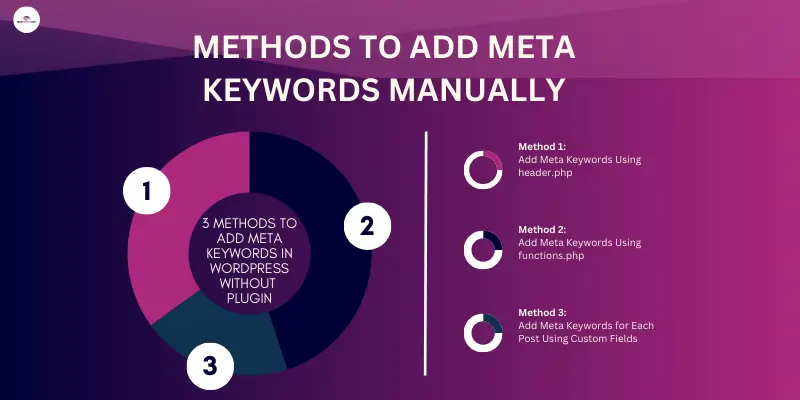
Many beginners ask a common question when learning WordPress SEO: How to add meta keywords in WordPress without installing a plugin?
WordPress gives you full control over your website, but it does not include a built-in feature for adding meta keywords. The good news is that you can still add them manually with a small code change.
Many beginners struggle to add meta keywords in WordPress without a plugin. You may worry about breaking your site while trying to do it manually. This guide explains what meta keywords are, whether they still matter for SEO, and how you can add them manually in WordPress. Every step is beginner-friendly, so even if you have never edited WordPress files before, you can still follow along.
By the end, you’ll feel confident adding meta keywords safely and effectively.
What Are Meta Keywords in WordPress?
Meta keywords are small pieces of text placed inside the HTML code of a webpage. They describe the main topics of that page.
Website owners once used them to help search engines understand what their content was about.
Here is a simple example of a meta keywords tag:
<meta name="keywords" content="WordPress optimization, meta keywords tutorial, SEO basics WordPress">You place this code inside the <head> section of a webpage.
The keywords in this tag describe the topic of the page. For example:
- WordPress SEO
- Meta keywords guide
- WordPress tutorial
These keywords help organize your page topics inside the website code.
Are Meta Keywords the Same as Meta Tags?
No, meta keywords and meta tags are not the same, but they are closely related. Meta keywords are one type of meta tag.
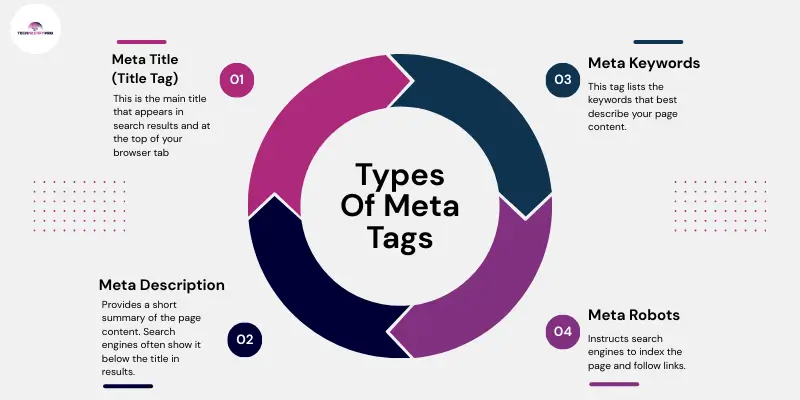
Meta tags are small pieces of HTML code that live inside the <head> section of a webpage. They give search engines and browsers extra information about the page. Visitors usually do not see these tags on the page itself, but search engines can read them in the page source.
Meta keywords are simply one specific meta tag used to list keywords related to the page content.
Understanding the Difference
Think of it this way:
- Meta tags → the general category of code in the <head> section
- Meta keywords → one type of meta tag
- Meta title → another type of meta tag (technically not a <meta> element, but still part of the <head> and crucial for SEO)
- Meta description → another type of meta tag that summarizes your page for search results
So, every meta keyword tag is a meta tag, but not every meta tag is a meta keyword tag.
Common Meta Tags in WordPress
Here’s a quick look at the most important meta tags beginners should know:
1. Meta Title (Title Tag)
This is the main title that appears in search results and at the top of your browser tab. It helps search engines understand your page and encourages users to click through.
<title>How to Add Meta Keywords in WordPress Without a Plugin | Beginner Guide</title>This <title> tag is part of the <head> section, just like meta keywords, so it is technically a meta tag, but unlike <meta> tags, it does not use the <meta> HTML element; it uses <title>.
2. Meta Description
Provides a short summary of the page content. Search engines often show it below the title in results.
<meta name="description" content="Learn how to add meta keywords in WordPress without using a plugin. Step-by-step guide for beginners.">3. Meta Keywords
This tag lists the keywords that best describe your page content. While search engines don’t rely on it for ranking anymore, it helps organize your content and can be useful for niche search engines.
Example of a unique meta keywords tag:
<meta name="keywords" content="WordPress guide, SEO tips, blogging tutorial">4. Meta Robots
This tells search engines whether they should include the page in search results and follow the links on it.
<meta name="robots" content="index, follow">5. Viewport Meta Tag
Ensures your site displays properly on mobile devices and different screen sizes.
<meta name="viewport" content="width=device-width, initial-scale=1">Why This Matters for WordPress Beginners
Understanding meta tags helps you:
- Avoid confusion when editing WordPress theme files
- Know which tags are essential for SEO (title and description)
- Understand where meta keywords fit in today’s SEO landscape
In this guide, I focus specifically on meta keywords, showing you three beginner-friendly ways to add them in WordPress without a plugin, so you can manage keywords safely and effectively.
Do Meta Keywords Still Help SEO?
Many beginners believe meta keywords improve rankings, but this is not fully true today.
Major search engines such as Google no longer use meta keywords as a ranking factor. This happened because many websites abused them by adding hundreds of unrelated keywords.
Even though they do not affect Google rankings, meta keywords can still be useful in some situations:
They Help Organize Page Topics
Some website owners use meta keywords to organize their content internally.
Some Small Search Engines Still Read Them
A few smaller search engines still check meta keyword tags.
Useful for Learning SEO Basics
If you are learning SEO or working with HTML, adding meta tags helps you understand how website metadata works.
Even though meta keywords do not improve rankings directly, learning how to manage meta tags gives you better control over your website.
Tip: Focus more on content quality, search intent, internal links, and page titles if you want better rankings.
What to Know Before Editing WordPress Files
Editing WordPress files gives you full control, but it comes with some risks if you’re not prepared. Following these safety steps keeps your site secure and makes the process smooth.
Create a Child Theme Before Editing Theme Files
A child theme prevents your changes from being lost when the main theme updates. It allows you to safely modify files like header.php or functions.php without affecting the original theme.
Always Backup Your Website
Backing up your website ensures you can restore it if something goes wrong while editing files. You can use plugins or your hosting provider’s backup tools to save your content and settings.
Theme Updates Can Overwrite Your Manual Code Changes
If you edit theme files directly, theme updates may overwrite your changes. Understanding this risk helps you avoid losing your custom meta keywords or breaking the site layout.
When Should You Add Meta Keywords Manually?
Adding meta keywords manually makes sense in a few cases.
You Want a Lightweight Website
Many beginners install several plugins. Too many plugins can slow down a website. Manual code changes reduce plugin usage.
You Are Using a Custom Theme
Some custom themes do not include SEO settings. In this case, manual meta tags can help you manage page metadata.
You Want to Learn WordPress Structure
Editing theme files helps beginners understand how WordPress websites work.
Still, always create a backup before editing theme files.
How to Add Meta Keywords in WordPress Without a Plugin: Easy Methods
You can add meta keywords in WordPress without a plugin using three main methods: editing header.php, adding code to functions.php, or creating custom fields for individual posts.
Before you start, remember that meta keywords are not a major ranking factor for Google anymore, but some search engines and internal systems still read them. Many website owners still add them for organization or compatibility.
Adding meta keywords manually may seem tricky, but you can do it safely by following these step-by-step methods. Each method works differently, so you can choose the one that fits your site best. Below, I’ll explain each method step by step so beginners can follow easily.
The methods will help you learn exactly how to add them safely.
1) How Do You Add Meta Keywords in WordPress using header.php?
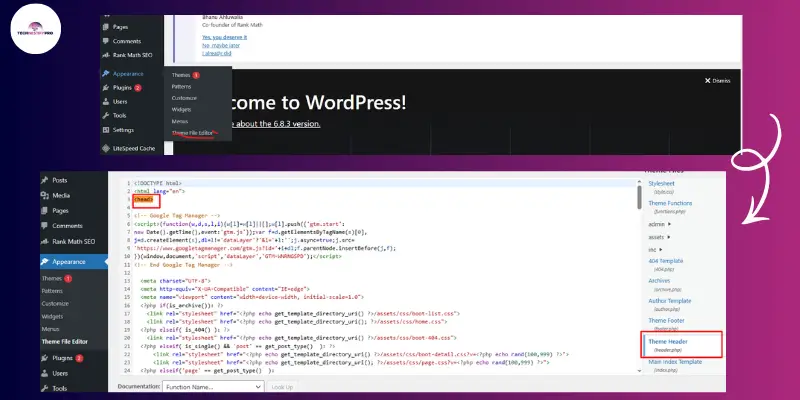
You can add meta keywords to every page on your website by placing a meta tag directly inside the <head> section of the header.php file. WordPress loads this file on most pages, so the keywords appear site-wide.
Step 1: Log in to Your WordPress Dashboard First
Open your browser and go to:
yourwebsite.com/wp-admin
Log in to your WordPress account using your username and password, and then click Log In. After logging in, you will see the WordPress dashboard.
Step 2: Open the Theme File Editor
In the dashboard menu on the left:
- Click Appearance
- Select Theme File Editor
WordPress will show a warning message saying that editing theme files directly can break your website if you add incorrect code. This message simply reminds you to edit carefully.
Click I Understand to continue.
Step 3: Locate the header.php File
In the editor, you’ll see a list of theme files on the right side.
Look for:
header.php
Click it to open the file.
This file controls the top section of your website, including the <head> area where meta tags live.
Step 4: Find the <head> Section
Scroll through the code until you see something similar to this:
<head>
This section contains important tags such as:
- page title
- meta description
- stylesheet links
- scripts
You will place the meta keywords inside this section.
Step 5: Add the Meta Keywords Code
Insert this line before the closing </head> tag.
<meta name="keywords" content="WordPress SEO guide, meta tags setup, beginner WordPress tips">Replace the keywords with phrases related to your website.
Example for a blogging site:
<meta name="keywords" content="blogging tips, wordpress blogging, start a blog, writing tips">Keep these tips in mind:
- Separate keywords with commas
- Avoid adding too many keywords
- Use relevant phrases only
Step 6: Save the Changes
After adding the code:
- Click Update File
- In a new browser tab, open your website
- Right-click anywhere on the page
- Click View Page Source
Press Ctrl + F and search for:
keywords
If you see your meta tag in the code, the method worked.
2) How to Add Meta Keywords in WordPress using functions.php?
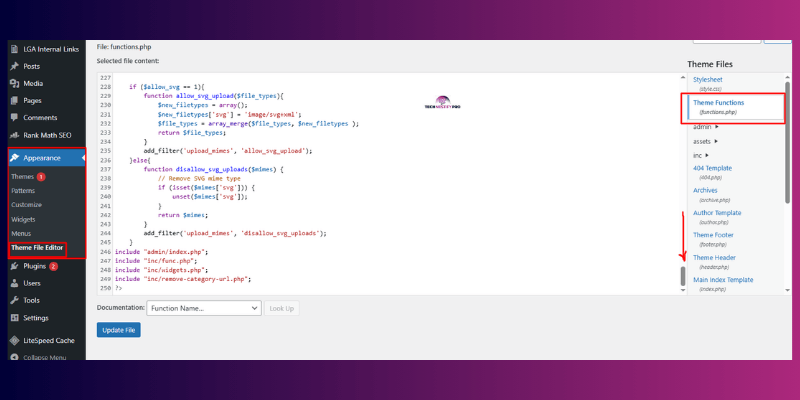
You can add meta keywords in WordPress using the functions.php file by inserting a small PHP function that prints the meta keywords tag inside the website’s <head> section.
This method uses a WordPress hook called wp_head, which allows you to automatically place the meta tag on every page without editing the header file directly. Many developers use this approach because it keeps the code organized and easier to manage.
Step 1: Open the functions.php File
Go to:
Appearance → Theme File Editor
Find the file named:
functions.php
Click it to open the file.
Step 2: Add the Meta Keywords Function
You’ll need to scroll to the bottom of the file to paste this code.
function add_meta_keywords() {
    echo '<meta name="keywords" content="WordPress SEO, meta keywords tutorial">';
}
add_action('wp_head', 'add_meta_keywords');
This code tells WordPress to insert the meta keywords tag automatically inside the <head> section of your site.
Step 3: Replace the Keywords
Edit the keyword list inside the code to match your website content.
Example:
function add_meta_keywords() {

 echo '<meta name="keywords" content="wordpress tutorials, blogging guide, website tips">';

}

add_action('wp_head', 'add_meta_keywords');
Step 4: Save the File
Click Update File to save your changes.
After saving:
- Open your website
- Right-click the page
- Click View Page Source
- Search for keywords
If the meta tag appears, the code works correctly.
3) How to Add Meta Keywords to Individual WordPress Posts Using Custom Fields?
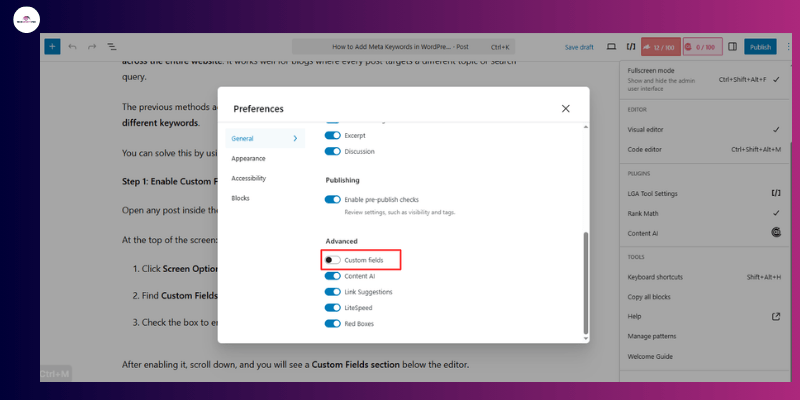
You can add meta keywords to individual WordPress posts by creating a custom field called meta_keywords and displaying its value inside the <head> section of your theme.
This method allows each post or article to have different keywords instead of using the same keywords across the entire website. It works well for blogs where every post targets a different topic or search query.
The previous methods add the same keywords to every page. However, each article usually needs different keywords.
You can solve this by using custom fields, which allow you to add unique meta keywords for each post.
Step 1: Enable Custom Fields in WordPress
Open any post inside the WordPress editor.
At the top of the screen:
- Click Screen Options
- Find Custom Fields
- Check the box to enable it
After enabling it, scroll down, and you will see a Custom Fields section below the editor.
Step 2: Create a Meta Keywords Field
In the Custom Fields area:
- Click Add New
- Enter this name:
meta_keywords
- In the value box, enter your keywords.
Example:
wordpress seo tips, beginner blogging guide, seo writing tips
Click Add Custom Field.
Step 3: Display the Keywords in Your Theme
Now you need to tell WordPress to display this custom field inside the <head> section.
Add this code to your theme’s header area.
<?php

if(get_post_meta(get_the_ID(), 'meta_keywords', true)){

 echo '<meta name="keywords" content="' . get_post_meta(get_the_ID(), 'meta_keywords', true) . '">';

}

?>
This code checks whether a post contains a meta_keywords field. If it finds one, it prints the meta tag automatically.
Step 4: Test the Result
Open the post where you added the custom field.
Then:
- Right-click the page
- Click View Page Source
- Search for keywords
You should see the exact keywords you entered for that specific post.
How to Add Different Meta Keywords for Each Page
Editing the header.php file adds the same meta keywords to every page on your website.
But many websites need different keywords for each article or page.
For example:
A blog post about SEO may use keywords like:
- WordPress SEO
- meta tags guide
Another post about speed optimization may use:
To manage keywords separately for each page, you usually need:
- custom fields
- SEO plugins
- theme customization
Common Mistakes When Adding Meta Tags Manually- Quick Checklist ✅
Adding meta tags manually in WordPress can give you more control, but beginners often make mistakes that can break your site, reduce SEO effectiveness, or cause confusion. Knowing these pitfalls helps you avoid them and ensures your site stays safe and optimized.
| Mistake | Why It’s a Problem | How to Avoid It |
| Editing Theme Files Without a Backup | A small typo can crash your site or make it inaccessible. | Be sure to create a full backup before making any changes. Use hosting tools, backup plugins, or download files via FTP. |
| Not Using a Child Theme | Theme updates overwrite your custom meta tags. | Create a child theme and make all edits there to keep changes safe. |
| Incorrect HTML or PHP Code | Wrong syntax can break the site or prevent meta tags from showing. | Copy code carefully, check quotes and brackets, and test on a staging site first. |
| Adding Duplicate Meta Tags | Confuses search engines and reduces SEO value. | Remove duplicate meta tags from plugins or theme files. Each meta tag should appear only once per page. |
| Overloading Meta Keywords | Keyword stuffing adds no SEO benefit and can clutter your HTML. | Use 5–10 highly relevant keywords that accurately describe your content. |
| Ignoring More Important Meta Tags | Focusing only on meta keywords misses SEO opportunities. | Optimize meta titles, descriptions, and add Open Graph tags for social sharing. |
Quick Tip for Beginners
- Keep this checklist handy whenever you edit meta tags.
- Following it ensures safer edits, better SEO, and a beginner-friendly workflow.
What Are the Best Practices for Adding Meta Keywords?
To add meta keywords effectively in WordPress, focus on relevance, keep the List Short, content quality, and clear titles. Following these best practices ensures your meta keywords support your SEO without creating problems.
- Use Relevant Keywords
Only include keywords that match your page content. Avoid irrelevant words that confuse search engines. - Keep the List Short
Limit your meta keywords to 3–6 per page. Long lists don’t help SEO and make your code messy. - Focus on Content Quality
High-quality, well-structured content matters more than meta keywords. Make sure your content answers readers’ questions clearly. - Use Clear Page Titles and Headings
Descriptive titles and headings help search engines understand your content better. They also improve user experience. - Review Your Keywords Regularly
Update your keywords as your content changes. Remove outdated or irrelevant keywords to maintain accuracy and SEO value.
Conclusion
By following this guide, you now know how to add meta keywords in WordPress without a plugin. You’ve learned three easy methods, using header.php, functions.php, and custom fields, and how to check your work to make sure it’s done correctly. You also understand the best practices, common mistakes, and how meta keywords fit into your page’s SEO.
Now it’s time to put your knowledge into practice. Try adding meta keywords to a few posts or pages on your site, review them in the page source, and see how they appear. As you get comfortable, explore more advanced tips like combining meta keywords with optimized titles, descriptions, and headings to make your content even stronger.
With these skills, you can manage your wordpress site confidently and make sure your content is organized, search-friendly, and ready to reach the right audience.
(FAQs) About WordPress SEO meta keywords
You can add meta keywords without a plugin by editing your theme files manually, such as header.php or functions.php. This method uses code you write yourself, so you don’t pay for any tools or plugins.
Open your WordPress dashboard and go to Appearance → Theme File Editor → header.php. Then place your meta keywords code inside the <head> section before </head> and save the file.
Major search engines like Google and Bing do not use meta keywords to rank pages anymore. They don’t hurt your site, but you should focus first on meta titles, meta descriptions, and quality content.
Yes. You can use custom fields in WordPress to add unique meta keywords for each post, and then output that value in your theme code. That way, each post has its own set of keywords.
You only need basic HTML/PHP skills, such as knowing where the <head> section is and how to paste code. The step‑by‑step method in this guide shows exactly what to do.
Without using a plugin, you must add code to your theme’s files because WordPress doesn’t have a built‑in field for meta keywords. This manual method is the only plugin‑free option.
It can if you make mistakes. Always backup your website first and use a child theme so theme updates don’t remove your changes.
Yes. You can view your page source in a browser to see if the <meta name=”keywords”> tag appears inside the <head> section. This confirms you added the keywords correctly.
WordPress core does not include a backend field for meta keywords, so most SEO tools focus on more impactful meta tags like titles and descriptions. Adding keywords is optional and mostly for legacy use.
Some plugins used to support meta keywords, but most modern seo plugins now focus on meta title and description instead. If a plugin adds keyword fields, it usually does so through custom settings.




- Be Respectful
- Stay Relevant
- Stay Positive
- True Feedback
- Encourage Discussion
- Avoid Spamming
- No Fake News
- Don't Copy-Paste
- No Personal Attacks
- Be Respectful
- Stay Relevant
- Stay Positive
- True Feedback
- Encourage Discussion
- Avoid Spamming
- No Fake News
- Don't Copy-Paste
- No Personal Attacks
