How to Install Google Analytics on WordPress (Step-by-Step for Beginners)
Published: 21 Oct 2026
Quick Answer: How Do You Install Google Analytics on WordPress?
To install Google Analytics on WordPress, create a Google Analytics 4 (GA4) property and copy its Measurement ID, which starts with G-. Next, add the Google tag to your website. You can use a plugin like Site Kit, a header plugin like WPCode, Google Tag Manager, or paste the code into your theme’s header.php file. Finally, open the Realtime report in GA4 to confirm that visits appear.

You want to see who visits your website. So you look up how to set up Google Analytics on WordPress. Then you find plugins, code snippets, Tag Manager, and many conflicting tips. Which method is safe? Where does the code go? Will it break your site?
I know that feeling. I run Google Analytics on my own WordPress sites, and I use two different setups. One site uses Google Tag Manager. Another site uses the tracking code pasted into the theme’s header.php file. Both work perfectly.
This guide shows you how to install Google Analytics on WordPress, step by step. You pick one of five methods, follow the steps, and finish in about 15 minutes. No coding skills needed.
What You Should Have Ready Before You Begin
A few minutes of preparation prevent most setup problems. Check each item below first. Each one has a reason.
- A WordPress admin login. You need admin access to install plugins and edit theme settings.
- A Google account. Google Analytics uses your Google login. A free Gmail account works fine.
- Your exact site URL. Use the address your site really loads, such as https://www.example.com. A wrong version can confuse your data stream.
- A fresh backup. A backup lets you undo any mistake in seconds. This matters most if you edit theme files.
- A check for old Analytics code. Older sites often carry Universal Analytics code (it starts with UA-) or a plugin from years ago. Universal Analytics stopped processing data on July 1, 2023. Remove the old code, or you may count visits twice.
- Your theme type. Open Appearance > Theme File Editor. If you see a file called header.php, you use a classic theme. If you don’t, you likely use a block theme. Block themes arrived with WordPress 5.9. This choice decides which manual method works for you.
How to Install Google Analytics on WordPress Step by Step
The setup has three stages. First, you create a Google Analytics 4 property and copy its Measurement ID. Second, you add the tag to your WordPress with one method. Third, you check that data arrives. Take your time with stage two, because you must choose only one method.
Which Method Should You Choose?
Choose the method that matches your skill level and your goal. Use this quick rule:
- Complete beginner: choose Site Kit by Google. It is the fastest, and it needs no code.
- Want reports inside WordPress and store tracking: choose MonsterInsights.
- Want a safe paste method that works on any theme: choose the WPCode header plugin.
- Use a classic theme and want no extra plugin: paste the code into header.php, ideally in a child theme.
- Plan to track events, conversions, or ads: choose Google Tag Manager.
Every method below works. The right one depends on your skill level and your goals. This table shows the difference at a glance.
| Method | Difficulty | Typical time | Best for | Code needed? |
| Site Kit by Google | Easy | 5 to 10 minutes | Beginners who want stats inside WordPress | No |
| MonsterInsights | Easy | 10 minutes | Dashboard reports and store tracking | No |
| WPCode header plugin | Easy | 10 minutes | Simple tracking that survives theme changes | Copy and paste |
| Code in header.php | Medium | 10 minutes | Classic themes with no extra plugin | Copy and paste |
| Google Tag Manager | Medium | 20 to 30 minutes | Events, conversions, and many tags | No, but you set up a container |
Here is how I use them. On one of my sites, I use Google Tag Manager. I want to add events and other tags later without touching WordPress again. On another site, I paste the Google tag into header.php. That site needs only one tag, and I want no extra plugin. Both setups track visits correctly.
Step 1:Create Your Google Analytics Account and GA4 Property and Copy Your Measurement ID
Every method needs this ID, so do this first. If you plan to use Site Kit, you can skip ahead, because the plugin can create the property for you.
Your Google Analytics account is a free space where you manage your properties. Set it up once using your Google account, then create a separate GA4 property for each website you want to track.
- Visit analytics.google.com and log in using your Google account.
- Click Admin (the gear icon at the bottom left).
- Click Create, then choose Account. Type a name for your account, such as your company name, then select Next.
- Enter a property name. Select the time zone and currency you want to use for your reports. Click Next.
- Answer the business questions, then click Create.
- Choose Web as your platform. Enter your website URL and a stream name. Click Create stream.
- Find the Measurement ID in the upper-right corner of your data stream details and copy it. It looks like G-XXXXXXXXXX.
Pick your time zone with care. Reports use it to cut each day in a specific way, so a wrong choice shifts your daily numbers.
Step 2: Add the Google Tag to WordPress (Use Only One Method)
Pick one method from the next five sections. Do not combine them. Running two methods at once causes double tracking. Double tracking inflates your page views and sessions, and it makes your reports unreliable.
Is There a Google Analytics Plugin for WordPress?
Yes. Several plugins add Google Analytics to WordPress, and most have a free version. Here are the main ones:
- Site Kit by Google: free. It is the official Google plugin.
- WPCode: free version available. It lets you paste the Google tag without editing theme files.
- GTM4WP: free. It integrates Google Tag Manager with your website.
- MonsterInsights: free Lite version, with paid plans for advanced features.
The next three methods use these plugins.
Method 1: Install Google Analytics With Site Kit by Google
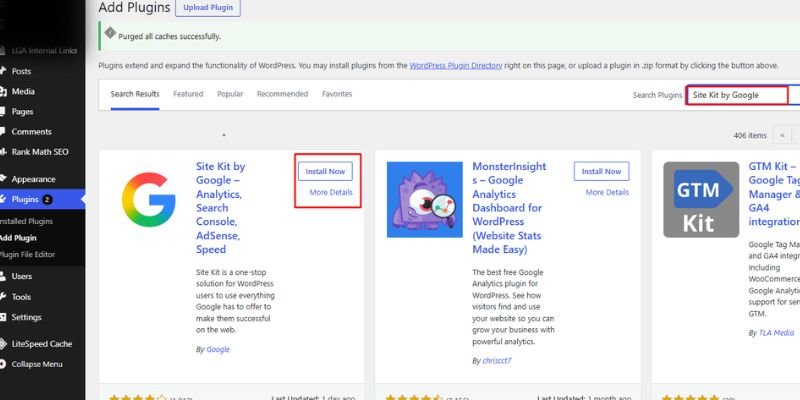
Site Kit by Google is the easiest way to connect Google Analytics to WordPress without touching any code. It’s a free plugin from Google that guides you through the setup and lets you view your website’s analytics data from your WordPress dashboard. Follow these steps to install it and connect your GA4 property.
- Log in to your WordPress dashboard. Navigate to Plugins > Add New Plugin.
- Search for “Site Kit by Google”. Click Install Now, then Activate.
- Click Start Setup. Log in using the Google account linked to your website.
- Click Allow to grant the permissions Site Kit asks for.
- Follow the prompts to verify site ownership. Site Kit usually does this for you.
- Choose Connect Service next to Analytics. Select your GA4 property and web data stream. If you have none, Site Kit can create them.
- Click Configure Analytics. Site Kit adds the tag for you. You paste no code.
Pros: very fast, no code, stats inside WordPress. Cons: fewer options for custom events than Tag Manager.
How do you log in to Site Kit? Site Kit has no separate login page. Log in to your WordPress dashboard and navigate to Site Kit > Dashboard. Your Google Analytics stats appear there. If the dashboard asks you to reconnect, click Sign in with Google and use the same Google account. To switch accounts, open Site Kit > Settings, disconnect, and run Start Setup again. Menu names can change, so look for the same options if yours differ.
Method 2: Use a Dedicated Plugin Like MonsterInsights
I don’t use this one either. Still, many beginners like it because it shows reports inside the WordPress dashboard.
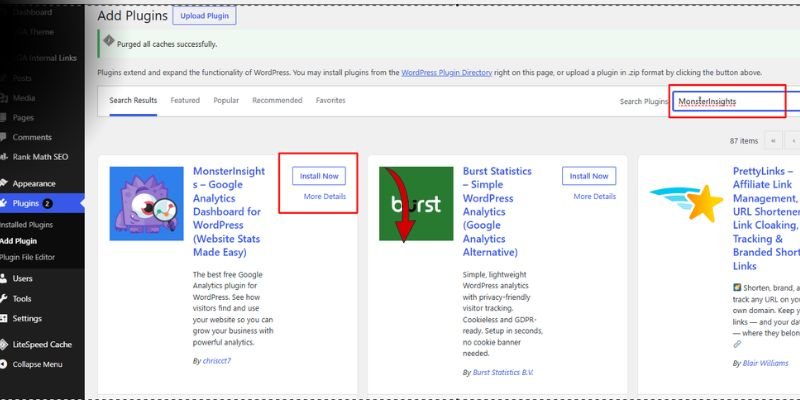
- Go to Plugins > Add New Plugin. Search for “MonsterInsights”.
- Install and activate the plugin.
- Launch the setup wizard. Choose your site type.
- Select Connect MonsterInsights and sign in with Google.
- Select your GA4 property and finish the wizard.
Pros: easy setup, simple reports, store tracking add-ons. Cons: some features sit behind a paid plan.
Method 3: Paste the Tag With the WPCode Header Plugin
This method is the safest manual option. WPCode stores your code outside your theme. So a theme update or a theme switch never removes it. It also works on block themes.
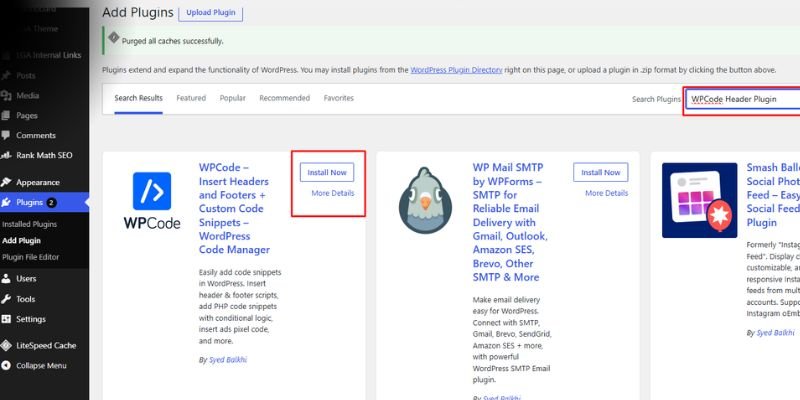
- Go to Plugins > Add New Plugin. Search for “WPCode”. Install and activate the free version.
- In GA4, open Admin > Data streams and click your web stream.
- Under Google tag, click View tag instructions, then choose Install manually.
- Copy the full code snippet.
- In WordPress, open Code Snippets > Header & Footer.
- Paste the snippet into the Header box. Click Save Changes.
Method 4: Paste the Code Into header.php (A Method I Use Myself)
This is the method I use on one of my sites. It needs no extra plugin, and it works well. This method works only with classic themes, as block themes don’t include a header.php file.
- Create a full backup of your site. One typo in a theme file can break your pages.
- Switch to a child theme, or create one. Updating a parent theme may erase changes made to header.php, but using a child theme helps preserve your edits.
- In GA4, open Admin > Data streams. Click your web stream, then View tag instructions, then Install manually. Copy the snippet.
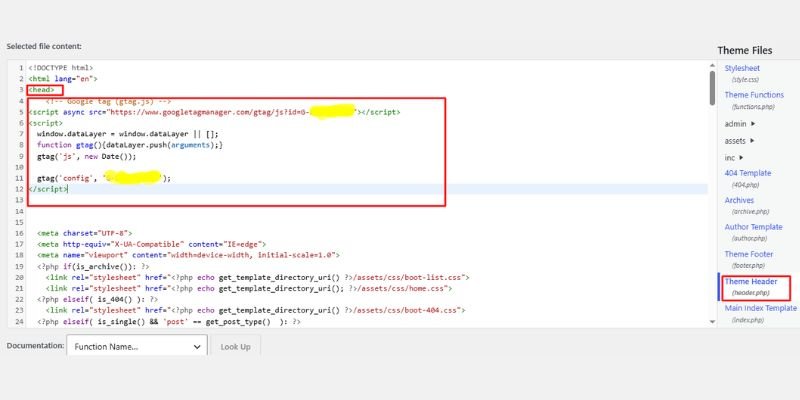
- In WordPress, go to Appearance > Theme File Editor. Choose your child theme. Open header.php.
- Find the opening <head> tag. Paste the snippet directly after it. Google recommends this spot, so the tag loads early.
- Click Update File. Next, open your website in a new browser tab to make sure it loads correctly.
Your snippet looks like this. Your ID replaces both G-XXXXXXXXXX values.
<!-- Google tag (gtag.js) -->
<script async src="https://www.googletagmanager.com/gtag/js?id=G-XXXXXXXXXX"></script>
<script>
  window.dataLayer = window.dataLayer || [];
  function gtag(){dataLayer.push(arguments);}
  gtag('js', new Date());
  gtag('config', 'G-XXXXXXXXXX');
</script>Editing a live theme file feels risky, and a safer version of the same idea exists. Instead of editing header.php, add this function to the functions.php file of your child theme. It loads the same tag through the wp_head hook.
function tnp_add_google_tag() { ?>
<!-- Google tag (gtag.js) -->
<script async src="https://www.googletagmanager.com/gtag/js?id=G-XXXXXXXXXX"></script>
<script>
  window.dataLayer = window.dataLayer || [];
  function gtag(){dataLayer.push(arguments);}
  gtag('js', new Date());
  gtag('config', 'G-XXXXXXXXXX');
</script>
<?php }
add_action( 'wp_head', 'tnp_add_google_tag', 1 );Pros: no extra plugin, full control, light on your site. Cons: you edit theme files, and a block theme can’t use it. Note where you placed the code, so you can find it in six months.
Method 5: Install Google Analytics Through Google Tag Manager (A Method I Use Myself)
I use Google Tag Manager (GTM) on another site. You add one GTM container to WordPress. After that, you manage Google Analytics and every other tag inside GTM. You never touch WordPress code again. This is the best option if you plan to track button clicks, form submissions, or ad conversions.
- Go to tagmanager.google.com. Click Create Account. Enter your account name and country. Choose Web as the target platform.
- Copy your container ID. It looks like GTM-XXXXXXX.
- Add the container to WordPress. The simplest option is to use the free GTM4WP plugin. Install it, open its settings, and paste your container ID. The plugin places both GTM snippets for you. You can also paste them by hand: one high in the head, one right after the opening body tag.
- In GTM, click Tags > New. Click the Tag Configuration option and choose Google tag. Older containers call it “GA4 Configuration”.
- Enter your Measurement ID (G-XXXXXXXXXX) in the Tag ID field.
- Under Triggering, choose Initialization – All Pages. Name the tag and click Save.
- Click Preview. Enter your site URL. Tag Assistant opens your site and shows that the Google tag fired.
- Click Submit, add a version name, and click Publish.
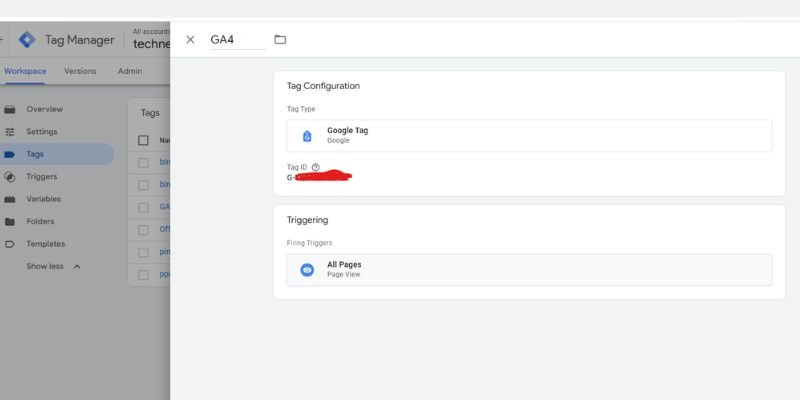
Pros: one container for all tags, easy event tracking, clean consent control. Cons: a longer first setup, and one more tool to learn.
Quick recap: Use only one method from Step 2. Not sure which one? If you are a beginner. choose Site Kit. Choose Google Tag Manager if you plan to grow your tracking.
Step 3: Check That Google Analytics Works
Never assume the setup worked. Test it. I use these checks every time.
- Load your website in a private or incognito browser window. Visit two or three pages.
- In GA4, open Reports > Realtime. At least one active user should appear within the next minute or two.
- Right-click anywhere on the page and select View Page Source. Press Ctrl+F and search for your G- ID, or for “googletagmanager.com”. The tag should appear once, not twice.
- Open tagassistant.google.com. Enter your site URL. Tag Assistant should list your Google tag as found.
- To check events like page_view, open Admin > DebugView while Tag Assistant is connected.
Standard reports need more time than Realtime. Allow 24–48 hours for your reports to start showing complete data.
.
Can You Install Google Analytics on WordPress Without a Plugin?
Yes, you can. You can set up Google Analytics on WordPress without installing a plugin.
. You have three plugin-free options:
- Paste the Google tag into header.php of a child theme. This works on classic themes only.
- Add the tag with the wp_head function in your child theme’s functions.php file. This works on classic and block themes, because both still load wp_head.
- Paste the two Google Tag Manager snippets into your theme by hand, then add GA4 inside Tag Manager.
Make a backup first. When editing theme files manually, even a small typo can cause your website to stop working properly.
What Should You Do in the First 10 Minutes After Installing?
A working tag is only the start. These five settings make your data far more useful. Do them now, while the setup is fresh.
- Extend data retention. Go to Admin > Data settings > Data retention. By default, Google retains event-level data for two months. Standard properties can raise it to 14 months. This setting affects Explorations, not your standard reports. Change it on day one, because it only protects data going forward.
- Filter your own visits. Open Admin > Data streams, click your stream, then Configure tag settings > Show all > Define internal traffic. Set up a rule using your IP address. Then go to Admin > Data settings > Data filters. Find the Internal Traffic filter and change it from Testing to Active. Many people forget this last step.
- Check enhanced measurement. In your web stream, review the Enhanced measurement toggle. It automatically records scroll activity, external link clicks, site searches, video interactions, and file downloads without requiring additional code.
- Link Google Search Console. Open Admin > Product links > Search Console links. This shows the search terms that bring people to your site.
- Mark your key events. Open Admin > Events. Mark actions that matter, such as a form submission or a purchase, as key events.
Do You Need a Cookie Banner for Google Analytics?
Often, yes. Many regions, including the EU and the UK, require consent before analytics cookies run. Add a consent plugin such as Complianz or CookieYes. Then use Google Consent Mode so GA4 respects each visitor’s choice. Google Tag Manager makes this easier, because it lets you block tags until a visitor agrees. This is not legal advice, so check the rules for your visitors’ countries.
How Do You Add Google Analytics to a WooCommerce Website?
You add the same Google tag first. Then you add e-commerce events, so GA4 can track product views, carts, and sales. GA4 uses events such as view_item, add_to_cart, begin_checkout, and purchase.
- Add the Google tag using any method described above, then check the Realtime report to verify that page views are being recorded.
- Choose a tool that sends WooCommerce events. MonsterInsights has an eCommerce add-on on its paid plans. GTM4WP has a free WooCommerce integration for Tag Manager.
- Turn on the ecommerce or data layer option in that tool.
- Place a test order. Then open Admin > DebugView and look for the purchase event.
- Mark the purchase as a key event in Admin > Events.
Add the basic tag first. Add ecommerce tracking only after you confirm that page views work.
Extra Tips and Best Practices to Install Google Analytics
- Use one install method only. Using two tracking methods simultaneously can cause your data to be counted twice.
- Write down where your tag lives. Note whether it sits in a plugin, in header.php, or in GTM.
- Use a child theme for any theme file edit. Updates then can’t erase your code.
- Clear your site cache after setup. Old cached pages may still lack the tag.
- Test on a phone as well as a desktop. Some setups behave differently across devices.
- Re-check your tracking after big changes. Changing your theme, switching cache plugins, or redesigning your site may cause the tag to disappear.
- Wait 24 to 48 hours before you judge your reports. Early numbers always look low.
Common Problems and Fixes: Why Is Google Analytics Not Showing Data on WordPress?
Don’t worry if your first test fails. Most problems have a simple cause. Follow the troubleshooting steps below one by one, in the order shown.
- Real-time shows nothing. Your cache may serve an old page, so clear your cache plugin and your browser cache, then test again.
- A “delay JavaScript” setting blocks the tag. Optimization plugins such as WP Rocket or LiteSpeed Cache can delay scripts, so exclude your Google tag or googletagmanager.com from that setting.
- An ad blocker hides your own visit. About 29.5% of internet users use an ad blocker at least sometimes, and many blockers also stop analytics scripts. Test your site in a clean browser profile with no extensions.
- Your numbers look doubled. You probably installed the tag twice, so view your page source, find the duplicate, and remove one installation.
- Old Universal Analytics code still sits in your theme. Search your theme files and plugins for “UA-”, then delete that old code.
- The Measurement ID is wrong. A single wrong character sends data nowhere, so copy the ID again from Admin > Data streams.
- Your plugin skips logged-in admins. Some plugins exclude administrators, so test while logged out or from another browser.
- A security plugin or CDN blocks the script. Check your firewall rules and Cloudflare settings, and allow googletagmanager.com.
- Data is still processing. Standard reports lag behind Realtime, so wait 24 to 48 hours.
Conclusion
You now know how to install Google Analytics on WordPress with five different methods. You created a GA4 property, added the tag, tested it, and set up the key settings. Your site now collects real data about visitors, pages, and traffic sources.
My advice is simple. Use Site Kit if you want the easiest path. Paste the code into a child theme’s header.php if you want a lean setup, as I do on one site. Choose Google Tag Manager if you want room to grow, as I do on another. Whichever you pick, test it, and never run two methods at once.
Give your reports a day or two to fill up. Then check your top pages and traffic sources. Your next step is to mark your key events, so you can see which pages bring results.
FAQs: Install Google Analytics on WordPress
Yes, Google Analytics 4 is free for most websites. A paid version, Analytics 360, exists for very large companies. Small blogs and business sites don’t need it. The plugins in this guide also have free versions. You can finish the whole setup at no cost.
No, you don’t need one. You can paste the Google tag into your theme’s header.php file by hand. A plugin only makes the job easier and safer. Beginners often do better with Site Kit or WPCode. I use the manual code method on one of my own sites, and it works well.
Open Google Analytics and click Admin. Select Data streams, then click your web stream. Your Measurement ID shows at the top right. It starts with the letter G and a dash. Copy it exactly, with no spaces.
The Realtime report updates within a minute or two. Standard reports take longer. Expect to wait 24 to 48 hours for full data. Low numbers on day one are normal. Check again after two days.
Yes, you can. Use Site Kit, MonsterInsights, or the WPCode header plugin. Google Tag Manager also works without theme edits when you add it with a plugin. These methods keep your theme files clean. Your tracking then survives theme updates and theme changes.
You most likely installed the tag twice. This happens when a plugin, a theme edit, and Tag Manager all run together. View your page source and look for your Measurement ID. Remove every install except one. Also set up an internal traffic filter, so your own visits don’t skew the numbers.
It depends on where your visitors live. Rules in the EU and the UK usually require consent before analytics cookies run. A consent plugin like Complianz or CookieYes handles this for you. Pair it with Google Consent Mode for cleaner data. Check your local laws, or ask a legal expert if you are unsure.




- Be Respectful
- Stay Relevant
- Stay Positive
- True Feedback
- Encourage Discussion
- Avoid Spamming
- No Fake News
- Don't Copy-Paste
- No Personal Attacks
- Be Respectful
- Stay Relevant
- Stay Positive
- True Feedback
- Encourage Discussion
- Avoid Spamming
- No Fake News
- Don't Copy-Paste
- No Personal Attacks
