Yoast SEO for Squarespace: Can You Use It? Alternatives + Step-by-Step SEO Guide
Published: 3 Apr 2026
Many Squarespace users ask themselves: “Can I use Yoast SEO on Squarespace?” It’s frustrating when tutorials focus on wordpress, and the steps don’t work on your site.
This leaves you wondering:
- How can I improve my site’s SEO without Yoast?
- Will my pages ever rank higher on Google?
- Is Squarespace even capable of good SEO?
The simple truth is that Yoast SEO does not work on Squarespace.
But that doesn’t mean you can’t rank.
In fact, many Squarespace websites perform really well on Google, once you understand how to use the platform properly and apply the right strategies. You don’t need plugins. You need clarity on what actually works.
In this guide, I’ll walk you through:
- Why Yoast SEO isn’t available on Squarespace
- What built-in SEO features does Squarespace already give you
- The best Yoast-like alternatives you can use
- A simple step-by-step SEO process for beginners
- Real examples that show how this works in practice
By the end, you’ll have a clear plan to improve your Squarespace SEO and start getting results without relying on Yoast.
Can You Use Yoast SEO on Squarespace?
Yoast SEO is built exclusively for WordPress, so it can’t be installed on Squarespace. Squarespace is a closed platform, which limits third-party plugin access, including Yoast.
Quick Comparison: WordPress vs Squarespace SEO
| Feature | WordPress (with Yoast) | Squarespace |
| Meta descriptions | ✅ | ✅ (built-in) |
| XML sitemap | ✅ | ✅ (built-in) |
| Keyword optimization | ✅ | Limited |
| Plugins | ✅ | ❌ |
| Schema markup | ✅ | Basic |
Key takeaway: If your goal is to have Yoast’s advanced features, Squarespace won’t support them. But with proper strategies and alternatives, you can still get strong SEO results.
Why People Look for Yoast-Like Plugins on Squarespace
Many Squarespace users search for a Yoast-like SEO tool because they want clear guidance and actionable insights to improve their site’s performance. Here’s why:
- Keyword Guidance: They want help choosing the right keywords for pages and blog posts to rank higher in search results.
- Automated Suggestions: They want tools that recommend improvements for headings, meta descriptions, and image alt text, saving time and avoiding common SEO mistakes.
- Page Grading: They want a tool that analyzes each page and gives a score or feedback on SEO performance, similar to Yoast’s readability and SEO grades.
- Consistency Across Pages: For larger sites, manually checking every page takes too much time. A Yoast-like tool ensures consistent SEO practices site-wide.
Since Squarespace doesn’t allow third-party plugins like Yoast, developers created SEOSpace to provide this guided approach, helping both beginners and experienced users optimize their sites effectively.
Pro Tip: Use SEOSpace alongside Squarespace’s built-in SEO settings to make sure you catch every critical on-page optimization opportunity.
Built-In Squarespace SEO Features You Can Use
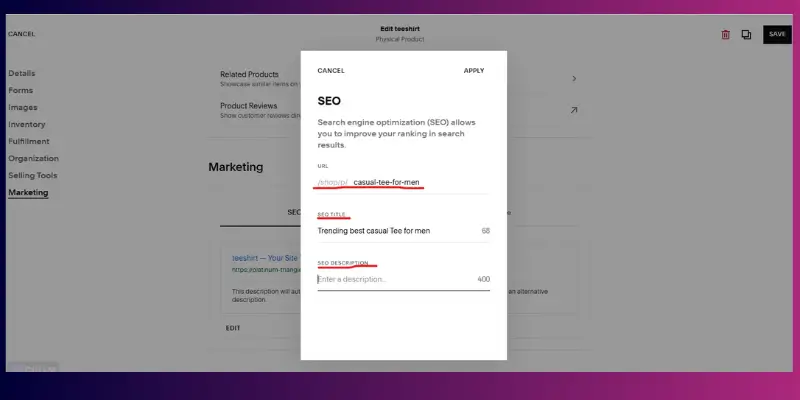
Squarespace provides several built-in SEO tools that you can use to optimize your site effectively. Here’s how to get the most out of them:
- Meta Descriptions & Page Titles: Including your target keywords in the meta title and description of each page will help you get more visibility in the search engines.
- Clean URLs: Squarespace generates URLs automatically, but you can edit them to include keywords for better SEO.
- Mobile Responsiveness: All Squarespace templates are mobile-friendly by default, helping your site perform well on any device.
- SSL Certificates: Squarespace automatically provides SSL security, which improves trust and can boost your search rankings.
- XML Sitemaps: Squarespace automatically generates and submits sitemaps to search engines, making it easier for Google to index your pages.
- Structured Data / Schema Support: Squarespace adds basic schema markup to help search engines understand your content better.
Best Alternatives to Yoast SEO for Squarespace
Even though Yoast isn’t available for Squarespace, you can still optimize your site effectively using these tools:
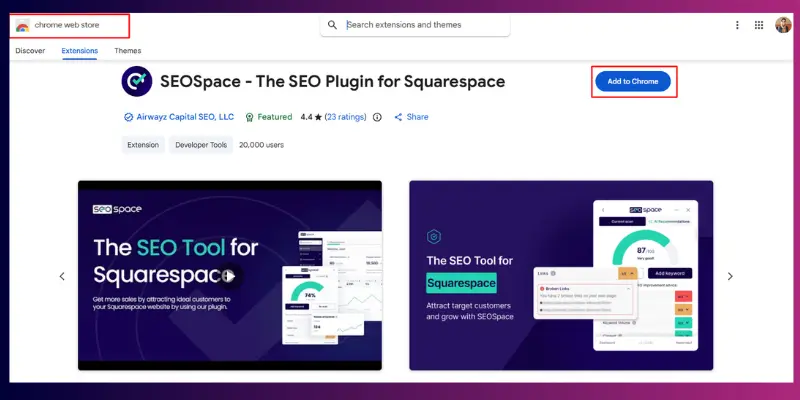
- SEOSpace: A Chrome extension specifically designed for Squarespace. It works like Yoast by analyzing headings, meta tags, and keyword usage, giving you a clear checklist to improve your on-page SEO. Many Squarespace site owners rely on SEOSpace to quickly identify and fix SEO issues without guessing.
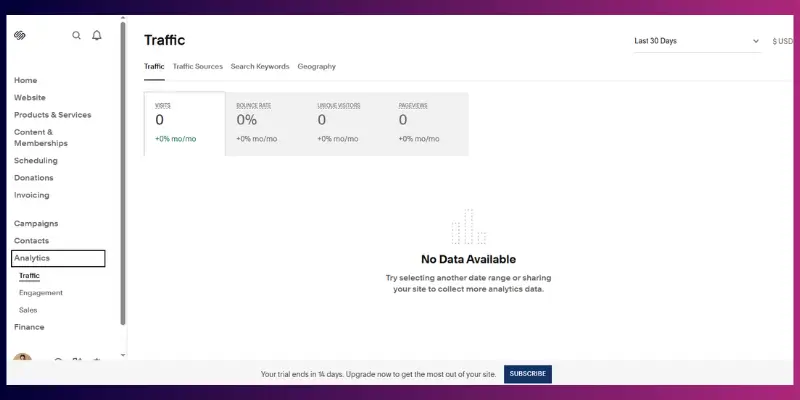
- Squarespace Analytics: Lets you monitor traffic, visitor behaviour, and page performance. By understanding which pages perform best, you can focus your SEO efforts where they matter most.
- Google Search Console (GSC): Tracks indexing status, search appearance, and errors. It’s an essential tool to ensure Google crawls and understands your website correctly.
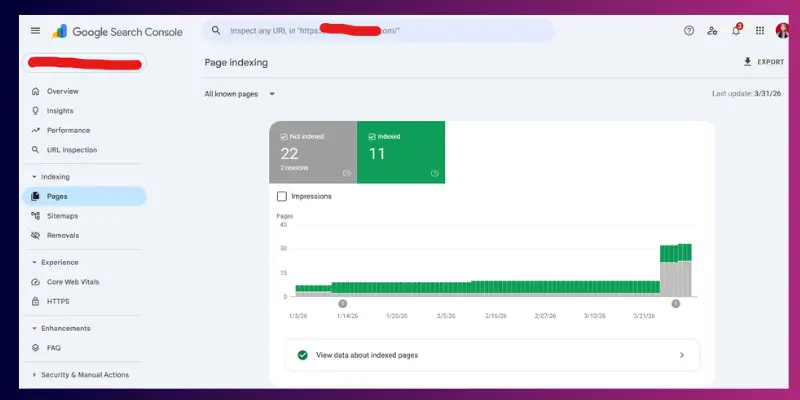
Comparison Table of Squarespace SEO Tools
| Tool | Free/Paid | Key Features |
| SEOSpace | Free | Provides on-page SEO insights, analyzes headings and meta tags, and highlights missing elements |
| Google Search Console | Free | Tracks indexing, monitors search performance, and identifies errors |
| Squarespace Analytics | Paid (with plan) | Shows traffic trends, page performance, and visitor engagement |
Pro Tip: Combine these tools with Squarespace’s built-in SEO features. For example:
- Use SEOSpace to fix missing meta descriptions and optimize headings.
- Monitor your improvements in Google Search Console to track keyword performance.
- Check Squarespace Analytics to see how changes impact real visitor behaviour.
By using these tools together, you can get structured, actionable insights and achieve strong SEO results, without needing Yoast.
What is SEOSpace (Squarespace’s Yoast-Like Tool)?
SEOSpace is a specialized SEO tool( Plugin and Chrome Extention) for Squarespace, often referred to as the “Yoast for Squarespace” because it offers a structured, step-by-step approach to SEO similar to what WordPress users get with Yoast.
Main Features:
- Real-Time Page Scans: Evaluate any page directly in Squarespace to get an SEO score based on current best practices.
- Interactive Checklist: Uses colours (green, orange, red) to signal issues like missing meta descriptions, duplicate H1 tags, or large images.
- Keyword Explorer: Lets you check search volume, difficulty, and intent for targeted keywords.
- Full-Site Audits: Paid plans allow scanning the entire website to generate a prioritized task list for SEO improvements.
- Google Search Console Integration: Connects directly with Google to monitor indexing, track keyword rankings, and see overall performance metrics.
SEOSpace works best when combined with Squarespace’s built-in SEO features. Use it to find issues, fix them, and track improvements over time.
How Much Does SEOSpace Cost & Is It Worth It?
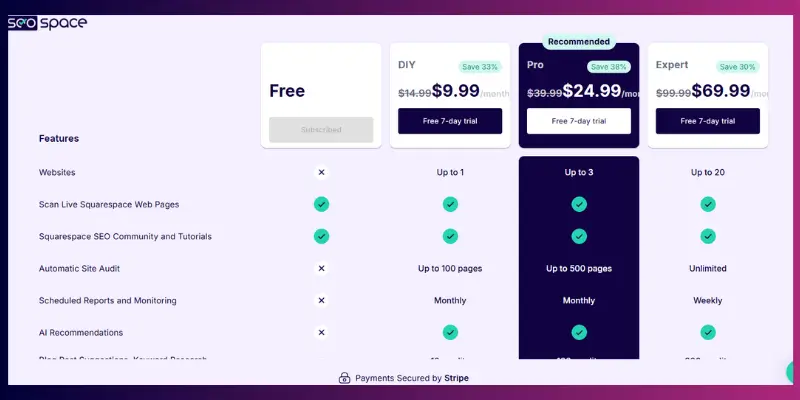
SEOSpace offers flexible pricing plans based on your website size and SEO needs. Whether you’re a beginner or managing multiple sites, you can choose a plan that fits your workflow.
SEOSpace Pricing Plans
| Plan | Cost | Highlights |
| Free | $0 | Single-page scans, access to tutorials and the community |
| DIY | ~$9.99/month | Automatic audits for up to 100 pages, keyword research |
| Pro | ~$24.99/month | Larger audits up to 500 pages, additional content suggestions |
| Expert/Agency | ~$69.99/month | Manage up to 20 client sites, white-label reports, and priority support |
Is SEOSpace Worth It?
Yes, if you want clear guidance and faster SEO improvements without relying on plugins like Yoast. It helps you identify issues, prioritize fixes, and stay consistent across your site.
How to Choose the Right Plan
- New or small website: Start with the Free or DIY plan to learn and handle basic optimization
- Growing website: Choose the Pro plan for deeper insights and better content guidance
- Agencies or freelancers: Go with the Expert/Agency plan to manage multiple sites efficiently
Simple Advice:
Start small, test the tool, and upgrade only when your site grows or your SEO needs become more advanced.
How to Install and Use SEOSpace on Squarespace?
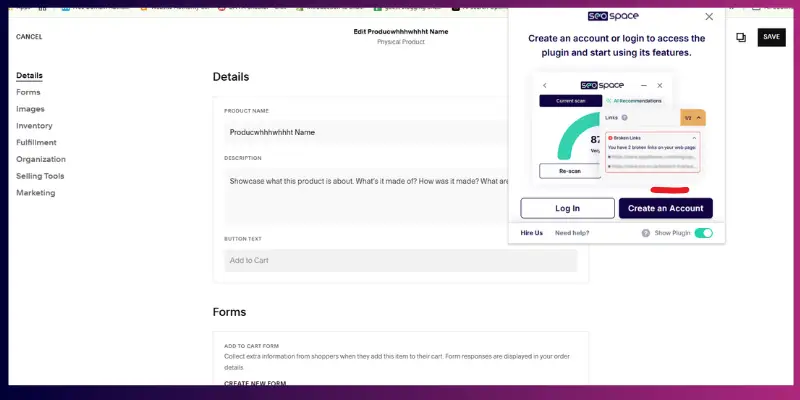
You can use SEOSpace on Squarespace by creating a free account, installing the Chrome extension, and scanning your pages directly from your browser. It gives instant feedback and helps you improve your SEO step by step. Paid plans allow full site audits and prioritized SEO recommendations.
Follow These Steps:
- Create a free account
- Sign up on the SEOSpace website to get started
- Install the Chrome extension
- Add the SEOSpace extension to your browser
- Open your Squarespace site
- Visit any page you want to optimize
- Click the SEOSpace icon
- You’ll see it in your browser toolbar
- It will instantly scan the page and show SEO insights
- Review and fix issues
- Check suggestions for meta tags, headings, and images
- Apply changes directly in your Squarespace editor
- Run full-site audits (Paid plans)
- Scan multiple pages at once
- Get a prioritized list of SEO tasks to fix quickly
Pro Tip:
Use SEOSpace to find issues, then fix them using Squarespace’s built-in SEO settings. This combination helps you improve your site’s visibility without needing plugins.
What Things Can You Do to Improve SEO in Squarespace Using SEOSpace?
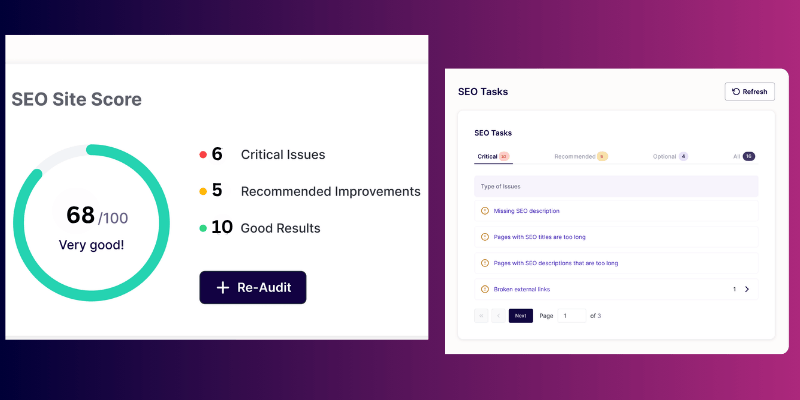
SEOSpace helps you identify SEO issues and gives actionable guidance to improve your Squarespace site, including optimizing page structure, meta titles, headings, images, and internal linking.
Using SEOSpace, you can take a step-by-step approach to strengthen your site’s SEO:
- Check the SEO Grade for Each Page:
Run a page scan in SEOSpace to see your SEO score. It highlights issues like missing meta descriptions, duplicate headings, or oversized images, so you know exactly what to fix. - Optimize Headings & Meta Titles:
SEOSpace shows which pages have weak or missing headings (H1/H2) and meta titles. Adjust them with your main keywords to improve clarity for both users and search engines. - Improve Image Alt Text:
The tool flags images missing descriptive alt text. Adding relevant keywords in image alt text not only improves accessibility but also boosts image search visibility. - Track Internal Linking:
SEOSpace helps you see where internal links are missing or could be improved. Linking related pages and blog posts strengthens site structure and helps search engines understand your content hierarchy.
Pro Tip: Use SEOSpace insights alongside Squarespace’s built-in SEO settings to ensure every page is fully optimized. Regularly scanning your pages and updating headings, meta tags, and links can significantly improve rankings over time.
So, is the Information SEOSpace Gives You Useful for Your SEO in Squarespace?
Yes, SEOSpace gives useful and practical SEO insights, especially for identifying on-page issues and guiding improvements. However, the results depend on how well you apply those suggestions.
Here’s how it helps in practice:
- Works like a guided SEO assistant:
- Highlights what’s missing or weak on your pages
- Removes guesswork by giving clear direction
- Helpful for beginners:
- Points out missing meta descriptions
- Identifies poor heading structure (H1, H2 issues)
- Flags unoptimized or missing image alt text
- Provides a simple checklist to follow step by step
- Useful for experienced users:
- Acts as a quick audit tool for pages
- Helps spot technical gaps instantly
- Makes it easier to improve your Squarespace SEO settings
- Saves time by avoiding manual SEO checks
- Important limitation to understand:
- Shows what needs to be fixed
- Does not create content for you
- You still need to:
- Choose the right keywords
- Write better, user-focused content
- Build a strong internal linking strategy
Mini Real-Life Example
I worked on a small service-based Squarespace website that wasn’t getting traffic despite publishing regular content. After running SEOSpace scans, we found:
- Several pages had missing or weak meta titles
- Multiple pages used more than one H1 tag
- Images had no alt text
- Internal links between blog posts were almost non-existent
I fixed these step by step using SEOSpace recommendations:
- Rewrote meta titles with targeted keywords
- Cleaned up heading structure (one H1, proper H2S)
- Added keyword-focused alt text to images
- Built internal links between related posts
Result: Within a few weeks, Google started crawling pages more frequently. After 2–3 months, multiple pages moved to the top 10 positions, and organic traffic increased noticeably.
What SEOSpace Doesn’t Do for Your SEO in Squarespace
SEOSpace helps you identify SEO issues, but it does not create content or make changes to your Squarespace website. You still need to implement all improvements manually.
Here’s what you need to know:
- It doesn’t create content for you:
- SEOSpace won’t write blog posts, product descriptions, or service pages
- You still need to create helpful, keyword-focused content for your audience
- It doesn’t make any direct changes to your site:
- It won’t automatically fix meta titles, headings, or images
- All updates must be done manually inside your Squarespace editor
- It doesn’t replace SEO strategy:
- It shows what needs improvement
- But you decide how to:
- Target the right keywords
- Structure your content
- Build a strong internal linking strategy
- It works as a support tool, not a complete solution:
- It is like a guide, not a replacement for SEO knowledge
- Best results come when you combine it with Squarespace’s built-in SEO features and consistent optimization
Key Takeaway:
SEOSpace can highlight problems quickly, but real growth comes from how well you apply those insights. This is a common point in SEO challenges in Squarespace, especially when comparing plugin vs no plugin SEO approaches.
How Can Beginners Do SEO on Squarespace Step by Step?
You can improve your Squarespace SEO by following a simple checklist that focuses on keywords, page structure, images, and internal linking, without needing any plugins.
Follow this simple checklist:
- Use keywords in titles, headings, and URLs
- Choose one main keyword for each page
- Add it naturally in your page title, H1, and URL
- Optimize meta descriptions
- Keep them under 160 characters
- Write them in a way that encourages clicks
- Add image alt text
- Describe each image clearly
- Include relevant keywords where it makes sense
- Build internal links
- Connect related pages and blog posts
- Helps users navigate and improve your internal linking strategy
- Use H1 & H2 tags properly
- Only one H1 per page
- Use H2S to break content into clear sections
- Check for broken links
- Fix or remove links that don’t work
- Enhances user experience and makes it easier for search engines to crawl your website
Bonus Tip:
Create a simple checklist (Google Doc or PDF) and follow it every time you publish a new page. This keeps your Squarespace SEO beginner strategy consistent and effective.
Real-Life Example: Growing a Service Website on Squarespace Without Yoast
A local home cleaning service website built on Squarespace was struggling to get leads. The site looked good, but it wasn’t showing up in search results for important keywords like “home cleaning services near me.”
They assumed the issue was not having a tool like Yoast.
Here’s what we actually did:
- Rewrote page titles and meta descriptions using location-based keywords
- Fixed heading structure (only one H1 per page, proper H2 sections)
- Added service-specific pages instead of keeping everything on one page
- Improves internal linking between service pages and blog posts
- Optimized all images with clear, keyword-focused alt text
- Submitted updated pages through Google Search Console for faster indexing
Result:
Within 8-10 weeks:
- The website started ranking for local keywords like “house cleaning services in [city]”
- Organic traffic increased by 50%+
- Most importantly, inquiries and leads improved, not just traffic
Key Takeaway:
You don’t need Yoast to get results on Squarespace. With the right structure, keyword usage, and consistent on-page SEO, you can rank and generate real business outcomes.
What are the Common SEO Challenges in Squarespace & How to Solve Them
Even though Squarespace is easy to use, many users face a few SEO limitations. The good news is, you can handle them with the right approach.
1. Limited Plugins
- Squarespace doesn’t offer advanced SEO plugins like WordPress
- This can feel restrictive, especially if you’re used to plugin-based optimization
How to solve it:
- Use built-in SEO settings (titles, meta descriptions, URLs)
- Connect your site with Google Search Console to track performance
- Follow a proper Squarespace SEO guide instead of relying on tools
2. Managing Large Websites
- As your site grows, pages can become hard to organize
- Poor structure can confuse both users and search engines
How to solve it:
- Group content using clear categories
- Keep navigation simple and clean
- Build a strong internal linking strategy to connect related pages
3. Weak Content Structure
- Many sites keep everything on one page or don’t organize content properly
- This makes it harder to rank for multiple keywords
How to solve it:
- Create separate service pages for each offering
- Publish helpful blog posts targeting specific topics
- Maintain a clear hierarchy (Homepage → Service Pages → Blog Content)
Quick Insight:
When comparing WordPress vs Squarespace SEO, Squarespace may offer fewer tools, but with the right structure and consistency, you can still achieve strong rankings.
Squarespace SEO vs Yoast SEO: Which One is Better?
When deciding between Squarespace’s built-in SEO and Yoast SEO for WordPress, it helps to understand what each offers. Here’s a clear comparison:
| Feature | Yoast SEO (WordPress) | Squarespace Built-in SEO |
| Keyword optimization | ✅ Advanced | ⚠ Limited |
| Meta descriptions | ✅ Fully editable | ✅ Fully editable |
| XML sitemap | ✅ Automatic | ✅ Automatic |
| Schema markup | ✅ Detailed | ⚠ Basic |
| Plugins | ✅ Thousands of options | ❌ None |
What This Means for You
- Squarespace: Great for beginners and small to medium sites. Built-in tools handle the basics, but advanced keyword optimization and automated recommendations are limited.
- WordPress + Yoast: Offers more flexibility with plugins, advanced SEO grading, and detailed schema options. Ideal if you want granular control.
- Takeaway: Even without Yoast, you can rank well on Squarespace by using its built-in SEO features correctly, following internal linking strategies, optimizing meta descriptions, and producing high-quality content.
Top Tips to Rank Your Squarespace Site Without Yoast
Even without Yoast SEO, you can achieve strong search rankings on Squarespace by focusing on the right strategies. Here’s a step-by-step guide:
- Optimize Page Speed
- Compress images and use lightweight templates
- Faster sites improve user experience and help Google crawl your pages efficiently
- Use Structured Headings & Clean URLs
- Keep one H1 per page and organize content with H2/H3 subheadings
- Ensure URLs are short, descriptive, and include your main keywords
- Create High-Quality Content & Internal Linking
- Publish useful, original content that addresses your audience’s questions
- Link related pages and blog posts to strengthen your internal linking strategy
- Build External Backlinks
- Collaborate with niche websites, guest post, or get mentions to increase authority
- Backlinks help Google understand your site’s credibility, even without Yoast
- Ensure Mobile Optimization
- Squarespace templates are mobile-friendly by default, but check responsiveness
- Mobile optimization is crucial since most users browse on phones
Consider creating a Squarespace SEO checklist with these tasks so you can follow them consistently for every new page or blog post.
Conclusion
So, guys, even though Yoast SEO isn’t available for Squarespace, don’t worry, you can still get your site ranking! By making the most of Squarespace’s built-in SEO features, using alternatives like SEOSpace, and following clear on-page strategies, you can improve your visibility and attract more visitors. Focus on creating high-quality content, optimizing your meta tags, headings, images, and internal links, and keep track of your progress with tools like Google Search Console.
With consistent effort, Squarespace can give you results similar to having Yoast without the extra plugin. Start small, stay organized, and watch your website climb in search results.
FAQs: Yoast SEO for Squarespace
No. Yoast SEO is built for WordPress and cannot be installed on Squarespace. You’ll need to rely on Squarespace’s built-in SEO features or alternatives like SEOSpace.
Yes. Squarespace includes built-in tools for meta titles, descriptions, clean URLs, XML sitemaps, and structured data to help optimize your site without plugins.
No. Yoast does not work on Squarespace. Instead, you can use free alternatives like SEOSpace’s basic plan or Google Search Console for on-page SEO guidance.
Use Squarespace’s built-in SEO settings: optimize meta titles/descriptions, add image alt text, structure headings, and use internal linking. Track performance with Google Search Console.
SEOSpace is a Chrome extension and plugin for Squarespace that provides page audits, SEO grading, keyword analysis, and site-wide task recommendations similar to Yoast.
It depends on your needs. Squarespace offers strong built-in SEO tools, a clean design, and mobile optimization, while Wix provides more plugin options. Both can rank well if optimized properly.
Yes. With proper on-page SEO, optimized content, structured headings, internal linking, and site speed improvements, Squarespace sites can rank well on Google.
You can use Squarespace Analytics for traffic and engagement, and Google Search Console to monitor indexing, search rankings, and errors for free.
Yes. Popular alternatives include SEOSpace for on-page SEO audits, Google Search Console for indexing and ranking insights, and Squarespace’s built-in SEO tools for meta tags and sitemaps.
Not necessarily. Squarespace’s built-in SEO features, combined with good content, internal linking, and keyword optimization, are enough to rank well without a plugin.




- Be Respectful
- Stay Relevant
- Stay Positive
- True Feedback
- Encourage Discussion
- Avoid Spamming
- No Fake News
- Don't Copy-Paste
- No Personal Attacks
- Be Respectful
- Stay Relevant
- Stay Positive
- True Feedback
- Encourage Discussion
- Avoid Spamming
- No Fake News
- Don't Copy-Paste
- No Personal Attacks
