What Are the Best SEO Plugins for WordPress 2026
Published: 30 Dec 2025
Feeling stuck with SEO even after trying different plugins and tips? You’re not alone. Many WordPress users install tools, follow random advice, and still see no real progress. SEO often feels confusing, slow, and hard to control, especially when every update seems to change the rules again.
That’s exactly why this guide exists. I’ve broken down What Are the Best SEO Plugins for WordPress?, explain how they help in real situations, and show which tools actually make sense for different types of websites.
You’ll learn what to focus on, what to avoid, and how to choose a plugin that supports your site instead of complicating it.
SEO plugins help handle the heavy lifting behind the scenes. They assist with page titles, meta descriptions, sitemaps, indexing rules, and content guidance so search engines can understand your site better. When used correctly, these tools save time, reduce mistakes, and give you clearer direction instead of guesswork.
If you’re new to WordPress, it helps to first understand how WordPress plugins work. Check out our post on what WordPress plugins are and how they work for a quick overview.
What Are the Best SEO Plugins for WordPress and Why They Are Important
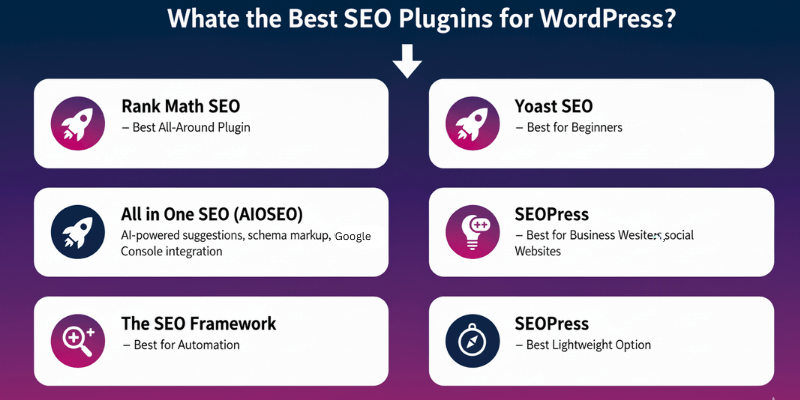
The best SEO plugins for WordPress are Rank Math, Yoast SEO, All in One SEO, SEOPress, and The SEO Framework. These plugins are important because they help search engines understand your website, index your pages correctly, and display your content properly in search results.
Choosing the right plugin makes SEO manageable, even if you’re not a technical expert.
Why SEO Plugins Are Important for WordPress
WordPress does not manage SEO settings by default. Without a plugin, search engines might struggle to crawl your pages, index them correctly, or display them effectively. SEO plugins fill this gap and provide the tools needed to make your website search-friendly. Key areas they cover:
- Page Titles & Meta Descriptions: Ensures each page has a unique title and description to improve click-through rates.
- XML Sitemaps: Automatically generate sitemaps so search engines can discover all your pages quickly.
- Indexing Control: Decide which pages search engines should or shouldn’t display.
- Structured Data / Schema Markup: Enables rich results like FAQs, reviews, and product info.
- Content Optimization: Provides guidance on keyword use, readability, and internal linking.
- Redirection & Duplicate Handling: Helps prevent broken links or duplicate content penalties.
Even with high-quality content, mismanaged SEO settings can make your site invisible or rank poorly. Plugins simplify complex technical tasks and reduce the chance of mistakes.
How the Best SEO Plugins Help Different Users
SEO plugins are designed for different skill levels, making them versatile for all WordPress users:
- Beginners: Plugins like Yoast SEO guide users with simple interfaces, colour-coded suggestions, and safe defaults. You don’t need deep knowledge to improve basic SEO.
- Growing Websites: Plugins like Rank Math or AIOSEO offer more control over indexing, schema, sitemaps, and social previews, which is perfect for business sites, WooCommerce stores, or content-heavy blogs.
- Advanced Users: SEOPress and The SEO Framework allow deeper control over schema, redirects, advanced metadata, and performance without cluttered dashboards.
Real-Life Example
I worked on a WordPress blog with good content but almost no search traffic. The issue wasn’t the writing. The site had no sitemap, duplicate page titles, and incorrect indexing settings. After setting up an SEO plugin and fixing these basics, Google started crawling the site properly, and search impressions increased within a few weeks.
Tips
- An SEO plugin supports your strategy; it does not replace good content
- Use only one SEO plugin at a time
- Focus on the correct setup before advanced features
- Keep titles and descriptions unique
- Update your plugin regularly
What to Look for in an SEO Plugin
Before choosing any plugin, you need clarity on what actually matters.
A good SEO plugin should:
- Be easy to set up
- Don’t slow down your website
- Support schema and rich results
- Work well with your theme and page builder (learn more about what are WordPress themes and how they work).
- Receive regular updates
Real-life experience:
I’ve seen websites lose rankings simply because an outdated SEO plugin was left untouched for months. Updates matter more than features.
Tips
- Choose stability over feature overload
- One strong plugin is better than three weak ones
How SEO Plugins Work (Simple Explanation)
SEO plugins add extra information to your pages that search engines use to understand content. This includes titles, descriptions, schema data, and sitemap files.
They help with:
- Page indexing
- Crawl direction
- Search appearance
- Content structure
Example:
Without a sitemap, Google may take weeks to find new pages. With a sitemap, discovery happens faster.
Tips
- SEO plugins guide search engines, not users
- Content quality still decides rankings
First-Time SEO Plugin Setup
Choosing the right SEO plugin is only half the battle. Many WordPress users skip the initial setup, which can cause indexing issues, slow progress, or even invisible pages in search results. This checklist helps you get your plugin running correctly in about 30 minutes.
Basic Setup Steps
- Install only one SEO plugin
Avoid conflicts by keeping your site clean and manageable. Using multiple plugins can cause duplicate metadata or sitemap errors. - Set site title and meta defaults
Configure default templates for page titles and meta descriptions to maintain consistency across your site. - Enable XML sitemap
Sitemaps help search engines discover and index all pages quickly. Most modern SEO plugins generate sitemaps automatically. - Connect Google Search Console
Verifying your site in GSC allows you to track indexing, impressions, errors, and site performance in search results. - Configure indexing rules
Decide which pages, posts, or categories should appear in search results and which should remain private. Proper indexing prevents duplicate content issues. - Optional: Enable or disable plugin modules based on your website’s needs (e.g., WooCommerce support, local SEO, redirections).
Real-Life Experience
A WordPress blog I worked on had strong content but very low search traffic for months. The problem? Someone accidentally enabled the “noindex” setting on several key pages. After I installed a proper SEO plugin and configured the indexing rules correctly, search engines crawled the pages, and traffic started growing within weeks.
Tips for a Smooth Setup
- Always check indexing settings after setup.
- Test your sitemap in Google Search Console to ensure all pages are listed.
- Start simple: configure core settings first, then explore advanced features.
- Regularly review and update plugin settings as your website grows.
Best SEO Plugins for WordPress (Detailed Reviews)
Choosing the right SEO plugin for wordpress can be tricky. Here’s a detailed look at the top plugins and how they can boost your site’s performance.
Rank Math SEO – Best All-Around Plugin
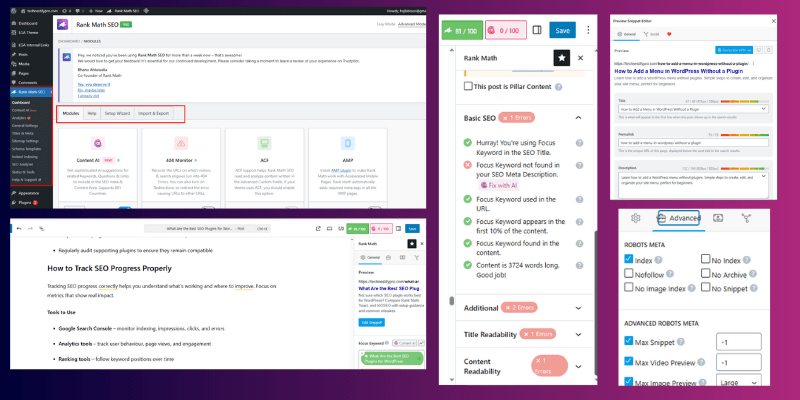
Rank Math offers powerful SEO tools while staying beginner-friendly, making it suitable for bloggers, WooCommerce stores, and growing websites. See how it compares directly to Yoast for WooCommerce in our Rank Math vs Yoast for WooCommerce (2026) article.
Key Features
- Built-in schema types (FAQ, HowTo, Product)
- Keyword optimization suggestions for posts and pages
- Redirection manager for broken links
- Google Search Console integration
- WooCommerce SEO tools and local SEO options
- 404 monitor and SEO Analysis module
Best For
- Bloggers, WooCommerce stores, content-heavy sites
How to Set Up Rank Math
Install Rank Math, complete the setup wizard, connect Google Search Console, and enable only the modules you need. This ensures you optimize your SEO structure, metadata, and schema correctly from the start, preventing common indexing issues.
Real-Life Use Case
A WooCommerce store using Rank Math displayed product prices and availability directly in Google search results, without needing extra schema plugins. This helped increase click-through rates and visibility for key products.
Advanced Tips
- Focus on one main keyword per page
- Disable unused modules to improve site speed
- Regularly check the SEO Analysis module for optimization suggestions
Pricing Overview
- Free version: Most features are sufficient for blogs and small businesses
- Pro version: Adds advanced WooCommerce SEO, advanced schema, redirection, and priority support
Why Choose Rank Math
- Lightweight and fast compared to many competitors
- More built-in features than the Yoast free version (schema, keyword suggestions, redirection manager)
- Beginner-friendly setup with advanced options for pros
- Regular updates keep your site aligned with the latest SEO standards
- Supports WooCommerce and local SEO without extra plugins
- Trusted by millions of websites worldwide
Yoast SEO – Best for Beginners
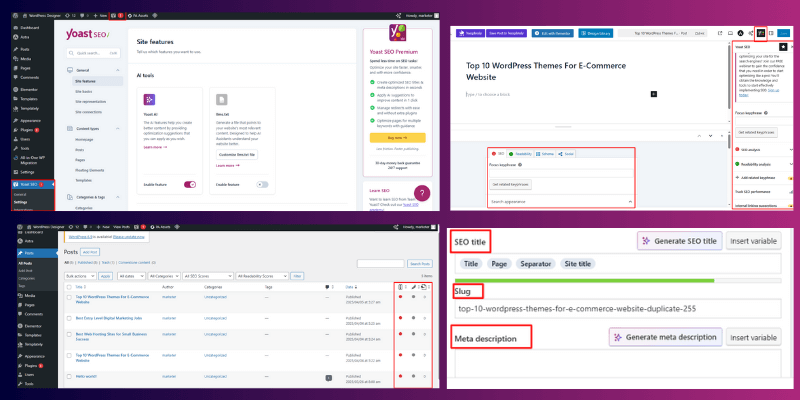
Yoast SEO keeps things simple and structured, making it ideal for beginners or small websites that want easy-to-follow guidance without complex configurations.
Key Features
- Readability analysis to improve content structure
- Meta title and description control for better search visibility
- Automatic XML sitemaps
- Breadcrumb support for better navigation
- Canonical URLs to avoid duplicate content
Best For
- New bloggers
- Small or basic websites
How to Set Up Yoast SEO
- Install the plugin and activate it.
- Complete the setup wizard (site type, organization/person, social profiles).
- Configure search appearance (titles, meta defaults).
- Enable XML sitemaps and connect to Google Search Console.
- Activate breadcrumbs and other relevant modules based on your site’s needs.
Real-Life Use Case
A new blogger improved their posts’ readability by following Yoast’s feedback on missing headings, long paragraphs, and sentence length. Within weeks, visitors spent more time on pages, and search impressions increased.
Advanced Tips
- Don’t chase green indicators blindly; focus on content quality first
- Write for readers first, SEO second
- Regularly review Yoast’s SEO and readability analysis before publishing
- Keep your plugin updated for compatibility and security
Pricing Overview
- Free version: Covers SEO basics, readability analysis, sitemaps, and canonical URLs
- Premium version: Adds multiple focus keywords, internal linking suggestions, redirect manager, and premium support
Why Choose Yoast SEO
- Beginner-friendly with a clear, easy-to-use interface
- Provides actionable SEO and readability guidance
- Handles essential technical SEO tasks automatically (sitemaps, canonical URLs)
- Regular updates ensure compatibility with WordPress and search engines
All in One SEO (AIOSEO) – Best for Business Websites
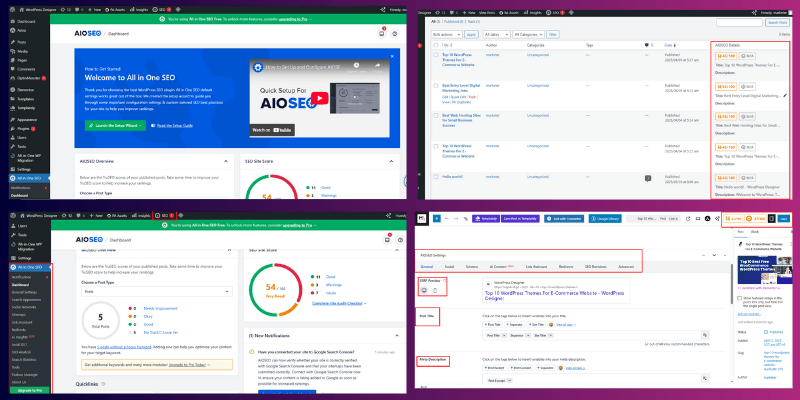
All in One SEO (AIOSEO) is designed with business and service-based websites in mind, offering structured SEO tools that focus on local visibility and brand trust.
Key Features
- Local SEO settings for business name, address, and service areas
- Business schema to help search engines understand your company
- Social media previews for Facebook and X
- WooCommerce SEO support for product pages
- XML sitemaps and basic on-page SEO controls
Best For
- Company websites
- Local service providers
- Small to medium business sites
How to Set Up All in One SEO (AIOSEO)
- Install the AIOSEO plugin and activate it.
- Run the setup wizard and select your business type.
- Enter business details like name, address, phone number, and service area.
- Enable local SEO and business schema settings.
- Connect Google Search Console and enable XML sitemaps.
Real-Life Use Case
A local service business improved search visibility after adding correct service-area data using AIOSEO’s local SEO module. This helped their website appear more accurately in local search results.
Advanced Tips
- Complete all business profile fields for better local signals
- Review schema settings to ensure accuracy
- Check the social preview appearance before publishing pages
- Keep business details consistent across your site
Pricing Overview
- Free version: Basic SEO tools and limited local SEO features
- Paid plans: Advanced local SEO, woocommerce seo, schema customization, and support
Why Choose All-in-One SEO
- Strong focus on business and local SEO
- Easy setup for non-technical users
- Built-in schema for companies and services
- Reliable choice for service-based and local websites
SEOPress – Best Lightweight Option
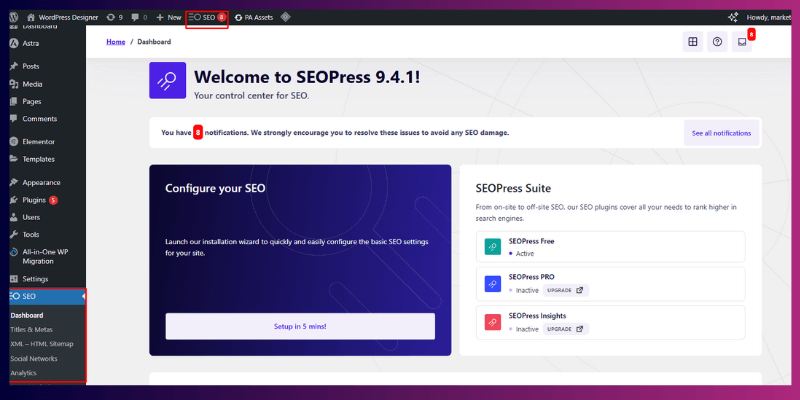
SEOPress is a clean and fast SEO plugin designed for users who want full control without unnecessary clutter or dashboard distractions.
Key Features
- No ads in the WordPress dashboard
- Schema support for structured data
- Analytics integration with Google tools
- White-label option for agencies and client work
- XML and HTML sitemaps
Best For
- Speed-focused websites
- Agencies managing multiple client sites
- Users who prefer a clean interface
How to Set Up SEOPress
- Install SEOPress and activate the plugin.
- Configure basic SEO settings like titles, meta descriptions, and indexing rules.
- Enable XML sitemaps and connect analytics tools.
- Turn on schema options only if needed to keep performance optimized.
Real-Life Use Case
A website switched from a heavier SEO plugin to SEOPress and noticed a slight improvement in page loading time while maintaining full control over SEO settings and indexing.
Advanced Tips
- Pair SEOPress with a caching plugin for the best performance
- Use schema selectively to avoid unnecessary overhead
- Take advantage of the white-label feature for client projects
- Review indexing rules carefully before publishing
Pricing Overview
- Free version: Core SEO features and sitemaps
- Pro version: Advanced schema, analytics integration, white-labeling, and redirection tools
Why Choose SEOPress
- Lightweight and performance-focused
- No ads or upsells in the dashboard
- Ideal for agencies and experienced users
- Flexible setup without forced recommendations
The SEO Framework – Best for Automation
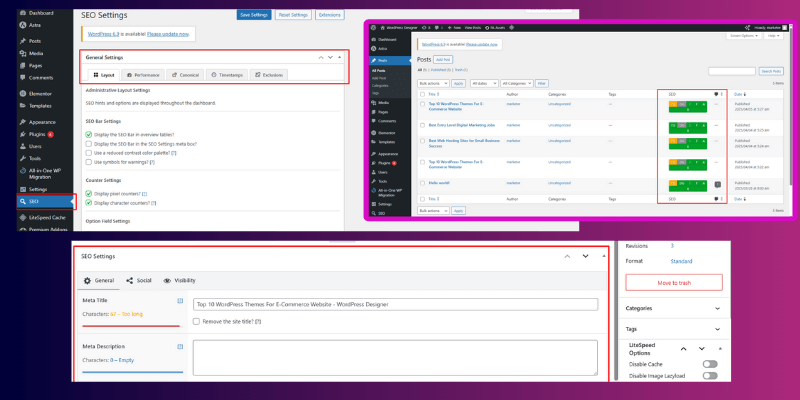
The SEO Framework is designed for users who want SEO handled quietly in the background, with clean automation and minimal manual input.
Key Features
- Automatic meta title and description generation
- Lightweight structure focused on performance
- Clean and simple default settings
- Built-in protection against common SEO mistakes
Best For
- Small websites with low maintenance needs
- Informational or brochure-style sites
How to Set Up The SEO Framework
- Install the plugin and activate it.
- Review default SEO settings and indexing rules.
- Enable sitemap features if required.
- Allow the plugin to handle metadata automatically.
Real-Life Use Case
A small informational website used the SEO Framework successfully without manual optimization, maintaining clean indexing and stable search visibility with minimal effort.
Advanced Tips
- Avoid this plugin for advanced or aggressive SEO strategies
- Works best for simple content-focused websites
- Let automation handle metadata instead of manual overrides
- Review indexing settings occasionally to prevent hidden pages
Pricing Overview
- Free version: Covers automated SEO essentials
- Paid extension plans: Add extra control and advanced features
Why Choose The SEO Framework
- Fully automated SEO with minimal setup
- Extremely lightweight and fast
- Safe default settings reduce SEO errors
- Ideal for site owners who want low involvement
SEO Plugin Comparison Table (Quick Decision Guide)
| Plugin | Ease of Use | Schema Support | Speed Impact | Best For |
| Rank Math | Medium | Strong | Medium | All types of websites |
| Yoast SEO | Easy | Basic | Low | Beginners and bloggers |
| All in One SEO | Easy | Strong | Medium | Business and service sites |
| All-in-One SEO | Medium | Strong | Low | Speed-focused sites and agencies |
| The SEO Framework | Easy | Basic | Very Low | Automated, low-maintenance sites |
This table helps you quickly match a plugin to your website’s needs instead of guessing or copying what others use.
Tips
- Choose a plugin based on your site’s goal, not popularity
- Blogs benefit from content guidance; businesses need schema and local SEO
- Speed-focused sites should avoid heavy plugins
- One well-configured plugin works better than multiple tools
Best SEO Plugin by Website Type
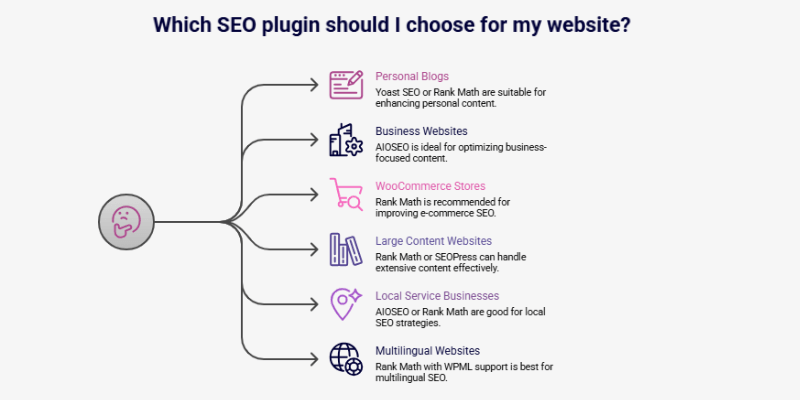
Choosing an SEO plugin becomes easier when you match it with your website’s purpose. Here’s a simple breakdown to help you make a decision quickly.
- Personal blogs: Yoast SEO or Rank Math
- Business websites: All in One SEO (AIOSEO)
- WooCommerce stores: Rank Math
- Large content websites: Rank Math or SEOPress
- Local service businesses: AIOSEO or Rank Math
- Multilingual websites: Rank Math with WPML support
Tips
- Match the plugin’s strengths with your site’s goals
- Avoid switching plugins frequently once your site grows
- Proper setup matters more than advanced features
Do SEO Plugins Affect Website Speed?
Yes, SEO plugins can affect website speed if they are misused or poorly configured. SEO plugins work best on fast websites. If your site is slow, rankings can still suffer, even with perfect on-page SEO. That’s why using the right WordPress speed optimization plugins matters.
To make your site faster and fully SEO-ready, check out our guide on how to speed up the WordPress website.
Common Speed Issues
- Too many enabled modules are running in the background
- Heavy admin dashboards that load unnecessary scripts
- Conflicts with caching, security, or performance plugins
Real-Life Experience
A website experienced dashboard lag after installing an SEO plugin. Once unused features were disabled, the admin panel became responsive again without losing SEO functionality.
Tips
- Test site speed after configuring your SEO plugin
- Keep only the features your site actually needs enabled
- Avoid running multiple SEO plugins at the same time
How to Switch SEO Plugins Without Losing Rankings
Switching SEO plugins does not harm rankings when you do it carefully. Problems usually appear if you lose metadata or indexing settings during the switch.
Safe Switching Steps
- Backup your website before making changes
- Export SEO data from the current plugin
- Import the data into the new SEO plugin
- Re-submit the XML sitemap in Google Search Console
- Check indexing, canonical, and noindex settings
Real-Life Experience
Websites often lose rankings if you delete the old plugin before exporting data. When you follow the switching steps correctly, search visibility usually remains stable.
Tips
- Never delete the old SEO plugin before exporting data
- Keep an eye on Google Search Console for errors related to crawling and indexing
- Manually review important pages after switching
Common SEO Plugin Mistakes
Even the best SEO plugins can harm your site if used incorrectly. Avoid these common mistakes:
Mistakes That Harm SEO
- Installing multiple SEO plugins at the same time
- Leaving default titles and meta descriptions unchanged
- Ignoring mobile optimization for pages and posts
- Skipping indexing and sitemap checks
Tips
- Review your SEO settings every few months to stay updated
- Test major changes on a few pages before publishing site-wide
- Keep only necessary modules enabled to prevent performance issues
- Monitor Google Search Console for warnings or errors
Supporting Plugins That Improve SEO
In addition to SEO plugins, certain supporting tools can enhance your website’s performance and search visibility.
Helpful Tools
- Schema plugins – for additional structured data if your main SEO plugin doesn’t cover all types
- Redirection plugins – to manage broken links and maintain link equity
- Image optimization plugins – compress images for faster loading and better Core Web Vitals
- Internal linking tools – help distribute link authority and improve navigation
Tips
- Avoid overlapping features between plugins to prevent conflicts
- Keep the total plugin count reasonable to maintain site speed
- Regularly audit supporting plugins to ensure they remain compatible
How to Track SEO Progress Properly
Tracking SEO progress correctly helps you understand what’s working and where to improve. Focus on metrics that show real impact.
Tools to Use
- Google Search Console – monitor indexing, impressions, clicks, and errors
- Analytics tools – track user behaviour, page views, and engagement
- Ranking tools – follow keyword positions over time
Real-Life Experience
A website saw impressions increase in Google Search Console weeks before traffic grew. This indicated that SEO efforts were effective, even before visible results appeared in visits.
Tips
- Track impressions first to see early signs of progress
- Understand that SEO growth takes time; don’t expect instant results
- Combine different tools for a complete view of performance
- Regularly review trends and adjust strategies accordingly
Final Recommendation
There is no single perfect SEO plugin for every website. The best choice depends on your goals, site type, and how well you can configure it.
Suggested Choices
- Rank Math: For full control and advanced features
- Yoast SEO: For simplicity and beginner-friendly guidance
- All in One SEO (AIOSEO): For business and local service websites
- SEOPress: For speed-focused projects or performance-first sites
Key Takeaway
The plugin you understand and use properly will always outperform a powerful tool left misconfigured. Focus on setup, regular checks, and aligning the plugin with your site’s purpose.
Conclusion
So far, we’ve covered the best SEO plugins for WordPress, explored their features, setup steps, real-life use cases, and even discussed how to avoid common mistakes. You now know which plugin works best for different types of websites and how to track SEO progress safely.
I personally recommend choosing a plugin that matches your site goals and learning to use it well, because the tool alone won’t help if you leave it misconfigured. Focus on proper setup, perform regular checks, and optimize your site step by step.
So, folks, take these tips, set up your plugin confidently, and keep learning to improve your WordPress SEO!
FAQs: Best SEO Plugins for WordPress?
Yoast SEO is easiest for beginners because it has a simple interface and clear guidance on optimization. Many users choose it for basic on‑page SEO checks. It helps you improve titles and readability without great technical skills.
Yes, if you enable too many features or modules at once. Running only the options you need keeps your site fast. Also, pairing with a caching plugin helps maintain performance.
No. Using more than one SEO plugin can cause conflicts and duplicate metadata issues. Stick with a single plugin and configure it properly.
Rank Math is often recommended for WooCommerce because it handles product schema, pricing, and rich results well. Many WordPress users on forums prefer it for their e-commerce stores.
Yes, free versions of Rank Math, Yoast, and AIOSEO offer core SEO tools like sitemaps, meta settings, and basic schema. Paid plans add advanced features, but free versions are often enough for blogs and small business sites.
SEO plugins help make your site search engine friendly by organizing metadata and structure. They don’t guarantee higher ranks, but they help search engines understand your content, which supports better visibility when combined with quality content.
Only if you’re using one incorrectly or it lacks needed features. Switching alone won’t help unless you fix setup issues too. Always back up and export settings before changing tools.
The SEO Framework and slim plugins like SEOPress are known for being lightweight and fast, with minimal admin load and fewer ads. Many users recommend them when performance is a priority.
The best plugin depends on your site and skill level. Rank Math is great for advanced control, Yoast for beginners, and AIOSEO for business sites. Choose one that matches your goals and use it properly.
All major plugins like Rank Math, Yoast, and AIOSEO are useful if set up correctly. Their usefulness comes from helping search engines understand your content and improving metadata, schema, and sitemaps.



- Be Respectful
- Stay Relevant
- Stay Positive
- True Feedback
- Encourage Discussion
- Avoid Spamming
- No Fake News
- Don't Copy-Paste
- No Personal Attacks
- Be Respectful
- Stay Relevant
- Stay Positive
- True Feedback
- Encourage Discussion
- Avoid Spamming
- No Fake News
- Don't Copy-Paste
- No Personal Attacks
