WooCommerce Single Product Page Hooks: The Complete Beginner’s Guide (With Visual Map)
Published: 16 Jul 2026
Quick Answer: WooCommerce Single Product Page Hooks
Single product page hooks, in order
- woocommerce_before_single_product
- woocommerce_before_single_product_summary (sale badge, images)
- woocommerce_single_product_summary (title 5, rating and price 10, excerpt 20, Add to Cart 30, meta 40, sharing 50)
- woocommerce_after_single_product_summary (tabs 10, upsells 15, related products 20)
- woocommerce_after_single_product
Lower priority numbers run first.
If you’ve ever wanted to add something extra to your WooCommerce product pages- a trust badge, a custom message, an extra tab, or a countdown timer- without installing another plugin, hooks are how you do it. In this guide, I’ll map out every WooCommerce hook on the single product page, show you exactly where each one fires, and walk through real code examples, including a few gotchas that trip up almost everyone the first time.
If you’re looking to customise the shop or category grid instead, see our WooCommerce shop page hooks guide.
What Are WooCommerce Hooks?
Hooks are specific points in WooCommerce’s code where you can “hook in” your own content or functionality, without editing WooCommerce’s core files. Think of them like plug points on a wall: WooCommerce built the wall with sockets already in place, and you just plug in whatever you want to add.
Hooks let you customize what’s on the page, but if you also want that page to actually rank well, it’s worth reviewing how product pages are structured for search visibility.
There are two types of hooks:
- Action hooks – let you add new content or functionality at a specific point (e.g., add a trust badge above the “Add to Cart” button)
- Filter hooks – let you modify existing content before it displays (e.g., change the wording of the “Add to Cart” button)
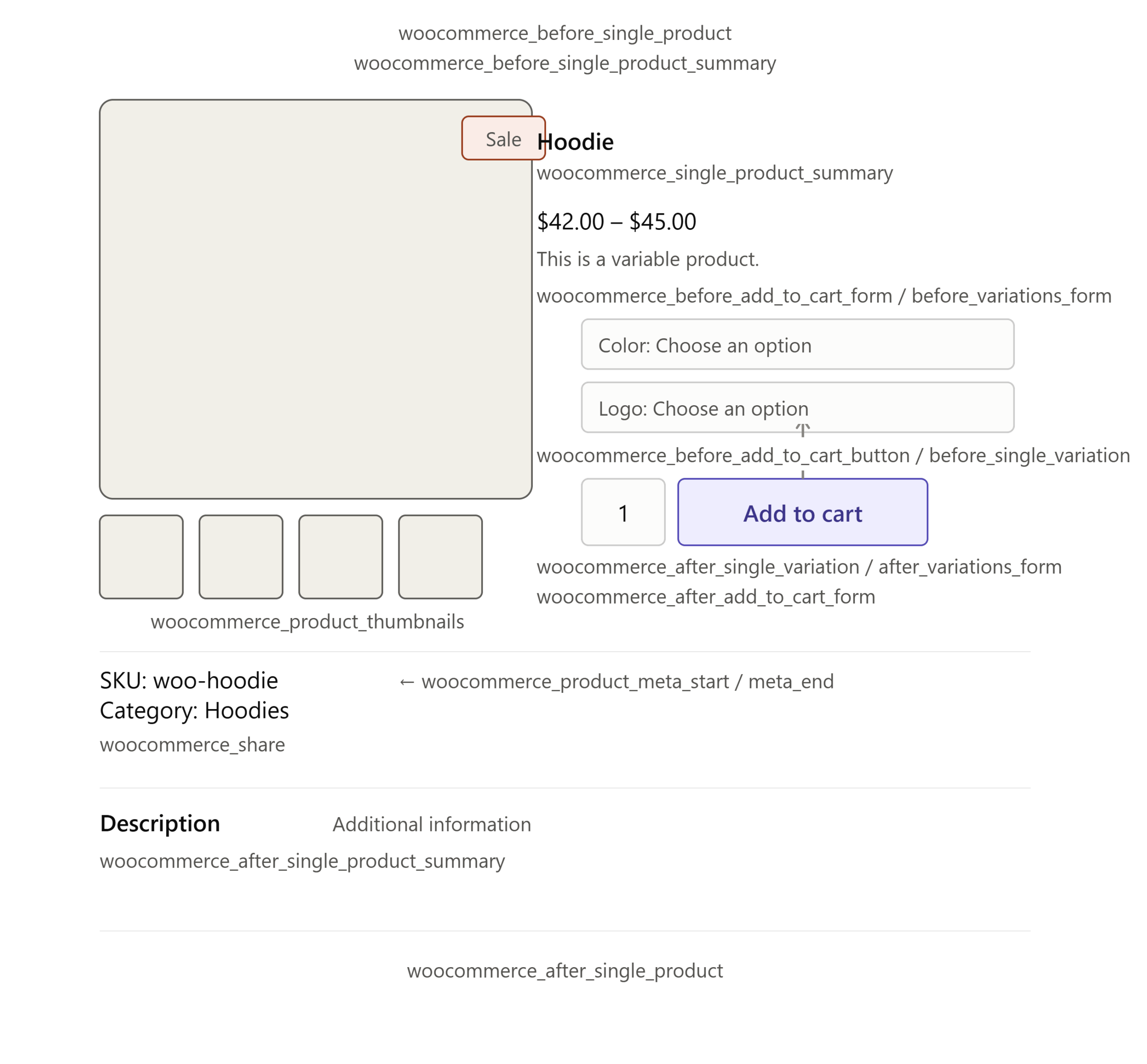
For single product pages specifically, WooCommerce gives you a series of action hooks that fire in a set order as the page loads.
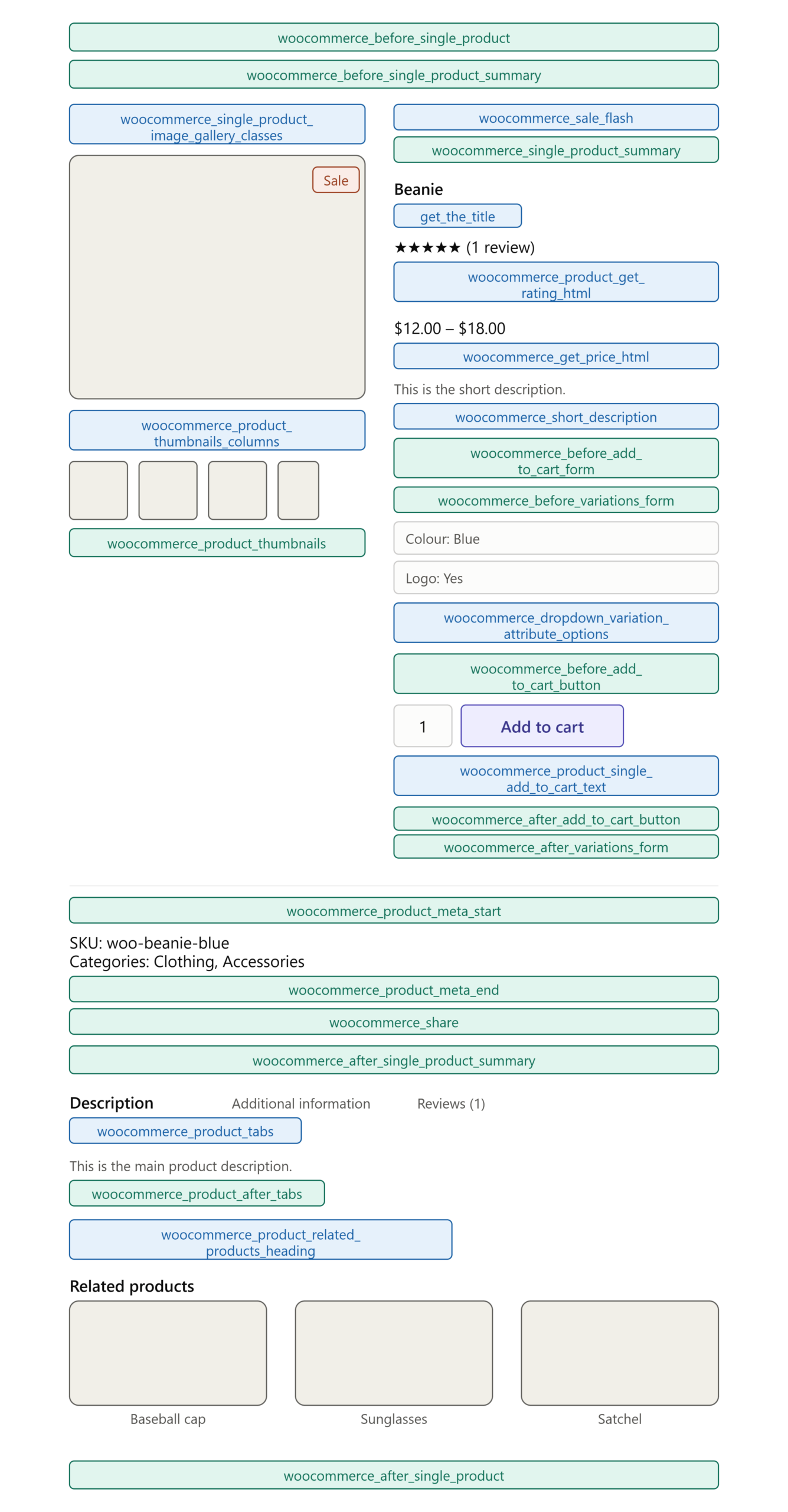
Visual Map: Where Every Hook Sits on the Product Page
Before getting into code, it helps to actually see where each hook fires. Here’s the sequence, from the top of the page to the bottom: woocommerce_before_single_product → woocommerce_before_single_product_summary (sale badge, images) → woocommerce_single_product_summary (title, price, add to cart; this one has its own internal priority order) → woocommerce_after_single_product_summary (tabs, upsells, related products) → woocommerce_after_single_product.
The Complete List of Single Product Page Action Hooks
This is the full sequence of action hooks WooCommerce fires on every single product page, along with the default WooCommerce functions already attached to them and their priority numbers. Priority controls the order things appear. When you attach multiple functions to the same hook, lower priority numbers run first.
| Hook | Default Function Attached | Priority |
| woocommerce_before_single_product | woocommerce_output_all_notices | 10 |
| woocommerce_before_single_product_summary | woocommerce_show_product_sale_flash | 10 |
| woocommerce_before_single_product_summary | woocommerce_show_product_images | 20 |
| woocommerce_product_thumbnails | woocommerce_show_product_thumbnails | 20 |
| woocommerce_single_product_summary | woocommerce_template_single_title | 5 |
| woocommerce_single_product_summary | woocommerce_template_single_rating | 10 |
| woocommerce_single_product_summary | woocommerce_template_single_price | 10 |
| woocommerce_single_product_summary | woocommerce_template_single_excerpt | 20 |
| woocommerce_single_product_summary | woocommerce_template_single_add_to_cart | 30 |
| woocommerce_single_product_summary | woocommerce_template_single_meta | 40 |
| woocommerce_single_product_summary | woocommerce_template_single_sharing | 50 |
| woocommerce_single_product_summary | WC_Structured_Data::generate_product_data() | 60 |
| woocommerce_after_single_product_summary | woocommerce_output_product_data_tabs | 10 |
| woocommerce_after_single_product_summary | woocommerce_upsell_display | 15 |
| woocommerce_after_single_product_summary | woocommerce_output_related_products | 20 |
| woocommerce_after_single_product | — | — |
A few additional hooks fire around the Add to Cart form and quantity field depending on product type (simple, variable, grouped):
- woocommerce_before_add_to_cart_form, woocommerce_before_add_to_cart_button,
- woocommerce_before_add_to_cart_quantity, woocommerce_after_add_to_cart_quantity,
- woocommerce_after_add_to_cart_button, woocommerce_after_add_to_cart_form,
- woocommerce_before_variations_form, woocommerce_after_variations_form,
- woocommerce_before_single_variation, woocommerce_single_variation, and
- woocommerce_after_single_variation.
For the definitive, always-current list, WooCommerce’s official hooks reference documents every action and filter used throughout the plugin.
Why Use Hooks Instead of a Plugin?
I’ve tested both approaches on client sites, and hooks tend to win when the customization is simple. A few reasons:
- Lighter weight – no extra plugin bloat slowing your site down
- More control – you decide exactly where and how content appears
- Fewer conflicts – less risk of plugin compatibility issues down the line
- Free – most simple hook-based customizations cost nothing beyond a few minutes of setup
The tradeoff is that hooks require adding a small snippet of code, which feels intimidating the first time. The good news is you’re not writing this code from scratch; you’re just placing pre-written snippets in the right spot.
Actions vs. Filters: Know the Difference
Since we’ll use both types below, here’s the distinction that trips up a lot of beginners:
- Actions let you insert new content or trigger code at a specific point. They don’t need to return anything.
- Filters let you modify a value that WooCommerce is about to output (like a price, a button label, or stock text) and must return that value.
If you want to add something new to the page, you’re using an action. If you want to change something that’s already there, you’re using a filter.
Useful Filters for the Single Product Page
Actions get most of the attention, but filters are just as powerful for tweaking existing content without touching template files. Some of the most useful ones:
| Filter | What It Changes |
| woocommerce_get_price_html | The price display |
| woocommerce_product_single_add_to_cart_text | The “Add to Cart” button text |
| woocommerce_get_stock_html | The in-stock/out-of-stock message |
| woocommerce_short_description | The short description under the price |
| woocommerce_product_related_products_heading | The “Related Products” section title |
| woocommerce_product_upsells_products_heading | The upsells section title |
| woocommerce_sale_flash | The “Sale!” badge HTML |
Example: changing the Add to Cart button text from “Add to Cart” to “Buy Now”:
add_filter( 'woocommerce_product_single_add_to_cart_text', 'techpro_custom_cart_button_text' );

function techpro_custom_cart_button_text() {
    return 'Buy Now';
}Where to Add Your Hook Code
Before touching any hooks, set up a safe place to add code. I recommend one of these two options:
- A code snippets plugin (like WPCode or Code Snippets) – the safest option for beginners, since it doesn’t touch your theme files directly and won’t break if you switch themes
- Your child theme’s functions.php file – a more traditional method, but only safe if you’re using a child theme (never edit a parent theme’s functions.php, since theme updates will wipe out your changes)
I’d recommend the snippets plugin route for most beginners. It’s simpler, safer, and lets you disable a snippet instantly if something looks off.
Key WooCommerce Single Product Page Hooks
Here are the main action hooks that fire on a single product page, roughly in the order they appear:
- woocommerce_before_single_product – fires before the whole product page starts loading
- woocommerce_before_single_product_summary – fires right before the product images/summary section
- woocommerce_single_product_summary – the big one; fires within the summary block where title, price, and Add to Cart button live
- woocommerce_after_single_product_summary – fires after the summary block, where tabs and related products usually sit
- woocommerce_after_single_product – fires at the very end of the product page
Each of these acts as an anchor point where you can insert your own custom content.
Practical Example: Adding a Trust Badge Above the Add to Cart Button
Here’s a simple, real snippet using woocommerce_single_product_summary to add a short trust message right after the price:
add_action( 'woocommerce_single_product_summary', 'techpro_add_trust_badge', 15 );

function techpro_add_trust_badge() {
    echo '<p class="techpro-trust-badge">✅ Free Shipping | 30-Day Returns | Secure Checkout</p>';
}The number 15 sets the priority; it determines where in the sequence your content appears relative to the price (which usually runs at priority 10) and the Add to Cart button (priority 30). Lowering or raising that number moves your content earlier or later in the summary block.
Practical Example: Adding an Extra Custom Tab
If you want to add an FAQ or shipping info tab next to the existing Description and Reviews tabs, you can use the woocommerce_product_tabs filter:
add_filter( 'woocommerce_product_tabs', 'techpro_add_custom_tab' );

function techpro_add_custom_tab( $tabs ) {
    $tabs['shipping_info'] = array(
        'title'    => 'Shipping & Returns',
        'priority' => 25,
        'callback' => 'techpro_shipping_tab_content'
    );
    return $tabs;
}

function techpro_shipping_tab_content() {
    echo '<p>Orders ship within 1–2 business days. Returns accepted within 30 days.</p>';
}How to Remove a Default Hook
Sometimes you don’t want to add something; you want to remove or move a default element. Since WooCommerce attaches its own functions to hooks (as shown in the table above), you can detach them using remove_action(). You just need to match the exact hook name, function name, and priority.
For example, to remove the product rating stars from below the title:
remove_action( 'woocommerce_single_product_summary', 'woocommerce_template_single_rating', 10 );The same logic works for filters using remove_filter(). This is also how you “move” an element: remove it from one hook, then add it back to a different one.
Applying a Hook to Only One Product
By default, any hook you add applies to every product on your site. If you only want it to appear on a specific product, wrap your function in a conditional check using WooCommerce’s built-in conditional tags:
add_action( 'woocommerce_single_product_summary', 'techpro_specific_product_notice', 15 );

function techpro_specific_product_notice() {
    global $product;
    if ( $product->get_id() == 123 ) {
        echo '<p>This item ships within 24 hours.</p>';
    }
}Replace 123 with your actual product ID. This same if check pattern works for targeting a category, tag, or product type instead of a single ID.
Troubleshooting: Why Your Hook Might Not Be Working
These are the most common reasons a hook doesn’t behave as expected, based on issues beginners run into constantly:
- Your theme or page builder overrides default WooCommerce hooks. Themes like Divi, Avada, and Flatsome and builders like Elementor, sometimes replace WooCommerce’s default template functions with their own. If a hook works on a default theme (like Storefront) but not yours, this is almost always why. The fix is to find and hook into the theme’s custom function instead of WooCommerce’s default one.
- The image gallery hook doesn’t behave like the others. Since WooCommerce introduced its JavaScript-powered product gallery, woocommerce_product_thumbnails doesn’t reliably fire the way older hooks do. If you’re trying to modify the gallery specifically, you’ll likely need a different approach than a simple hook, such as filtering the gallery HTML directly.
- Priority numbers are identical, causing unexpected ordering. If your custom content isn’t appearing where expected, double-check the priority number against the default functions table above and adjust up or down until it lands where you want.
- You added a filter but forgot to return the value. Filters must return a value, or the content they modify will disappear entirely. This is the single most common filter mistake.
- Caching is showing you an old version of the page. If you’ve made a change and don’t see it, clear your site’s cache (and your browser cache) before assuming the code is broken.
Common Mistakes to Avoid
Based on issues I’ve seen beginners run into with hooks:
- Editing the parent theme directly – always use a child theme or snippets plugin
- Skipping backups – always back up your site before adding new code, even small snippets
- Wrong priority numbers – if your content appears in the wrong spot, adjust the priority number rather than switching hooks entirely
- Forgetting to test on mobile – some hook placements look fine on desktop but crowd the layout on smaller screens
- Adding too many hooks at once – add and test one at a time so you can easily identify what caused an issue if something breaks
When to Consider a Plugin Instead
Hooks are great for small, specific tweaks. But if you need more advanced functionality, like conditional logic across hundreds of products, complex layout changes, or something you’ll need to update frequently through a UI, a dedicated plugin will usually save you more time in the long run.
Final Thoughts
WooCommerce hooks give you a lightweight, flexible way to customize your product pages without relying on extra plugins. Start small: add one snippet, confirm it works, then build from there. Once you’re comfortable with the core single product page hooks, you’ll have a lot more control over how your store looks and functions.
FAQs about WooCommerce Single Product Page Hooks
WooCommerce hooks are predefined points in the code where you can add, remove, or modify features without editing core files. They let you customize your store safely using actions and filters.
A common example is woocommerce_single_product_summary, which lets you add or rearrange content on the single product page. Developers use it to display custom text, badges, or extra product details.
woocommerce_single_product_summary is an action hook that controls the content shown in the product summary section. It displays elements like the title, price, rating, excerpt, and Add to Cart button based on their priority.
WooCommerce checkout hooks let you customize the checkout page by adding, removing, or changing fields and content. They’re commonly used to improve the checkout experience or collect extra customer information.
A WooCommerce shop visual hook guide shows where each hook appears on the shop page. It helps you choose the right hook when adding or moving content without guessing its location.
A WooCommerce hooks plugin lets you add custom code to hooks without editing your theme files. It’s a beginner-friendly option for making small customizations while keeping updates safe.
Action hooks let you add new content at a specific point on the page. Filter hooks let you modify existing content, like changing text or values, before it’s displayed.
Go to Appearance → Customize → WooCommerce → Product Catalogue and increase the products per row and per page if your theme supports it. You can also use a plugin or custom code to display all products on a single page.
The WooCommerce single product page template controls how an individual product page looks. You can customize it with hooks, template overrides, or page builders like Elementor.




- Be Respectful
- Stay Relevant
- Stay Positive
- True Feedback
- Encourage Discussion
- Avoid Spamming
- No Fake News
- Don't Copy-Paste
- No Personal Attacks
- Be Respectful
- Stay Relevant
- Stay Positive
- True Feedback
- Encourage Discussion
- Avoid Spamming
- No Fake News
- Don't Copy-Paste
- No Personal Attacks
