20 Best WordPress Site Builders for Beginners
Published: 10 Jan 2026
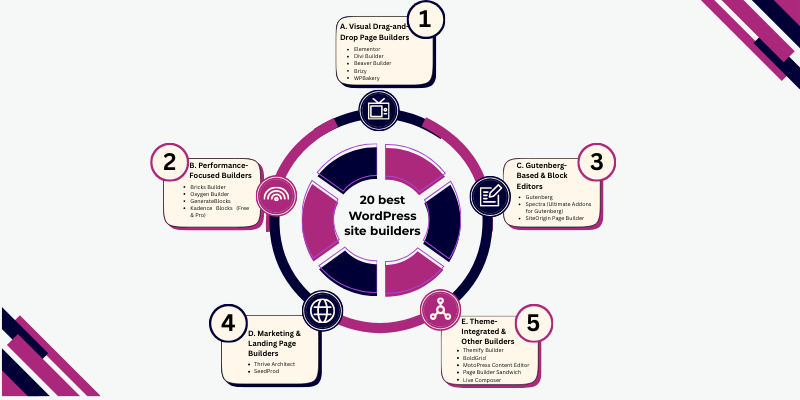
Building a website on WordPress sounds exciting until you open the dashboard and realize how many tools, themes, and editors are waiting for your choice. One wrong pick can slow your site, limit design control, or make simple updates feel frustrating. That’s why choosing the right builder matters from day one.
In this guide, I’ll walk you through the Best WordPress Site Builders so you can create pages faster, keep your site smooth, and avoid common beginner headaches. Whether you’re launching a blog, a business site, or a personal project, this article will help you make a smart, confident decision and save hours of trial and error.
What Is a WordPress Site Builder?
A WordPress site builder is a tool that helps you design web pages visually, without writing code.
Instead of coding, you build pages using ready-made elements that you place on the page with simple controls.
What You Can Create With a Site Builder
- Text sections
- Images and galleries
- Buttons and call-to-action areas
- Contact forms
- Page layouts (columns, rows, sections)
Most site builders are installed as WordPress plugins. Some, like the WordPress block editor, are already built into WordPress.
How a WordPress Site Builder Works
A WordPress site builder works by letting you design pages visually and automatically converting your design into working website code.
How it works in practice:
- You edit your page while seeing changes live on the screen
- You click on any element to change text, colours, spacing, or images
- You build layouts using blocks or drag-and-drop sections
- You never need to write or edit code
What happens behind the scenes:
- The builder translates your visual layout into clean HTML and CSS
- That code is optimized to work across different browsers
- Your page automatically adjusts for desktop, tablet, and mobile devices
This process allows beginners to focus on content and layout while the builder handles the technical side.
Example
Let’s say you want to create a simple homepage:
- A large image at the top
- A short heading describing your service
- A button that says “Contact Me”
With a site builder, you:
- Add a section
- Place an image block inside it
- Add text and a button below
This process feels similar to arranging slides in a presentation, but the result is a working website.
Why Beginners Use WordPress Site Builders
Beginners use WordPress site builders because they make it possible to create and manage a website without learning code, while saving time and avoiding technical complexity
- No coding knowledge needed – You build pages visually instead of writing HTML or CSS.
- Faster website setup – Pages can be created in hours instead of days.
- Easier design control – You can change layouts, colors, and content with a few clicks.
- Simple updates later – Text, images, and sections can be edited anytime without breaking the site.
This is why WordPress site builders are widely used by bloggers, freelancers, students, and small business owners who want full control without technical barriers.
Tips for Beginners
- If a builder feels confused in the first 10 minutes, skip it
- Choose clarity over advanced features
- Start with basic layouts before adding effects
- Use built-in templates to avoid design mistakes
Page Builder vs Block Editor (What’s the Difference?)
Page builders focus on visual design freedom, while block editors focus on speed, simplicity, and clean structure.
Page Builders (Example: Elementor, Divi)
- Let you design pages visually with drag-and-drop tools
- Offer advanced styling, animations, and layout control
- Works best for users who want custom designs without coding
- Slightly heavier, which can affect site speed if overused
Best for:
- Business websites
- Portfolio sites
- Pages where design matters more than speed
Block Editors (Example: Gutenberg)
- Use content blocks to build pages and posts
- Focus on clean layout and fast loading
- Come built into WordPress by default
- Fewer visual effects, but better performance
Best for:
- Blogs and content-focused sites
- Beginners who want simplicity
- Users who care about page speed and SEO
Which One Should a Beginner Choose?
- Choose a page builder if you want full design control and ready templates
- Choose a block editor if you want speed, simplicity, and easy content editing
Both options work well. The right choice depends on what type of website you are building and how comfortable you are with design tools.
Tip for Beginners
Start with the block editor if you are unsure. You can always move to a page builder later once you understand how WordPress works.
What Beginners Should Look for in a WordPress Site Builder
Beginners should choose a WordPress site builder that is easy to use, fast, SEO-friendly, and flexible for future growth.
Key things to check:
- Ease of use – Simple drag-and-drop with a short learning curve
- Templates – Ready layouts to build pages faster
- The code is clean and fast, which speeds up the loading of pages
- Mobile responsiveness – Pages adapt well on phones
- SEO compatibility – Works smoothly with seo plugins
- Long-term flexibility – Switching later should not break content
- Clear pricing – No hidden upgrade limits
Beginner tip:
Always test the free version first to see if the builder feels comfortable before committing to a paid plan.
20 Best WordPress Site Builders (Detailed Reviews)
This section is the core of this guide. Each WordPress site builder below is reviewed using the same structure, so you can compare them easily and choose the right one based on your skill level, website goal, and long-term needs.
You can quickly find the type of builder that suits your project by sorting them into categories: drag-and-drop, performance-driven, Gutenberg-based, marketing and landing pages, and theme-integrated.
A. Drag-and-Drop Builders (Beginner Friendly)
Drag-and-drop builders let you design your WordPress pages visually, placing elements exactly where you want and seeing changes instantly. They are easy to learn, require no coding, and give you enough control to create a professional-looking website.
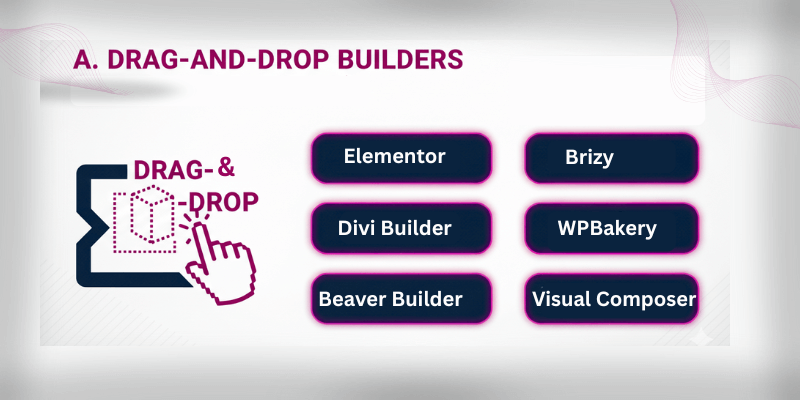
- Elementor
- Divi Builder
- Beaver Builder
- Brizy
- WPBakery Page Builder
- Visual Composer (Website Builder)
1. Elementor
Elementor is the most popular WordPress page builder, powering over 5 million active websites as of 2026. Its visual drag-and-drop editor and extensive template library make it easy for beginners and professionals alike to create responsive, professional-looking websites without writing code.
Key features:
- Drag-and-drop live editor for real-time design
- 300+ ready-made templates, 100 widgets and over 100 website kits, across its free and Pro versions.
- responsive design controls for mobile, tablet, and desktop
- Works with almost any WordPress theme
- Global styling for consistent design across pages
- Built-in pop-up builder and marketing integrations
Best for:
- Beginners who want to design visually
- Freelancers building client websites
- Small business websites needing fast setup
Pros:
- Very easy to learn with an intuitive interface
- Huge online community with tutorials, forums, and templates
- Free version available with core features
- Frequent updates and reliable support
Cons:
- It can slow down your site if too many widgets or third-party addons are used
- Advanced design and marketing features require the Pro version
Beginner verdict:
Elementor is an excellent choice if you want complete design freedom without coding. Start with the free version to practice layouts, then upgrade to Pro as your needs grow.
Tip for beginners:
- Use only the widgets and templates you need to keep your site fast
- Combine Elementor with a lightweight theme like Hello Elementor or GeneratePress for optimal performance
2. Divi Builder
Divi Builder is a visual WordPress site builder developed by Elegant Themes. It works as both a theme and a plugin, giving you full control over page layouts and site-wide design without writing code. Divi is widely adopted and is used on 1.5+ million active websites worldwide, which reflects long-term trust and stability.
Key features:
- Real-time front-end visual editor
- Global styles for fonts, colours, and spacing
- 2,600+ pre-built layouts and layout packs
- Full theme builder for headers, footers, and templates
- Built-in A/B testing and marketing modules
- Strong WooCommerce compatibility
Best for:
If you want complete design control and plan to build or manage multiple pages or websites.
Pros:
- One license allows unlimited website usage
- Lifetime pricing option with no recurring fees
- Large layout library reduces design time
- Active development and strong community support
Cons:
- The interface can feel overwhelming at first
- Performance can drop if layouts are not optimized
Beginner verdict:
Divi Builder is a good option if you are willing to spend some time learning the interface and want long-term value without monthly costs.
Tips for beginners:
- Use ready-made layouts instead of designing from scratch
- Avoid adding too many modules on a single page
- Enable caching and image optimization for better speed
- Learn global styles early to keep your site consistent
3. Beaver Builder
Beaver Builder is a trusted WordPress page builder that has been actively used by over 500,000 websites as of 2025. It is known for its stability, clean code, and developer-friendly foundation. Instead of flashy animations, Beaver prioritizes performance, reliability, and compatibility with WordPress updates.
Key features:
- Front-end live editing with instant visual feedback
- Clean, lightweight HTML output for faster loading
- Works with almost all WordPress themes
- Developer-friendly hooks and custom module support
- Regular updates and a strong security track record
Best for:
If you want a simple, stable, and fast website, especially for business or service sites where reliability matters more than advanced visuals.
Pros:
- Lightweight and performance-optimized
- Very reliable for long-term use
- Compatible with popular themes and plugins
- Strong support community and documentation
Cons:
- Fewer built-in design effects compared to competitors
- The free version offers limited features
Beginner verdict:
Beaver Builder is an excellent option if you care more about consistent performance, clean layouts, and easier long-term maintenance than complex visual designs.
Tips for beginners:
- Pair Beaver Builder with a lightweight theme (like Astra or GeneratePress) to keep your site fast
- Save and reuse layouts to speed up design time
- Avoid extra third-party addons unless necessary
- Focus on simple, clear layouts to improve user experience
4. Brizy
Brizy is a modern WordPress site builder created with beginners in mind. It uses a clean, distraction-free interface that lets you edit content directly on the page. Brizy has 100,000+ active installs, showing steady adoption among users who want simplicity over complexity.
Key features:
- You can edit text inline (by clicking and typing directly on the page)
- Pre-designed blocks for sections like hero areas, pricing, and forms
- Simple spacing, colour, and font controls
- Built-in mobile and tablet preview
- Works with most WordPress themes
Best for:
If you are an absolute beginner or building a small website like a personal blog, landing page, or basic business site.
Pros:
- Very easy to learn, even on the first day
- Clean and modern user interface
- Faster setup compared to heavier builders
- Free version available for basic sites
Cons:
- Limited advanced customization options
- Smaller addon and third-party ecosystem
- Not ideal for large or complex websites
Beginner verdict:
Brizy is a great choice if you want to build a simple website quickly without feeling overwhelmed by too many options.
Tips for beginners:
- Use pre-designed blocks instead of building layouts manually
- Keep designs simple to maintain good performance
- Test your pages on mobile before publishing
- Upgrade only if you actually need advanced features
5. WPBakery Page Builder
WPBakery Page Builder is one of the oldest and most widely distributed WordPress page builders. It is bundled with many premium themes sold on marketplaces like ThemeForest, which has helped it appear on millions of websites. According to recent usage data, WPBakery is active on about 5.3% of all websites tracked, making it a familiar tool in the WordPress ecosystem.
Key features:
- Both backend and frontend editors for flexibility
- Works with many premium WordPress themes
- A large number of third-party addons
- Grid builder for layouts and custom post displays
- Shortcode system for dynamic integrations
Best for:
If you are maintaining an existing website built with WPBakery or using a theme that includes it.
Pros:
- Still supported and regularly updated
- Works with a wide range of themes (especially older premium ones)
- Large addon ecosystem from developers
- Familiar interface for legacy projects
Cons:
- Interface feels outdated compared to modern builders
- Generates heavier code, which can slow site performance
- Shortcode-based system makes switching builders difficult
- Active usage has declined as newer builders grow in popularity (many sites migrate to Elementor or Gutenberg)
Beginner verdict:
WPBakery is not recommended for new projects because modern builders are easier to use, lighter on performance, and offer better long-term flexibility. However, if your current website already uses WPBakery, it may make sense to keep it updated while planning a future migration.
Tips for beginners:
- Avoid choosing WPBakery for new sites unless required by your theme
- If your site already uses it, update to the latest version to reduce security risks
- Plan a future migration to a modern builder like Elementor or Gutenberg for better performance
- Keep layouts simple and avoid too many addons to improve speed
6. Visual Composer (Website Builder)
Visual Composer Website Builder is a flexible WordPress site builder that extends beyond page design to include full site editing, letting you customize headers, footers, sidebars, and content areas without code. Unlike traditional builders tied to specific themes, Visual Composer works with almost any theme and gives you a centralized design experience.
According to recent usage metrics, Visual Composer is actively used on over 200,000 WordPress websites worldwide and continues to grow due to its full‑site editing capabilities and rich design library.
Key features:
- Full site editing (header, footer, and body)
- Drag‑and‑drop editor with responsive controls
- 300+ pre‑built content elements and blocks
- Library of templates and design kits
- WooCommerce support for online stores
- Light and dark mode editing interface
Best for:
If you want to design every part of your website visually, not just individual pages, without coding.
Pros:
- No theme lock works with most WordPress themes
- Extensive built‑in elements for layout design
- Full site editing gives you control over all site sections
- Regular updates and performance improvements
Cons:
- Generates heavier layout code compared with pure block editors like Gutenberg
- Pages may need optimization (caching, image compression) to maintain speed
- Slight learning curve for full site design
Beginner verdict:
Visual Composer is a strong choice if you want complete visual control over your entire site, but be mindful of performance and plan optimization early.
Tips for beginners:
- Use Visual Composer with a lightweight theme (such as Astra or GeneratePress) to improve page speed
- Optimize all images before uploading to reduce load times
- Enable a caching plugin (like WP Rocket or LiteSpeed Cache) to improve performance
- Start with templates and modify them instead of building every section from scratch
B. Performance-Focused Builders
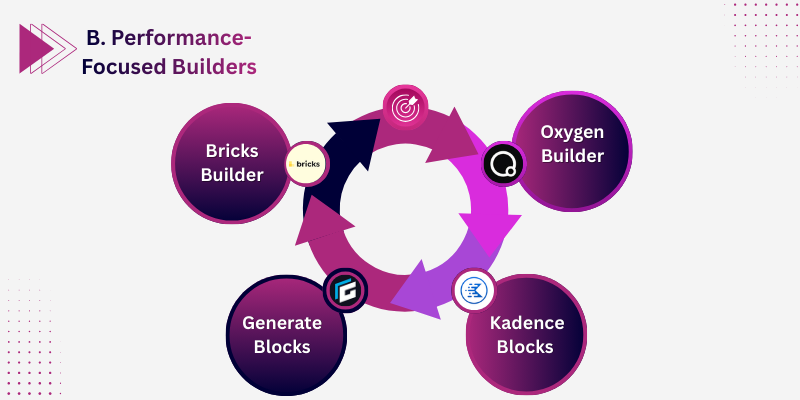
Performance-focused builders are designed for speed, clean code, and efficiency. Unlike traditional drag-and-drop builders, these tools let you create fast-loading websites without unnecessary bloat, making them ideal if you care about Core Web Vitals, SEO, and long-term site performance.
Builders like Bricks, Oxygen, GenerateBlocks, and Kadence give you full control while keeping your site lightweight.
7. Bricks Builder
Bricks Builder is a WordPress site builder built from the ground up for speed and performance. Since its official launch in 2021, Bricks has gained rapid adoption among developers and performance‑focused site owners, with a growing community and regular updates that prioritize clean code and fast loading.
In recent performance tests, Bricks‑built pages have shown significantly smaller CSS and JavaScript footprints compared to many traditional drag‑and‑drop builders.
Key features:
- Visual drag‑and‑drop editor with structured layout controls
- Highly optimized HTML, CSS, and JavaScript output
- Built‑in theme builder (header, footer, templates)
- Responsive design controls for mobile, tablet, and desktop
- Dynamic data support for blogs and custom content
- WooCommerce builder integration
Best for:
If your priority is site speed, Core Web Vitals scores, and lightweight performance, especially for blogs, portfolios, and business sites with SEO goals.
Pros:
- Pages load quickly due to minimal bloat
- Clean and readable code (better for SEO and maintenance)
- Active development and frequent feature releases
- Built‑in theme and template systems
Cons:
- Slight learning curve for absolute beginners
- Fewer ready‑made third‑party addons (compared to Elementor)
- Some advanced features require trial and exploration
Beginner verdict:
Bricks is a great choice once you understand basic WordPress concepts. Its speed advantage and clean output make it especially valuable for long‑term SEO success.
Tips for beginners:
- Start with built‑in templates to save time and avoid layout mistakes
- Learn key responsive controls early to ensure your site looks great on all devices
- Test your pages with tools like Google PageSpeed Insights to track improvements
- Combine Bricks with a lightweight hosting plan for the best speed results
8. Oxygen Builder
Oxygen Builder is a full‑site WordPress builder that replaces traditional themes and gives you complete control over layout and code. Instead of working with a theme, Oxygen becomes the theme. This results in very clean, lightweight code that loads faster and scores higher in performance tests.
As of 2025, Oxygen remains one of the top choices among performance‑driven wordpress developers and is often cited in speed optimization case studies for producing one of the lowest CSS/JS footprints among major builders.
Key features:
- Full site building (header, footer, templates, blocks)
- Clean HTML/CSS/JS output with minimal bloat
- Advanced layout controls, including flexbox and grid
- Dynamic content support for blogs and custom post types
- Deep WooCommerce integration
- Conditional display logic for tailored layouts
Best for:
Developers, advanced users, and technically confident site owners who want maximum performance and control.
Pros:
- Extremely fast page performance compared to many builders
- No dependency on third‑party themes
- Clean, readable code that benefits SEO and maintenance
- Powerful dynamic content features for blogs and custom sites
Cons:
- Not beginner‑friendly, requires WordPress fundamentals
- Steep learning curve compared to Elementor or Gutenberg
- Smaller template library than page builders like Divi or Elementor
- No built‑in pop‑up or advanced marketing tools
Beginner verdict:
Oxygen Builder is not recommended for beginners unless you are already comfortable with WordPress fundamentals, such as templates, theme hierarchy, and responsive design. It’s excellent for performance once you know what you’re doing, but it’s not the easiest starting point.
Tips for beginners:
- Learn core WordPress concepts (themes, blocks, templates) before using Oxygen
- Test Oxygen locally with tools like LocalWP or DevKinsta before building live
- Use a lightweight hosting provider to fully leverage Oxygen’s performance gains
- Pair Oxygen with optimization plugins (caching, image compression) for best speed
9. GenerateBlocks
GenerateBlocks is a lightweight block plugin that extends the default WordPress editor (Gutenberg) with powerful layout controls while keeping your site extremely fast. As of 2025, it is used on over 300,000 WordPress sites globally and is particularly popular with users focused on performance and clean code.
GenerateBlocks is often recommended alongside the GeneratePress theme for minimal code output and excellent Core Web Vitals scores.
Key features:
- Minimal block system focused on performance
- Layout, container, and typography blocks
- Flexbox‑based grid layouts
- Custom spacing, backgrounds, and responsive controls
- Works smoothly with Gutenberg and modern WordPress standards
Best for:
If your priority is speed, SEO, and content‑first publishing, such as blogs, news sites, personal portfolios, and documentation pages.
Pros:
- Extremely fast code output, ideal for Core Web Vitals
- Lightweight compared to traditional page builders
- Works seamlessly with the GeneratePress theme (also performance‑optimized)
- Free version is very capable; Pro adds advanced features
- Encourages good Gutenberg practices
Cons:
- Limited visual styling compared to drag‑and‑drop builders
- Not as many ready‑made templates or design kits
- Requires some understanding of blocks and responsive layout basics
Beginner verdict:
GenerateBlocks is perfect for content‑first websites where performance and clean code matter more than heavy visuals. It’s one of the best tools if your goal is blog posts, SEO rankings, and fast‑loading pages.
Tips for beginners:
- Combine GenerateBlocks with a lightweight theme like GeneratePress for optimal speed
- Use container blocks to structure your content before styling elements
- Avoid adding too many custom scripts to keep page load times low
- Test your pages with tools like Google PageSpeed Insights to track improvements
10. Kadence Blocks (Free & Pro)
Kadence Blocks is a powerful plugin that extends the native WordPress block editor (Gutenberg) with advanced layout and design tools. As of 2025, Kadence Blocks has been downloaded over 500,000+ times and is widely regarded as one of the best free block‑based builders for performance‑focused WordPress sites.
When paired with the Kadence Theme, it becomes a full site design system that competes with traditional page builders while keeping page weight low.
Key features:
- Row and layout blocks for complex structures
- Advanced spacing, typography, and colour controls
- Responsive design tools for mobile, tablet, and desktop
- Header and footer builder (with Kadence Pro)
- Conditional display and dynamic content support
- Integration with form plugins and WooCommerce
Best for:
If you are building blogs, business websites, or portfolio sites where performance and uptime matter, but you still want modern layouts.
Pros:
- Strong free version with essential layout blocks
- Lightweight codebase that helps with performance and SEO
- Works seamlessly with the native block editor
- Pro version adds headers/footers, advanced galleries, sliders, and conditional logic
- Very good support and documentation
Cons:
- Less visual design freedom than full-page builders like Elementor
- Some advanced features require the Pro plan
- Fewer ready‑made templates compared to drag‑and‑drop builders
Beginner verdict:
Kadence Blocks is one of the best free options available for beginners who want faster websites and more flexible layouts than the default editor provides.
Tips for beginners:
- Pair Kadence Blocks with the free Kadence Theme for the best performance and design flexibility
- Use row and container blocks to structure pages before adding styling
- Preview on mobile and tablet to ensure responsiveness
- Run speed tests (e.g., PageSpeed Insights) to confirm performance gains
C. Gutenberg-Based & Block Editors
Gutenberg-based and block editors build directly on WordPress’s native editing system, focusing on clean structure, speed, and long-term stability. These tools are ideal if you want fewer plugins, better performance, and layouts that follow WordPress standards. Instead of heavy visual effects, they help you create well-structured pages that are easier to maintain and more future-proof.
11. Gutenberg (Default WordPress Editor)
Gutenberg is the default editor in WordPress, introduced in 2018 and now used on 100% of self-hosted WordPress installations by default. Instead of a classic text editor, Gutenberg uses a block-based system that lets you build posts and pages with modular blocks (text, images, columns, buttons, etc.).
Since its integration, Gutenberg has evolved into a flexible system that powers not just content editing but also many block-based themes and plugins.
Key features:
- Block-based content editing (text, media, layout blocks)
- Built-in blocks for headings, images, galleries, columns, buttons, and more
- Reusable blocks that can be saved and reused across the site
- Native WordPress integration with core performance benefits
- Regular improvements with each WordPress release
Best for:
If your website focuses on blogs, articles, documentation, or simple business pages, where performance and simplicity matter most.
Pros:
- Fast and secure because it’s part ofthe core WordPress
- No extra plugins needed to start building content
- Fully supported and updated by WordPress developers
- Works smoothly with most plugins and themes
- Lightweight output helps with SEO and page speed
Cons:
- Limited advanced layouts compared to dedicated page builders
- Some design effects require third-party block plugins
- Not as visually intuitive as some drag-and-drop builders for complex designs
Beginner verdict:
Gutenberg is the best place to start learning WordPress because it teaches you how blocks work and keeps your site fast and stable without extra tools.
Tips for beginners:
- Start with core blocks before installing addons
- Use reusable blocks for sections you use frequently
- Preview on mobile to check responsiveness
- Combine with performance plugins (like caching and image optimization) for better speed
12. Spectra (Ultimate Addons for Gutenberg)
Spectra (formerly known as Ultimate Addons for Gutenberg) is a popular block library that enhances the default WordPress editor with design-focused, performance-optimized blocks.
As of 2025, Spectra is active on over 200,000 WordPress sites and continues to grow because it combines modern layouts with lightweight code, making it a strong choice for block-based site building without heavy page builders.
Key features:
- Ready-made sections and patterns for headers, pricing, testimonials, and more
- Flexible block options like advanced headings, info boxes, and sliders
- Clean block output that maintains performance
- Responsive controls for mobile, tablet, and desktop
- Seamless integration with native Gutenberg blocks
Best for:
If you want modern block-based designs without sacrificing page speed or performance.
Pros:
- Lightweight compared to traditional drag-and-drop builders
- Easy upgrade from native Gutenberg editing
- Large library of visually appealing blocks
- Works well with most themes and Gutenberg workflows
Cons:
- Requires basic familiarity with the Gutenberg block editor
- Not as visually intuitive as dedicated page builders for complex designs
- Some advanced styling options may require third-party addons
Beginner verdict:
Spectra strikes an excellent balance between speed and design. It gives Gutenberg real power without adding the bloat often found in heavy page builders.
Tips for beginners:
- Start with basic blocks to understand layouts before adding styles
- Customize ready-made sections instead of building layouts from scratch
- Preview designs on different devices (mobile/tablet)
- Combine Spectra with a lightweight theme for the best performance
13. SiteOrigin Page Builder
SiteOrigin Page Builder is one of the oldest WordPress layout tools and remains a simple, grid-based editor that lets you build page layouts using rows and columns. While it’s not as advanced as newer builders, it still has a presence in the WordPress ecosystem because of its free availability and straightforward approach.
Key features:
- Row and column-based layout system
- Drag-and-drop editor with responsive controls
- Works with most WordPress themes
- Completely free (no Pro plan required)
- Compatible with the SiteOrigin Widgets Bundle for extra elements
Best for:
If you want a basic layout tool to structure pages without complex features or costs.
Pros:
- Lightweight and low on performance impact
- Very simple interface for basic page layouts
- Works with popular themes and widgets
- No cost at all, even for full usage
Cons:
- Design tools feel dated compared to modern builders
- Limited visual styling and creative features
- Fewer pre-built templates
- Not ideal for visually rich or dynamic sites
Beginner verdict:
SiteOrigin Page Builder is a functional choice for simple websites, but it’s limited in design capability. For modern layouts or advanced features, newer block editors or builders like Gutenberg with Spectra or Kadence Blocks are better options.
Tips for beginners:
- Use SiteOrigin for structured layouts rather than creative design
- Combine with the free SiteOrigin Widgets Bundle if you need more elements
- Test your page layout on mobile to ensure responsiveness
- Keep content simple to avoid a dated appearance
D. Marketing & Landing Page Builders
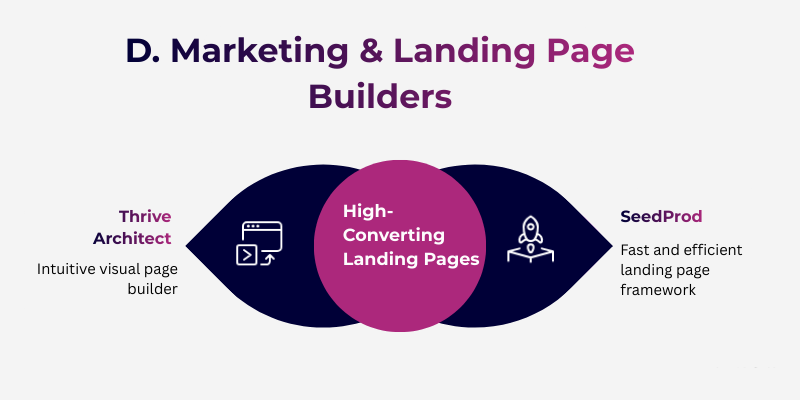
These tools are built for one clear goal: conversions. Marketing and landing page builders focus on creating high-impact pages like sales pages, lead capture forms, and product launches without relying on complex setups.
They come with ready layouts, conversion-focused elements, and design controls that help turn visitors into subscribers or customers, even if you’re new to WordPress.
14. Thrive Architect
Thrive Architect is a WordPress site builder built specifically for conversion-focused pages. It is part of the Thrive Themes product suite, which collectively powers over 70,000+ active websites as of 2025. Unlike general page builders, it centres around elements that help you grow your audience, generate leads, and increase sales.
Many marketers and bloggers choose Thrive Architect because its tools are designed with conversion psychology in mind, not just visual design.
Key features:
- Drag-and-drop visual editor with real-time previews
- 300+ landing page templates tailored for marketing goals
- Built-in conversion elements like CTA buttons, lead-generation forms, and testimonials
- Advanced design components like countdown timers and urgency elements
- A/B testing features to compare page performance
- Seamless integrations with top email marketing services
Best for:
If your priority is lead generation, email list growth, sales pages, or online promotions rather than just general website design.
Pros:
- Templates and layouts designed for real marketing results
- Strong focus on conversions over visuals alone
- Regular updates and feature expansions
- Works with most email platforms (Mailchimp, ConvertKit, ActiveCampaign, etc.)
Cons:
- No free version, requires a paid Thrive Suite subscription
- It can feel overwhelming if you’re new to conversion optimization
- Not as flexible for general design outside marketing use cases
Beginner verdict:
Thrive Architect is one of the best choices for people focused on marketing outcomes. If your goal is building landing pages that convert visitors into subscribers or customers, its tools are built specifically for that purpose.
Tips for beginners:
- Start with a marketing-focused template (e.g., lead magnet or webinar page)
- Use built-in A/B testing to improve your headlines and CTAs
- Connect opt-in forms to your email service before publishing
- Keep your design focused and clutter-free to increase conversion rates
15. SeedProd
SeedProd is a WordPress builder focused on landing pages and coming-soon pages. As of 2025, it has over 1 million active installations, making it one of the most widely used tools for quick page creation. It started as a coming-soon plugin and later expanded into a full landing page builder, especially popular among marketers and small businesses.
Key features:
- Drag-and-drop landing page editor
- Ready-made templates for coming soon, maintenance, sales, and opt-in pages
- Built-in blocks for forms, countdown timers, buttons, and social proof
- Fast page rendering with lightweight code
- Integrations with major email marketing tools
- Theme builder features are available in higher plans
Best for:
If you want to build landing pages quickly without dealing with complex layouts or full site design.
Pros:
- Very easy to use, even for first-time WordPress users
- Free version available with basic features
- Optimized for speed and conversions
- Ideal for temporary pages like maintenance or launches
Cons:
- Not designed for building complex websites
- Advanced features require a paid plan
- Limited layout flexibility compared to full site builders
Beginner verdict:
SeedProd is a strong choice if your goal is simple, fast, and focused pages. For landing pages and coming-soon setups, it does the job well without a steep learning curve.
Tips for beginners:
- Use pre-built templates to save time
- Keep pages simple with one clear goal
- Connect email forms before publishing
- Use it alongside your main theme, not as a full site replacement
E. Theme-Integrated & Other Builders
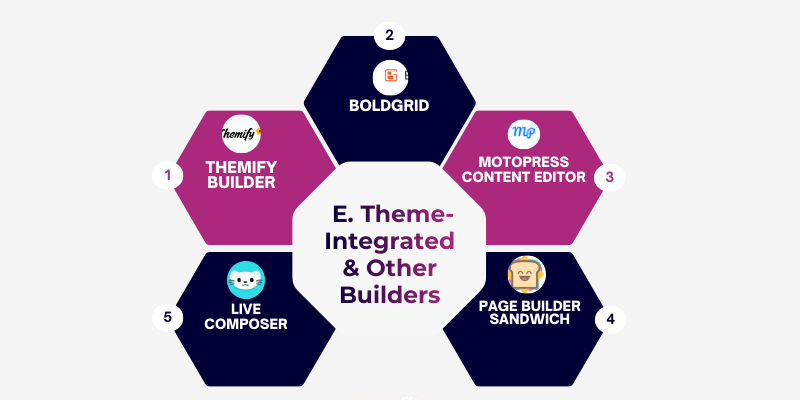
These builders work closely with your WordPress theme or offer a simpler editing experience. You’ll find them useful if you prefer working inside a theme’s design system or want basic layout control without switching to a heavy page builder.
16. Themify Builder
Themify Builder is a theme-integrated page builder made by the Themify team. It works best when you use Themify themes and is designed to keep design and layout consistent across your site.
Key features:
- Drag-and-drop rows and modules
- Frontend and backend editing options
- Pre-designed layouts included with themes
- Reusable modules for repeated sections
Best for:
Users already using Themify themes or planning to build within the Themify ecosystem
Pros:
- Included free with most Themify themes
- Easy to use for basic layouts
- No extra plugin bloat if you use Themify
Cons:
- Limited flexibility outside Themify themes
- Smaller community compared to Elementor or Divi
- Fewer advanced design controls
Beginner verdict:
Works well if you use a Themify theme, but not ideal if you want freedom to switch themes later.
Tips for beginners:
- Use Themify Builder only if you already plan to use a Themify theme
- Stick to pre-made layouts to avoid layout issues
- Avoid mixing it with other page builders on the same site
- If you may change themes later, consider a theme-independent builder instead
- Keep modules minimal to maintain good page speed
17. BoldGrid
BoldGrid is a WordPress website builder that focuses on guided setup, helping you build a site step by step.
Key features:
- Guided website creation wizard
- Built-in content and layout tools
- Tight integration with WordPress themes
Best for:
Beginners who want a guided website setup with minimal decisions
Pros:
- Easy onboarding for first-time users
- Clear structure for pages and layouts
- Hosting-friendly for beginners
Cons:
- Limited design freedom
- Works best within its own ecosystem
Beginner verdict:
Easy to use, but you may feel restricted as your site grows.
Tips for beginners:
- Choose BoldGrid if you prefer guided steps over design freedom
- Use default layouts to avoid layout conflicts
- Not ideal if you plan to switch builders later
- Good for simple business or personal sites
- Consider flexible builders if customization matters to you
18. MotoPress Content Editor
MotoPress Content Editor is a WordPress drag-and-drop page builder built mainly for business and service-based websites. It lets you design pages visually on the front end, so you can see changes as you make them.
MotoPress focuses more on layout stability and structured content rather than flashy animations. This makes it a practical choice for company websites, service pages, and informational layouts where clarity matters more than visual effects.
Key features:
- Front-end visual editing with live preview
- Pre-built content blocks for business layouts
- Supports rows, columns, and reusable sections
- Compatible with most WordPress themes
Best for:
Business websites, service pages, corporate sites, and informational pages need a clean structure and reliability.
Pros:
- Stable and predictable layouts
- Easy to manage content for non-technical users
- Works well for long-term business sites
Cons:
- Limited advanced design effects
- Smaller design library compared to modern builders
Beginner verdict:
A solid and stable option if you want a professional layout without learning complex design tools.
Tips for beginners:
- Use MotoPress for service, about, and contact pages
- Stick to built-in blocks for better consistency
- Not ideal for creative or highly visual designs
- Good choice if you value structure over styling
19. Page Builder Sandwich
Page Builder Sandwich is a front-end WordPress editor that lets you edit your pages directly on the live site. Instead of opening a separate dashboard, you click on the text, images, or elements on your page and edit them in place.
It’s designed to feel intuitive and simple, especially for users who are new to WordPress. While it doesn’t offer advanced templates or design effects, its strength lies in letting you make quick visual changes without confusion.
Key features:
- Inline front-end editing
- Basic drag-and-drop layout controls
- Simple content elements (text, images, buttons)
- Minimal setup and learning time
Best for:
Small personal sites, simple blogs, or static pages where you just want to edit text and images without dealing with complex tools.
Pros:
- Very easy to use and understand
- Lightweight and fast for basic editing
- Let’s you see edits live without opening a builder panel
Cons:
- Limited design and layout options compared to modern builders
- Not suitable for complex or feature-rich pages
- Smaller community and fewer tutorials
Beginner verdict:
Page Builder Sandwich is very basic but works well if all you need is simple page editing without a learning curve.
Tips for beginners:
- Use it for content that doesn’t need advanced layout design
- Avoid it for business sites or portfolios with more visual needs
- Great for quick text changes and small updates
- Not recommended if you plan to scale your site later
- Good for quick edits without a learning curve
2o. Live Composer
Live Composer is a front-end WordPress page builder that allows you to edit pages visually while seeing changes in real time. It was designed to offer a simple drag-and-drop experience without complex settings. While it still works for basic layouts, development and updates have slowed, which limits its suitability for modern websites.
Key features:
- Front-end live editing
- Basic drag-and-drop elements
- Simple row and column layouts
- Works with standard WordPress themes
Best for:
Simple websites, personal pages, or older projects that already use Live Composer.
Pros:
- Easy to understand interface
- Real-time editing experience
- No complex setup
Cons:
- Limited feature updates
- Smaller element library
- Not optimized for modern performance standards
Beginner verdict:
Usable for very simple layouts, but not recommended for new or growing websites.
Tips for beginners:
- Use Live Composer only for small or personal projects
- Avoid it for long-term or business websites
- Check theme compatibility before installing
- Consider modern alternatives if starting fresh
Comparison Table: Best WordPress Site Builders (2026)
Here’s a quick comparison of all 20 WordPress site builders to help you see their ease of use, speed impact, and pricing at a glance.
How to Read This Table
- Ease of Use: ★★★★★ = very easy for beginners; ★★★☆☆ = needs learning time
- Speed Impact: Faster builders are better for SEO and user experience
- Free Version: Indicates whether you can start without paying
- Price Range: Typical starting plans in 2025/2026
7. Which WordPress Site Builder Should You Use? (Use-Case Based Picks)
If you are confused after seeing so many WordPress site builders, you are not alone. The right choice depends on what type of website you want to build, not on how popular a builder looks. Below are clear, practical recommendations based on real use cases that beginners usually have.
Best WordPress Site Builders for Blogs
If your goal is blogging, you need a builder that is fast, clean, and easy to manage long content.
Top recommendations:
- Gutenberg (Default Editor) – Best for speed and SEO
- Kadence Blocks – Adds layout control without slowing your site
- GenerateBlocks – Ideal for clean, content-focused blogs
Why these work well for blogs:
- Blogs rely on loading speed and readability
- Block-based builders create clean HTML, which search engines prefer
- Fewer design layers mean better Core Web Vitals
Real-life example:
If you publish 2–3 blog posts every week, Gutenberg with Kadence Blocks lets you write, format, and update content without fighting design settings.
Tips for bloggers:
- Avoid heavy drag-and-drop builders for text-heavy blogs
- Use block editors for long-term SEO growth
- Focus on readability, not animations
Best WordPress Site Builders for Small Business Websites
Small business sites need clear layouts, trust elements, and easy updates, not complex design tools.
Top recommendations:
- Elementor – Flexible and beginner-friendly
- Beaver Builder – Stable and reliable for service pages
- Divi Builder – Strong design control with one-time pricing
Why are these suits small businesses?
- Easy to build service pages, contact forms, and testimonials
- Visual editing helps non-technical users update content
- Good balance between design and usability
Real-life example:
A local agency website with services, about, and contact pages can be built and maintained easily using Elementor without hiring a developer.
Tips for business owners:
- Choose stability over fancy effects
- Use templates to save time
- Keep pages simple and conversion-focused
Best WordPress Site Builders for Landing Pages
Landing pages need conversion tools, not full website builders.
Top recommendations:
- Thrive Architect – Built specifically for conversions
- SeedProd – Fast landing pages with minimal setup
Why these work for landing pages:
- Built-in call-to-action elements
- Focus on signups, sales, and lead forms
- Cleaner structure for paid traffic pages
Real-life example:
If you are running ads and need a signup page, SeedProd lets you publish a fast landing page in minutes without touching theme files.
Tips for landing pages:
- One page = one goal
- Avoid overdesigning
- Test page speed before running ads
Best Free WordPress Site Builders (With Honest Limits)
Free builders are enough for starting, but they have clear limits.
Best free options:
- Gutenberg – 100% free and built-in
- Elementor Free – Good for basic layouts
- Kadence Blocks (Free) – Advanced blocks without cost
What free builders can do well:
- Build basic pages
- Handle blogs and simple sites
- Teach you WordPress fundamentals
What they cannot do well:
- Advanced marketing layouts
- Complex animations
- Full design systems
Real-life example:
If you are learning WordPress or launching your first site, Gutenberg + Kadence Blocks is enough without spending money.
Tips for beginners using free builders:
- Start free, upgrade only when needed
- Avoid stacking multiple free plugins
- Learn layout basics before going premium
Quick Decision Guide (Beginner Friendly)
- If you want blogging and SEO → Gutenberg or Kadence
- If you want business pages → Elementor or Beaver Builder
- If you want landing pages → Thrive Architect or SeedProd
- If you want free and simple → Gutenberg
8. Performance & Speed Comparison: How Page Builders Affect Your Website
Not all WordPress site builders are equal in speed. Some add extra code that slows your site, while others keep pages clean and fast. The builder you choose directly affects loading time, user experience, and search visibility.
Lightweight vs Heavy WordPress Site Builders
Lightweight builders focus on clean structure and minimal code.
Heavy builders load extra scripts, styles, and design layers.
Examples of lightweight builders:
- Gutenberg (default editor)
- GenerateBlocks
- Kadence Blocks
- Bricks Builder
Examples of heavier builders:
- Elementor (with many addons)
- Divi Builder
- WPBakery Page Builder
What this means for beginners:
- Lightweight builders load pages faster
- Heavy builders can slow sites if overused
- Speed matters more than visual effects
Builders That Generate Clean Code
Clean code means:
- Fewer unnecessary HTML elements
- Less JavaScript running in the background
- Smaller page size
Builders known for cleaner output:
- Gutenberg
- GenerateBlocks
- Oxygen
- Bricks Builder
Builders that may add extra code:
- WPBakery
- Divi (without optimization)
- Older page builders
Real-life example:
Two websites with the same content can load at very different speeds simply because one uses a clean block builder and the other uses a heavy page builder with multiple addons.
How Site Builders Affect Core Web Vitals (Simple Explanation)
Core Web Vitals measure how fast and stable your site feels to users.
Main areas affected by builders:
- Loading speed (LCP): Heavy builders can delay large elements
- Interaction speed (INP): Too many scripts slow interactions
- Layout stability (CLS): Poorly optimized builders cause layout shifts
Beginner-friendly insight:
- Block-based builders usually score better
- Drag-and-drop builders need careful optimization
- Fewer plugins = better scores
Which Builders Are Best for Speed (Quick Summary)
- Fastest overall: Gutenberg, GenerateBlocks
- Balanced speed + design: Bricks, Kadence Blocks
- Needs optimization: Elementor, Divi
- Avoid for speed: WPBakery (new projects)
Tips for Beginners to Keep Their Site Fast
- Use only one builder, not multiple
- Avoid installing many addons
- Test speed after building pages
- Choose a fast hosting provider
Key takeaway:
If speed and rankings matter to you, choose a builder that produces clean code and avoid unnecessary design extras. A simpler layout often performs better than a complex one.
10. How to Choose the Right WordPress Site Builder
Choosing a WordPress site builder can feel overwhelming with so many options. The right choice depends on your goals, technical skills, and long-term plans, not just popularity.
1. If You Want Speed
- Choose: Gutenberg + GenerateBlocks, Kadence Blocks, Bricks Builder, or Oxygen
- Why: These builders produce clean code, fast-loading pages, and better Core Web Vitals.
- Tip: Minimal scripts + lightweight builders = faster sites and higher SEO rankings.
2. If You Want Design Freedom
- Choose: Elementor, Divi, or Visual Composer
- Why: Full drag-and-drop control, pre-made templates, and advanced styling options let you create unique layouts without coding.
- Tip: Avoid installing too many addons; they can slow your site.
3. If You Are a Beginner
- Avoid: Oxygen Builder or heavy developer-focused builders
- Why: They have a steep learning curve and require coding knowledge.
- Choose instead: Elementor, Brizy, Kadence Blocks, or Gutenberg for an easier start.
- Tip: Spend time mastering one builder rather than switching between multiple tools.
4. Long-Term Site Growth Considerations
- Will you add e-commerce, blogs, or landing pages later?
- Will you switch builders if needed? Some heavy builders lock you in with shortcodes.
- Consider performance, SEO, and updates:
- Lightweight builders = easier scaling
- Well-supported builders = security and compatibility with future WordPress updates
- Lightweight builders = easier scaling
Pro Tip:
Before finalising, ask yourself:
- How much time can I spend learning?
- Do I need advanced marketing features?
- Will speed and SEO be important in the long term?
Choosing the right builder now can save months of redesign work later and ensure your site grows efficiently.
11. Common Beginner Mistakes When Choosing a Site Builder
Beginners often make choices that seem right at first but can cause frustration, slow websites, or extra costs later. Knowing these mistakes will save time, money, and effort.
1. Choosing Based on Popularity Only
- Mistake: Picking a builder just because everyone talks about it (like Elementor or Divi).
- Why it’s bad: Popular builders aren’t always the best for your specific site goals or skill level.
- Tip: Look at ease of use, speed, and your long-term needs instead of reviews alone.
2. Ignoring Speed
- Mistake: Choosing heavy builders with many scripts and animations.
- Why it’s bad: Slow pages hurt user experience and SEO, lowering Core Web Vitals scores.
- Tip: Test builder demos for speed or choose lightweight builders like Gutenberg, GenerateBlocks, Kadence, or Bricks.
3. Lock-in Problems
- Mistake: Picking a builder that leaves shortcodes or messy code if you switch later.
- Why it’s bad: If you want to change your builder, you may need to rebuild pages.
- Tip: Consider clean code and future flexibility before starting. Builders like GenerateBlocks, Kadence Blocks, or Gutenberg are safe options.
4. Overusing Addons
- Mistake: Installing too many add-ons and extensions to get extra design features.
- Why it’s bad: Each addon increases page size, slows your site, and can cause conflicts.
- Tip: Only install what you actually need, and avoid overloading visual builders with unnecessary plugins.
Real-Life Example
A beginner built a site with Elementor + 10 extra addons. The site looked great but loaded in 6–7 seconds, causing poor user experience and low SEO performance. Switching to Elementor + GeneratePress cut loading time to under 2.5 seconds.
Key Takeaway
Choosing the right builder wisely from the start prevents headaches, saves time, improves speed, and ensures your website grows efficiently.
12. Final Thoughts
So, Guys, in this guide, you’ve explored 20 of the best WordPress site builders in detail, including beginner-friendly drag-and-drop tools, performance-focused builders, block editors, and marketing builders. You’ve seen how each one works, where it fits best, and what trade-offs come with it.
Choosing the best WordPress site builder is not about picking the most famous tool. It’s about choosing what fits your goals, your skills, and how you want your site to grow. A fast blog, a small business site, and a landing page all need different tools.
If you are just getting started, keep things simple. Learn one builder well instead of jumping between many. Speed, clarity, and ease of updates matter more than fancy designs.
You don’t need to be perfect on the first day. Your site will improve as you learn and test what works for your audience.
If you still feel unsure or want help choosing the right builder for your project, feel free to share your situation in the comments or ask a question. I’m happy to help you make the right choice.
13. Frequently Asked Questions (FAQs)
There is no single best builder for everyone. Elementor is popular because it is easy and has many design options. Gutenberg is a smart choice if you care about speed and clean pages. Divi works well for people who like ready-made layouts and visual editing. Pick based on your site goal and comfort level.
For most beginners, Elementor feels easier and more modern. WPBakery often depends on shortcodes, which can make editing harder later. Elementor gives live visual editing and a large widget library. If you are building a fresh site, Elementor is usually the better pick.
Elementor is currently the most widely used page builder in WordPress. Millions of sites use it because it has a free version and strong community support. You can find many tutorials, templates, and add-ons for it. That makes learning and fixing issues much easier.
Elementor is simpler for beginners and loads faster on many sites. Divi offers deep design control, but it can feel heavy and complex. Elementor also has a free plan, while Divi needs a paid license. If ease and flexibility matter more than advanced styling, Elementor usually fits better.
Gutenberg is free and already built into WordPress. Elementor Free gives drag-and-drop design with basic widgets. Kadence Blocks and GenerateBlocks are also good for clean layouts. Free versions work well for simple blogs and small sites.
Gutenberg is usually the fastest because it creates clean code. GenerateBlocks and Bricks are also known for speed. Heavy builders with many effects can slow pages. Faster builders help improve loading time and user experience.
Yes, page builders can affect site speed and structure. Slow pages can reduce user satisfaction and search visibility. Clean code and fast-loading pages help search engines read your site better. Choosing a lightweight builder helps maintain healthy performance.
Not always. WordPress lets you build pages using its default editor (Gutenberg) without a builder. Builders make design easier with drag-and-drop controls and templates, so you don’t have to code. If your site is simple, you can start with Gutenberg. Builders help when you want more visual control and complex layouts.
Builders like Gutenberg, Kadence Blocks, Brizy, and Elementor are very beginner-friendly. They let you design visually without coding, with clear controls and templates. Start with one and learn it well instead of switching between too many tools. Most beginners find Elementor or Gutenberg easier to get started with.
Yes, but switching builders may require rebuilding pages, because many builders use shortcodes or custom layouts. Some block-based tools are easier to migrate from, but heavy drag-and-drop builders often lock content into their own systems. Plan ahead for future flexibility.
No, you don’t have to know HTML/CSS to use a builder. Builders let you design visually. Knowing basic HTML/CSS can help you tweak designs and fix layout issues, but you can build functioning sites without coding. It’s helpful but not required.




- Be Respectful
- Stay Relevant
- Stay Positive
- True Feedback
- Encourage Discussion
- Avoid Spamming
- No Fake News
- Don't Copy-Paste
- No Personal Attacks
- Be Respectful
- Stay Relevant
- Stay Positive
- True Feedback
- Encourage Discussion
- Avoid Spamming
- No Fake News
- Don't Copy-Paste
- No Personal Attacks
