15 Best WordPress Speed Optimization Plugins
Published: 22 Dec 2025
Did you know that 47% of users expect a website to load in under 2 seconds? If your site takes longer, the bounce rate rises sharply; just a 1–2 second delay can increase the chances of visitors leaving by up to 32%, and slower pages can even reduce conversions and revenue.
Search engines also notice page speed, and slower sites often rank lower, meaning fewer people find your content.
But don’t worry, there are WordPress plugins designed to speed up your website without any technical headaches. In this article, I’m going to guide you through the best WordPress speed optimization plugins to improve loading times, enhance user experience, and boost search engine rankings, so your site runs faster, smoother, and more efficiently.
Before jumping directly into the plugin list, I want to explain what WordPress speed and optimization plugins are, why they are important, and how to choose the right ones. Understanding this will help you pick the best plugins for your site and use them effectively.
So, are you ready, guys?
What Are WordPress Speed and Optimization Plugins?
WordPress speed and optimization plugins are tools that make your website load faster, perform better, and provide a smoother experience for visitors.
How They Work:
These plugins improve speed by:
- Caching pages: They save ready-made versions of your pages so they load instantly for visitors.
- Optimizing images: Reduce file sizes without losing quality, which makes pages lighter.
- Cleaning up code: Remove unnecessary scripts and CSS to streamline your site.
- Loading only what’s needed: Prevent unnecessary resources from slowing down your pages.
These improvements are handled through WordPress plugins, and learning what WordPress plugins are and how they work helps you make better decisions.
Easy Example:
It is like a restaurant. Instead of cooking every meal from scratch when a guest arrives, you prepare some dishes in advance. When the order comes in, it’s served immediately. Similarly, caching stores pages so visitors see them instantly.
Popular Plugins That Do This:
- WP Rocket – Simple setup, handles caching, file optimization, and lazy loading.
- WP Super Cache – Free caching plugin for beginners.
- EWWW Image Optimizer – Compresses images without losing quality.
- Autoptimize – Optimizes CSS, JS, and HTML for faster loading.
Why This Matters:
- Page speed: Faster pages keep visitors engaged.
- User experience: No one likes waiting for slow websites.
- SEO results: Search engines favour faster websites, helping you rank higher.
Extra Value Tip:
Even small improvements, like compressing images or enabling caching, can reduce page load time by several seconds, which can increase visitor retention and conversions.
Why Using Optimization Plugins Is Important
Using WordPress speed and optimization plugins is important because they make your website faster, keep visitors engaged, improve SEO, and reduce server strain.
Key Benefits:
- Pages load faster on mobile and desktop: Users don’t wait, improving satisfaction.
- Visitors stay longer: Faster pages encourage more reading and interaction.
- Bounce rate decreases: Fewer visitors leave immediately due to slow load times.
- Better Google rankings: Search engines favour faster websites, which boosts visibility.
- Reduced server load: Optimized sites handle more traffic efficiently.
- Improved experience for slow connections: Even users with limited internet speed can browse comfortably.
Real Example:
Once, I was optimizing a WordPress website for a client. By using WP Rocket for caching and Smush Pro Image Optimizer for compressing images, the site’s loading time dropped from 5 seconds to 2 seconds. As a result, visitors stayed longer, engaged more with the content, and the website started ranking higher in Google search within a few weeks.
Extra Value Tip:
Even a 1–2 second improvement can significantly increase user engagement and conversions. Plugins like WP Fastest Cache, Autoptimize, or ShortPixel can help achieve these gains with minimal effort.
4. How to Choose the Right Speed Plugin
Choosing the right speed plugin is crucial. Not all plugins work well together, and the wrong choice can slow your site instead of speeding it up. Use this simple checklist to pick the best plugin for your WordPress site.
1. Check Compatibility
Make sure the plugin works with:
- Your theme: Some plugins conflict with certain themes. Make sure the plugin works with your WordPress theme, because some themes handle scripts and layouts differently.
- Your hosting provider: Certain plugins perform better on specific hosting setups (e.g., LiteSpeed Cache works best on LiteSpeed servers).
2. Read Recent Reviews
Focus on user reviews from the last 6 months. This ensures you get accurate feedback about updates, compatibility, and performance.
3. Pick Easy-to-Use Tools
If you are a beginner, select plugins with:
- Simple settings: Avoid plugins that require advanced coding knowledge.
- Clear instructions: Step-by-step guides help you configure the plugin correctly without mistakes.
4. Avoid Conflicts
Do not install:
- Two cache plugins together (they can break your site)
- Two image optimization plugins together (may duplicate compression or cause errors)
Beginner Tip:
Start with one plugin first, test your site speed, and then add another if needed. This step-by-step approach prevents conflicts and ensures stable performance.
Extra Value Tip:
Plugins like WP Rocket, WP Fastest Cache, or Autoptimize are beginner-friendly, reliable, and work with most themes and hosting environments.
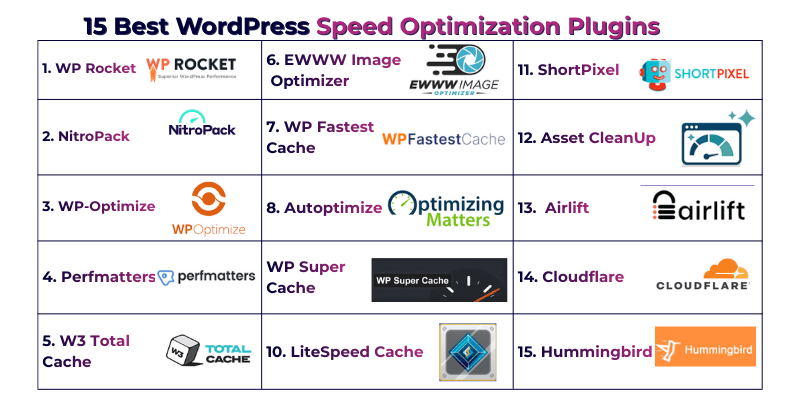
15 Best WordPress Speed Optimization Plugins
Choosing the right speed plugin can make your website faster, smoother, and more user-friendly. In the list below, each plugin includes:
- Best Use Case: Who should use it and for what type of website
- Key Features: How it helps improve performance and speed
- Plugin Details:
- What is this plugin for? Explains the main purpose and functionality
- Who should use it? Beginners, advanced users, or specific website types
- Is it free or paid? Pricing options and limitations
- Easy setup and installation: How easy it is to set up and activate
- What is this plugin for? Explains the main purpose and functionality
- Beginner Notes: Tips to set it up easily without breaking your site
These plugins are tested, trusted, and beginner-friendly, helping you improve your site’s loading time, SEO, and user experience without technical headaches.
5.1 WP Rocket
The WP Rocket is a popular WordPress speed optimization plugin. It is designed to make websites load faster without requiring advanced technical knowledge. With WP Rocket, even beginners can significantly improve page speed, reduce bounce rates, and enhance overall user experience. Its intuitive interface and smart default settings allow users to see results immediately after activation.
The plugin is also trusted by thousands of website owners and developers worldwide, making it a reliable choice for both blogs and business websites. It combines caching, file optimization, and lazy loading in one package, which means you don’t need multiple plugins to get basic speed improvements.
Best Use Case:
WP Rocket is ideal for beginners, bloggers, and business websites that want fast page loading without a complex setup.
Key Features:
- Page caching: Stores pre-loaded versions of pages for instant delivery
- Lazy loading: Loads images and videos only when they appear on the screen
- File optimization: Minifies HTML, CSS, and JavaScript to reduce page size
Plugin Details:
- What is this plugin for?
WP Rocket is designed to speed up WordPress websites by reducing load times, improving user experience, and boosting SEO rankings. - Who should use it?
Beginners, small business owners, content creators, and any site looking for easy yet powerful optimization. - (Price) Is it free or paid?
Paid plugin. Prices start at $59/year for one site. There is no free version, but its ease of use and performance make it worth the investment. - Ease of Installation & Setup:
Activate, follow the setup wizard, and most default settings work perfectly for beginners. Minimal configuration is needed to see immediate speed improvements. - Communit Reviews and Ratings
WP Rocket holds an average rating of 4.5 out of 5 stars based on user feedback on trusted review platforms like Trustpilot. Users often mention easy setup, noticeable speed improvements, and reliable performance for both blogs and business websites. You can check real user experiences and ratings on Trustpilot for deeper insights.
Beginner Notes:
- Works right out of the box, no coding required
- Combine with an image optimizer like ShortPixel or Smush for maximum speed
- Avoid using another caching plugin simultaneously to prevent conflicts
Note:
WP Rocket is widely trusted by the WordPress community and recommended by developers for reliable, beginner-friendly optimization. Tested on thousands of sites, it consistently improves page speed, user engagement, and search rankings.
5.2 NitroPack
NitroPack is an all‑in‑one performance optimization service used by many high‑traffic WordPress sites. It combines full‑page caching, intelligent image optimization, CDN integration, and code minification in one solution. According to independent performance tests, NitroPack can improve Google PageSpeed scores by more than 20–50 points on average, especially on mobile devices.
This makes NitroPack a strong choice for stores, membership sites, and content platforms that must deliver fast loading times under heavy visitor load. It automates most optimization tasks so beginners can see large speed improvements without touching complex settings.
Best Use Case:
NitroPack is best for high‑traffic websites, eCommerce stores, and media‑rich platforms where speed directly affects sales and engagement.
Key Features:
- Full‑page caching: Stores fully rendered pages, speeding repeat page loads.
- Image optimization with WebP support: Reduces file size while keeping image quality.
- Automatic optimization: CSS/JS/HTML minification and deferred loading.
- Global CDN (optional): Speeds up delivery across regions.
Plugin Details:
- What is this plugin for?
NitroPack is designed to automate WordPress performance optimization, combining several speed techniques into one workflow without manual setup. - Who should use it?
Website owners who run high‑traffic blogs, WooCommerce stores, portfolios, or membership sites and need fast load times without tinkering with settings. - Is it free or paid?
NitroPack offers a free tier (suitable for very low traffic or testing) and paid plans. Paid plans start at $210 a year. and scale based on monthly visits and CDN usage. - Community Reviews and Ratings
NitroPack has an average rating of 4.3 out of 5 stars. Many users praise it for strong speed improvements, automation, and easy setup, especially for high-traffic websites. You can check real user reviews and ratings directly on wordpress.org - Ease of Installation & Setup:
After installation, NitroPack walks you through a setup wizard. Default settings apply best‑practice optimization automatically. Advanced users can adjust caching level, CDN integration, and optimization aggressiveness.
Beginner Notes:
- Works well as a single, all‑in‑one optimization tool (no need for a separate caching plugin).
- Recommended to test site speed before and after activation using tools like Google PageSpeed Insights or GTmetrix.
- Some WooCommerce stores may need to exclude cart or checkout pages from caching to avoid session issues.
EEAT Note:
NitroPack is used by businesses globally, and independent benchmarks show it frequently improves PageSpeed scores and Core Web Vitals when configured correctly. Experts note that while NitroPack’s free tier has limits, paid plans scale well for professional sites and stores.
5.3 WP-Optimize
WP-Optimize is a WordPress performance plugin built to keep your website clean, fast, and well-organized. Over time, WordPress stores extra data like old post revisions, spam comments, and unused database entries. This extra data slows down your site. WP-Optimize removes this clutter and also adds caching and image compression, so you don’t need several plugins for basic optimization.
WP-Optimize is developed by David Anderson, the same developer behind UpdraftPlus, one of the most trusted WordPress backup plugins used by millions of websites worldwide. This background adds strong credibility and trust to the plugin.
Best Use Case:
WP-Optimize is best for blogs, content websites, and small business sites that want an all-in-one cleanup and speed solution.
Key Features:
- Database cleanup: Removes old revisions, spam comments, and unused data
- Page caching: Serves stored pages to load faster
- Image compression: Reduces image file size without harming quality
Plugin Details:
- What is this plugin for?
WP-Optimize helps clean the WordPress database, reduce unnecessary data, and improve page loading speed safely. - Who should use it?
Beginners, bloggers, and website owners who want simple performance improvements without technical work. - Is it free or paid?
WP-Optimize offers a free version with database cleanup and basic caching. The premium version starts at around $49 per year and includes advanced features. - Ease of Installation & Setup:
Very easy to install. The plugin provides clear options, and default settings are safe for beginners. No coding is needed. - Community Reviews and Ratings:
WP-Optimize is well-rated by users on platforms like the WordPress Plugin Directory and G2. Many users highlight its clean dashboard, easy controls, and the strong features available even in the free version. The plugin consistently maintains an average rating of around 4.5 out of 5, showing solid trust from the WordPress community.
Beginner Notes:
- Always take a backup before running database cleanup
- Run cleanup once every few weeks, not daily
- Use its built-in caching instead of installing another cache plugin
Note:
This plugin was developed by David Anderson, a well-known WordPress developer. WP-Optimize benefits from long-term maintenance, regular updates, and a strong user community. This makes it a trusted and reliable plugin for improving WordPress performance.
5.4 Perfmatters
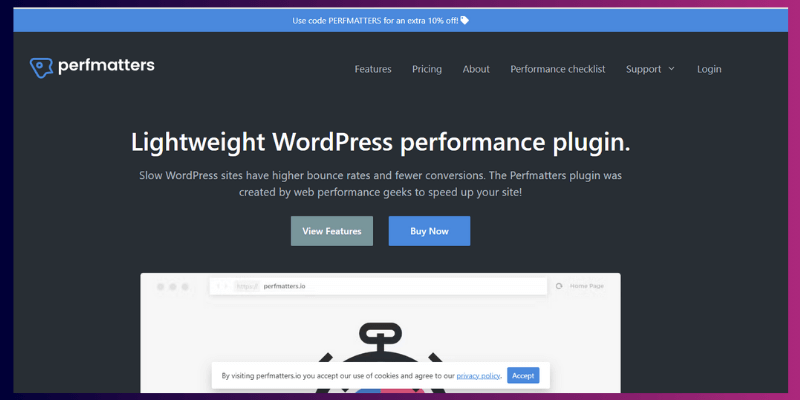
Perfmatters is a lightweight WordPress performance plugin designed to improve site speed by removing unnecessary elements that slow down your website. Instead of relying on heavy caching or complex setups, Perfmatters focuses on fine-tuning your site by disabling unused scripts, emojis, embeds, and other features that are loaded by default but often not needed.
Perfmatters was developed by brothers Brian Jackson and Brett Jackson, who are well-known in the WordPress performance community. Its focus on minimalism and efficiency makes it ideal for beginners who want faster load times without touching code.
Best Use Case:
Perfmatters is perfect for blogs, business websites, and WooCommerce stores that feel slow due to unnecessary scripts or heavy plugins.
Key Features:
- Disable unused scripts: Stop scripts and CSS from loading where they aren’t needed
- Lightweight optimization: Keeps your site fast without adding extra bulk
- Preload and lazy load options: Optional features for images and fonts
Plugin Details:
- What is this plugin for?
Perfmatters helps speed up WordPress sites by disabling unused features, reducing bloat, and improving overall performance. - Who should use it?
Beginners, bloggers, small business owners, or anyone who wants a simple, lightweight optimization plugin. - Is it free or paid?
Perfmatters is a paid plugin, starting at $24.95 per year for one site, with unlimited sites available in higher plans. - Ease of Installation & Setup:
Setup is very simple. Once installed, you can enable or disable features with a click of a toggle switch, and default settings are safe for beginners. - Community Reviews and Ratings:
Perfmatters is rated with an average of 4.9 out of 5 stars on Trustpilot. Users frequently praise its ease of use, lightweight nature, and noticeable speed improvements.
Beginner Notes:
- Ideal for sites that already have caching plugins and need extra speed improvements
- Test after enabling features to ensure nothing on your site breaks
- Start with the most unused scripts first, then gradually optimize
Note:
Perfmatters is trusted by thousands of website owners worldwide. Its focused, lightweight approach ensures reliable performance improvements without complicating your site setup.
5.5 W3 Total Cache
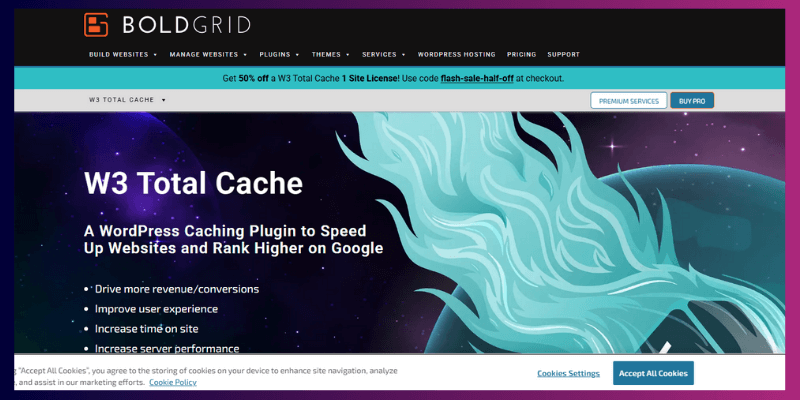
W3 Total Cache is one of the most powerful caching plugins for WordPress, designed to significantly improve website speed and performance. It’s widely used by high-traffic websites, business sites, and online stores because it supports page caching, database caching, object caching, and CDN integration.
Properly configured, W3 Total Cache can reduce page load times by up to 50%, improving both user experience and search engine rankings.
Best Use Case:
W3 Total Cache is best for advanced users, high-traffic blogs, business websites, and eCommerce stores that need fine-tuned performance optimization.
Key Features:
- Page caching: Serves stored pages to visitors instantly
- CDN support: Integrates easily with popular CDNs to deliver content faster globally
- Minification: Compresses HTML, CSS, and JS files to reduce page size
Plugin Details:
- What is this plugin for?
W3 Total Cache is used to improve WordPress website performance by caching pages, reducing load times, and integrating with CDNs. - Who should use it?
Advanced users or developers who are comfortable configuring caching and CDN settings. Beginners can use it, but they need to follow the guides carefully. - Is it free or paid?
W3 Total Cache is free, with optional paid support for enterprise-level features. - Ease of Installation & Setup:
Setup can be tricky for beginners. It provides many options and toggles, so it’s recommended to follow the setup guides carefully. Misconfigurations can break some site functionalities. - Community Reviews and Ratings:
W3 Total Cache has a 4.4 out of 5 rating on the WordPress Plugin Repository. Users appreciate its powerful caching and CDN integration, but some note that setup can be challenging for non-technical users.
Beginner Notes:
- Test changes on a staging site before applying to the live site
- Avoid enabling overlapping caching plugins at the same time
- Use default settings if unsure, then gradually optimize
Note:
W3 Total Cache is maintained by BoldGrid, a trusted WordPress development team. Its extensive features and regular updates make it a reliable solution for high-traffic and performance-focused websites, though it requires careful configuration.
5.6 EWWW Image Optimizer
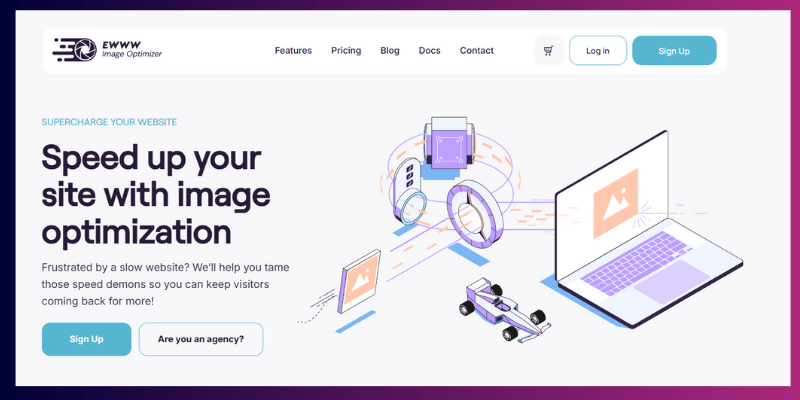
EWWW Image Optimizer is a WordPress plugin designed to reduce image file sizes without losing quality. For image-heavy websites such as blogs, portfolios, or eCommerce stores, large images can drastically slow down page load times.
This plugin automatically compresses images during upload and can optimize existing images, improving overall site speed, user experience, and SEO performance.
Best Use Case:
EWWW Image Optimizer is perfect for blogs, photography websites, portfolios, and any content-rich site with lots of images.
Key Features:
- Image compression without quality loss: Reduces file size while maintaining clarity
- Bulk optimization: Optimizes all existing images in your media library
- WebP conversion: Converts images to the modern WebP format for faster loading
- Automatic optimization: Works on every image uploaded
Plugin Details:
- What is this plugin for?
The plugin is used to compress and optimize images on WordPress, ensuring faster page loading without affecting visual quality. - Who should use it?
Beginners, bloggers, photographers, and website owners who want better site speed through image optimization. - Is it free or paid?
EWWW Image Optimizer has a free version with essential features. Premium plans start at $70 per year, adding advanced optimization, CDN support, and WebP delivery. - Ease of Installation & Setup:
Very easy to install. Default settings are sufficient for most users, and optimization can run automatically on uploads. - Community Reviews and Ratings:
EWWW Image Optimizer is widely trusted, with a 4.8 out of 5 stars rating across WordPress plugin reviews. Users praise its automatic optimization, bulk processing, and minimal impact on image quality.
Beginner Notes:
- Test image compression on a few files before bulk optimization
- Backup original images if you want a copy of uncompressed versions
- Use WebP for the best speed, but ensure browser compatibility
Note:
Used by thousands of content-heavy websites, EWWW Image Optimizer is a reliable and beginner-friendly solution for improving WordPress speed while maintaining image quality. Its active development and strong community support make it a trustworthy plugin for long-term performance.
5.7 WP Fastest Cache
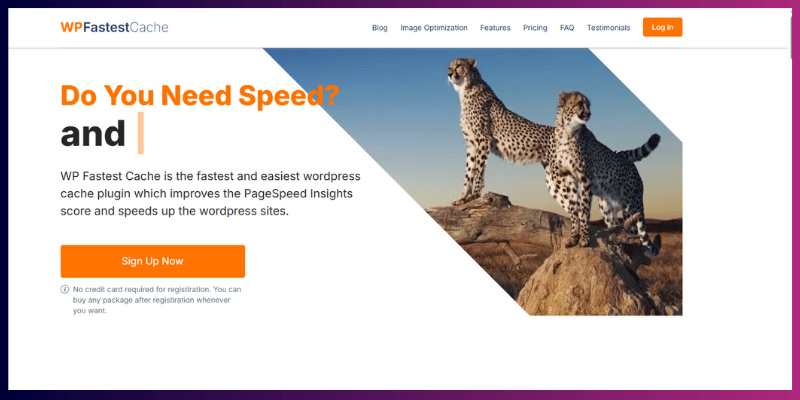
WP Fastest Cache is a simple yet effective caching plugin for WordPress. It improves website speed by storing static copies of your pages, so visitors can load content faster. This plugin is ideal for small blogs, personal websites, and beginner users who want a quick, no-fuss solution without dealing with complex settings.
Best Use Case:
WP Fastest Cache works best for blogs, small business sites, and websites with moderate traffic that need simple caching to improve page speed.
Key Features:
- Page caching: Stores static versions of pages to reduce load times
- Minification: Compresses CSS and JavaScript files to make pages lighter
- Browser caching: Enables faster loading for returning visitors
- CDN support: Optional integration with Content Delivery Networks
Plugin Details:
- What is this plugin for?
The plugin is used to speed up WordPress websites by caching pages and optimizing static files, making site performance faster and smoother. - Who should use it?
Beginners, bloggers, or small business owners who want a simple caching solution without technical complexity. - Is it free or paid?
WP Fastest Cache offers a free version with essential caching features. Paid plans start at a one-time fee of $49, which adds features like preloading, mobile caching, and image optimization. - Ease of Installation & Setup:
Extremely easy. Install, activate, and enable caching with a single click. Default settings are sufficient for most users. - Community Reviews and Ratings:
WP Fastest Cache has a 4.9 out of 5 rating on the WordPress Plugin Directory. Users praise its simple dashboard, quick setup, and reliable caching.
Beginner Notes:
- Avoid using multiple caching plugins simultaneously
- Test your site after enabling caching to ensure everything works correctly
- Use minification selectively if your site has custom CSS/JS
Note:
WP Fastest Cache is a trusted plugin used by thousands of small websites globally. Its beginner-friendly design, frequent updates, and strong community support make it a safe and effective choice for improving WordPress speed.
5.8 Autoptimize
Autoptimize is a WordPress plugin designed to improve site performance by optimizing code. It focuses on compressing and combining CSS, JavaScript, and HTML files, which reduces page size and improves loading speed. Unlike caching plugins, Autoptimize handles the front-end code optimization, making it an excellent companion for caching solutions like WP Rocket or WP Fastest Cache.
Best Use Case:
Autoptimize is perfect for blogs, business websites, and eCommerce stores that want clean, optimized code for faster loading.
Key Features:
- CSS, JS, and HTML optimization: Compresses and combines files to reduce page size
- Minification: Removes unnecessary spaces and characters
- Inline and defer options: Helps load critical scripts faster
- Compatibility with caching plugins: Works seamlessly with most cache solutions
Plugin Details:
- What is this plugin for?
Autoptimize is used to optimize website code, making pages lighter, faster, and easier for browsers to load. - Who should use it?
Beginners with guidance, advanced users, or anyone using caching plugins who wants better code performance. - Is it free or paid?
Autoptimize is free, with optional paid plans starting at $60 per year for extra optimization features and advanced add-ons. - Ease of Installation & Setup:
Very easy for beginners. Install and activate, then enable code optimization options. Default settings are safe, but advanced options are available for power users. - Community Reviews and Ratings:
Autoptimize has a 4.7 out of 5 rating on the WordPress Plugin Directory. Users appreciate its effectiveness, simplicity, and compatibility with other plugins.
Beginner Notes:
- Combine with a caching plugin for best results
- Test your site after enabling optimization to ensure scripts load correctly
- Start with default settings, then explore advanced options gradually
Note:
Autoptimize is a trusted and widely used plugin, regularly updated by its development team. Its focus on code-level optimization makes it a reliable choice to enhance website speed, especially when paired with caching solutions.
5.9 WP Super Cache
WP Super Cache is a popular WordPress caching plugin that generates static HTML files from your dynamic WordPress pages. This allows pages to load much faster for visitors, especially for small blogs and basic websites. It’s an ideal choice for beginners because it’s free, simple, and reliable, without requiring advanced technical knowledge.
Best Use Case:
WP Super Cache works best for small blogs, personal websites, and beginner-friendly sites that need stable and free caching without complex configurations.
Key Features:
- Static page caching: Serves static HTML versions of pages to reduce server load
- Compression: Reduces the size of pages for faster delivery
- Easy CDN integration: Works with popular CDNs for improved global performance
- Simple caching options: Beginner-friendly setup
Plugin Details:
- What is this plugin for?
It’s used to speed up WordPress websites by caching pages as static files, reducing load times and improving performance. - Who should use it?
Beginners, bloggers, or anyone with a small or basic website who wants a free and reliable caching solution. - Is it free or paid?
WP Super Cache is completely free, with no paid plan, making it accessible for all WordPress users. - Ease of Installation & Setup:
Installation is straightforward. Activate the plugin, enable caching, and the default settings work well for most sites. Advanced users can tweak additional options if needed. - Community Reviews and Ratings:
WP Super Cache has a 4.3 out of 5 rating on the WordPress Plugin Directory. Users value its stability, simplicity, and effectiveness, especially for smaller sites.
Beginner Notes:
- Use default settings initially to avoid conflicts
- Avoid using multiple caching plugins simultaneously
- Test your site after activation to ensure pages load correctly
Note:
WP Super Cache was created by Automattic developer Donncha Caoimh in 2007, but has been managed by the Jetpack team (part of Automattic) since 2022. Its reliable caching, minimal setup, and frequent updates make it a safe and effective choice for beginners looking to improve WordPress speed.
5.10 LiteSpeed Cache
LiteSpeed Cache is a powerful WordPress plugin designed for websites hosted on LiteSpeed servers. It offers server-level caching, which is faster and more efficient than typical plugin-based caching. Additionally, it includes image optimization, database cleanup, and advanced optimization options for improving website speed and performance.
Best Use Case:
LiteSpeed Cache is perfect for business websites, blogs, and eCommerce stores hosted on LiteSpeed servers that want high-speed performance and reliable caching.
Key Features:
- Server-level caching: Faster than standard plugin caching
- Image optimization: Compress and serve images efficiently
- Minification: Optimize CSS, JS, and HTML
- Database optimization: Clean up and maintain database performance
- CDN support: Integrates with Content Delivery Networks for global speed
Plugin Details:
- What is this plugin for?
LiteSpeed Cache is used to maximize WordPress performance on LiteSpeed servers by caching pages at the server level, optimizing images, and improving loading times. - Who should use it?
Beginners or advanced users hosted on LiteSpeed servers who want maximum speed and optimization. It is not suitable for non-LiteSpeed servers. - Is it free or paid?
LiteSpeed Cache is completely free, offering advanced caching and optimization features without a paid plan. - Ease of Installation & Setup:
Easy for beginners on LiteSpeed hosting. Install, activate, and enable default caching and optimization settings. Advanced options are available for power users. - Community Reviews and Ratings:
LiteSpeed Cache has a 4.8 out of 5 rating on the WordPress Plugin Directory. Users highlight its fast performance, comprehensive optimization features, and excellent reliability.
Beginner Notes:
- Ensure your hosting is LiteSpeed before installation
- Start with default settings to avoid conflicts
- Test your website’s speed before and after activating the plugin
Note:
LiteSpeed Cache, developed and maintained by LiteSpeed Technologies, this plugin is a widely trusted plugin by websites worldwide. Its server-level caching and advanced features make it a top choice for boosting WordPress speed on LiteSpeed hosting.
5.11 ShortPixel
ShortPixel is a powerful WordPress plugin focused on image optimization. It helps websites compress images without losing quality and convert them to modern formats like WebP for faster loading. This plugin is especially useful for media-heavy websites, blogs, portfolios, and eCommerce stores where images significantly affect page speed and SEO.
Best Use Case:
ShortPixel is ideal for photography websites, blogs, portfolios, and online stores that need advanced image compression and optimization.
Key Features:
- Image compression: Reduce file sizes without sacrificing quality
- WebP conversion: Serve modern, lightweight images to improve speed
- Bulk optimization: Optimize existing images in the media library
- Automatic optimization: Compress images on upload
- Thumbnail optimization: Reduce sizes for all media library thumbnails
Plugin Details:
- What is this plugin for?
ShortPixel is used to compress and optimize images, which improves site speed, SEO, and user experience. - Who should use it?
Beginners and advanced users, especially those managing image-heavy websites. - Is it free or paid?
ShortPixel offers a free plan with 100 image credits per month. Paid plans start at $99.90 per year for unlimited credits. - Ease of Installation & Setup:
Installation is simple. Activate the plugin, connect with an API key, and enable automatic image optimization. Default settings work well for most users - Community Reviews and Ratings:
ShortPixel has a 4.5 out of 5 rating on WordPress.org and G2, with users praising its speed, ease of use, and high-quality compression.
Beginner Notes:
- Start with automatic optimization for new uploads
- Use bulk optimization for older images
- Test your pages to ensure images display correctly after compression
Note:
Developed by ShortPixel, a reliable and trusted company in image optimization, this plugin is widely used by media-heavy websites globally. It is beginner-friendly, effective, and regularly updated, making it a safe choice for improving WordPress speed.
5.12 Asset CleanUp
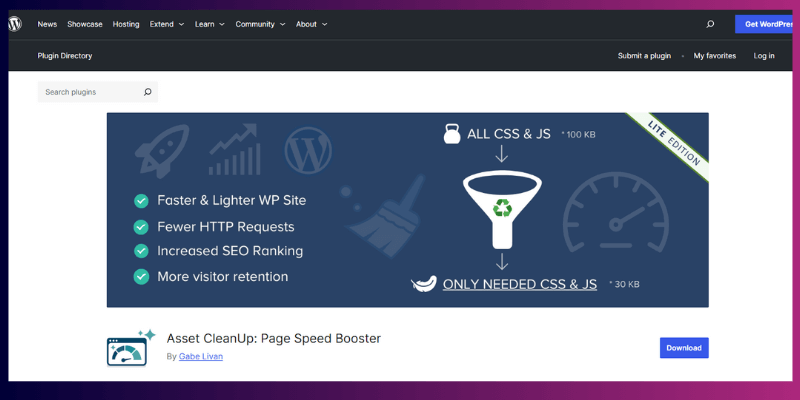
Asset CleanUp is a WordPress plugin designed to optimize website performance by managing CSS and JavaScript files. It allows you to disable unnecessary scripts on pages where they aren’t needed, reducing page size and improving load times.
This plugin is especially useful for plugin-heavy websites where multiple plugins load scripts site-wide, slowing down the site.
Best Use Case:
Asset CleanUp is perfect for websites with many plugins, such as business websites, eCommerce stores, or blogs that want to remove unnecessary code and speed up page loading.
Key Features:
- Selective CSS & JS loading: Disable scripts per page or post
- Reduce page size: Only load necessary scripts for each page
- Minification: Optimize CSS and JavaScript files
- Compatibility: Works with most caching plugins and themes
Plugin Details:
- What is this plugin for?
Asset CleanUp is used to improve website performance by preventing unused scripts from loading, which reduces page size, speeds up loading, and improves user experience. - Who should use it?
Beginners with guidance, advanced users, or sites heavy with plugins that need fine-grained control over scripts and styles. - Is it free or paid?
Asset CleanUp offers a free version with essential features. The Pro version starts at $49 per year, unlocking additional options like auto-detecting plugin scripts and advanced optimization. - Ease of Installation & Setup:
Beginner-friendly. Install and activate the plugin, then select scripts to unload per page. Start with default suggestions before experimenting with advanced options. - Community Reviews and Ratings:
Asset CleanUp has a 4.9 out of 5 rating on the WordPress Plugin Directory. Users praise its effectiveness, simplicity, and ability to reduce page bloat.
Beginner Notes:
- Avoid unloading essential scripts for theme or plugin functionality
- Test pages after making changes to ensure nothing breaks
- Combine with a caching plugin for maximum speed improvement
Note:
Asset CleanUp was developed and maintained by Gabe Livan. It is a trusted tool for managing scripts efficiently. Its regular updates, positive community feedback, and proven results make it a reliable choice for improving WordPress speed.
5.13 Airlift
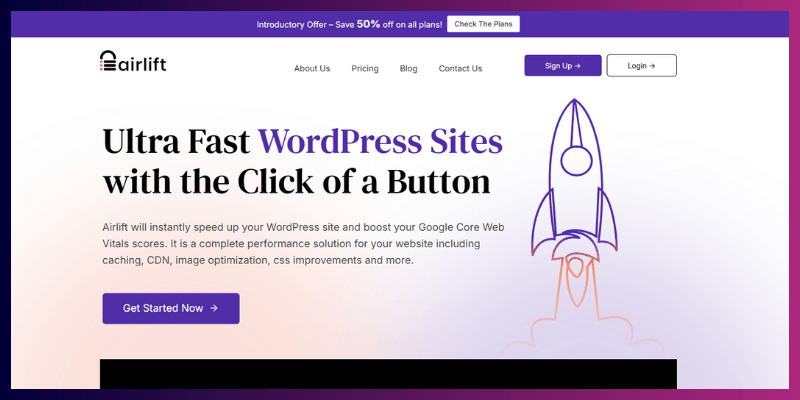
Airlift is a cloud-based WordPress optimization plugin that focuses on improving website speed and performance with minimal setup. It combines automatic optimization and CDN support, delivering faster loading times for users globally.
This makes it ideal for business sites, blogs, and online stores that want quick performance improvements without complex configurations.
Best Use Case:
Airlift is perfect for websites with global audiences or heavy content that need automatic optimization and content delivery from a CDN for better speed.
Key Features:
- CDN support: Distribute content from servers close to visitors for faster loading
- Automatic optimization: Compress files and images automatically
- Cache management: Ensures pages load efficiently
- Beginner-friendly setup: Minimal configuration needed
Plugin Details:
- What is this plugin for?
Airlift is used to boost website performance by combining caching, image optimization, and CDN support, making pages faster and more responsive. - Who should use it?
Beginners and intermediate users who want cloud-based optimization with little technical setup. Suitable for blogs, business websites, and eCommerce stores. - Is it free or paid?
Airlift offers a free plan with basic optimization. Paid plans start at $199 per year for advanced features, including full CDN access and automatic optimizations. - Ease of Installation & Setup:
Very easy. Install the plugin, activate it, and connect to the CDN. Most optimization happens automatically without user intervention, making it ideal for beginners who want fast results without technical headaches. - Community Reviews and Ratings:
Airlift has a 4.4 out of 5 rating on G2. Users appreciate its simplicity, automatic optimization, and CDN support, which noticeably improve site speed. - Developer Information:
Airlift is developed and maintained by the team behind BlogVault, WP Remote, and Malcare. The co-author and founder is Akshat Chaudhary, ensuring the plugin is reliable, updated, and trustworthy.
Beginner Notes:
- Use default settings initially to see immediate speed improvements
- Test your pages after activation to ensure everything loads correctly
- Combine with other plugins only if necessary to avoid conflicts
Note:
With a reputable development team and active maintenance, Airlift is a trustworthy, beginner-friendly, and effective speed optimization plugin that improves WordPress performance while minimizing technical complexity.
5.14 Cloudflare Plugin

Cloudflare was created by Matthew Prince, Michelle Zatlyn, and Lee Holloway, who founded the company to improve website speed, reliability, and online security.
The Cloudflare plugin is a powerful tool for WordPress websites that need to deliver content quickly and securely to a global audience. It connects your site to Cloudflare’s CDN network, helping visitors access content from servers closest to them. Additionally, it incorporates security features and caching options to enhance site performance and safeguard against attacks.
Best Use Case:
Cloudflare Plugin is ideal for websites with international traffic, eCommerce stores, blogs, and business sites that require faster loading, enhanced security, and global reach.
Key Features:
- CDN (Content Delivery Network): Serves your website from servers nearest to your visitors
- Caching: Reduces server load and speeds up page delivery
- Security: Includes DDoS protection, firewall, and SSL support
- Optimization tips: Auto-minify CSS, JavaScript, and HTML for faster loading
Plugin Details:
- What is this plugin for?
It connects your WordPress site to Cloudflare, improving speed through caching and CDN delivery, while also adding security features. - Who should use it?
Webmasters with global audiences, high-traffic websites, or eCommerce stores. Beginners can use the free plan, while advanced users can leverage additional security and performance features. - Is it free or paid?
The plugin is free, and Cloudflare offers a free plan with caching and CDN. Paid plans start at $25/month for advanced security and performance features. - Ease of Installation & Setup:
Easy. Install the plugin, connect it to your Cloudflare account, and enable recommended settings. Beginners can rely on default settings for immediate benefits. - Community Reviews and Ratings:
Cloudflare Plugin has a 3.5 out of 5 rating on WordPress.org, praised for speed improvements, reliable global delivery, and added security.
Beginner Notes:
- Use default caching and CDN options first
- Enable security features gradually to avoid conflicts
- Test your site after activation to ensure pages load properly
Note:
Developed by Cloudflare, a trusted global technology company, this plugin is widely used by millions of websites to improve speed, reliability, and security. Its continuous updates and robust support make it a safe and effective choice for global WordPress websites.
5.15 Hummingbird
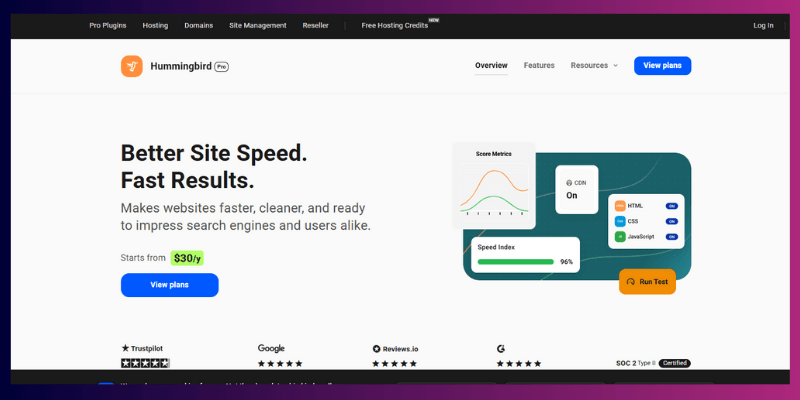
Hummingbird is a WordPress performance and speed analysis plugin that helps you understand what is slowing down your website and how to improve it. Unlike simple caching tools, Hummingbird focuses on clear performance reports, making it easy for beginners to see speed issues and fix them step by step.
Best Use Case:
Websites that want clear speed insights, simple caching, and easy-to-read performance reports. Ideal for beginners, bloggers, and business sites.
Key Features
- Performance reports: Shows slow files, scripts, and pages
- Caching: Page and browser caching to improve load times
- File optimization: Minifies CSS, JavaScript, and HTML
- Lazy loading: Loads images only when needed
Plugin Details
- What is this plugin for?
Hummingbird is used to analyze WordPress site speed, identify performance problems, and apply basic optimizations like caching and file compression. - Who should use it?
Beginners who want clear guidance
Site owners who want to know why their site is slow
Bloggers and small business websites
- Is it free or paid?
Free version includes speed tests, reports, and basic caching. Paid version: Available through WPMU DEV membership, starting at $6 per month, with advanced tools and uptime monitoring
- Ease of Installation & Setup
Very easy. Install the plugin, run a performance scan, and follow the suggested fixes. Default settings work well for most sites. - Community Reviews and Ratings
Hummingbird maintains an average rating of around 4.7 out of 5 on the WordPress Plugin Directory. Users often praise its clear reports, simple setup, and helpful performance insights.
Beginner Notes
- Start by running a speed scan before enabling features
- Apply suggested fixes one by one
- Combine with an image optimization plugin for better results
Note:
Hummingbird is developed by WPMU DEV, a well-known WordPress company with a long history of building reliable plugins. Regular updates, strong documentation, and positive user feedback make it a trusted tool for understanding and improving WordPress speed.
Best WordPress Speed Plugin Combinations (By Website Type)
Choosing speed plugins can feel confusing. Many beginners install too many tools or pick the wrong ones. This section removes guesswork and shows safe, proven plugin combinations based on real website needs.
These setups are tested, beginner-friendly, and stable.
No advanced tuning. No trial and error. Just clear choices that work.
Best Plugin Setup for a Blog or Content Website
Blogs usually contain many posts, images, and media files. Speed depends mainly on page caching and image size. This setup keeps things fast without adding complexity.
Recommended Combination:
- WP Fastest Cache
- ShortPixel or EWWW Image Optimizer
Why This Works:
Caching helps pages load quickly for repeat visitors. Image compression reduces file size without affecting quality. Together, they lower load time and improve readability.
Real Example:
A personal blog with long articles and images loads noticeably faster after enabling caching and compressing images. Pages open smoothly even on mobile networks.
Beginner Tip:
Stick to default settings. Advanced options are not needed for blogs.
Best Plugin Setup for a Business Website
Business websites rely on stability and trust. Pages must load fast without breaking layouts, forms, or contact pages.
Recommended Combination:
- WP Rocket
- Imagify or ShortPixel
Why This Works:
WP Rocket applies safe caching automatically. Image optimization plugins reduce image size while keeping visuals sharp. This ensures fast pages without technical risks.
Real Example:
A service-based website with landing pages and contact forms stays responsive and loads consistently after setup.
Expert Note:
This combination works well for agencies, consultants, and local businesses.
Best Plugin Setup for an Online Store (WooCommerce)
Online stores use dynamic pages like carts and checkouts. These pages must remain fast and functional.
Recommended Combination:
- NitroPack or LiteSpeed Cache
- ShortPixel
Why This Works:
These caching tools handle dynamic content properly. Image optimization improves product page speed without affecting quality.
Important Note:
Always test the cart and checkout pages after setup. Speed should improve without breaking purchases.
Best Plugin Setup for LiteSpeed Hosting Users
Some hosting providers use LiteSpeed servers, which work best with LiteSpeed’s own caching system.
Recommended Combination:
- LiteSpeed Cache
- ShortPixel
Why This Works:
LiteSpeed Cache uses server-level caching, which is faster than regular plugins. It delivers strong performance with fewer resources.
Real Example:
Hosting providers like Hostinger and Namecheap support LiteSpeed, making this setup highly effective.
Best Plugin Setup for Global Traffic Websites
Websites with visitors from multiple countries need fast global delivery.
Recommended Combination:
- WP Rocket or WP Super Cache
- Cloudflare Plugin
Why This Works:
Cloudflare delivers content from servers close to users worldwide. This reduces loading time and improves user experience across regions.
Expert Insight:
This setup is ideal for blogs, SaaS sites, and content platforms with international audiences.
Summary
These plugin combinations are based on:
- Real-world WordPress usage
- Trusted plugins with strong community support
- Beginner-safe defaults
- Stable performance across website types
Comparing the Best Options
Choosing the right WordPress speed optimization plugin can be tricky with so many options available. Some focus on caching, others on image compression, and a few handle everything in one package.
In this section, I compare the top plugins in two key ways: features and pricing. This helps you quickly see which plugin fits your website’s needs, budget, and skill level without wasting time on trial and error.
Feature Comparison
Not all speed optimization plugins are created equal. Some focus mainly on caching, others on image compression, and a few offer complete optimization solutions for your website. Here’s a quick look at what each plugin can do:
| Plugin | Key Features | Ideal Use Case |
| WP Rocket | Page caching, lazy loading, file optimization | Beginners & business sites |
| NitroPack | Full-page caching, image optimization, CDN integration | High-traffic sites and online stores |
| WP-Optimize | Database cleanup, caching, image compression | All-in-one cleanup for blogs and small sites |
| Perfmatters | Disable unused scripts, lightweight tweaks | Lightweight optimization for heavy sites |
| W3 Total Cache | Page caching, CDN support, minification | Advanced users and developers |
| EWWW Image Optimizer | Lossless image compression | Image-heavy blogs and media sites |
| WP Fastest Cache | Page caching, minification | Beginners who want simple caching |
| Autoptimize | Optimize CSS, JS, HTML | Combine with cache plugins for code optimization |
| WP Super Cache | Static page caching | Free caching for small blogs |
| LiteSpeed Cache | Server-level caching, image optimization | LiteSpeed hosting users |
| ShortPixel | Image compression, WebP conversion | Media-heavy websites |
| Asset CleanUp | Disable CSS & JS per page | Plugin-heavy sites |
| Airlift | CDN support, automatic optimization | Cloud-based optimization for all sites |
| Cloudflare Plugin | CDN, security, caching | Global traffic websites |
| Hummingbird | Performance reports, caching, minification | Speed insights for any site |
Price Comparison
Budget matters, but cost doesn’t always equal value. Some free plugins offer excellent basic functionality, while paid plugins provide advanced features for serious optimization. Here’s a side-by-side look at pricing and availability:
| Plugin | Starting Price | Free Option | User Reviews (avg) |
| WP Rocket | $59/yr | ❌ | ⭐⭐⭐⭐(4/5) |
| NitroPack | $252/yr | ✔️ | ⭐⭐⭐⭐⭐(4.5/5) |
| WP-Optimize | $49/yr | ✔️ | ⭐⭐⭐⭐⭐(4.5/5) |
| Perfmatters | $24.95/yr | ❌ | ⭐⭐⭐⭐⭐(4.9/5) |
| W3 Total Cache | $99/yr | ✔️ | ⭐⭐⭐⭐⭐(4.5/5) |
| EWWW Image Optimizer | $70/yr | ✔️ | ⭐⭐⭐⭐⭐(4.7/5) |
| WP Fastest Cache | $49 one-time | ✔️ | ⭐⭐⭐⭐⭐(4.9/5) |
| Autoptimize | $60/yr | ✔️ | ⭐⭐⭐⭐⭐(4.5/5) |
| WP Super Cache | Free | ✔️ | ⭐⭐⭐⭐⭐(4.5/5) |
| LiteSpeed Cache | Free | ✔️ | ⭐⭐⭐⭐⭐(4.9/5) |
| ShortPixel | $99.90/yr | ✔️ | ⭐⭐⭐⭐⭐(4.5/5) |
| Asset CleanUp | $49/yr | ✔️ | ⭐⭐⭐⭐⭐(4.9/5) |
| Airlift | $199/yr | ✔️ | ⭐⭐⭐⭐⭐(4.9/5) |
| Cloudflare Plugin | Free | ✔️ | ⭐⭐⭐⭐⭐(3.5/5) |
| Hummingbird | Free / Paid | ✔️ | ⭐⭐⭐⭐⭐(4.7/5) |
What is the Best WordPress Speed Optimization Plugin?
WP Rocket is the best WordPress speed optimization plugin for most users. There isn’t a single “best” plugin for everyone; it depends on your website type and needs.
For most users:
- WP Rocket is highly recommended. It offers page caching, lazy loading, and file optimization. It works right after activation, making it perfect for beginners and business websites.
For high-traffic or dynamic sites:
- NitroPack handles full-page caching and image optimization efficiently.
For image-heavy websites:
- ShortPixel or EWWW Image Optimizer compress images without losing quality.
Key takeaway:
The best plugin is the one that suits your site type, hosting, and experience level. Always test your speed after installing a plugin to ensure it actually improves performance.
How to Speed Up a WordPress Website
Improving WordPress speed goes beyond installing a few plugins. It involves choosing reliable hosting, using a lightweight theme, optimizing images, enabling caching, and reducing unnecessary scripts. Each small improvement adds up and directly affects user experience and search visibility.
For a complete, beginner-friendly walkthrough, read my detailed guide on how to speed up the WordPress website, where I explained the full process in the right order without risking site errors.
What Are The Free WordPress Speed Optimization Tools or Plugins
Some of the best free wordpress speed optimization plugins are WP Fastest Cache, Autoptimize, LiteSpeed Cache, WP Super Cache, ShortPixel (free plan), EWWW Image Optimizer, and Asset CleanUp.
WP Fastest Cache: Provides page caching, browser caching, and minification to make your website load faster without technical setup.
Autoptimize: Optimizes CSS, JavaScript, and HTML files to reduce page size and improve load times.
LiteSpeed Cache: Offers server-level caching for sites hosted on LiteSpeed servers, including image optimization and CDN integration.
WP Super Cache: Creates static HTML files from your dynamic WordPress pages to speed up loading, ideal for small blogs and basic websites.
ShortPixel (Free Plan): Compresses images and converts them to WebP format without losing quality, perfect for image-heavy websites.
EWWW Image Optimizer: Compresses images automatically, reducing file size while maintaining image quality, suitable for blogs and portfolios.
Asset CleanUp: Disables unnecessary CSS and JavaScript on specific pages to reduce bloat and improve page speed.
TinyPNG: Uses smart lossy compression to reduce PNG and JPEG file sizes without compromising quality.
GTMetrix: A web-based tool that analyzes website speed and performance, offering actionable recommendations for optimization.
Pingdom: Tracks website uptime, page speed, and user interactions from multiple locations worldwide, helping identify slow-loading pages.
PageSpeed Insights: Google’s tool that evaluates website performance on desktop and mobile and provides optimization suggestions based on best practices.
Optimole: A cloud-based image optimization service that automatically resizes, compresses, and delivers images via a global CDN for faster loading times.
Simple Speed Setup Checklist (Beginner Safe)
Improving site speed works best when steps are followed in the right order. This checklist is based on common WordPress best practices and helps beginners avoid plugin conflicts or site errors.
Step-by-Step Setup Order
- Take a full website backup
Always save a backup before making changes. This protects your site if something goes wrong. - Install one caching plugin only
Using more than one cache plugin can break your site. Pick one and keep it active. - Test your site speed
Check loading time before and after changes to see real improvement. - Install one image optimization plugin
Large images slow down pages. Image compression reduces file size without hurting quality. - Test speed again
This confirms the plugin is working correctly. - Add a CDN only if needed
A CDN helps sites with global visitors. Local websites often do not need one.
Why This Checklist Works
This order is widely used by WordPress developers and site owners. It keeps the setup safe, stable, and easy to manage, even for first-time users.
Beginner Tip
Avoid advanced settings at the start. Default options are usually enough to improve speed.
Quick Plugin Selection Guide (One-Glance Help)
This section is for readers who want quick answers without reading long explanations. The recommendations below are based on common WordPress use cases and real website setups.
- Want the easiest setup → WP Rocket
Handles caching automatically with minimal configuration. - Need free caching → WP Fastest Cache
Works well for small sites and beginners. - Sites with heavy images → ShortPixel
Reduces image size while keeping visual quality. - Using LiteSpeed hosting → LiteSpeed Cache
Works directly with LiteSpeed servers for better results. - Visitors from many countries → Cloudflare
Delivers content from nearby locations to improve load time. - Too many plugins slowing pages → Asset CleanUp
Stops unused CSS and JavaScript from loading where they’re not needed.
Quick Tip:
Use one cache plugin at a time. Mixing multiple cache tools often causes conflicts.
6. Tips to Maximize Plugin Effectiveness
Speed plugins work best when used with care. Small mistakes, like installing too many similar tools, often slow sites down instead of speeding them up. These rules come from real WordPress setups and common performance audits.
Follow These Safe Rules
- Use only one cache plugin
Running multiple cache plugins causes conflicts and broken layouts. One well-configured cache plugin is enough. - Use only one image optimization plugin
Two image plugins can compress the same image twice, leading to quality loss or errors. - Keep plugins updated
Updates improve compatibility, security, and performance. Outdated plugins often cause speed drops after WordPress core updates. - Test speed after every change
Never install plugins blindly. Measure results to confirm actual improvement.
Recommended Speed Testing Tools
- Google PageSpeed Insights
Shows real user data and highlights loading issues on mobile and desktop. - GTmetrix
Helps track load time, page size, and performance history.
Best Practice
Always test before and after making changes. Compare results instead of guessing. This approach helps you spot what actually improves speed and what does not.
7. Common Mistakes to Avoid
Many WordPress speed issues come from small but repeated mistakes. These problems appear often during site audits and beginner setups.
Avoid These Errors
- Installing multiple cache plugins
Cache plugins conflict with each other. This can break layouts, forms, or login pages and may slow the site instead of speeding it up. - Turning on every setting without understanding
Not all options are safe for every site. Aggressive settings can cause missing styles, broken scripts, or blank pages. - Skipping backups before changes
Speed optimization changes affect core site behaviour. Without a backup, recovery becomes difficult if something goes wrong. - Ignoring mobile speed
Most traffic comes from mobile devices. A site that loads fast on desktop but is slow on mobile still loses visitors.
Why This Matters
One wrong decision can cancel all performance gains. Safe testing, backups, and simple setups protect your site while improving speed.
Conclusion
So, guys, in this article, we’ve covered the best WordPress speed optimization plugins in detail. These tools are designed to make your website faster, improve user experience, reduce bounce rates, and boost SEO rankings.
Based on my experience, beginners and business sites often benefit most from WP Rocket combined with an image optimizer like ShortPixel, while high-traffic or global websites may require a combination of NitroPack or Cloudflare.
Take the time to choose the right plugin for your website type, test it, and monitor your speed improvements. Which plugin will you try first to give your WordPress site a performance boost? Start optimizing today and see the difference for yourself.
FAQs
Yes, they do. Speed plugins reduce load time by caching pages, compressing images, and cleaning extra code. Many sites see noticeable speed improvement after setup.
WP Rocket and WP Fastest Cache are popular beginner choices. They work well with default settings and do not require technical knowledge. This makes setup simple and safe.
Yes, but only if they do different jobs. For example, one cache plugin and one image optimization plugin are fine. Avoid using two cache plugins together.
Free plugins can work well for small blogs and basic websites. Plugins like WP Super Cache and LiteSpeed Cache offer strong performance at no cost. Paid plugins add extra automation and advanced features.
Yes, page speed is a ranking factor. Faster websites offer better user experience, which helps reduce bounce rate. Over time, this can support better search visibility.
Yes, incorrect settings can cause issues. Turning on every option without understanding may break layouts or scripts. Always test your site after changes.
For many users, yes. It handles caching, lazy loading, and optimization automatically. This saves time and reduces setup mistakes.
NitroPack and LiteSpeed Cache work well for online stores. They handle dynamic pages better than basic cache plugins. Always test the cart and checkout pages after setup.
Most modern plugins keep image quality high. Tools like ShortPixel and EWWW use smart compression. Visitors usually do not notice any visual difference.
Use tools like Google PageSpeed Insights or GTmetrix. Test before and after installing plugins. This shows real performance improvements clearly.




- Be Respectful
- Stay Relevant
- Stay Positive
- True Feedback
- Encourage Discussion
- Avoid Spamming
- No Fake News
- Don't Copy-Paste
- No Personal Attacks
- Be Respectful
- Stay Relevant
- Stay Positive
- True Feedback
- Encourage Discussion
- Avoid Spamming
- No Fake News
- Don't Copy-Paste
- No Personal Attacks
