What are WordPress Plugins? Beginner’s Guide
Published: 11 Nov 2025
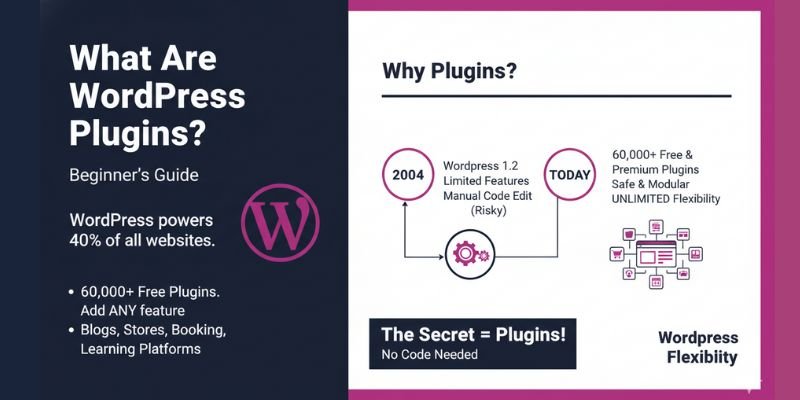
WordPress powers more than 40% of all websites, and one of the biggest reasons behind its popularity is the use of plugins. With over 60,000 free plugins in the official directory, there’s almost no feature you can’t add to your site.
But have you ever wondered why some WordPress sites look like simple blogs, while others run full eCommerce stores, booking systems, or even online learning platforms? The secret lies in plugins.
In this guide, What Are WordPress Plugins? Beginner’s Guide, we’ll break down what plugins are, how they work, and why they’re the backbone of WordPress flexibility. Stick around, because by the end, you’ll know which plugins to install, which ones to avoid, and how to use them without slowing down your site.
1. What Is a WordPress Plugin?
A WordPress plugin is a small piece of software that connects with your website to add new features. It’s a software package that “plugs in” to WordPress to expand what it can do.
For example:
- Want a contact form? Install a form plugin.
- Need better SEO? Add an SEO plugin.
- Want to sell products? Use WooCommerce.
Plugins work behind the scenes to integrate with WordPress and add extra tools without requiring you to write a single line of code. That’s why they’re equally popular with beginners and experienced developers.
Why Were Plugins Introduced?
Back in the early 2000s, WordPress was mainly a blogging platform with very limited functionality. If someone wanted to add a feature like a photo gallery or a forum, they had to manually edit the WordPress core files, which was risky and complicated.
To solve this, Ryan Boren and the WordPress team introduced plugins in 2004. This gave users a safe, modular way to extend their websites without touching core files.
The Growth of Plugins
- 2004: First plugins launched with WordPress 1.2.
- Today: The official WordPress.org directory has 60,000+ free plugins.
- The developer community also offers thousands of premium plugins with advanced features and dedicated support around the world.
This flexibility is one of the main reasons WordPress now powers over 40% of all websites on the internet.
2. What Can WordPress Plugins Do?
Plugins can handle almost any task you imagine, from small improvements to major transformations.
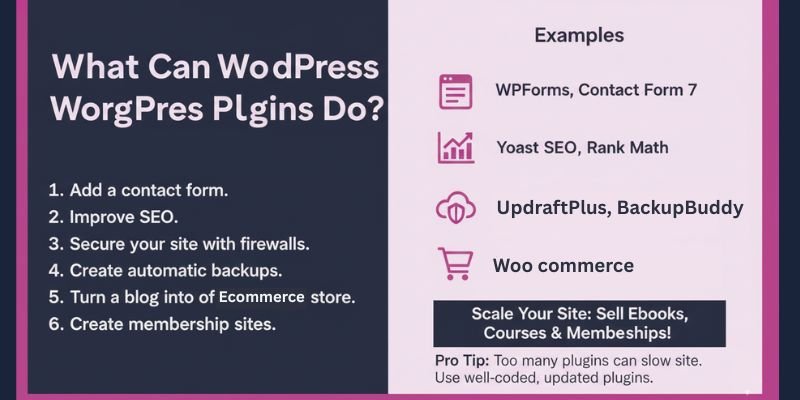
Here are some common uses:
- Add a contact form to collect messages and inquiries (WPForms, Contact Form 7).
- Improve SEO with tools like Yoast SEO or Rank Math, helping your site rank higher in search engines.
- Secure your site with firewalls and malware scanners (Wordfence, Sucuri).
- Create automatic backups (UpdraftPlus, BackupBuddy) so you can recover your site if something goes wrong.
- Turn a blog into a full eCommerce store using WooCommerce, which powers over 6 million active online stores.
Example: A small food blogger can start with a simple blog and later add WooCommerce to sell recipe eBooks, or use MemberPress to create a paid membership area. Plugins allow you to scale your site step by step without rebuilding everything.
Pro Tip: While plugins make WordPress flexible, installing too many can slow down your site. Stick to well-coded, updated plugins with good reviews.
3. How WordPress Plugins Work
Plugins connect with your site in different ways to add or extend features:
- Hooks: These are connection points where plugins “hook” into WordPress. For example, a plugin can hook into the login process to add two-factor authentication.
- Shortcodes & Widgets: Shortcodes are small text codes you place in a page or post, and they display extra functionality (like a contact form). Widgets let you place features, such as a search bar or recent posts, in your sidebar or footer.
- Blocks (Gutenberg): Modern plugins integrate with the WordPress block editor. This makes it easy to drag and drop features, no code needed.
Example: An image gallery plugin adds a block to the editor. You can place it in any post or page, and it will instantly create a stylish photo grid.
Pro Tip: When testing a new plugin, try it on a staging site first. This way, you can see how it interacts with your theme and other plugins before making changes on your live site.
4. What Types of WordPress Plugins Are There?
WordPress plugins come in many categories, each designed to handle a specific type of task. Here are a few of the most popular types:
- SEO Plugins: Help your site rank higher in search engines by optimizing content, meta tags, and readability. Examples: Yoast SEO, Rank Math.
- Security Plugins: Protect your site from hackers, malware, and spam attacks. Examples: Wordfence, Sucuri.
- Backup Plugins: Automatically save your website’s files and database so you can restore them if something goes wrong. Examples: UpdraftPlus, BackupBuddy.
- Design & Page Builders: Let you create custom layouts, landing pages, and stylish designs without coding. Examples: Elementor, Beaver Builder.
- E-commerce Plugins: Transform a blog or simple website into an online store to sell physical or digital products. Examples: WooCommerce, Easy Digital Downloads.
- Performance Plugins: Speed up your website by caching, optimizing images, and cleaning up code. Examples: LiteSpeed Cache, WP Rocket.
- Analytics Plugins: Track visitor behaviour, traffic, and conversions to make informed decisions. Example: MonsterInsights.
Pro Tip: When choosing a plugin, stick to well-reviewed and regularly updated ones in each category. Too many overlapping plugins can slow down your site or cause conflicts.
5. Must-Have WordPress Plugins
Not every website needs the same plugins, but there are a few trusted ones that most WordPress sites benefit from. These plugins are beginner-friendly, reliable, and widely used:
- Yoast SEO: Helps optimize your website pages and posts for search engines. It provides easy-to-follow tips on keywords, readability, and meta descriptions, making SEO simpler for beginners.
- UpdraftPlus: Automatically backs up your website files and database. If something goes wrong, you can restore your site with a single click.
- Wordfence: Adds a firewall and malware scanner to protect your website from hackers and malicious attacks.
- WPForms: Lets you create simple contact forms using a drag-and-drop interface, no coding required.
- LiteSpeed Cache: Speeds up your website by caching pages and optimizing performance, which is crucial for SEO and user experience.
- WooCommerce: Turns your website into a full-featured online store, allowing you to sell physical or digital products easily.
Quick Tip for Beginners
Start with just a few of these essential plugins. Installing too many plugins at once can slow down your site and create conflicts. Focus on what your site truly needs first, and add more as your site grows.
Example Use Case
A small business website could use Yoast SEO for better search visibility, WPForms to collect leads, UpdraftPlus for backups, and Wordfence for security. These four plugins alone cover the basics of growth, safety, and functionality.
6. WordPress Plugins for Beginners
Starting your first WordPress site can feel confusing. There are thousands of plugins, and it’s easy to get lost. The key is to start with a few useful plugins that make your site work better without causing problems.
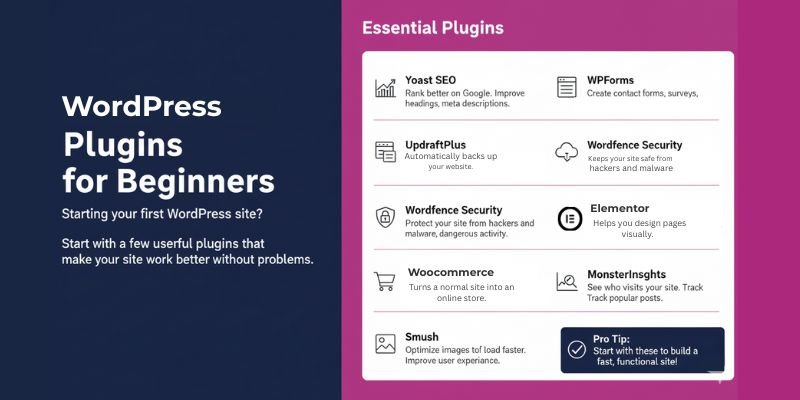
- Yoast SEO ⟶ helps your posts rank better on Google. It gives simple suggestions like improving your headings, meta descriptions, and readability. Even beginners can follow it to make their content search-friendly.
- WPForms ⟶ lets you create contact forms, surveys, or registration forms without coding. For example, if you run a small blog, you can use it to collect feedback or allow readers to subscribe to your newsletter.
- UpdraftPlus ⟶ automatically backs up your website. Imagine losing your content by accident. This plugin lets you restore everything with one click.
- Wordfence Security⟶ keeps your site safe from hackers and malware. It alerts you if something suspicious happens and blocks dangerous activity.
- WooCommerce ⟶ turns a normal site into an online store. Beginners can sell physical products, digital downloads, or services without learning coding.
- Elementor ⟶ helps you design pages visually. You can drag and drop text, images, buttons, and sections to create a professional-looking website.
- MonsterInsights ⟶ shows who visits your site and what they do. You can track which posts are popular and understand your audience better.
- Smush ⟶ makes images smaller so pages load faster. This improves user experience and keeps visitors happy.
Beginner Example Scenario
Suppose you want to start a small online store for handmade candles:
- WooCommerce → set up your shop and add products.
- WPForms → add a form so customers can ask questions.
- Wordfence Security → Protect your store from hackers.
- Yoast SEO → help your products show up in Google searches.
- Smush → make product images load faster.
- Elementor → design your pages beautifully.
With these plugins, even a beginner can create a functional, secure, and visually appealing website without writing a single line of code.
7. Difference Between Free, Freemium, and Premium Plugins
When choosing a WordPress plugin, it’s important to understand the three main types:
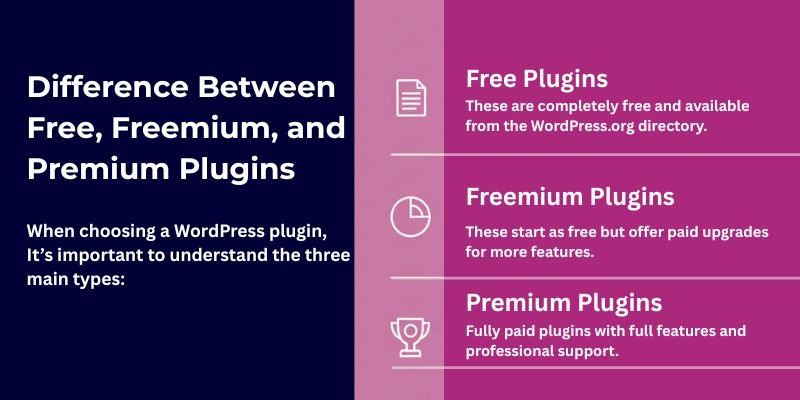
- Free Plugins: These are completely free and available from the WordPress.org directory. They cover basic needs and are perfect for beginners.
- Example: Contact Form 7 lets you add simple contact forms without paying anything.
- Example: Contact Form 7 lets you add simple contact forms without paying anything.
- Freemium Plugins: These start as free but offer paid upgrades for more features. They are great if you want to test a plugin before committing to a premium version.
- Example: Elementor, the free version lets you build pages easily; the paid version adds advanced templates and widgets.
- Example: Elementor, the free version lets you build pages easily; the paid version adds advanced templates and widgets.
- Premium Plugins: Fully paid plugins with full features and professional support. Best for websites that need advanced functionality or custom solutions.
- Example: Gravity Forms is a powerful form builder with advanced features like multi-step forms, payment integration, and conditional logic.
- Example: Gravity Forms is a powerful form builder with advanced features like multi-step forms, payment integration, and conditional logic.
Quick Advice:
- Start with free plugins to learn and experiment.
- Upgrade to freemium if you need extra features.
- Consider premium plugins when your website grows or requires advanced tools and support.
This approach helps beginners save money, avoid unnecessary complexity, and gradually expand their site’s capabilities.
8. Free vs Premium Plugins: Which One Should You Choose?
Choosing between free and premium plugins depends on your website goals and experience level:
- Free Plugins: Great for beginners or small websites. They cover basic needs like contact forms, simple SEO, and security.
- Pros: No cost, easy to use, lots of options.
- Cons: Limited features, less advanced support.
- Pros: No cost, easy to use, lots of options.
- Premium Plugins: Paid plugins with full features and professional support. Ideal if your site needs advanced tools or you want peace of mind.
- Pros: More features, regular updates, priority support, better security.
- Cons: Costs money, sometimes more complex to set up.
- Pros: More features, regular updates, priority support, better security.
Tip for Beginners
Start with free plugins to learn how WordPress works. As your website grows or your needs become more advanced, consider investing in premium plugins for extra features and support.
Example Scenario
If you’re running a personal blog:
- Start with WPForms (free) for a contact form.
- Later, upgrade to WPForms Pro if you need surveys, payment forms, or advanced features.
This approach saves money while giving you flexibility to grow your site safely and efficiently.
9. How Do WordPress Plugins Affect Website Performance?
Plugins add features to your website, but too many or poorly coded ones can slow it down. Here’s what to watch for:
- Too many plugins can increase your page loading time.
- Badly coded plugins may cause performance or security issues.
- Plugin conflicts can break layouts or disable key functions.
Pro Tip: After installing or updating a plugin, always test your site using tools like Google PageSpeed Insights or GTmetrix. If your site feels slower, deactivate recent plugins one by one to find the cause.
10. Why Do You Need Plugins?
Plugins make it easy to add new features to your website without writing code. They help you customize your site and improve how it works.
Here’s why plugins are so useful:
- Add new tools and features with just a few clicks.
- Save time by automating tasks like backups, SEO, or contact forms.
- Customize your site to match your exact needs — from design to performance.
Example: If you want to create a contact form but don’t know coding, a plugin like Contact Form 7 or WPForms does it for you instantly.
11. How to Install a WordPress Plugin
Installing a plugin in WordPress takes only a few minutes. You can do it directly from your dashboard or upload it manually.
- Go to → Dashboard → Plugins → Add New.
- Search for the plugin.
- Click Install Now → Activate.
- For manual installs, upload the plugin’s .zip file.
Pro Tip:
Before installing, always check the plugin’s reviews, update history, and compatibility with your WordPress version. This helps you avoid security risks and performance issues.
12. How to Update Your WordPress Plugins
Updating plugins is essential for keeping your website secure and running smoothly. Outdated plugins can cause bugs or security issues, so make it a habit to check for updates regularly.
Follow these steps:
- Go to your WordPress Dashboard → Plugins
- Click “Update Now” next to the plugin
- For trusted plugins, you can turn on auto-updates
- Always backup your site before big updates
Pro Tip: If an update causes an error, you can roll back using a backup plugin like UpdraftPlus or WPVivid.
What Are the Dangers of Using Outdated WordPress Plugins?
Outdated plugins are one of the most common causes of security and performance problems in WordPress. When a plugin isn’t updated, it can expose your site to serious risks.
Here’s what can happen:
- Security threats: Hackers often target old plugins with known bugs.
- Site errors: Updates in WordPress core may break outdated plugins.
- Compatibility issues: Old code can conflict with themes or other plugins.
Pro Tip:
If a plugin hasn’t been updated for months or shows warnings in the WordPress repository, replace it with an active and trusted alternative.
14. How to Remove or Deactivate WordPress Plugins
Sometimes, you may no longer need a plugin or want to troubleshoot an issue. In WordPress, you have two options: deactivate or delete a plugin.
- Deactivate: This turns off the plugin but keeps its files and settings. You can reactivate it anytime.
- Delete: This removes the plugin and its files completely from your site.
Steps:
Go to Dashboard → Plugins → Installed Plugins → Deactivate → Delete
⚠️ Note: Some plugins may leave behind extra data in your database even after deletion. You can use cleanup tools like WP-Optimize or Advanced Database Cleaner to safely remove leftover files and keep your site running smoothly.
15. How to Choose the Right Plugin
Not every plugin is safe or reliable. Before installing one, take a moment to check a few key things. This helps keep your site secure and running smoothly.
Checklist before installing:
Active installs: Look for plugins with a large number of active users; it shows trust and reliability.
Positive reviews: Read ratings and comments to see if users are happy with the plugin’s performance.
Regular updates: Make sure the plugin is updated often to stay compatible with the latest WordPress version.
Version compatibility: Check if it matches your WordPress version before installing.
Trusted source: Always download from the official WordPress Plugin Directory or the developer’s verified website.
Tip: Avoid installing too many plugins, only keep the ones you actually need. Fewer plugins mean better speed and fewer security risks.
16. Common Mistakes to Avoid
Even experienced users make small mistakes that can slow down or harm their WordPress site. Here are a few to watch out for:
- Installing too many plugins: too many can slow down your site and cause conflicts.
- Forgetting regular updates: outdated plugins can create security risks.
- Using pirated or nulled plugins: they often contain malware or hidden code.
- Skipping backups before changes: always back up your site before adding, removing, or updating plugins.
Tip: Keep your plugin list short, updated, and from trusted sources. It’s the simplest way to maintain speed and security.
16. How to Troubleshoot WordPress Plugin Issues?
If your WordPress site stops working right after installing or updating a plugin, it’s usually a conflict or a coding error. You can fix it with a few simple steps:
- Deactivate all plugins from your dashboard. Then reactivate them one by one to find which one causes the issue.
- Use the Health Check & Troubleshooting plugin to safely test plugins without affecting your live site.
- If you’re locked out of the dashboard, go to your hosting panel (cPanel) or use FTP. Open the wp-content/plugins folder and rename the plugin folder — this disables it manually.
Tip: Once you identify the faulty plugin, check if there’s an update or support fix available before reinstalling it. Always back up your site first to avoid data loss.
17. What Happens When You Delete a Plugin?
Deleting a WordPress plugin doesn’t always remove everything from your site. Some plugins clean up completely, while others leave behind settings, database tables, or extra files.
- Check plugin options first: Many plugins have a setting called “delete data on uninstall.” Enable it if you want the plugin to remove all its data.
- Deactivate before deleting: Always deactivate a plugin first. This ensures it stops running before you remove it.
- Use cleanup tools if needed: If a plugin leaves leftover data, you can use cleanup plugins like WP-Optimize to remove unnecessary database entries.
Tip: Deleting plugins safely keeps your site clean and helps prevent slowdowns or conflicts with other plugins.
18. Tips for Beginners
If you’re new to WordPress, following a few simple rules can make managing plugins much easier:
- Start small: Install only 3–5 essential plugins to avoid slowing down your site or causing conflicts.
- Update regularly: Keep your plugins up-to-date to fix bugs and stay secure.
- Delete unused plugins: Remove any plugins you no longer need to keep your site clean and fast.
- Always backup first: Before adding, updating, or deleting plugins, back up your site so you can restore it if something goes wrong.
Extra Tip: Take time to learn how each plugin works. Familiarity helps you use them more effectively and avoid mistakes.
Conclusion
So guys, in this article, we’ve covered what are WordPress Plugins? Beginner’s Guide in detail. Plugins are the tools that bring flexibility and power to WordPress, helping beginners build sites that look professional and work smoothly.
From my experience, the best results come when you choose only the plugins you really need and keep them updated for performance and security.
Remember, every plugin you install leaves an effect on your site, good or bad, so being selective and mindful is part of building a trustworthy website. With the right balance, plugins can make WordPress simple, scalable, and future-proof for your projects.
Which plugins are you using on your WordPress site right now? Share your favourites in the comments, I’d love to hear!
FAQs
A plugin is basically an app that works with your WordPress site. It adds new features without needing to code. For example, you can add contact forms, SEO tools, or an online store just by installing a plugin.
Go to wordpress dashboard → Plugins → Add New. Search for the plugin you want, then click “Install” and “Activate.” That’s it, your plugin is ready to use.
Many plugins are free on WordPress.org. Some are freemium (basic free version + paid upgrades), while others are fully premium. You can start with free plugins and upgrade later if needed.
There’s no fixed limit, but beginners should stick to 5–10 essential plugins. Having too many plugins can affect your site’s performance or cause conflicts. Always keep quality over quantity.
Not all plugins affect speed, but poorly coded ones can. Using lightweight and trusted plugins helps keep your site fast. Also, caching and optimization plugins improve performance.
From your dashboard, go to “Plugins” and you’ll see update notifications. Click “Update Now” and WordPress will handle it. Always back up your site before major updates.
Yes, you can deactivate and delete plugins from your dashboard. Some plugins remove all their data, but others may leave settings behind. Check if the plugin has an option to delete data on uninstall.
Sometimes plugins don’t work well together and cause errors. If that happens, deactivate one plugin at a time to find the problem. Choosing well-rated plugins reduces the chance of conflicts.
No, most plugins work with a few clicks and simple settings. Developers design them for beginners, so you don’t need technical skills. Still, a little WordPress knowledge helps in customizing.
Start with basics like Yoast SEO (for SEO), Wordfence (for security), UpdraftPlus (for backups), and WPForms (for contact forms). These cover the most important needs for any site. As your website grows, you can add more based on your goals.




- Be Respectful
- Stay Relevant
- Stay Positive
- True Feedback
- Encourage Discussion
- Avoid Spamming
- No Fake News
- Don't Copy-Paste
- No Personal Attacks
- Be Respectful
- Stay Relevant
- Stay Positive
- True Feedback
- Encourage Discussion
- Avoid Spamming
- No Fake News
- Don't Copy-Paste
- No Personal Attacks
