15 Essential WordPress Features Every Beginner Should Know
Published: 8 Nov 2025
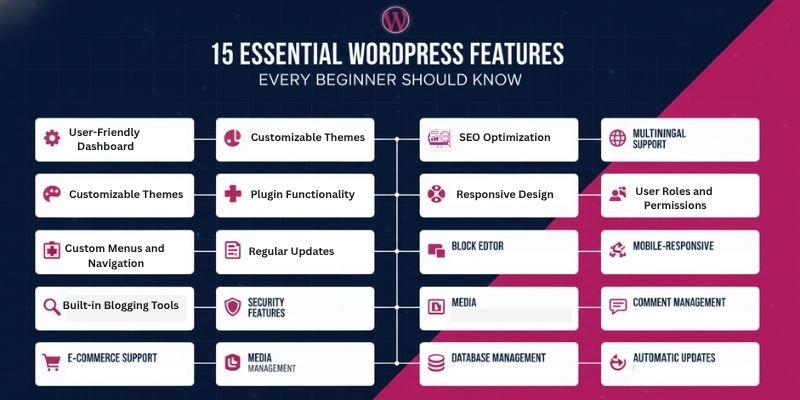
WordPress comes with many features that make it flexible, powerful, and easy for beginners to use. Some key features of WordPress include:
- A user-friendly dashboard to manage posts, pages, and media
- Customizable themes to control your website’s design
- Plugins to add extra functionality like forms, SEO, and security
- Built-in blogging tools for posts, categories, and tags
- SEO optimization to improve search rankings
- Security features to protect your site
- Support for e-commerce with WooCommerce
- Media management for images, videos, and documents
- Multilingual support for global audiences
- User roles and permissions for team management
These are just a few of the many tools WordPress offers. In this guide, we’ll cover 15 Essential WordPress Features Every Beginner Should Know. You’ll get step-by-step instructions, practical tips, and real-life examples to make your website look great, work smoothly, and grow your online presence with confidence.
1. User-Friendly Dashboard
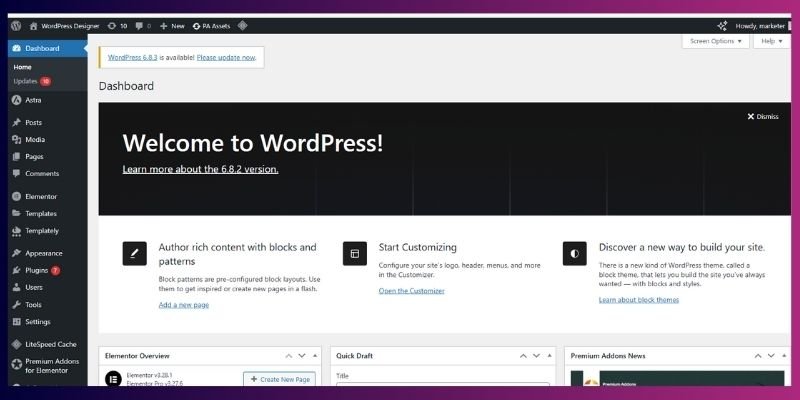
The WordPress dashboard is the first screen you see after logging in. It’s simple, clean, and easy to navigate, even if you’ve never built a website before.
What You Can Do in the Dashboard:
- Create posts and pages
- Upload images, videos, and files
- Install themes and plugins
- Manage comments and site settings
Example: Think of it like the control panel of your phone. You don’t need coding skills, just a few clicks to get things done.
Mini-Tutorial
- Log in to WordPress → Go to Dashboard
- Explore menus: Posts, Pages, Media, Plugins
- Customize widgets to show what’s important to you
Tips for Beginners
- Spend 10–15 minutes exploring the dashboard
- Move widgets around to organize your workspace
- Example: The Posts menu is for blog articles, while Pages is for static content like “About Us.”
2. Themes and Customization
Themes decide how your website looks. WordPress offers thousands of free and paid themes, so you can pick a design that matches your brand or idea.
- Change colours, fonts, and layouts easily.
- Use the live customizer to see edits instantly.
- Install drag-and-drop page builders like Elementor for more control.
Step-by-Step:
- Appearance → Themes → Add New
- Choose a theme and click Install → Activate
- Customize colours, fonts, header, and homepage
Tips:
- Start with free themes like Astra or OceanWP.
- Customize with the Theme Customizer, no coding needed.
Example: Change the homepage layout to match your brand style.

3. Plugins for Extended Functionality
Plugins add extra features to your website. WordPress has over 60,000 free plugins in its library. Plugins are like apps for your WordPress site. They add new features without coding.
Useful Plugins:
- WPForms: Add contact forms
- Yoast SEO: Optimize posts for search engines
- Wordfence: Enhance website security
- W3 Total Cache: Improve speed and performance
Tips:
- Install only essential plugins to keep your site fast.
- Update plugins regularly for security.
4. Creating and Managing Content
Content is the heart of any website, and WordPress makes it super easy to create and organize. You can publish blog posts, build pages like “About Us,” and keep everything neatly arranged with categories and tags.
What You Can Do:
- Write and format blog posts
- Create static pages (like “Contact” or “Services”)
- Organize posts with categories (broad topics)
- Use tags for specific details or keywords
- Schedule posts to publish automatically
Example: Imagine you run a food blog. You can create a category called “Recipes” and add tags like “chocolate,” “quick meals,” or “vegan.” This way, readers can find the exact recipe they’re looking for.
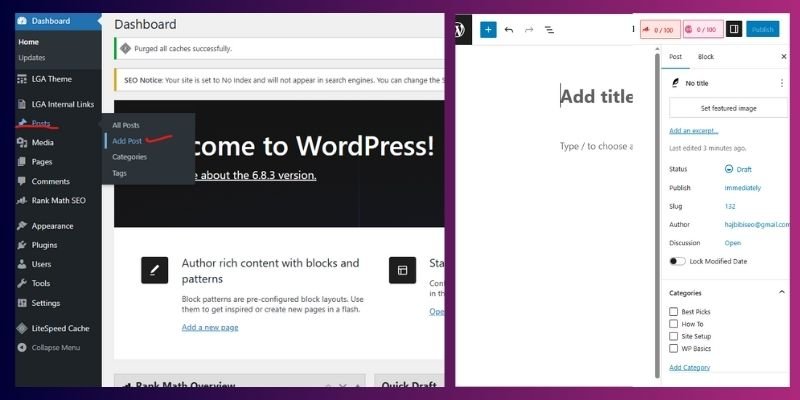
Mini-Tutorial
- Go to Posts → Add New
- Add your title, content, and images
- Choose a category (e.g., Recipes)
- Add a few tags (e.g., chocolate, vegan)
- Click Publish (or Schedule for later)
Tips for Beginners
- Use categories for big topics (like Travel or Business)
- Use tags for specific details (like budget travel or WordPress plugins)
- Don’t create too many categories, as it confuses readers
- Schedule posts in advance to stay consistent
5. Media Management
WordPress makes it easy to upload and organize media like images, videos, and documents. The built-in media library lets you manage everything in one place.
What You Can Do:
- Upload images, videos, and PDFs
- Edit images (crop, resize, rotate)
- Add alt text for SEO and accessibility
- Reuse media across posts and pages
Example: You upload a product photo once, then use it in multiple blog posts or pages without re-uploading it each time.
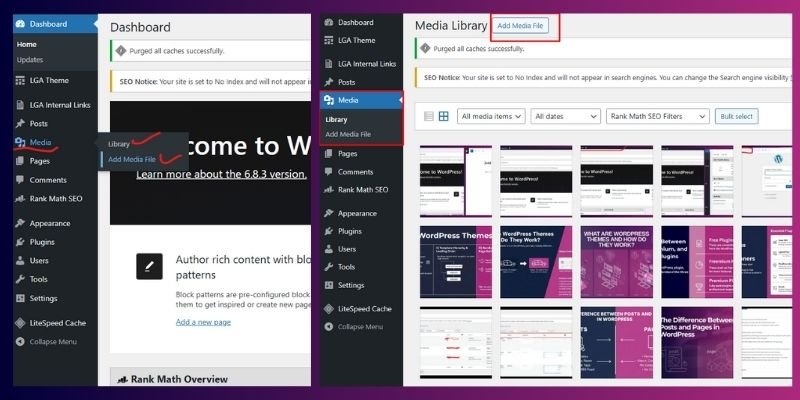
Mini-Tutorial:
- Go to Media → Add New
- Drag and drop your file or click Upload
- Add a title, caption, and alt text
- Insert media into your post using the Add Media button
Tips for Beginners:
- Use compressed images to speed up your site
- Always add alt text (helps with SEO + accessibility)
- Organize media with folders (use a plugin like FileBird if needed)
6. E-commerce with WooCommerce
WooCommerce turns your WordPress site into an online store. You can sell physical products, digital downloads, or services.
Step-by-Step:
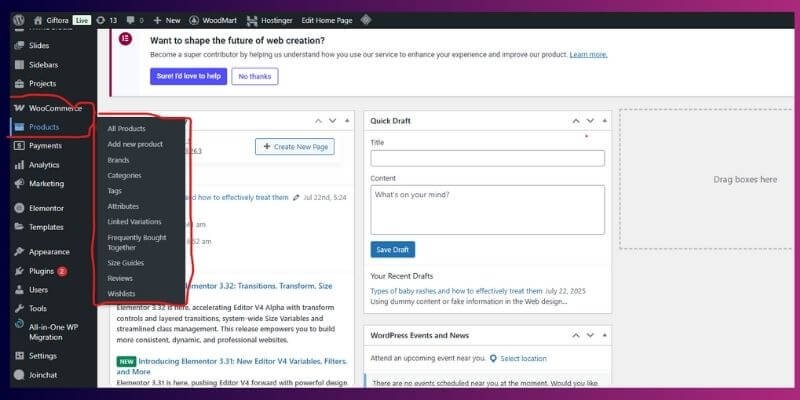
- Plugins → Add New → Search “WooCommerce” → Install → Activate
- Add a product → Set title, price, description
- Publish and manage orders from the WooCommerce dashboard
Tips:
- Start with a few products to learn the system.
- Enable payment gateways like PayPal or Stripe.
Example: A beginner can sell an ebook using WooCommerce.
7. SEO Friendly
WordPress is built with SEO (Search Engine Optimization) in mind, which helps your site rank higher on Google. Even beginners can start optimizing without technical skills.
What You Can Do:
- Create SEO-friendly URLs (like mysite.com/seo-tips)
- Add meta titles and descriptions with plugins
- Use headings (H1, H2, H3) for clear structure
- Make your site mobile-friendly
Example: If you publish a blog called “best wordpress themes,” WordPress automatically creates a clean URL like mysite.com/best-wordpress-themes.
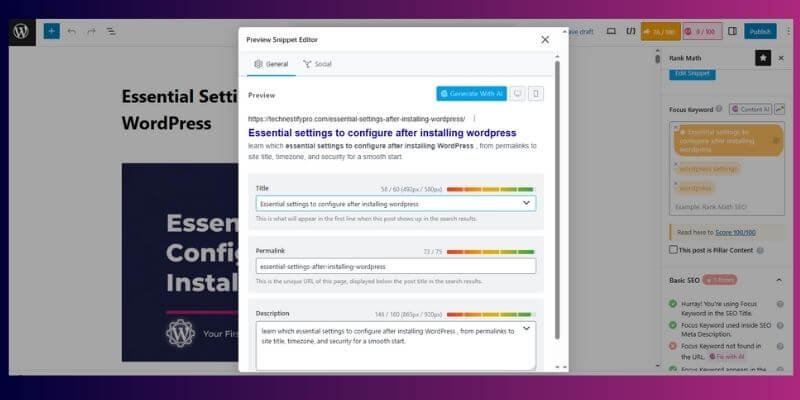
Mini-Tutorial:
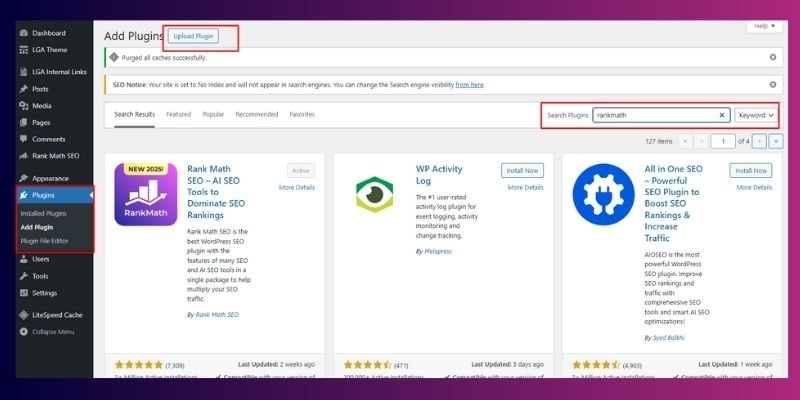
- Install an SEO plugin (Yoast SEO or Rank Math)
- Open a post or page → Scroll to the SEO box
- Add a focus keyword, title, and description
- Save changes and update the post
Tips for Beginners:
- Write for people, not just search engines
- Always use short, simple URLs
- Add internal links to other pages on your site
8. Security Measures
Security is crucial to protect your site from hackers.
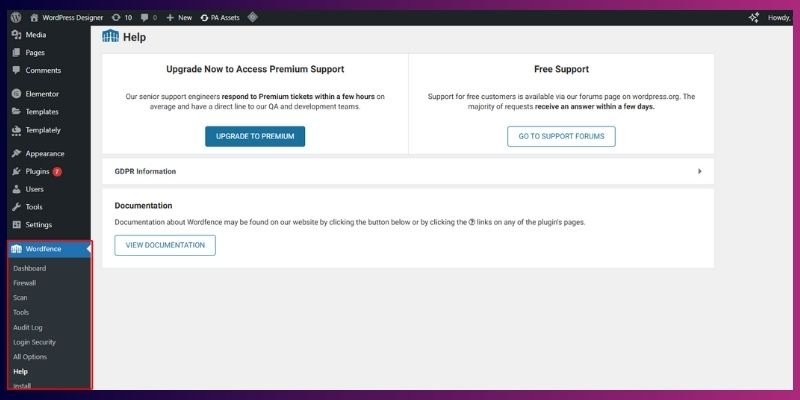
Step-by-Step:
- Install Wordfence or iThemes Security
- Enable the firewall and scan for vulnerabilities
- Limit login attempts and use strong passwords
Tips:
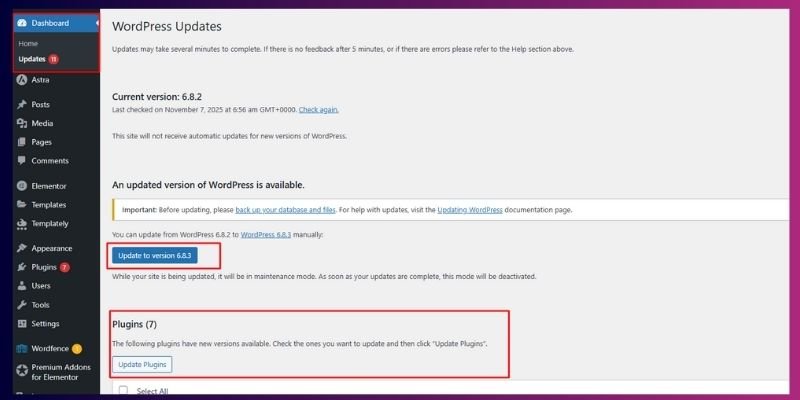
- Always backup your site before updates.
- Regularly check for outdated plugins and themes.
9. Performance Optimization
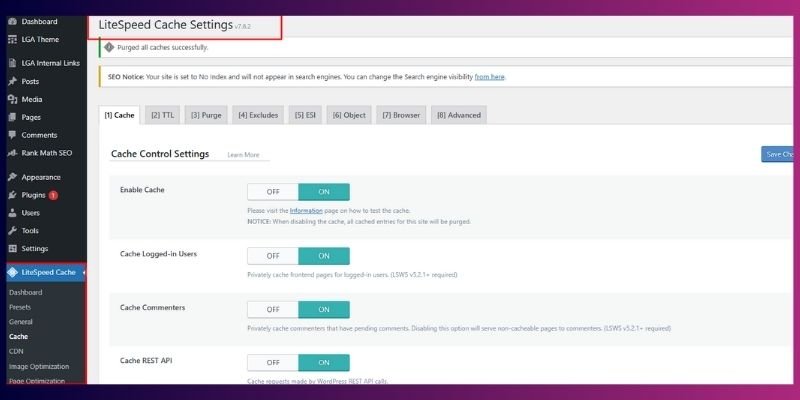
A fast website keeps visitors happy and improves SEO rankings.
Tips:
- Make use of caching plugins such as WP Rocket or W3 Total Cache.
- Compress images before uploading.
- Remove unused plugins and themes.
Example: A blog with optimized images and caching loads faster on mobile devices.
10. Multilingual Capabilities
WordPress can create websites in multiple languages to reach global audiences.
Step-by-Step:
- Install WPML or Polylang plugin
- Translate posts, pages, and menus
- Allow visitors to switch languages
Tips:
- Translate key pages first, then blog content gradually.
- Ensure proper formatting for RTL (right-to-left) languages.
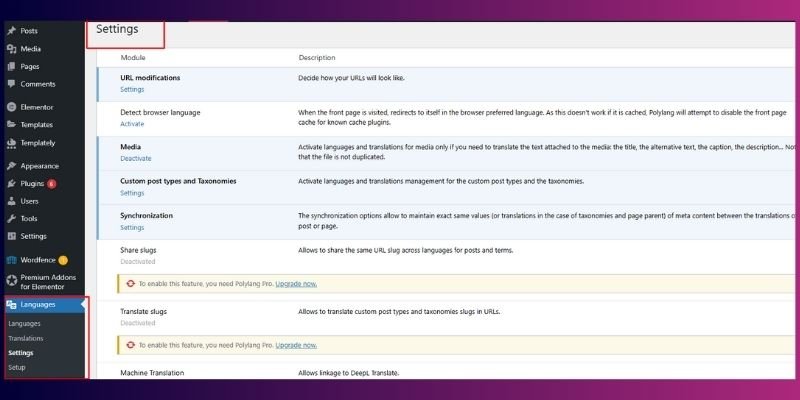
Example: A travel blog can have English and Spanish versions.
11. User Roles and Permissions
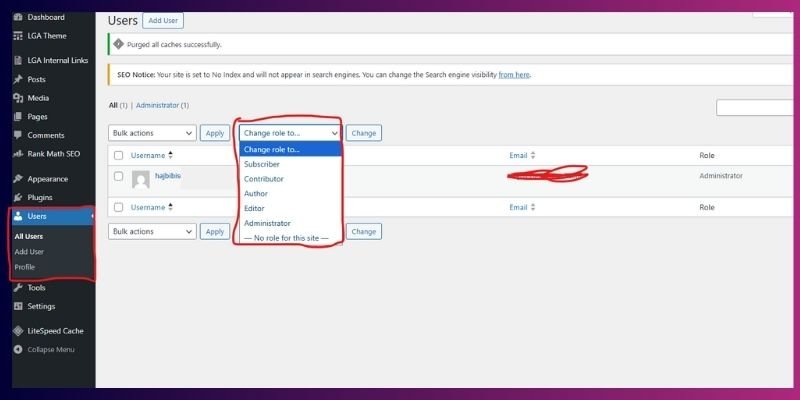
WordPress allows multiple users with different access levels: Admin, Editor, Author, and Contributor.
Tips:
- Only give Admin access to trusted users.
- Assign roles carefully to prevent accidental changes.
Example: An Editor can publish posts, while a Contributor can only write drafts.
12. Built-in Blogging Features
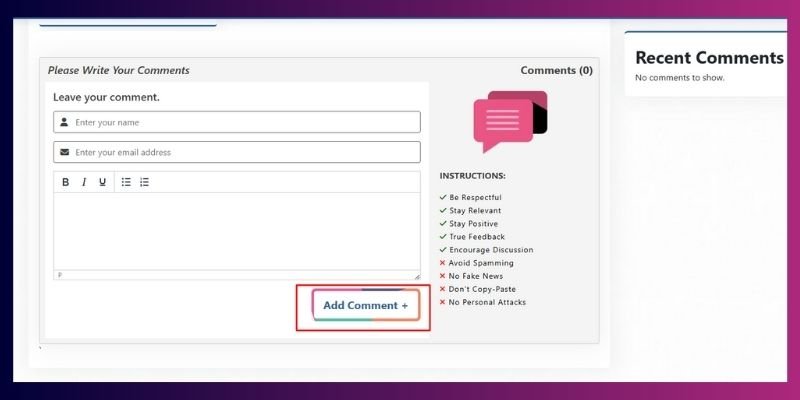
WordPress was built for blogging. Categories, tags, and comments help you engage readers.
Tips:
- Enable comments to encourage discussion.
- Moderate spam using plugins like Akismet.
Example: Ask a question at the end of a post to prompt reader interaction.
13. Regular Updates and Maintenance
Regular updates keep WordPress secure and running smoothly.
Tips:
- Update WordPress core, themes, and plugins regularly.
- Use UpdraftPlus for automated backups.
Example: Schedule monthly maintenance to avoid vulnerabilities.
14. Community Support and Resources
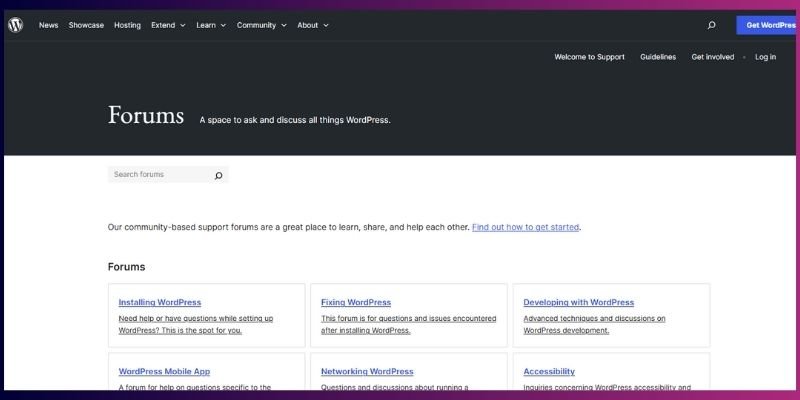
There is a large community of WordPress users and developers.
Tips:
- Join forums, Facebook groups, or Reddit communities.
- Access tutorials on wordpress.org and YouTube.
Example: If a plugin crashes, chances are someone has already solved it online.
15. Continuous Learning and Experimentation
WordPress is flexible. You can try new features, plugins, and layouts to improve your website.
Tips:
- Experiment with new themes and layouts.
- Take online courses for advanced learning.
Example: Create a membership website or online course platform as you grow.
Conclusion
So, guys, in this article, we’ve covered 15 Essential WordPress Features Every Beginner Should Know. If you’re just starting, my personal recommendation is to take it step by step, learn the dashboard first, then explore themes and plugins. Don’t try to master everything in one go. WordPress is powerful, but it’s also beginner-friendly when you keep things simple.
Personally, I recommend starting with a lightweight theme and a few essential plugins, then adding more as you get comfortable. This keeps your site fast and easy to manage. Now it’s your turn, log in to your dashboard, explore these features, and start creating. And hey, drop a comment below and let me know which feature you found most helpful!
FAQs
Yes, WordPress itself is free. You only need to pay for hosting and a domain name. Many themes and plugins are free too, so you can start without big costs.
Posts are blog entries that appear in reverse order (newest first). Pages are static content like “About Us” or “Contact.” Both are managed easily from the dashboard.
Look for a simple, lightweight theme that is mobile-friendly. Free options like Astra or GeneratePress are great for starters. Pick one that fits your website’s purpose without being too complex.
No, you don’t need to know coding. Most features, like themes and plugins, work with just clicks. If you want advanced changes, you can always learn small bits later.
Plugins are like apps that add extra features to your site. Start with a few essential ones for SEO, security, and backups. Too many plugins can slow your site, so keep it minimal.
Yes, WordPress lets you schedule posts to publish automatically at a set time. This helps you stay consistent with content. Just choose a date and time before hitting publish.
WordPress creates clean URLs, lets you use headings, and supports seo plugins like Yoast. These tools guide you to write better titles, descriptions, and keywords. With good content, SEO can boost your site traffic.
Yes, WordPress is secure if you keep it updated. Use a strong password and install a security plugin like Wordfence. Also, choose a reliable hosting company.
Yes, you can use WooCommerce, a free plugin for e-commerce. It lets you sell products, manage payments, and track orders. Many beginners use WordPress to start online shops.
Start with the dashboard, then practice creating posts and pages. Learn how to install a theme and try a few basic plugins. Once you’re comfortable, explore customization and SEO.



- Be Respectful
- Stay Relevant
- Stay Positive
- True Feedback
- Encourage Discussion
- Avoid Spamming
- No Fake News
- Don't Copy-Paste
- No Personal Attacks
- Be Respectful
- Stay Relevant
- Stay Positive
- True Feedback
- Encourage Discussion
- Avoid Spamming
- No Fake News
- Don't Copy-Paste
- No Personal Attacks
