The Difference Between Posts and Pages in WordPress
Published: 11 Nov 2025
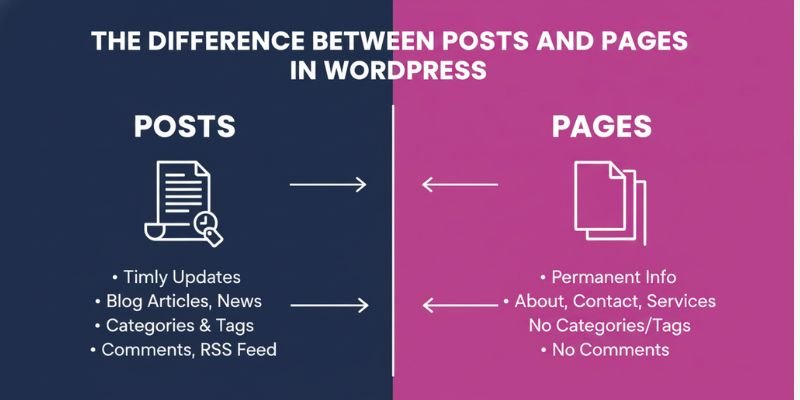
If you’re new to WordPress, one of the first questions that comes up is: What’s the difference between posts and pages in WordPress? They might look similar inside the dashboard, but they serve very different purposes. Posts are for timely updates like blog articles or news, while pages hold permanent information such as your About, Contact, or Services.
Knowing when to use each one can save you time, improve your SEO, and make your site easier for visitors to navigate.
So, let’s look closely at the difference between posts and pages in WordPress and why it matters for your site.
What Makes WordPress Posts and Pages Different?
WordPress posts are used for regular content updates, while pages hold static information like your Home or About page. The main difference lies in how they’re organized, displayed, and used across your site.
| Feature | Posts | Pages |
| Purpose | Share new content such as blog articles, tips, or news updates | Display permanent information like About, Contact, or Services |
| Date & Tags | Show the publish date and can be sorted using categories and tags | No publish date, and they don’t use categories or tags |
| Order | Listed in reverse chronological order (newest first) | Appear in your site’s navigation, not in the blog feed |
| Comments | Usually allows comments | Often have comments disabled |
| SEO Role | Help you attract visitors through regular updates and keyword-rich content | Strengthen site structure and user navigation |
| Example | “5 Ways to Speed Up Your WordPress Site” | “About Us” or “Privacy Policy” |
Tip: If you run a business website, use pages to introduce your brand and services, and posts to keep your audience engaged with fresh, valuable insights.
What Are WordPress Posts?
Posts are pieces of content that you publish regularly on your site. Think of them like diary entries or news articles.
They are usually used for blogs, news, and articles. Posts appear in reverse chronological order, which means the latest content shows up first. They are designed to keep your site fresh with regular updates.
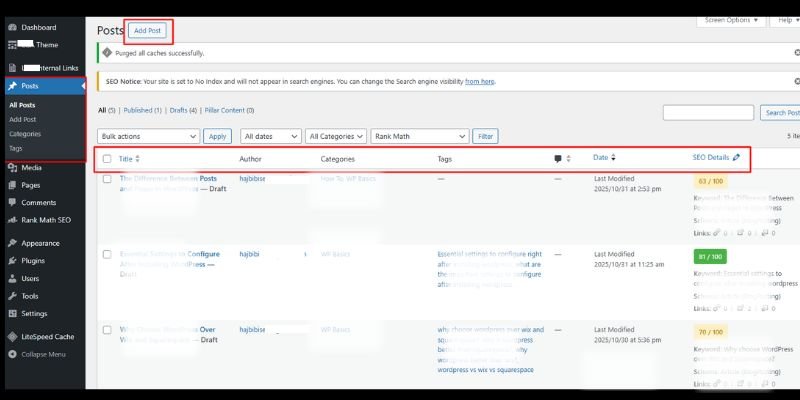
Main features of posts:
- Show the publish date and author.
- Appear in reverse chronological order (latest first).
- Can be organized with categories and tags.
- Allow comments (you can enable or disable).
- They are included in RSS feeds (so subscribers get updates).
- Posts appear in your blog feed and archives.
Examples: If you run a travel blog, every trip story you write is published as a post.
Tip: Posts are best when you want content that changes often or encourages discussion.
WordPress Posts Explained: 5 Things to Know
- Posts are Time-Based → They are listed by date, newest first.
- Posts Show in Blog Feeds → Visitors see your latest articles easily.
- Comments are Enabled by Default → Posts encourage discussion and sharing.
- Posts are Organized in Archives → WordPress automatically sorts them by date, category, or tag.
- Posts Can Be Grouped with Categories and Tags → Helps readers and search engines find related content.
What Are WordPress Pages?
Pages are static and don’t change much over time. They’re meant for timeless content. Best for permanent information like “About Us,” “Contact,” or “Privacy Policy.” Pages don’t show up in your blog feed, and they are usually linked directly from your site’s navigation menu.
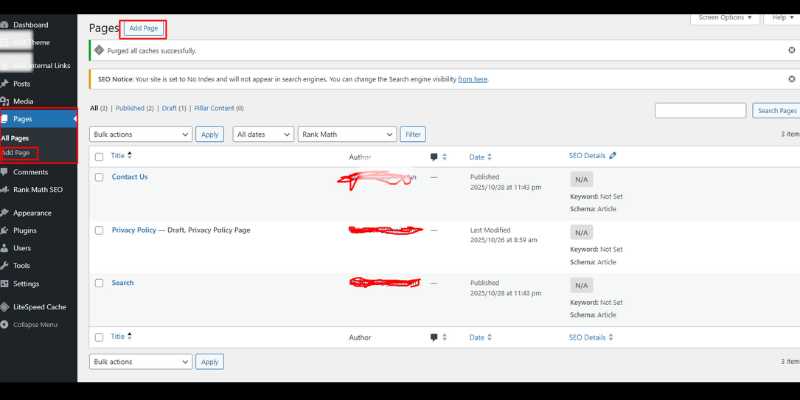
Main features of pages:
- No author or publication date shown.
- Do not use categories or tags, but you can arrange them in parent/child order.
- Not included in RSS feeds.
- Commonly used in site navigation menus.
Examples: About Us, Contact, Services, Privacy Policy.
Tip: Pages are best for content that should always be accessible and professional.
WordPress Pages Explained: 5 Things to Know
- Pages Contain Evergreen Content → Pages are for information that rarely changes.
- Pages Can Be Organized in a Hierarchy → You can create parent and child pages (for example, Services → Web Design).
- Pages Have Their Own Settings → Unlike posts, you don’t assign categories or tags.
- Pages Can Have Different Templates → Themes and builders like Elementor let you design unique layouts for each page.
- Pages Do Not Appear in RSS Feeds → Because they aren’t time-sensitive.
What are WordPress Post Categories and Tags?
When managing content in WordPress, categories and tags help keep your posts organized and user-friendly. Both play a role in SEO and navigation, but they work in slightly different ways.
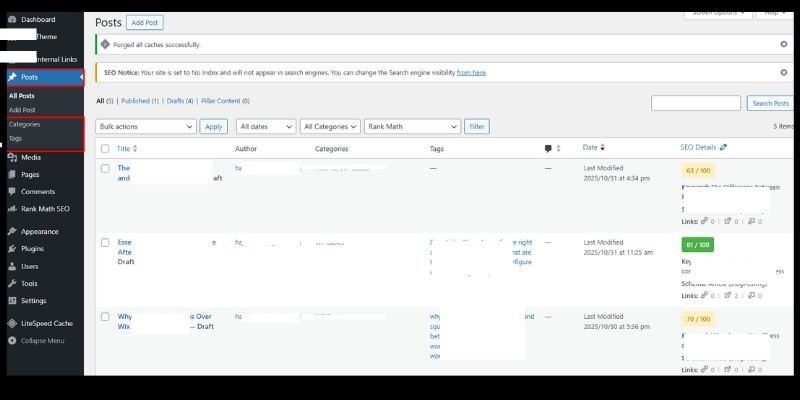
Categories
- Think of categories as the broad topics of your blog.
- For example, if you run a digital marketing website, your categories might be SEO, Content Marketing, or Social Media.
- Each post must have at least one category, and you can even create sub-categories for better organization.
Tags
- Tags describe specific details of your post, almost like labels.
- Using the same digital marketing example, a post under the SEO category could have tags like On-page SEO, Backlinks, or Keyword Research.
- Tags are optional, but they make it easier for visitors to find related content across your site.
Why does this matter?
- Categories help readers (and search engines) understand the overall structure of your site.
- Tags allow readers to jump straight into the details they care about.
- Together, they improve navigation, user experience, and SEO by creating a logical content hierarchy.
Pro Tip: Don’t overuse tags. Stick to a few that are directly relevant to your content; too many can confuse readers and dilute SEO benefits.
Posts vs. Pages: What are the Key Differences?
While posts and pages may look similar in the editor, they have very different roles. Posts keep your website active and updated, while pages act as the backbone of your site.
| Feature | Posts | Pages |
| Content Type | Time-based, dynamic | Evergreen, static |
| Author & Date | Visible | Hidden |
| Categories & Tags | Yes | No |
| Comments | Yes (optional) | Usually disabled |
| RSS Feed | Included | Not included |
| Placement | Listed in blog/archive | Linked in menus |
Example:
- Post = “10 Tips for WordPress SEO”
- Page = “Our Services”
When to Use a Post?
Posts are best when you want to share something new with your audience. They work well for content that will be replaced or updated by newer content.
- Blog updates
- News announcements
- Tutorials or guides
- Event details
Example: If you write weekly SEO tips, each tip should be a post.
When to Use a Page?
Pages are best for content that should always be easy to find. This content rarely changes and often represents key parts of your website.
- About Us
- Contact Page
- Services Page
- Legal pages (Privacy Policy, Terms of Use)
- Evergreen information that rarely changes.
Example: A lawyer’s website will have a “Services” page that remains the same over time.
Are Pages or Posts Better for SEO?
Both posts and pages can rank well in search engines, but they serve different SEO purposes. Posts are good for targeting fresh or trending keywords. Pages are good for competitive keywords and evergreen topics.
- Posts: Great for long-tail keywords and frequent updates. useful for SEO because they create fresh content, link to each other, and target specific keywords.
- Pages: Great for stable keywords like “Best Web Design Services.” Pages help build authority. Search engines value About and Contact pages because they show transparency.
Tip: Use posts to build topical authority and pages to target your main business keywords.
A strong website uses both. Posts drive regular traffic, while pages build trust.
Why Would You Use a Page Instead of a Post?
You’d choose a page when your content is timeless. For example:
- A business website’s “Contact Us” page.
- A portfolio page that always needs to be visible.
- Legal or policy documents.
If the information doesn’t expire, it belongs on a page.
Sometimes, you need content that won’t get buried under new updates. That’s when a page works better. A page stays in the same place and is easy for users to find.
Example: Your “Contact” page should never be pushed down by new blog posts; it should always be accessible from the menu.
What Is the Difference Between Post and Page in Elementor?
Elementor is a popular page builder plugin. You can design both posts and pages with it, but their roles don’t change.
When you design with Elementor, the editing experience looks the same for posts and pages. However, the way WordPress treats them is still different.
- Posts show up in your blog feed and archives.
- Pages remain static and are not listed with your posts.
Example: You can design both a “Contact” page and a “Blog Post” with Elementor, but they will serve different purposes.
How to Add Blog Posts to Pages in WordPress?
Method 1 (Default)
- Create a blog page
- Go to Settings → Reading.
- Choose a “Posts Page” (for example, Blog).
- WordPress will show all new posts there.
Method 2 (Custom)
- Use Gutenberg blocks like “Latest Posts.”
- Or use Elementor widgets to display posts on any page.
How to Change a Post to a Page in WordPress
If you published content as a post but later realize it should be a page, you can convert it in two ways:
- Manual Method:
- Copy the content of your post.
- Create a new page.
- Paste the content.
- Redirect the old post to the new page to avoid broken links.
- Plugin Method: Install “Post Type Switcher” to quickly change a post into a page.
How to Convert Page to Post in WordPress (Plugin Method)
Converting a page to a post in WordPress manually can take time. If you want a faster option, you can use plugins like Post Type Switcher.
- Install and activate the plugin.
- Edit the page or post.
- Switch the post type with one click.
This is useful when you need to fix multiple posts or pages.
The “Post Type Switcher” plugin works both ways. You can change a page into a post in just a few clicks. This is useful if you realize your content belongs in your blog rather than as static info.
Content Strategy: Balancing Posts and Pages
Every site needs both. The balance depends on your type of website:
- Blogs: Mostly posts, with a few key pages (About, Contact).
- Business websites: Mostly pages (Services, Portfolio) with some posts (News, Blog).
Example: A bakery website.
- Pages: “Our Menu” and “Contact Us.”
- Posts: “5 Easy Cake Recipes” or “New Cupcakes This Week.”
Common Mistakes Beginners Make
New WordPress users often mix up posts and pages. This can create confusion for readers and harm SEO.
- Using pages for blog articles.
- Publishing all content as posts (even static content like About Us).
- Forgetting to set a blog page.
- Writing blog articles as pages.
- Ignoring categories and tags for posts.
- Forgetting to create must-have pages (About, Privacy, Contact).
Practical Tips for Beginners
For beginners, it’s easy to get lost between posts and pages. Here are some simple tips to help you organize your WordPress site effectively and make it user-friendly.
- Create must-have pages first: Start with essential pages like About Us, Contact, Services, and Privacy Policy. These form the backbone of your site.
- Plan blog posts around audience needs: Think about what your visitors want to read and create posts that answer their questions.
- Add posts to different pages using categories or custom menus:
- Use categories to group posts by topic (e.g., Tutorials, News, Recipes).
- Use menus or widgets to display posts on different pages.
- This makes it easier for visitors to find related content.
- Use categories to group posts by topic (e.g., Tutorials, News, Recipes).
Conclusion
So friends, in this article, we’ve covered the difference between posts and pages in wordpress in detail. Understanding these two content types is key to keeping your website organized and easy to navigate. A WordPress post is a time-based entry, usually used for blogs or updates, while a WordPress page is static content that stays in one place, like About or Contact pages.
From my experience, the best approach is to start with your essential pages first, like About, Contact, and Services- and then focus on creating posts that answer your audience’s questions or share updates. This way, your site remains professional, easy to manage, and optimized for SEO.
Now it’s your turn! Take a moment to review your website and check if your posts and pages are used correctly. Try applying these tips today, and feel free to share your results or any questions in the comments below. I’d love to hear how it works for you!
FAQs: WordPress Posts vs Pages
A WordPress post is for time-based content like blogs or news updates, while a page is static content such as About or Contact pages. Posts appear in your blog feed, and pages are linked from menus. Use posts for fresh updates and pages for permanent content.
Use a page for content that doesn’t change, like Services, Privacy Policy, or Contact pages. Posts are better for articles or news. Pages keep your site organized and easy to navigate.
Yes, you can manually copy the content into a new page. Or, use the Post Type Switcher plugin to convert posts to pages easily. This is useful if you published content in the wrong format.
Yes, the Post Type Switcher plugin allows you to change pages into posts quickly. This is helpful if you want the content to appear in your blog feed. It saves time compared to recreating content manually.
Create a page (e.g., “Blog”) and go to Settings → Reading. Set the page as your Posts Page, and WordPress will display all your posts there. You can also organize posts by category or tag for better navigation.
Use WordPress widgets, shortcodes, or page builders like Elementor. You can filter posts by category, tag, or most recent. This lets you show relevant posts on any page you want.
Usually, no. Pages are meant for static information, so comments are often disabled. Posts allow comments to encourage reader engagement.
Both can rank in Google if optimized. Posts are good for fresh content and targeting multiple keywords. Pages are good for evergreen topics and building authority.
Posts: blog articles, news updates, tutorials.
Pages: About Us, Contact, Services, Privacy Policy.
Posts are for dynamic content, pages are for static content.
Plugins make it simple to manage your content type without starting over. You can switch posts to pages or vice versa in a few clicks. This keeps your WordPress site organized and efficient.



- Be Respectful
- Stay Relevant
- Stay Positive
- True Feedback
- Encourage Discussion
- Avoid Spamming
- No Fake News
- Don't Copy-Paste
- No Personal Attacks
- Be Respectful
- Stay Relevant
- Stay Positive
- True Feedback
- Encourage Discussion
- Avoid Spamming
- No Fake News
- Don't Copy-Paste
- No Personal Attacks
